Category: Business Intelligence

Oracle Business Intelligence (OBIEE) 12c Released

Oracle has released Oracle Business Intelligence (OBIEE) 12c.
The 12c release of OBIEE has some cool new features that will be beneficial for many enterprises.

obiee12c

Below is a listing of the key benefits and features of the new release from the release data sheet.
If the lists peak your interest, you can get more information at the links provided below.

KEY BENEFITS
• Stunningly visual and easy to use.
• Faster time to value, higher ROI.
• Radically simple install, upgrade, and management for lower TCO.
• Comprehensive platform, from self-service to advanced analytics to operational analysis at scale.
• Seamless analytics across Cloud and on-premises.
• Self-service agility in a central, secure platform.
• No modeling or specialized resources required for data mashup.
• Instant mobile, no extra work required.
• Voice-enabled—talk to your data.
• Analytics anywhere with full mobile authoring.
• Easy to extend advanced analytics.
• Direct access to Big Data sources.
• Faster in-memory processing.

KEY FEATURES
Visual Analytics
• Stunning data visualization.
• Secure sharing and collaboration.
• Intelligent highlighting automatically connects related data.
• Seamless user experience allows intuitive transition from discovery to dashboard.
Self-Service
• Self-service data loading, no modeling required.
• Self-service blending of personal and corporate data.
• Automatically inferred connection between data sets.
Mobile
• Touch and voice enabled, literally talk to your data.
• Full mobile authoring.
• Adaptive design for any device.
• Native sharing with other applications for both Android and Apple.
• Notifications on Android wear and Apple watch.
Advanced Analytics
• Integration with hundreds of free functions.
• Free R distribution for custom analytics, no RPD changes required.
Performance
• More in-memory processing
• In-memory Essbase on Exalytics
New Data Sources
• Direct access to Oracle Hyperion application data.
• Personal self-service data.
• Direct access to Cloudera Impala.
Easy Upgrade
• One file (BAR) for upgrade, backup, restore, recovery.
• Free Baseline Validation Tool

To learn more, you can visit the Oracle Business Intelligence website here …
https://www.oracle.com/solutions/business-analytics/business-intelligence/index.html

Or go directly to the data sheet for the new release that has more details about the new features and benefits …

Click to access bi12c-data-sheet-2745977.pdf

OBIEE Performance Tuning

This post describes a few tips and things to keep in mind for OBIEE Performance Tuning.

Be Proactive when possible
The need to performance tune can be proactive (tune before a major issue arises) or reactive (tune after a problem is reported by users for example).  It is best to be proactive – so performance tuning should be built into your OBIEE maintenance schedule. For example, OBIEE’s Usage Tracking functionality should be used regularly to identify reports whose performance can be improved and then performance steps should be carried out on the worst performers.

Iterative Process – change one thing or set of things at a time
One of the first things to keep in mind is that performance tuning is an iterative process.  And there is typically no one silver bullet that will resolve all your performance problems.  You may need to analyze and make changes to multiple parts of the system, but you want to make the changes methodically.  It is best to change one parameter or setting at the same time (or one related set of parameters).  Adjust and test the settings for that one parameter/setting (or set of parameters) before moving on to another.  If you change too much at one time, you may have a difficulty determining what is helping from what is hurting your efforts.

Fix user complaints first, worst performers next, and then the next bad performers down the list
Another thing to keep in mind, tune what users are reporting first, then tune the worst problems second, then move on to the next.

Team Effort – problem could be anywhere along the technology stack
Performance problems could be anywhere along the technology stack:
• OBIEE
• Database
• Server
• Network
Due to that span of technology, performance tuning is a team effort.  OBIEE Admins and Developers, DBAs, and ETL Developers can all be key to solving performance issues.
Logs from all components may need to be reviewed depending on the scenario.

Try to isolate or narrow-down the source of the problem
For example, run the report SQL directly on the database and see if you have the same problem. If there is no issue when run directly on that the database, then you have eliminated the database as the problem.
Determine if other applications have been also been experiencing slowness which could indicate the possibility of a network problem.

If your users have reported an issue, then you need to get as much details as possible about the performance problems they are experiencing.  When did this start happening?  Is it just one report or many?  Is it localized to one business area or multiple?  Is it all the time or sometimes?  Knowing this will help you to know where to focus.

Other questions to ask as you try to identify the source of the problem include but not limited to:
Has anything changed?  If reports were running fine, but are now slow, the first thing to ask is …
When the issue start?  Determining exactly when it started might be helpful when correlating with other system or company activity)
What has changed recently?  Has there been any system changes, data changes, database updates, network changes, etc. (even if they seem unrelated)?  For example, rolling into a new calendar year will cause new “Year” value(s) to be included in the data and can impact performance if statistics are not gathered.
Is there a possibility that an index was dropped and not recreated as expected?

Use OBIEE’s Usage Tracking information to analyze specific reports, analyze long running reports, or frequently run reports.  You will want to capture and analyze the SQL from these reports to determine what can be done to improve their performance.

Database
DBAs can monitor the system in real-time, use various tools, or review logs for information that can be helpful in the tuning effort.  Tools such as Oracle Enterprise Manager (EM) or SQL Tuning Advisor can be used to identify, analyze and tune high-load SQL.
OBIEE Usage Tracking can also be used to identify high-load SQL.
Without getting into much detail, these are some database features that could be used to help improve performance:
• Gather Statistics
• Results Cache database feature
• Partitioning

Servers
The System Admins can monitor the server resources to determine if there is an issue there.
• Use fast disk for the OBIEE cache and/or temporary files.


OBIEE-specific performance tuning tips

• OBIEE Caching
Are the tables being used set to cacheable?
Is caching turned on at the application level?
You may consider seeding the cache daily.
CACHE Settings:
o MAX_ROWS_PER_CACHE_ENTRY
o MAX_CACHE_ENTRY_SIZE
o MAX_CACHE_ENTRIES
o ——————-
o USE_ADVANCED_HIT_DETECTION

• Use Aggregation: Aggregate data when applicable
o You can use Aggregate tables or materialized views to realize this benefit.
o Aggregate Fact tables and corresponding Aggregate Dimensions.
o Make sure aggregation rules are applied to Fact table measures.
o Don’t necessarily merge all measures into a single fact.

• Joins and Indexes
o Do not create unnecessary joins.
o Verify that the joins on the tables being investigated are appropriate.
o Performance Indexing could be helpful.  Again, this is an iterative process.

• Prompts and Filters
o Use LOV tables to drive prompt values when possible, instead of building prompts from large transactional data tables.
o Force filter selection / entry by making prompt values required.  Do not allow open ended run of reports.

• Filter out unneeded data.  If there is a significant amount of data that is not being used in one or more tables (especially if they are frequently used), then that data should be filtered out by the ETL before it gets joined in SQL, and then has to be filtered out in the RPD or at the report level.

• Enter the “Number of Elements at this level” value in the logical level in hierarchies.
• Also ensure that all logical level keys are unique.

• Avoid function in the where clause when possible.

• Be careful of sub-queries.

• Check out the features of the OBIEE Performance Monitor
http://server:port/analytics/saw.dll?Perfmon  (enter your OBI server and port)

• When possible, do comparison analysis to determine for example, why is this report running fine, but this other seemingly similar report is not.

• Use fast disk for the OBIEE cache and/or temporary files.

Sometimes a complete overhaul might be required
Review the users’ workflow and determine if new and improved queries can be written or if the number of queries can be reduced.
Present information from a summary level first, and then provide increasing levels of details as requested by users through drill down or navigation.  Basically, present detailed information only when necessary, and minimize the amount of detail provided at a time by filtering on user selections.

Oracle’s OBIEE Performance Tuning Guide
Apply recommendations from the “Best Practices Guide for Infrastructure Tuning Oracle® Business Intelligence Enterprise Edition 11g Release”.  I would recommend applying 1 – 3 changes or set of changes at a time; don’t apply everything at the same time because if there is a problem, it will be more difficult to determine which change caused it.
https://blogs.oracle.com/proactivesupportEPM/entry/wp_obiee_tuning_guide

“The connection has failed” Error when trying to Import Metadata into OBIEE

If you get the error “The connection has failed” when you try to Import Metadata into the RPD, this post may help you to resolve it.

The solution is to: Create an Environment Variable called TNS_ADMIN and set its value to the directory of your tnsnames.ora file.
The TNS_ADMIN variable tells Oracle Client where to find the tnsnames.ora file which contains your data source details.

In case you need the details:
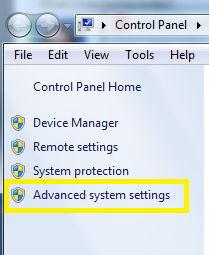
Click the Windows Start menu –> Right-Click on Computer –> select Properties
Then click on “Advanced system settings” on the left.
Advanced_System_Settings

Click the “Environment Variables” button.
Then in the Environment Variables window, click New.
Enter the details for the TNS_ADMIN variable.  The value needs to be the path to your tnsnames.ora file, typically located at [ORACLE_HOME]networkadmin. The path will look something like the value shown below (it depends on where Oracle is installed on your system).
TNS_ADMIN_Environment_Variable

 Hope this helps.

WebLogic startup failure – BackendRoot cannot cast to BackendStandard

My colleague from a previous company contacted me recently to help with a problem. OBIEE was not starting up.  They had a power failure the night before, and then OBIEE would not start up.  The system is OBIEE 11g on Linux.

This is the error that was generated when trying to start the WebLogic Admin Server…

——-

<Mar 28, 2014 9:11:35 AM EDT> <Critical> <WebLogicServer> <BEA-000362> <Server failed. Reason: There are 1 nested errors: java.lang.ClassCastException: com.octetstring.vde.backend.BackendRoot cannot be cast to com.octetstring.vde.backend.standard.BackendStandard         at weblogic.ldap.EmbeddedLDAP.start(EmbeddedLDAP.java:303)         at weblogic.t3.srvr.SubsystemRequest.run(SubsystemRequest.java:64)         at weblogic.work.ExecuteThread.execute(ExecuteThread.java:209)         at weblogic.work.ExecuteThread.run(ExecuteThread.java:178) > < Mar 28, 2014 9:11:35 AM EDT> <Notice> <WebLogicServer> <BEA-000365> <Server state changed to FAILED> < Mar 28, 2014 9:11:35 AM EDT> <Error> <WebLogicServer> <BEA-000383> <A critical service failed. The server will shut itself down> < Mar 28, 2014 9:11:35 AM EDT> <Notice> <WebLogicServer> <BEA-000365> <Server state changed to FORCE_SHUTTING_DOWN>

——– 

After trying a few things that did not resolve the issue, an online search helped with the solution. This post was very helpful: https://community.oracle.com/thread/2285489?tstart=0

After reading through the post, we went to the below directory on the OBIEE server (Linux) and examined its contents:

$MIDDLEWARE_HOME/user_projects/domains/bifoundation_domain/servers/AdminServer/data/ldap/ldapfiles

[oracle@[SERVERNAME]]$ cd /u01/product/middleware/user_projects/domains/bifoundation_domain/servers/AdminServer/data/ldap/ldapfiles [oracle@aeledwpbi ldapfiles]$ ls -l total 11308

-rw-r—– 1 oracle oinstall 10071624 Mar 27 08:40 changelog.data
-rw-r—– 1 oracle oinstall    56940 Mar 27 08:40 changelog.index
-rw-r—– 1 oracle oinstall   804359 Mar 27 08:40 EmbeddedLDAP.data
-rw-r—– 1 oracle oinstall     2028 Jun 25  2013 EmbeddedLDAP.delete
-rw-r—– 1 oracle oinstall     3576 Jun 25  2013 EmbeddedLDAP.index
-rw-r—– 1 oracle oinstall        0 Mar 28 12:36 EmbeddedLDAP.lok
-rw-r—– 1 root   root       615242 Mar 27 08:40 EmbeddedLDAP.tran
-rw-r—– 1 oracle oinstall        8 Mar 27 08:40 EmbeddedLDAP.trpos
-rw-r—– 1 oracle oinstall        8 Mar 27 08:40 EmbeddedLDAP.twpos

Note how one of the files (EmbeddedLDAP.tran) is owned by “root”. It seems the power outage caused something unusual to happen resulting in “root” being assigned ownership of the file.

After having the system administrator change the owner from “root” to “oracle” (the OBIEE admin user), we were able to start the OBIEE system back up.

New OBIEE Tuning Guide (Version 4) – released Jan 2014

A new version of the OBIEE Tuning Guide (Version 4) was released in January, 2014.  It is suitable for OBIEE 11.1.1.6 and 11.1.1.7 versions.

It can be found on Oracle Support under Document ID 1333049.1.   Or here is a direct link to the document (PDF).

—————————————-

New highlights from the previous document include:

  •     Optimized JVM switches for JRockit / Sun JVM / IBM JVM
  •     New tuning parameters settings / values for JavaHost / OPIS / OBIS components.
  •     Improved performance monitoring techniques.
  •     IBM WebSphere tuning parameters.
  •     More WebLogic Server tuning parameters.
  •     Windows Server 2012 tuning parameter.
  •     New optimized Linux / AIX tuning parameters.
  •     Additional Essbase ASO tuning parameters.
  •     libOVD authenticator search tuning

—————————————-

As always, this document provides us with recommended baselines or starting points, but the appropriate settings for each environment will vary.

It’s all about the users – Identifying Users for your BI applications / dashboards

One of the first things you will need to do before developing your Business Intelligence (BI) applications or dashboards is … identify who will use it.  You need to identify who will be using the application – what business areas they belong to, what groups they belong to, what are the various functions or roles within those groups, and eventually, who are the actual people.  After identifying the various roles (groups of users typically associated with a business process or function), then you can identify their needs.  Starting any development before knowing who will be using the system could result in a lot of wasted time and effort or a sub-optimal system.  The grouping of information on dashboards, the available functionality and security will be driven by these roles and their respective needs.

After identifying the various functions or roles that users posses, then it is important to understand how each role performs their job functions.  You need to understand what information they need and in what order, how it’s used, and the level of detail required at various stages. With this information, you will determine the dashboards, dashboard pages and their order, the information on each dashboard page and its precedence and level of detail, and what detailed information is needed via drill down. Basically, you will be creating the analytic workflows for the identified roles and the various processes, functions and tasks that they perform.

When performing the above exercise, please be as discrete as possible.  For example, even if someone doubles as an AP/AR Analyst, you should still analyze and plan for 2 separate roles – AP Analyst and AR Analyst – because those are 2 separate functions.  Later, the individual or group can be granted permissions to both roles.  From a security standpoint in general, you will create the necessary BI application roles to support your business roles.  And then assign security based on these roles.

In general, always keep the focus on the users, what they need to accomplish, and the most efficient ways to help them perform their jobs.  When you build the BI security and dashboards to meet those needs and usage scenarios, it will result in higher and faster user adoption.  This will take time, so do not rush the process.  Get detailed information about all the steps in their workflow upfront, document it, and then build around it.  However, on the other hand, you do not have to document to perfection upfront, you can take a more agile approach of developing based on fairly good user profiles to give users working prototypes, and then adjusting as new information and feedback is received from the users.

Good luck identifying your users and their needs as you get your BI project rolling.  And remember, it’s all about the users!

Oracle Business Intelligence Applications (OBIA) Fact Tables

Dimensionally modeled (star-schema designed) data warehouses are primarily made up of two types of tables – Fact and Dimension.  Fact tables store the measurements generated by business events (# of orders, amount of dollars, etc.); and Dimension tables store the descriptive attributes that provide context to the measurements (product [product name], customer [customer type], date, etc.).

This post describes the types of Fact tables found in Oracle Business Intelligence Applications (OBIA) data warehouse – Oracle Business Analytics Warehouse (OBAW).  There will be future posts that describe in detail the other table types in OBIA (Dimension, Internal, etc.).

The 5 types of Fact tables used in the OBAW are:

  1. Transactional
  2. Aggregate
  3. Cycle Lines
  4. Snapshot
  5. State Transition.

The Transactional Fact Table is the main type of fact table. It stores the lowest-level of information from transactional sources. An example of a Fact table in OBIA (Financial Analytics) is: W_GL_BALANCE_F
Note: Fact tables in OBIA end with “_F”.
This table stores the current balance for GL accounts by GL_ACCOUNT and other dimensions.

The Aggregate Fact Table is typically used for performance improvements.  It is a summarized or rolled-up version of the Transactional fact table.  Instead of querying the data at the transactional level – which is the most detailed level and the level with the most records, the Aggregate table allows you to query the data at a more rolled up level when appropriate.  One of the most frequent roll-ups is time – for example, a transactional table at a day level is rolled up to the month level.
Aggregate tables can be tens of times less (or even hundreds) than their transactional versions.  These types of tables are also very common in OBIA and in data warehousing in general.

An example of an Aggregate Fact Table in OBIA (Financial Analytics) is: W_GL_BALANCE_A
Note: Aggregate Fact tables in OBIA end with “_A”.
This table stores the GL account balances aggregated by GL Account Segment and other dimensions. Instead of having data at the GL_ACCOUNT level as in the Transactional fact table, the data is at the GL Account Segment level in the Aggregate table.  Aggregate Fact tables are derived from Transactional Fact  Tables or other Aggregate Fact tables. This table is derived from the transactional fact table mentioned above: W_GL_BALANCE_F.

The Snapshot Fact Table stores “snapshots” of measurements taken at well-defined, predetermined time intervals – such as daily, monthly, annually, etc.  Examples include Inventory and Account Balance snapshots, and AR/AP aging snapshots.  Common items such as financial reports or bank statements are examples of reports from Snapshot Fact tables.

An example of a Snapshot table in OBIA(Supply Chain Analytics) is: W_INVENTORY_DAILY_BAL_F
Oracle’s description of this table will help to clarify its makeup and purpose.
The W_INVENTORY_DAILY_BAL_F fact table is used to represent at a point in time information of all inventory balances and inventory values related to products whose inventory is maintained by the business organization, these would typically include all inbound (purchased from external entities) products as well as outbound (sold to external entities) products. The inventory balance information is trended by copying historical snapshot information from this table at periodic points in time into history table W_INVENTORY_MONTHLY_BAL_F.
The W_INVENTORY_MONTHLY_BAL_F table stores a snapshot of inventory balance.
There is one row for each product and product storage location whose point in time inventory quantity and value information is maintained. The storage location could represent a warehouse or further divisions within a warehouse. This aspect is configurable within the product. All the dimension key links to the other Oracle Business Analytics Warehouse dimension tables, such as W_DAY_D, W_BUSN_LOC_D, W_PRODUCT_D, W_INVENTORY_PRODUCT_D, and so on, represent information associations at that point in time for that product inventory information. The DATE_WID column represents the date on which the inventory balance information is valid.

These tables can also have Aggregate versions:
As mentioned in the description for the W_INVENTORY_DAILY_BAL_F table above, there is an aggregate version.  However, snapshot tables are not necessarily aggregated like transactional tables, because many times the measures are non-additive or semi-additive. For example, you would not take your account monthly balance in January and add it to your account monthly balance in February to determine how much money you have – that would be wrong.

The W_INVENTORY_MONTHLY_BAL_F fact table is used to represent the monthly information of all the inventory balances and the inventory values related to products whose inventory is maintained by the business organization. This information includes all inbound (purchased from external entities) products and outbound (sold to external entities) products. The aggregation period is configurable, and has a preconfigured value of Monthly.
There is one row for each product and product storage location whose point in time (as of a month) inventory quantity and value information is maintained. All the dimension key links to the other Oracle Business Analytics Warehouse dimension tables such as W_DAY_D, W_BUSN_LOC_D, W_PRODUCT_D, W_INVENTORY_PRODUCT_D, and so on, and represents information and associations at that point in time for that product inventory information. The PERIOD_START_DT_WID and PERIOD_END_DT_WID column represents the aggregation bucket start and end dates. The column INV_BALANCE_DT_WID represents the date within this aggregation period on which the inventory balance information is valid.

The Cycle Lines Fact Table store measurements for multiple related business events and are therefore typically derived from multiple fact tables. They typically store process cycle times or provide the ability to easily determine process cycle times.  These tables are also called Accumulating Snapshot Fact tables because they are snapshots of different events accumulated on each other.  An example of a Cycle Lines Fact table is W_PURCH_CYCLE_LINE_F.

Here is Oracle’s description of the table which should help clarify its purpose: W_PURCH_CYCLE_LINE_F table tracks the time duration of all events pertaining to the purchase process commencing with a requisition. Information in this table enables analysis of the direct spend process within an organization beginning with a purchase requisition, its approval, the creation of an approved purchase order, its submission to a supplier, the creation of a purchase schedule and ending with its receipt of the products. It can be used to calculate the time taken to receive products that have been ordered, the time between the first receipt and last receipt of products that have scheduled for delivery. The W_PURCH_CYCLE_LINE_F table contains all the various dates associated with the processes such as submission, approval, ordering and receiving as well as quantities and amounts. While Other spend related fact tables capture individual process such as requesting, ordering, scheduling this table combines all the in one place for ease of analysis and reporting.

These Cycle Lines tables can also have aggregate versions. For example: W_PURCH_CYCLE_LINE_A This is an aggregate table of W_PURCH_CYCLE_LINE_F at a higher level of dimensionality. The Product dimension is replaced by a Product type dimension to give a high level analysis of the sourcing data. It stores Purchase Cycle Line records aggregated over a preconfigured Monthly time period and product types.

State Transition Fact Tables store state-transition metrics based on business events, such as customer state – new, top, dormant, lost, etc – based on the customer order activity.  These tables store or allow you to easily derived counts of the various states.  State Transition Fact tables are derived from Transactional or Snapshot fact tables.

Below are two examples of State Transition Fact tables in OBIA (Marketing Analytics):

The Customer Status History Fact: W_CUSTOMER_STATUS_HIST_F
This is a fact table that tracks the status of customers based on the frequency of orders they place with the organization. Possible statuses are NEW, RECENT, DORMANT and LOST. The time duration for each status bucket is configurable, out of the box being a calendar year.
The grain of this table is at a Customer, Customer Status and the Status Start Date level. Other important columns in this table include the Sold to and the Ship to location for the customer. These are derived based on the status bucket start date against the Customer Locations dimension table.

The Loyalty Member Status History Fact: W_LOY_MEMBER_STATUS_HIST_F
W_LOY_MEMBER_STATUS_HIST_F Fact table stores status changes of Loyalty members. Grain: One record for each member status changed.

That’s it for OBIA fact tables.  Understanding the types of fact tables and their purpose helps us to make better design choices when we set out to build new fact tables to represent business events, and it also helps us to quicker recognize and better analyze the data in these tables.
I hope you found this information useful. If you have information about other fact table types, please share.

How to conditionally set Interaction (Action Links) on a column in OBIEE 11g

This post shows an example of how to conditionally set Interaction (Action Links) on a column.

Most times, when you set “Interaction” on a column, you set it for the column under all conditions – this is the default.  However, it is possible to conditionally set “Interaction” on a column – so that the Interaction link is conditionally available.

Let’s look at an example …

You have a pivot table displaying Values by day range as shown below.  Interaction is set on the measure value, and therefore, a user can click on any of the measure values (in any column and any row) to drill/navigate to a more detailed report for example. 

(Note that all the measure values are “blue” indicating that they are hyperlinks allowing navigation to some other BI content).
1-Pivot_with_Interaction_Set_On_Measure_Value

Let’s now assume that you only want to make the Interaction available for the measure values associated with “Value A”.  Therefore, the row in your pivot table associated with “Value A” will have measure values that are clickable (hyperlinks), while the “Value B” row values will not.  In other words, you only want to allow drill down/navigation on “Value A” data.

To do this, from your analysis, edit the column properties, and go to the Interaction tab, and Edit the relevant Action Link.

3-Edit_Action_Link

Change the “Show Link” property from “Always” to “Conditionally”.

4-Show_Link_Conditionally

Then enter the condition(s) in the Conditions box. Such as in our example, we want to show/activate the action link only for “Value A” values.  So, choose the column, and then select “Value A” (and of course, do not select “Value B”).

5-Select_Value_for_Action_LInk

Now when you go back to your report, action links will only be available on the measure values for “Value A” row.

(Note that only the measure values associated with “Value A” are “blue” indicating that they are hyperlinks allowing navigation to some other BI content; while “Value B” values are black indicating that they are not clickable.)
6-After_Setting_Conditionally

You can add more conditions and more complex conditions as necessary. One thought that came to mind … I could even see this being used to conditionally set Action Links based on users – allowing some users to be able to click the action links while others just see the data without being able to click and navigate to other detail.

Changing the maximum number of values in a drop down list in OBIEE 11g – MaxDropDownValues

When you create a prompt that uses a drop down list in OBIEE, the drop down list is limited to 256 values by default.  If your list contains more values and you would like to see more values without having to click the “More” button, or if you would like to show less values, there is a configuration parameter that you can change to increase the number of values shown up to 1000.  You can set it to any value up to 1000, including values less than the default of 256.

To do this, edit the instanceconfig.xml file.  This file is located at …
[$FMW_HOME]/instances/instance1/config/OracleBIPresentationServicesComponent/coreapplication_obips1

Add the MaxDropDownValues parameter to the file.  If you do not already have a Prompts section, add it, and then add MaxDropDownValues between the Prompts tags.  And make sure that all this is between the ServerInstance tags which will already be there in the file.

Your config file will look something like this …

<ServerInstance>


    <Prompts>
        <MaxDropDownValues>1000</MaxDropDownValues> 
    </Prompts>

</ServerInstance>

Setting_MaxDropDownValues_InstanceConfig

After making these changes, you will need to restart BI Presentation Services for them to take effect. Then your drop down list will show up to 1000 (or less) values by default…

DropDownList_ShowingMax

Note: The numbers shown in the screenshot have no meaning whatsoever; they are just randomly generated sample data for example purposes. So, any similarity that they may have to any other number is strictly coincidental.

Weird prompt values in dashboard prompts after upgrade

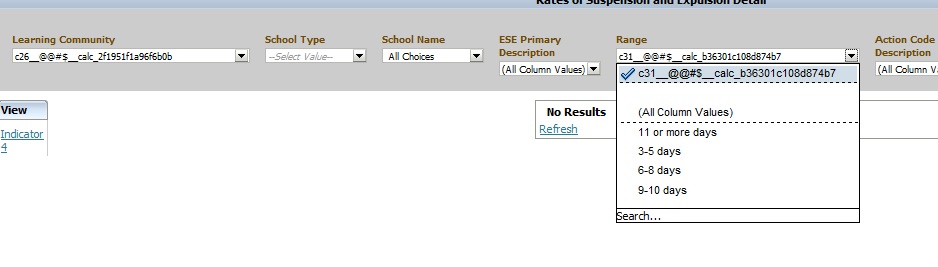
Have you noticed weird prompt values in your reports after upgrading OBIEE from 10g to 11g?  Below is an example of what you might see …

Weird_Prompt_Values

This is usually caused by calculated columns in the report.  You will need to remove those columns, and then add them back to the report.  And then, depending on what your calculated columns were being used for, you may want to consider using Selection Steps instead to accomplish the same logic.

If you know of another way to fix this scenario, please share.