Category: Business Intelligence

New OBIEE Tuning Guide (Version 4) – released Jan 2014

A new version of the OBIEE Tuning Guide (Version 4) was released in January, 2014.  It is suitable for OBIEE 11.1.1.6 and 11.1.1.7 versions.

It can be found on Oracle Support under Document ID 1333049.1.   Or here is a direct link to the document (PDF).

—————————————-

New highlights from the previous document include:

  •     Optimized JVM switches for JRockit / Sun JVM / IBM JVM
  •     New tuning parameters settings / values for JavaHost / OPIS / OBIS components.
  •     Improved performance monitoring techniques.
  •     IBM WebSphere tuning parameters.
  •     More WebLogic Server tuning parameters.
  •     Windows Server 2012 tuning parameter.
  •     New optimized Linux / AIX tuning parameters.
  •     Additional Essbase ASO tuning parameters.
  •     libOVD authenticator search tuning

—————————————-

As always, this document provides us with recommended baselines or starting points, but the appropriate settings for each environment will vary.

It’s all about the users – Identifying Users for your BI applications / dashboards

One of the first things you will need to do before developing your Business Intelligence (BI) applications or dashboards is … identify who will use it.  You need to identify who will be using the application – what business areas they belong to, what groups they belong to, what are the various functions or roles within those groups, and eventually, who are the actual people.  After identifying the various roles (groups of users typically associated with a business process or function), then you can identify their needs.  Starting any development before knowing who will be using the system could result in a lot of wasted time and effort or a sub-optimal system.  The grouping of information on dashboards, the available functionality and security will be driven by these roles and their respective needs.

After identifying the various functions or roles that users posses, then it is important to understand how each role performs their job functions.  You need to understand what information they need and in what order, how it’s used, and the level of detail required at various stages. With this information, you will determine the dashboards, dashboard pages and their order, the information on each dashboard page and its precedence and level of detail, and what detailed information is needed via drill down. Basically, you will be creating the analytic workflows for the identified roles and the various processes, functions and tasks that they perform.

When performing the above exercise, please be as discrete as possible.  For example, even if someone doubles as an AP/AR Analyst, you should still analyze and plan for 2 separate roles – AP Analyst and AR Analyst – because those are 2 separate functions.  Later, the individual or group can be granted permissions to both roles.  From a security standpoint in general, you will create the necessary BI application roles to support your business roles.  And then assign security based on these roles.

In general, always keep the focus on the users, what they need to accomplish, and the most efficient ways to help them perform their jobs.  When you build the BI security and dashboards to meet those needs and usage scenarios, it will result in higher and faster user adoption.  This will take time, so do not rush the process.  Get detailed information about all the steps in their workflow upfront, document it, and then build around it.  However, on the other hand, you do not have to document to perfection upfront, you can take a more agile approach of developing based on fairly good user profiles to give users working prototypes, and then adjusting as new information and feedback is received from the users.

Good luck identifying your users and their needs as you get your BI project rolling.  And remember, it’s all about the users!

Oracle Business Intelligence Applications (OBIA) Fact Tables

Dimensionally modeled (star-schema designed) data warehouses are primarily made up of two types of tables – Fact and Dimension.  Fact tables store the measurements generated by business events (# of orders, amount of dollars, etc.); and Dimension tables store the descriptive attributes that provide context to the measurements (product [product name], customer [customer type], date, etc.).

This post describes the types of Fact tables found in Oracle Business Intelligence Applications (OBIA) data warehouse – Oracle Business Analytics Warehouse (OBAW).  There will be future posts that describe in detail the other table types in OBIA (Dimension, Internal, etc.).

The 5 types of Fact tables used in the OBAW are:

  1. Transactional
  2. Aggregate
  3. Cycle Lines
  4. Snapshot
  5. State Transition.

The Transactional Fact Table is the main type of fact table. It stores the lowest-level of information from transactional sources. An example of a Fact table in OBIA (Financial Analytics) is: W_GL_BALANCE_F
Note: Fact tables in OBIA end with “_F”.
This table stores the current balance for GL accounts by GL_ACCOUNT and other dimensions.

The Aggregate Fact Table is typically used for performance improvements.  It is a summarized or rolled-up version of the Transactional fact table.  Instead of querying the data at the transactional level – which is the most detailed level and the level with the most records, the Aggregate table allows you to query the data at a more rolled up level when appropriate.  One of the most frequent roll-ups is time – for example, a transactional table at a day level is rolled up to the month level.
Aggregate tables can be tens of times less (or even hundreds) than their transactional versions.  These types of tables are also very common in OBIA and in data warehousing in general.

An example of an Aggregate Fact Table in OBIA (Financial Analytics) is: W_GL_BALANCE_A
Note: Aggregate Fact tables in OBIA end with “_A”.
This table stores the GL account balances aggregated by GL Account Segment and other dimensions. Instead of having data at the GL_ACCOUNT level as in the Transactional fact table, the data is at the GL Account Segment level in the Aggregate table.  Aggregate Fact tables are derived from Transactional Fact  Tables or other Aggregate Fact tables. This table is derived from the transactional fact table mentioned above: W_GL_BALANCE_F.

The Snapshot Fact Table stores “snapshots” of measurements taken at well-defined, predetermined time intervals – such as daily, monthly, annually, etc.  Examples include Inventory and Account Balance snapshots, and AR/AP aging snapshots.  Common items such as financial reports or bank statements are examples of reports from Snapshot Fact tables.

An example of a Snapshot table in OBIA(Supply Chain Analytics) is: W_INVENTORY_DAILY_BAL_F
Oracle’s description of this table will help to clarify its makeup and purpose.
The W_INVENTORY_DAILY_BAL_F fact table is used to represent at a point in time information of all inventory balances and inventory values related to products whose inventory is maintained by the business organization, these would typically include all inbound (purchased from external entities) products as well as outbound (sold to external entities) products. The inventory balance information is trended by copying historical snapshot information from this table at periodic points in time into history table W_INVENTORY_MONTHLY_BAL_F.
The W_INVENTORY_MONTHLY_BAL_F table stores a snapshot of inventory balance.
There is one row for each product and product storage location whose point in time inventory quantity and value information is maintained. The storage location could represent a warehouse or further divisions within a warehouse. This aspect is configurable within the product. All the dimension key links to the other Oracle Business Analytics Warehouse dimension tables, such as W_DAY_D, W_BUSN_LOC_D, W_PRODUCT_D, W_INVENTORY_PRODUCT_D, and so on, represent information associations at that point in time for that product inventory information. The DATE_WID column represents the date on which the inventory balance information is valid.

These tables can also have Aggregate versions:
As mentioned in the description for the W_INVENTORY_DAILY_BAL_F table above, there is an aggregate version.  However, snapshot tables are not necessarily aggregated like transactional tables, because many times the measures are non-additive or semi-additive. For example, you would not take your account monthly balance in January and add it to your account monthly balance in February to determine how much money you have – that would be wrong.

The W_INVENTORY_MONTHLY_BAL_F fact table is used to represent the monthly information of all the inventory balances and the inventory values related to products whose inventory is maintained by the business organization. This information includes all inbound (purchased from external entities) products and outbound (sold to external entities) products. The aggregation period is configurable, and has a preconfigured value of Monthly.
There is one row for each product and product storage location whose point in time (as of a month) inventory quantity and value information is maintained. All the dimension key links to the other Oracle Business Analytics Warehouse dimension tables such as W_DAY_D, W_BUSN_LOC_D, W_PRODUCT_D, W_INVENTORY_PRODUCT_D, and so on, and represents information and associations at that point in time for that product inventory information. The PERIOD_START_DT_WID and PERIOD_END_DT_WID column represents the aggregation bucket start and end dates. The column INV_BALANCE_DT_WID represents the date within this aggregation period on which the inventory balance information is valid.

The Cycle Lines Fact Table store measurements for multiple related business events and are therefore typically derived from multiple fact tables. They typically store process cycle times or provide the ability to easily determine process cycle times.  These tables are also called Accumulating Snapshot Fact tables because they are snapshots of different events accumulated on each other.  An example of a Cycle Lines Fact table is W_PURCH_CYCLE_LINE_F.

Here is Oracle’s description of the table which should help clarify its purpose: W_PURCH_CYCLE_LINE_F table tracks the time duration of all events pertaining to the purchase process commencing with a requisition. Information in this table enables analysis of the direct spend process within an organization beginning with a purchase requisition, its approval, the creation of an approved purchase order, its submission to a supplier, the creation of a purchase schedule and ending with its receipt of the products. It can be used to calculate the time taken to receive products that have been ordered, the time between the first receipt and last receipt of products that have scheduled for delivery. The W_PURCH_CYCLE_LINE_F table contains all the various dates associated with the processes such as submission, approval, ordering and receiving as well as quantities and amounts. While Other spend related fact tables capture individual process such as requesting, ordering, scheduling this table combines all the in one place for ease of analysis and reporting.

These Cycle Lines tables can also have aggregate versions. For example: W_PURCH_CYCLE_LINE_A This is an aggregate table of W_PURCH_CYCLE_LINE_F at a higher level of dimensionality. The Product dimension is replaced by a Product type dimension to give a high level analysis of the sourcing data. It stores Purchase Cycle Line records aggregated over a preconfigured Monthly time period and product types.

State Transition Fact Tables store state-transition metrics based on business events, such as customer state – new, top, dormant, lost, etc – based on the customer order activity.  These tables store or allow you to easily derived counts of the various states.  State Transition Fact tables are derived from Transactional or Snapshot fact tables.

Below are two examples of State Transition Fact tables in OBIA (Marketing Analytics):

The Customer Status History Fact: W_CUSTOMER_STATUS_HIST_F
This is a fact table that tracks the status of customers based on the frequency of orders they place with the organization. Possible statuses are NEW, RECENT, DORMANT and LOST. The time duration for each status bucket is configurable, out of the box being a calendar year.
The grain of this table is at a Customer, Customer Status and the Status Start Date level. Other important columns in this table include the Sold to and the Ship to location for the customer. These are derived based on the status bucket start date against the Customer Locations dimension table.

The Loyalty Member Status History Fact: W_LOY_MEMBER_STATUS_HIST_F
W_LOY_MEMBER_STATUS_HIST_F Fact table stores status changes of Loyalty members. Grain: One record for each member status changed.

That’s it for OBIA fact tables.  Understanding the types of fact tables and their purpose helps us to make better design choices when we set out to build new fact tables to represent business events, and it also helps us to quicker recognize and better analyze the data in these tables.
I hope you found this information useful. If you have information about other fact table types, please share.

How to conditionally set Interaction (Action Links) on a column in OBIEE 11g

This post shows an example of how to conditionally set Interaction (Action Links) on a column.

Most times, when you set “Interaction” on a column, you set it for the column under all conditions – this is the default.  However, it is possible to conditionally set “Interaction” on a column – so that the Interaction link is conditionally available.

Let’s look at an example …

You have a pivot table displaying Values by day range as shown below.  Interaction is set on the measure value, and therefore, a user can click on any of the measure values (in any column and any row) to drill/navigate to a more detailed report for example. 

(Note that all the measure values are “blue” indicating that they are hyperlinks allowing navigation to some other BI content).
1-Pivot_with_Interaction_Set_On_Measure_Value

Let’s now assume that you only want to make the Interaction available for the measure values associated with “Value A”.  Therefore, the row in your pivot table associated with “Value A” will have measure values that are clickable (hyperlinks), while the “Value B” row values will not.  In other words, you only want to allow drill down/navigation on “Value A” data.

To do this, from your analysis, edit the column properties, and go to the Interaction tab, and Edit the relevant Action Link.

3-Edit_Action_Link

Change the “Show Link” property from “Always” to “Conditionally”.

4-Show_Link_Conditionally

Then enter the condition(s) in the Conditions box. Such as in our example, we want to show/activate the action link only for “Value A” values.  So, choose the column, and then select “Value A” (and of course, do not select “Value B”).

5-Select_Value_for_Action_LInk

Now when you go back to your report, action links will only be available on the measure values for “Value A” row.

(Note that only the measure values associated with “Value A” are “blue” indicating that they are hyperlinks allowing navigation to some other BI content; while “Value B” values are black indicating that they are not clickable.)
6-After_Setting_Conditionally

You can add more conditions and more complex conditions as necessary. One thought that came to mind … I could even see this being used to conditionally set Action Links based on users – allowing some users to be able to click the action links while others just see the data without being able to click and navigate to other detail.

Changing the maximum number of values in a drop down list in OBIEE 11g – MaxDropDownValues

When you create a prompt that uses a drop down list in OBIEE, the drop down list is limited to 256 values by default.  If your list contains more values and you would like to see more values without having to click the “More” button, or if you would like to show less values, there is a configuration parameter that you can change to increase the number of values shown up to 1000.  You can set it to any value up to 1000, including values less than the default of 256.

To do this, edit the instanceconfig.xml file.  This file is located at …
[$FMW_HOME]/instances/instance1/config/OracleBIPresentationServicesComponent/coreapplication_obips1

Add the MaxDropDownValues parameter to the file.  If you do not already have a Prompts section, add it, and then add MaxDropDownValues between the Prompts tags.  And make sure that all this is between the ServerInstance tags which will already be there in the file.

Your config file will look something like this …

<ServerInstance>


    <Prompts>
        <MaxDropDownValues>1000</MaxDropDownValues> 
    </Prompts>

</ServerInstance>

Setting_MaxDropDownValues_InstanceConfig

After making these changes, you will need to restart BI Presentation Services for them to take effect. Then your drop down list will show up to 1000 (or less) values by default…

DropDownList_ShowingMax

Note: The numbers shown in the screenshot have no meaning whatsoever; they are just randomly generated sample data for example purposes. So, any similarity that they may have to any other number is strictly coincidental.

Weird prompt values in dashboard prompts after upgrade

Have you noticed weird prompt values in your reports after upgrading OBIEE from 10g to 11g?  Below is an example of what you might see …

Weird_Prompt_Values

This is usually caused by calculated columns in the report.  You will need to remove those columns, and then add them back to the report.  And then, depending on what your calculated columns were being used for, you may want to consider using Selection Steps instead to accomplish the same logic.

If you know of another way to fix this scenario, please share.

Creating a new Security Realm in OBIEE 11g

When setting up security in OBIEE 11g, you may modify the default security realm (myrealm) that installs with OBIEE.   But even better, you may create a new security realm and leave the default realm untouched.

My preference is to leave the default realm untouched and create a new realm – this is a best practice in my opinion.  I think it is helpful to always be able to go back and look at the features and settings of the default security realm.  And you can name your new security realm more appropriately, such as, ABCIncSecurityRealm.

The link below (Paul Cannon’s Blog) brings you to a blog post about configuring OBIEE to use LDAP authentication, and the first part of the post covers creating the new security realm.  It is very detailed. I used it the first time I created a new security realm.

http://paulcannon-bi.blogspot.com/2012/07/configuring-ldap-authentication-for.html

Good luck creating your new security realm.

How to collapse or minimize a dashboard section by default in OBIEE

In OBIEE, you can easily set a dashboard section to be “Collapsible” which allows a user to collapse or minimize that section when desired.  By default, when a dashboard page is opened, the sections are maximized or expanded (i.e., not collapsed).

MaximizedExpandedSection

But what if you have a requirement to have a section minimized or collapsed by default?  There is no flag or option to do that.   This post shows you how to make a section minimized / collapsed by default.

I found the solution for making a dashboard section collapse by default here… http://www.orakelite.com/2013/01/iii-javascriptcss-tips-to-obiee-ui.html
However, the author did not include some details which I will cover here.

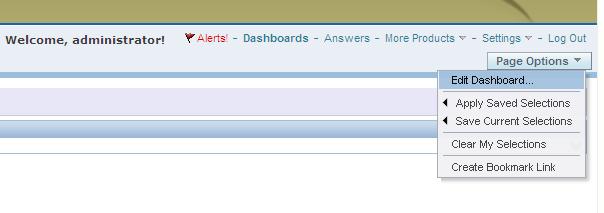
First, you need to make the section collapsible, by simply editing the dashboard…
EditDashboard

… and then setting the “Collapsible” property of the relevant section.
CollapsibleProperty

You will need to add the following Java Script to the section you want to minimize by default.
The text highlighted in the Java Script is the Section ID of the section to be minimized by default. So first you will need to find this Section ID.
——–

var sectionId = “d:dashboard~p:ve9fga7bp3omltnr~s:9qfn1ms6bco9bsva“;
var sectionDiv = document.getElementById(“Embed”+sectionId);
var plusImg = document.getElementById(sectionId+”Max”);
var minusImg = document.getElementById(sectionId+”Min”);
var contentsTable = document.getElementById(sectionId+”Contents”);
minusImg.style.display = “none”;
contentsTable.style.display = “none”;
plusImg.style.display = “”;
sectionDiv.setAttribute(“minimized”, “true”);

——–
To determine the value of the Section ID, you need to go to the dashboard page and from the browser menu, select View –> Source.

Search for the section by name, or just search for the word “section”. This should help you to identify what Section ID is related to the section you are interested in. (In example below, the black arrow points to the SECTION ID, and the red arrow points to the user given section name that can be used to search. )

SectionName

Use your Section ID in the Java Script code above.

Place the Java Script code in a “Text” dashboard object inside the section you want to control.

MinimizeSectionJavaScript 

Save your dashboard page changes.

Now when you reopen the dashboard page, the section will be minimized / collapsed by default.

CollapsedSection

Direct Links to various OBIEE User and Administration Presentation functions

These are some direct links to various OBIEE User and Administration functions.  These can be useful to know for efficiency and at times can also be useful for debugging security.

To go directly to “Home Page”
http://servername:9704/analytics/saw.dll?bieehome

To go directly to “Dashboard”
http://servername:9704/analytics/saw.dll?Dashboard

To go directly to “Manage Privileges”
http://servername:9704/analytics/saw.dll?PrivilegeAdmin

To go directly to “Manage Catalog Groups”
http://servername:9704/analytics/saw.dll?ManageGroups

To go directly to “Manage Sessions”
http://servername:9704/analytics/saw.dll?Sessions

To go directly to “Manage Agent Sessions”
http://servername:9704/analytics/saw.dll?ManageIBotSessions

To go directly to “Issue SQL”
http://servername:9704/analytics/saw.dll?IssueRawSQL&Done=%2fanalytics%2fsaw.dll%3fAdmin

To go directly to “Manage Map Data”
http://servername:9704/analytics/saw.dll?ManageMapData

To go directly to “Manage BI Publisher”
http://servername:9704/analytics/saw.dll?bipublisherEntry&Done=%2fanalytics%2fsaw.dll%3fAdmin&Action=admin

How to run Catalog Manager in GUI mode from the Linux Server

OBIEE Catalog Manager can be accessed from a client tool on Windows or from a server side process.  There are times when it is required that you run the Catalog Manager in offline mode, and at those times you will be required to run it on the server.

Although there is a command line option for Catalog Manager, it is easier to work with it in a Graphical User Interface (GUI) mode and at times its necessary to use that mode.

Start Xming (or another X-Windows type tool) on your local PC or laptop. [This will allow the Linux screens to show up on your desktop when you run the shell script on the Linux server]

For more on Xming, visit http://en.wikipedia.org/wiki/Xming

Connect to your Linux server from your desktop/laptop using Putty (or other tool).   Then go to the catalog manager directory:

cd [$FMW_HOME]/instances/instance1/bifoundation/OracleBIPresentationServicesComponent/coreapplication_obips1/catalogmanager

runcat-start-catalogmanager

Start up Catalog Manager by running:    ./runcat.sh

This will start Catalog Manager, and it will be running on the Linux server, but the screens will be showing on your desktop/laptop.

From the main Catalog Manager window, you can then click on File –>Open Catalog

catalogmanager_interface

And then select the Type based on how you want to connect – Online or Offline mode.  Accessing Catalog Manager in this way is most likely needed when you need to connect in Online mode.

And then of course, you need to enter the URL – which is the full path to the catalog, for example:[$FMW_HOME]/instances/instance1/bifoundation/OracleBIPresentationServicesComponent/coreapplication_obips1/catalog/default

And enter the User and Password.

catalogmanager_onlineoffline_login

Assuming everything was entered correctly, you will be connected to the catalog.  You can then use the interface to browse the catalog and perform other tasks on catalog objects.

catalogmanager_browsing

Good luck!