Category: Business Intelligence

How to generate detailed Oracle BI (OBIEE) Repository Documentation

In this post, I will show the steps for using the OBIEE “Repository Documentation” utility to generate repository (RPD) lineage information.  I will also provide a couple example of how this documentation (output file) can be used.

To access and run the Repository Documentation utility,  from the BI Admin Tool menu, select Tools -> Utilities.

biadmintool_menu_tools_utilities

From the Utilities dialog, select “Repository Documentation”, and click “Execute…”

utilitiesdialog

In the “Save As” dialog, select the destination and enter the name you would like for the output file.

saverepositorydocumentationdialog

When it finishes, it will generate the output csv file.  Note  – this will likely be a large file.  It will contain all your repository objects.

obieerepositoryoutputfile

The RPD documentation file will contain the following columns:
Subject Area, Presentation Table, Presentation Column, Description – Presentation Column, Business Model, Derived logical table, Derived logical column, Description – Derived Logical Column, Expression, Logical Table, Logical Column, Description – Logical Column, Logical Table Source, Expression, Initialization Block, Variable, Database, Physical Catalog, Physical Schema, Physical Table, Alias, Physical Column, Description – Physical Column

You can use this file to quickly track lineage from physical sources to the logical columns to the presentation columns and identify all the logic and variables in between.
You can also use it to identify where and how much a specified table, column, variable, etc. is used which will help you to identify dependencies and know the effect of making changes or deleting elements.

Development, Data Governance, and Quality Assurance teams may find this information useful in this format.

The ways of adding data to your Qlik Sense application

This post covers the basics of navigation and selection for getting data into your Qlik Sense application.  More information about each option will be detailed in upcoming posts.

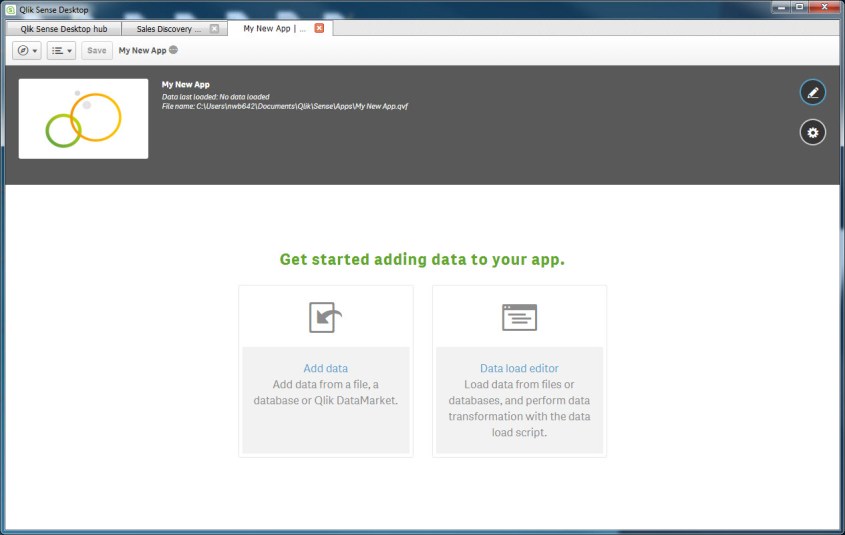
When you are working with a new app to which data has not yet been loaded, with the app open you can use the “Add data” or “Data load editor” icons shown below the app title area to initiate a data load.

Use the “Add data” icon to add data from a file, database, or Qlik DataMarket using the Quick Data Load (QDL) wizard.
Use the “Data load editor” (DLE) to load data from files or databases, and perform data transformation with data load scripts.
qliksense_newapp_adddata_dataloadeditor

If your app already has data, the area below the app title area will contain existing Sheets, Bookmarks, and Stories.  But you will still be able to access the QDL and the DLE.

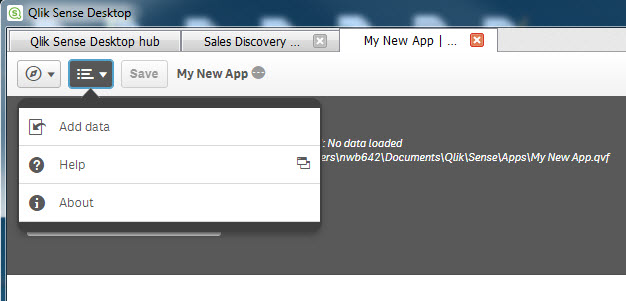
For the QDL wizard, you can access it from the Global Menu, and select the “Add data” menu item.
qliksense_globalmenu_adddata

For the DLE, you can access it from the Navigation menu, and select the “Data load editor” menu item.
qliksense_navigationmenu_dataloadeditor

More details about what comes next will be in upcoming posts.

Qlik Sense Desktop Hub Overview

When you start Qlik Sense, it will open to the “hub” page. And you may also see a “Welcome…” dialog window.

qliksensedesktopwelcomedialog From the “Welcome …” window, you may click the “Create a new App” button to start the process of creating a new app, or click the “x” in the top-right to close the window.

Optionally, you may uncheck the “Show this dialog at startup” checkbox before closing it, if you do not want to show this window on each startup of Qlik Sense.  If this was unchecked previously, then this Welcome dialog would not have appeared.

Once you have closed the Welcome dialog, you  will then be in the main hub interface. Let’s take a look at it.

qliksensedesktophubinterface

At the top left, you will see the Global Menu. From this menu you can access Help and About, and also access the Dev Hub.  The Global Menu expanded is shown below.

qliksenseglobalmenu

Below the Global Menu is the Apps area.  Here you will see the applications that have been created and saved.

At the bottom of the page, you will see a “Getting started…” button.  Clicking here will bring you to a Qlik Sense support page containing information and resources to help you get started with Qlik Sense.

To the right in the main area of the window, there is a “Create new app” button which you will use when you need to create a new app.

Then, there is an icon for sorting the apps alphabetically – ascending or descending.  Then, another pair of icons for organizing the display of the apps – either in grid format or in list format.

Above that (top-right), you will find the icon for Qlik Cloud, and another icon for Search.

Data Science Fundamentals: Regression

Data Science is very complementary to Business Intelligence, in that they are both used to gain insights from data. While Business Intelligence, generally speaking, is more about answering known questions, Data Science is more about discovery and providing information for previously unknown questions.

This is a continuation of a series of Data Science Fundamentals posts that I will be doing over the next few weeks.  In this post, I will be covering Regression and will include an example to make it more meaningful.  Previous posts covered Classification and Clustering. Upcoming posts over the next few days will cover Matching, and other data science fundamental concepts.

Regression analysis is a predictive modeling technique which investigates the relationship between a dependent or target variable and one or more independent or predictor variables. regressionIt can be used to predict the value of a variable and the class the variable belongs to and identifies the strength of the relationships and the strength of impact between the variables.  There are many variations of regression with linear and logistic regression being the most commons methods used.  The various regression methods will be explored at a later point in time.

An example of how Regression can be used is, you may identify products similar to a given product, that is, products that are in the same class or category as your subject product. Then review the historical performance of those similar products under certain promotions, and use that to estimate/predict how well the subject product will perform under similar promotions.

Another example is, you may use the classification of a customer or prospect to estimate/predict how much that customer/prospect is likely to spend on your products and services each year.

Classification determines the group/class of an entity, whereas Regression determines where on the spectrum (expressed as a numerical value) of that class the entity falls.  An example using a hotel customer – Classification: Elite Customer; Regression: 200 nights per year (on a scale of 100-366 nights per year)  or  top 10% of customers.

Data Science Fundamentals: Clustering

Like Business Intelligence, the essential purpose of Data Science is to gain knowledge and insights from data. This knowledge can then be used for a variety of purposes – such as, driving more sales, retaining more employees, reducing marketing costs, and saving lives.

This is a continuation of a series of Data Science Fundamentals posts that I will be doing over the next few weeks.  In this post, I will be covering Clustering and will include an example to make it more meaningful.  A previous post covered Classification. Upcoming posts over the next few days will cover Regression, Matching, and other data science fundamental concepts.

Clustering is similar to Classification, in that, they are both used to categorize and segment data.  But Clustering is different from Classification, in that, clustering segments the data into groups (clusters) not previously defined or even known in some cases.  Clustering explores the data and finds natural groupings/clusters/classes without any targets (previously defined classes).  This is called “unsupervised” segmentation.  It clusters the data entities based on some similarity that makes them more like each other than entities in other clusters.  Therefore, this is a great first step if information about the data set is unknown.

clustering_with_outlier
Clustering: 3 clusters formed (with an outlier)

The Clustering process may yield clusters/groups than can be later used for Classification. Using the defined classes as targets is called “supervised” segmentation.  In the diagram to the right, there are 3 clusters that have been formed (red pluses, blue circles, green diamonds).

After a Clustering process is completed, there may be some data entities that are clustered by themselves.  In other words, they do not fall into any of the other clusters containing multiple entities.  These are classified as outliers.  An example of this can be seen in the diagram where there is an outlier in the top-left corner (purple square).  Analysis on these outliers can sometimes yield additional insight.

Software such as R and Python provides functions for performing cluster analysis/segmentation on datasets.  Future posts will cover these topics along with more details on Clustering.

Data Science Fundamentals: Classification and Class Probability Estimation (Scoring)

Over the next 3 months, I will be focusing on Data Science and my next few posts will cover some fundamental topics of Data Science.

The essential purpose of Data Science, like Business Intelligence, is to gain knowledge and insights from data. This knowledge can then be used for a variety of purposes – such as, driving more sales, retaining more employees, reducing marketing costs, and saving lives.

In this post, I will be covering Classification and will include examples to make it more meaningful.  Upcoming posts over the next few days will cover Clustering, Regression, Matching, and other data science fundamental concepts.

Classification is the process of using characteristics, features, and attributes of a data entity (such as a person, company, or thing) to determine what class (group or category) it belongs to and assigning it to that class.  As an example, demographic data is usually a classification – marital status (married, single, divorced), income bracket (wealthy, middle-class, poor), homeowner status (homeowner or renter), age bracket (old, middle-aged, young), etc.

classification
Shapes are classified by characteristics such as number of sides, length of sides, etc.

When a large amount of data needs to be analyzed, Classification needs to be an automated process.  If the classes are not know ahead of time, a process called Clustering can be used on existing data to discover groups that can in some way be used to form the classes.(Clustering will be covered in an upcoming post)

Class Probability Estimation (Scoring) is the process of producing a score that represents the probability of the data entity being in a particular class.  As an example, Income Bracket – top 5%.

A few Use Cases and examples of Classification and Class Probably Estimation/Scoring are:

(1) Financial: credit risk – High-Risk, Medium-Risk, Low-Risk, Safe.
A person’s past credit history (or lack of one) will determine their credit score. And their credit score will determine what class of credit risk they fall into, and therefore, will determine if they get the loan, and how favorable the terms of the loan would be.

As an example of Class Probability Estimation (Scoring) for this use case, a person may fall in the Low-Risk class, but their credit score (sometime called FICO score) shows that they are in the low-end of the Low-Risk class making them bordering on Medium-Risk.

(2) Marketing: Marketing offer/promotion interest – Highly likely, Likely, Unlikely
Based on past promotions and those who responded to it, classification can be used to determine the likelihood of a person being interested in a specific marketing offer/promotion.  This is known as targeted marketing where specific promotions are sent only to those who will likely be interested, and therefore, different classes/groups may receive different marketing messages from the same company.

As an example of Class Probability Estimation (Scoring) for this use case, a customer or prospect could be scored as 70% Unlikely, or 90% Highly Likely.

(3) Customer Base: Top-customer, Seasonal Customer, Loyal customer, High-Chance of Losing customer, …
A company may use some set of criteria to classify customers into various categories. These categories can be used for various customer-focused efforts, such as marketing, special offers, rewards, and more.

(4) Fraud detection & security:  Transaction or Activity occurrence – Highly Unusual, Unusual, Normal
Based on past activity and all other activities as a whole, a person’s activity/transaction can be classified as unusual or normal, and the appropriate actions taken to protect their accounts.

(5) Healthcare:
Data from past health analysis and treatments can be used to classify the level of a patient’s illness, and classify their treatment class. This will then drive the recommended treatment.

(6) Human behavior/Workforce:
Today’s workforce consists of multiple generations (Baby Boomers, GenX, GenY/Millennials, etc) of workers.  Generational classification of people based on the period in which they were born is used for marketing purposes, but is also used to help educate a diverse workforce on understanding their team members of different generations and how to work with them.

There are of course many more types of classification and use cases. Feel free to share your use cases.

Creating a Custom Landing Page or Custom Home Page for your OBIEE / OBIA environment

Your organization may want to have a custom home page or landing page for your OBIEE or OBIA environment.  (I will use the term “Landing Page” going forward to not confuse it with the OBIEE delivered “Home Page”).  When users log in, they need to be automatically taken to this custom landing page instead of to the delivered OBIEE Home Page.

This post describes some of the reasons you may want a custom landing page, the content that could be on the page, how to automatically navigate users to the page, and security associated with the page.

Why would you want to create a Custom Landing Page?  The reasons will vary by organization, but these could be some of the reasons:

  1. Deliver the look and feel that your company or users desire.
  2. Allow for a place that serves as a central location for the content you want to emphasize, in the way you want to display it.
  3. Provide a central place for messages of any kind for your users.

What content will be on this Custom Landing Page?  Some of the possibilities are:

  1. Create a page with your custom logos, images, and colors that are in line with your company’s or department’s branding.
  2. A section with messages for your user community. This information could include things such as:
    1. The date/time of the last data load?
    2. The sources of the information displayed on your dashboards
    3. Information about recent dashboard releases
    4. Upcoming downtime
    5. Upcoming events such as user training events
    6. Action needed by the user community
  3. A section that lists links to useful resources, such as:
    1. user’s guides or tutorials
    2. dashboard and report glossary
    3. analysis/report request forms
    4. Security/Access Request forms
    5. general OBI information
  4. A section with Contact Information – containing information about who, what, when, how to contact people for help or information, or how to submit new requests for data/analyses/reports, maybe by functional area, etc.
  5. An area to display your company’s or division’s top key performance indicators (KPIs). These should be limited to just a few – I would say not more than 5 – and they should be relevant company-wide or “OBI user community-wide”.
  6. Links to dashboards. You may create an area or areas of links to various dashboards. Your dashboard list may include many of your dashboards or just a select few that you know are frequently used or that you want to emphasize.

All users that are authorized to use the OBI system will have access to this page.  So, maybe BI Consumer role will be provided access.

However, you will need to set security on the sections containing links to dashboards to allow access only to those authorized for the each set of dashboards.

Once your custom landing page is ready, you will then need to set it as the default page for users (or a subset of users).  To do this you will need to create an initialization block that sets the PORTALPATH built-in OBI variable to point to the new landing page dashboard page.

One final note … you can have multiple custom landing pages if you desire, for example, a different page for each division or a different page for each major group of users.  You would then need to set the PORTALPATH variable based on the user’s profile.

Good luck with your custom landing page project.

How to load data from multiple Excel files with similar but different names and varying number of sheets in QlikView

This post describes a scenario for loading data into QlikView from multiple Excel files with similar but different names and a different number of tabs.

Let’s say you need to load multiple Excel files containing information about orders into your QlikView application.  These files have different names, and each file may have a different amount of sheets.

For example, you may have several files with Order information from different sources for multiple dates such as:

CallCenter_Orders_20150312.xlsx
InStore_Orders_20150311.xlsx
SalesRep_Orders_20150312.xlsx
SalesRep_Orders_20150311.xlsx

Let’s say each file has one or more sheets representing regions/divisions – West, Mid-West, North East, and South.  Some files may have all 4 region/division sheets, while others may have just one region sheet.

This script is one possible way of loading this data in QlikView using a single script. With some adjustments, this script may also work for Qlik Sense, but I did not test exactly what changes would be needed.

//-----------------------------------------------
// set the errormode so that your script will not fail when one or more of
// the 4 sheets is not found in any particular file
 SET ErrorMode = 0;
OrdersFileData:
 LOAD [CustomerID]  as [Customer ID],
 [OrderID           as [Order Number],
 [OrderDate]        as [Order Date],
 [ShipDate]         as [Ship Date],
 [Notes]            as [Order Notes],
 [Turn around days] as [Turnaround Days],
 'WEST'             as [Division] //identify region/division on all records
 FROM [..DataText Files*Orders*.xlsx] //wildcard allows load from all
                                         //xlsx files with “Orders” in the name
 (ooxml, embedded labels, table is WEST);  //load from the West sheet
CONCATENATE (OrdersFileData) //append data from Midwest sheet from all files
 LOAD [CustomerID]  as [Customer ID],
 [OrderID]          as [Order Number],
 [OrderDate]        as [Order Date],
 [ShipDate]         as [Ship Date],
 [Notes]            as [Order Notes],
 [Turn around days] as [Turnaround Days],
 'MIDWEST'          as [Division]
 FROM [..DataText Files*Orders*.xlsx]
 (ooxml, embedded labels, table is MIDWEST);
CONCATENATE (OrdersFileData) //append data from Northeast sheet from all files
 LOAD [CustomerID] as [Customer ID],
 [OrderID] as [Order Number],
 [OrderDate] as [Order Date],
 [ShipDate] as [Ship Date],
 [Notes] as [Order Notes],
 [Turn around days] as [Turnaround Days],
 'NORTHEAST' as [Division]
 FROM [..DataText Files*Orders*.xlsx]
 (ooxml, embedded labels, table is NORTHEAST);
CONCATENATE (OrdersFileData) //append data from South sheet from all files
 LOAD [CustomerID] as [Customer ID],
 [OrderID] as [Order Number],
 [OrderDate] as [Order Date],
 [ShipDate] as [Ship Date],
 [Notes] as [Order Notes],
 [Turn around days] as [Turnaround Days],
 'SOUTH' as [Division]
 FROM [..DataText Files*Orders*.xlsx]
 (ooxml, embedded labels, table is SOUTH);

STORE OrdersFileData into ..DataQVDsOrdersData.QVD; // if loading to QVD 
DROP Table OrdersFileData; //if loading to QVD and not needed in memory
//-----------------------------------------------

Disallow online RPD updates in OBIEE

You may want to disable online updates on your OBIEE RPD for performance reasons or because you have a specific development process that prohibits online updates.

To disallow online RPD updates, do the following:
Log into Enterprise Manager. Navigate the tree menu to Business Intelligence -> coreapplication.  Click tabs “Capacity Management”, and “Performance”.

Under the RPD Updates section, check the box for “Disallow RPD updates”.

disallowRPD_updates

This will prevent online RPD updates for all.

If you want to allow a select group of people to have access to perform online updates, such as a lead developer or administrator, then don’t do the above, but instead provide Administrator role to those that should have the access, and remove it from those that should not (and give them BI Author role for example instead).


Installing Tableau Desktop

Tableau is a leading business intelligence software.  Its popularity has grown as a result of its ease of use, awesome visualizations, ability to connect easily to many data sources, its ability to make use of Big Data and Cloud sources, and many other traditional and cutting-edge features.

In this post, I will guide you through the installation of Tableau Desktop 9.  It’s pretty simple.

Go to http://www.tableau.com/ and click Products, or go directly to http://www.tableau.com/products.

tableau_installing_products

Under Tableau Desktop, click on “LEARN MORE”.

tableau_installing_tryitforfree

Click on “TRY IT FOR FREE”.

tableau_installing_download

Save the download to your computer.

tableau_installing_run

Click on Run from this dialog box

OR

Navigate to where you saved the download and double-click the file (in this example, TableauDesktop-64bit-9-3-4.exe) to execute or right-click the file and select Run as administrator.

tableau_installing_navigate

tableau_installing_runasadmin

tableau_installing_welcome

Read and accept the license agreement.

tableau_installing_welcome_accept_install

Click Install if you want to install with defaults.

Or you may also click Customize to change some default settings.  Clicking Customize will bring you to the following dialog.

tableau_installing_customize

From here you may change the install directory and check/uncheck options as you see fit.  Click Install.

tableau_installing_installing

Installation in progress.

tableau_installing_activate

Installation is complete. Choose the desired Activation schedule.

You have 14 days from activation to use the product.

tableau_installing_windowsmenu

Unless you had unchecked this option, Tableau will be added to your Windows start menu.

It’s that simple.