
Installing the OBIEE 12c Client is straight forward. Here are the steps.
Visit the Oracle Business Intelligence page on the Oracle website. Go to the Downloads tab.

Select the version of Oracle Business Intelligence (OBI) 12c that you want to install.
When the version download page appears, select “Accept the License Agreement”, and then under “Oracle Business Intelligence Developer Client Tool (12.x.x.x)”, click on “for Windows x86-64 bit” – (see green arrows below)

Download and save the file to your computer.
After the download is complete, go to the downloaded zip file … bi_client_12.x.x.x.x_Windows.X64.zip

Right-click on the file and select Extract All. Or extract using another method.
After the executable has been extracted, right-click on it and “Run as administrator”.

This will start the installer

Click through the next 5 steps


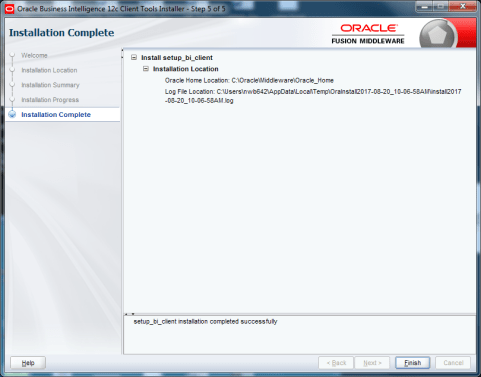
After the installation is complete, run one of the applications: Start -> Oracle Business Intelligence Client -> Administration

The Oracle BI Administration Tool should open and be ready for you to use it.

Thanks for reading. Hope this helps.
 The Data Community
Great Explanation ! Really, thank you for shared this step by step task !
LikeLike