
R is an open source software platform for data manipulation, statistical computing, calculation, analytics, and graphics. It provides a wide variety of statistical/mathematical and high-quality graphical capabilities. Some of the statistical capabilities include linear and nonlinear modeling, classical statistical tests, time-series analysis, classification, and clustering, and more.
You will find R useful in Analytics and Business Intelligence environments where data needs to be analyzed to uncover patterns or for better understanding and help make predictions and decisions.
In this post, we cover the installation of R.
To get started, go to http://www.r-project.org.
Click the “download R” link (underlined in yellow below).

Choose the CRAN (Comprehensive R Archive Network) mirror location closest to you.
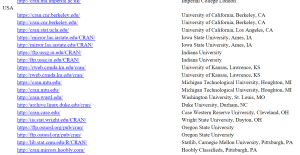
Choose the version for your install computer’s operating system (OS). In this example, we are installing on Windows – so we chose “Download R for Windows”.

Assuming this is your first install, click “base” or “Install R for the first time”.

Then, click “Download R 3.4.1 for Windows” (or whatever the appropriate version is at the time)
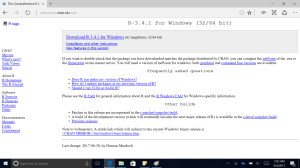
After the download is complete, go to the download directory, and double-click the R exe to run it.

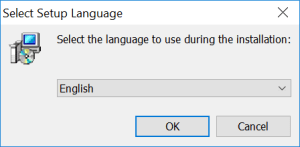
Choose your language
Click Next

Review the license agreement, click Next

Accept the default directory or enter/select a new one.
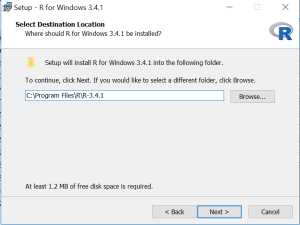
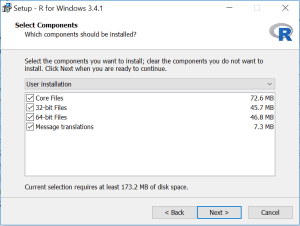
Select the components you want. If your PC is 32-bit, then unselect 64-bit if it is shown as an option. If your PC is 64-bit, you can install both 32-bit and 64-bit (default) or choose one of them.
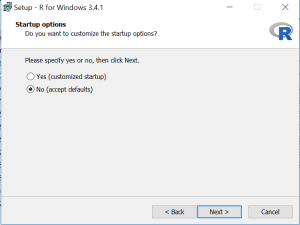
Choose No and click Next (unless you want to customize the startup options for R, but this can be done later)
Click Next

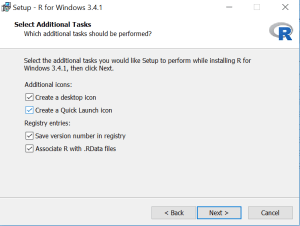
Choose Icon and Registry options
Installing
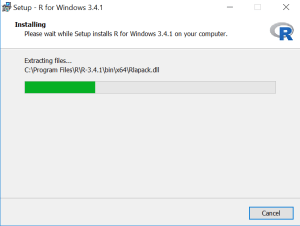
Click Finish to complete the installation

Desktop and Quick Launch icons

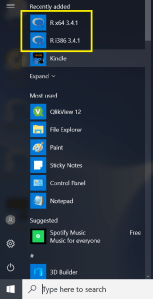
Run R.
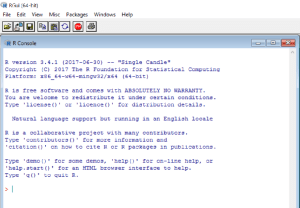
Next, we’ll cover installing RStudio.
Good luck on your R journey.
 The Data Community
2 thoughts on “Installing R on Windows”