Tag: OBIEE 12c

NULL values in prompts after upgrade from OBIEE to OAS

After upgrading from OBIEE to OAS (Oracle Business Intelligence to Oracle Analytics Server), the prompts started showing NULL values in the drop downs. This was not happening in OBI because we had the <ShowNullValueWhenColumnIsNullable> config parameter set to “never” for prompts.

This setting looked something like this in OBIEE (note the first line after the <Prompts> tag):

<ServerInstance>

<Prompts>
<ShowNullValueWhenColumnIsNullable>never</ShowNullValueWhenColumnIsNullable>
<MaxDropDownValues>256</MaxDropDownValues>
<ResultRowLimit>65000</ResultRowLimit>
<AutoApplyDashboardPromptValues>true</AutoApplyDashboardPromptValues>
<AutoSearchPromptDialogBox>true</AutoSearchPromptDialogBox>

</Prompts>

</ServerInstance>

In OAS, this parameter needs to be set in the new analytics/systemsettings page. Go to that page and set the option. Then restart by clicking on the Restart button on that page. After a restart, it resolved the issue for us.

We had a similar resolution to an issue we had with “not able to save analyses that contained HTML markup“.

OBIEE Agent sending emails to the wrong recipients

We recently ran into an issue where we had an OBI Agent setup to send personalized reports via email to each recipient but some recipients (about 2%) were receiving the wrong email.

A search of Oracle Support produced Document ID # 2119485.1 as a possible solution.

“OBIEE 11g|12c: Agents Send Emails To Incorrect Recipients When Master Trigger Agent Is Present (Doc ID 2119485.1)”

This document recommended applying patch #s 22821787 and 25545058.

However, we are on OBIEE 12c (12.2.1.2.0) and one of the patches seemed to be for 11g only.

  • Patch # 25545058 seemed to be for 11g only.
  • Patch # 22821787 was for both 11g and 12c versions.

We applied patch # 22821787, but unfortunately, the issue persisted.

After looking around some more, we realized there was another patch but for the 12.2.1.2.180116 release (found in Document ID # 2395331.1). It didn’t match our version, but we decided to explore it anyway.

“OBIEE 12c : Agent Sending The Incorrect Result (Doc ID 2395331.1)”

That was patch # 27072632 but it turns out that patch was superseded by patch # 27916905.

Our admin team tried to apply patch # 27916905, but it had a conflict with the initial patch # 22821787.

We then backed out patch # 22821787 and applied the bundle patch 27916905.

The patch # 27916905 seems to have resolved the “email going to wrong recipients” issue.  Since we applied it, no user has reported they received the wrong email. However, we are not yet 100% sure.

However, we are noticing that some images are not displaying properly which may have been caused by the patch. We are looking into that issue now.

I went through the detailed description of how the patches were found to let you realize that on the Oracle Support site, you may need to do a very thorough search to find any and all patches related to an issue before applying any. The documentation does not necessarily tie them together or they won’t necessarily come up in when you search on the keywords. Note: Before any of the above changes were made, backups were taken so that we could revert to any stage that we wanted to.

Error downloading data to Excel in OBIEE 12c

If you get the error …

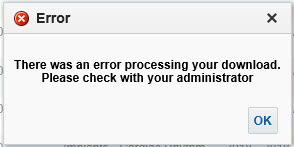
“There was an error processing your download. Please check with your administrator.”

… when Exporting / Downloading data from an analysis in OBIEE, then this post might be helpful.

In OBIEE, you have a few options for exporting / downloading data from an analysis / report as shown below. You can export / download to PDF, Excel 2007+, PowerPoint 2007+, Web Archive (.mht), or in CSV, Tab Delimited, or XML data formats.

OBIEE_Export_Analysis_Data

If you are trying to download data from an analysis and get this error …

OBIEE_Export_to_Excel_Failed

“There was an error processing your download. Please check with your administrator.”
then try the following fix. Note, you might find that you are able to download to CSV, but get the error when you try to download to Excel.

Edit the config.xml file
Located at the directory specified below (for OBIEE 12c):
ORACLE_HOME/user_projects/domains/bi/config/fmwconfig/biconfig/OBIJH

FYI, this is the location of the config.xml file in OBIEE 11g
[MW_HOME]/instances/instance1/config/OracleBIJavaHostComponent/coreapplication_obijh1

Locate the section and the parameter within that section. It may look like below, but there could be more or less parameters within the section than shown here.

<XMLP>
<InputStreamLimitInKB>8192</InputStreamLimitInKB>
<ReadRequestBeforeProcessing>true</ReadRequestBeforeProcessing>
</XMLP>

Change the value of the InputStreamLimitInKB parameter to 0 as shown below…

<XMLP>
<InputStreamLimitInKB>0</InputStreamLimitInKB>
<ReadRequestBeforeProcessing>true</ReadRequestBeforeProcessing>
</XMLP>

Restart the OBIEE services and try your export again.

If it succeeds, then we know for sure that altering this parameter fixes it.
Setting the above parameter value to zero (0) means that there is no limit. So, you may now go back and modify the value to a number that is suitable for your environment, such as, 8192, 15384, 65536, etc.

Error on reports after upgrading to OBIEE 12.2.1.1.0 – “nQSError 35029: Unable to evaluate text 0.0 as either true or false”

After upgrading or migrating to OBIEE 12.2.1.1.0, you may encounter this error: “nQSError 35029: Unable to evaluate text 0.0 as either true or false”.
This is a known bug and there is a patch for it.

The Bug # is: 24005980
And the Patch # and description is: 24005980 RPD CONSISTENCY ERRORS AFTER UPGRADE FROM 12.2.1.0.0 TO 12.2.1.1.0.

Applying this patch resolved the issue for us.

Good luck with your resolution.

When Export to Excel (csv) in OBIEE 12c, rows are limited to 65000 (65K)

After upgrading to OBIEE 12c, you may have noticed that your downloads to Excel CSV files are now getting cut off at 65000 rows.  If you are experiencing this issue, this post may help.

In OBIEE 11g, there was a parameter (instanceconfig.xml parameter) called “DefaultRowsDisplayedInDownload” that controlled the number of rows downloadable to a CSV file.   So, if you had that set to a number higher than 65K, then you would have been able to download more than 65K rows in the past.

However, the parameter that now controls the number of rows downloadable to CSV in OBIEE 12c is “DefaultRowsDisplayedInDownloadCSV“.  You will need to set this parameter in the instanceconfig.xml file based on your needs.

This parameter DefaultRowsDisplayedInDownloadCSV is found within the <Table> section which may look something like this:

<Table>
< DefaultRowsDisplayedInDelivery>1000000</DefaultRowsDisplayedInDelivery>
< DefaultRowsDisplayedInDownload>1000000</DefaultRowsDisplayedInDownload>
< MaxCells>10000000</MaxCells>
< MaxVisiblePages>50</MaxVisiblePages>
< MaxVisibleRows>1000000</MaxVisibleRows>
< MaxVisibleSections>100000</MaxVisibleSections>
< DefaultRowsDisplayed>100</DefaultRowsDisplayed>
<DefaultRowsDisplayedInDownloadCSV>200000</DefaultRowsDisplayedInDownloadCSV>
< /Table>

As always, back up your files before making changes.  Then, change the parameter as needed, and restart OBIEE services.

Changing the Oracle logo in OBIEE 12c

Most customers want to change the Oracle logo located in the top-left corner of the OBIEE website to their own company’s logo.

obiee12c_oracle_logo

After upgrading from OBIEE 11g to OBIEE 12c, your previous change for this logo will not carry forward, or of course, if you did a new install, you will need to make a change to replace the Oracle logo with your own.  This post explains the simplest way to change the Oracle logo in OBIEE 12c.

Perform a search (recursive search) on file system of your OBIEE 12c server, in all OBIEE directories, for files with “oracle_logo” or “oracle_logo.png”.
Your search will return many directories containing this file.  You will need to change the file in a subset of these directories.

Since you will be likely using the “s_Alta” style in OBIEE 12c, pick out the directories with “s_Alta” in their path.  There should be about 9 directories and they will look like the directories listed below.  If you are not using “s_Alta”, then pick the directories with the appropriate style.

Get your company logo and make it a similar size to the Oracle Logo image.  Rename your company logo file to the name oracle_logo.png.

Go into each of the directories you identified in the above steps, and rename the oracle_logo.png file to oracle_logo.bkup or oracle_logo.orig.
Then, copy your company logo (that is now renamed to oracle_logo.png) into all the directories.

The directory paths may look something like these shown below, but will be different.  If you not using BI Mobile App Designer (bimad) or BI Publisher (bipublisher), you can ignore the bottom 6 directories, and just update the 3 analytics directories.

./user_projects/domains/bi/servers/obips1/tmp/earmanager/analytics/rXWkmiVVOSYZhmHWZK763w/res/s_Alta/master/oracle_logo.png
./user_projects/domains/bi/servers/bi_server1/tmp/_WL_user/analytics/eiguw6/war/res/s_Alta/master/oracle_logo.png
./user_projects/domains/bi/servers/bi_server1/tmp/_WL_user/analytics/za01ic/war/res/s_Alta/master/oracle_logo.png
 
./user_projects/domains/bi/servers/bi_server1/tmp/_WL_user/bimad_11.1.1/hkbdzw/war/theme/alta/images/oracle_logo.png
./user_projects/domains/bi/servers/bi_server1/tmp/_WL_user/bimad_11.1.1/hkbdzw/war/theme/alta/mobile/images/oracle_logo.png
./user_projects/domains/bi/servers/bi_server1/tmp/_WL_user/bimad_11.1.1/hkbdzw/war/theme/alta/master/oracle_logo.png
 
./user_projects/domains/bi/servers/bi_server1/tmp/_WL_user/bipublisher_11.1.1/to5gma/war/theme/alta/images/oracle_logo.png
./user_projects/domains/bi/servers/bi_server1/tmp/_WL_user/bipublisher_11.1.1/to5gma/war/theme/alta/mobile/images/oracle_logo.png
./user_projects/domains/bi/servers/bi_server1/tmp/_WL_user/bipublisher_11.1.1/to5gma/war/theme/alta/master/oracle_logo.png


Good luck with your change.  Thanks for reading!


Installing the OBIEE 12c Client on Windows

Installing the OBIEE 12c Client is straight forward.  Here are the steps.

Visit the Oracle Business Intelligence page on the Oracle website. Go to the Downloads tab.
OBIEE12c_Downloads
Select the version of Oracle Business Intelligence (OBI) 12c that you want to install.

When the version download page appears, select “Accept the License Agreement”, and then under “Oracle Business Intelligence Developer Client Tool (12.x.x.x)”, click on “for Windows x86-64 bit” – (see green arrows below)
AcceptLicenseAgreement_ThenDownload

Download and save the file to your computer.

After the download is complete, go to the downloaded zip file … bi_client_12.x.x.x.x_Windows.X64.zip
OBIEE12C_ExtractZip
Right-click on the file and select Extract All.  Or extract using another method.

After the executable has been extracted, right-click on it and “Run as administrator”.
OBIEE12c_RunAsAdministrator

This will start the installer

OBIEE12c_PreparingTheInstaller   OBIEE12c_Step0of5

Click through the next 5 steps

OBIEE12c_Step2of5

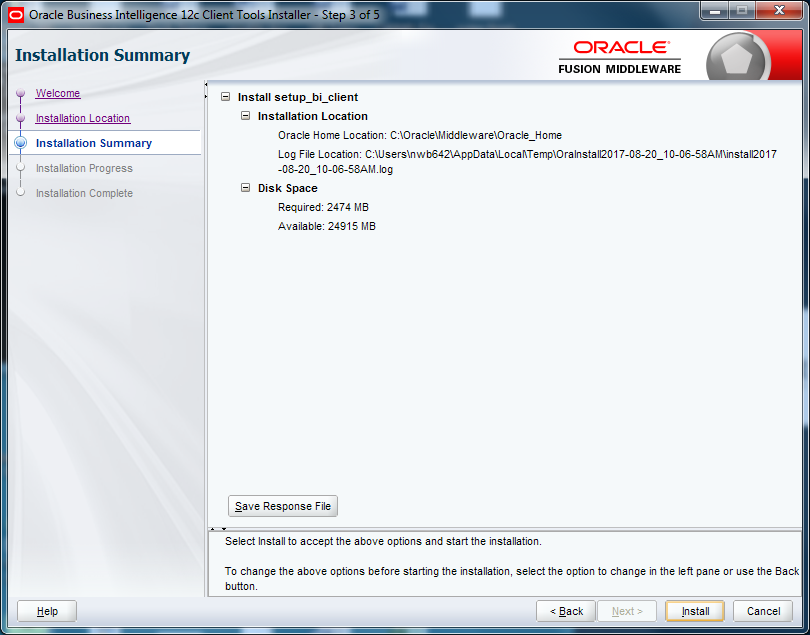
OBIEE12c_Step3of5

OBIEE12c_Step5of5

After the installation is complete, run one of the applications: Start -> Oracle Business Intelligence Client -> Administration
OBIEE12c_Run

The Oracle BI Administration Tool should open and be ready for you to use it.
OBIEE12c_BIAdministrationTool

Thanks for reading. Hope this helps.

Issues identified after upgrading from OBIEE 11g to OBIEE 12c

After upgrading our Development environment from OBIEE 11g to OBIEE 12c, we encountered some issues.  This post describes some of the issues we have identified so far and how we resolved them.

  1. Images are missing.
    • This was fixed by moving all images to the new OBIEE 12c images directories.
  2. Dashboards with hidden pages are broken.
    • This was initially resolved by moving the hidden pages to the end of the dashboards list in the dashboard properties dialog.
    • We later discovered that there is an Oracle patch for this, and applying it resolved the issue.
  3. Colors on graphs are different.
    • This will need to be resolved by configuring reports with specific colors.
  4. Some of the graphs scales are changed
    • This was resolved by setting the appropriate graph scale properties.
  5. The order of the items in the legend on some graphs changed
    • This was left as is. It seems there is no “resolution” for this (no way to make it exactly as it was before), but it seems to be ok as is.
  6. Prompts shifted
    • This was resolved by setting the dashboard column objects’ (that contain the prompts) width properties
  7. Dashboard Pages missing after upgrade
    • This was resolved by changing and resaving the dashboard pages in 11g and re-migrating the catalog to 12c.
  8. In some cases, the Subject Areas do not show (missing) in Manage Privileges.
    • A restart of the services resolved this.


I will keep adding to this list as new issues are encountered and resolved.

Good luck with your upgrade!


Dashboards with hidden pages behave strangely after upgrade to OBIEE 12c

After upgrading from OBIEE 11g to OBIEE 12c, some dashboards behaved strangely.  Things that were wrong include:

  • unable to edit the dashboard from the dashboard page
  • unable to see some of the dashboard pages / tabs
  • click on one tab and it takes you to another tab

It turns out that all the dashboards affected by this behavior were dashboards with hidden pages / tabs.

There is a workaround for this.  The workaround is – move all the hidden pages / tabs to be at the end of the list of dashboards pages in the dashboard properties view.  After doing this, the dashboard will work as expected.

There is also an Oracle patch for this bug.  It is Patch # 23511448.  As of the time of this post, it was still an interim patch and not yet a production patch.  From our perspective, the patch seems to have resolved the issue without causing any new issues.  However, since it’s still an interim patch, apply at your own risk.

Thanks for reading.

Upgrading OBIEE 11g to OBIEE 12c – First thing to ensure

Our team is currently in the process of upgrading our OBIEE 11g environments to OBIEE 12c. I have been gathering information about the process and will be sharing information on our experience as we progress.

I wanted to point of the first thing you want to ensure before planning/starting the upgrade from 11g to 12c – this may save you a little time. Or if you have already started, and encountered an error relating to … catalog version is not supported … then this post might be helpful.

You can upgrade the OBIEE catalog from OBIEE 11.1.1.7.x or OBIEE 11.1.1.9.x to OBIEE 12c. This should upgrade without any major issues.
But you may unexpectedly run into the above problem if you had upgraded the OBIEE 11g catalog using patch sets and had not run the full catalog upgrade. This results in the catalog being used as an 11.1.1.7 or 11.1.1.9 environment, but the version stored in the catalog is still older (such as 11.1.1.3 or 11.1.1.5).
Then when you try to upgrade from OBIEE 11g to OBIEE 12c, you get the error because the catalog is still technically not yet on an approved version for upgrade.

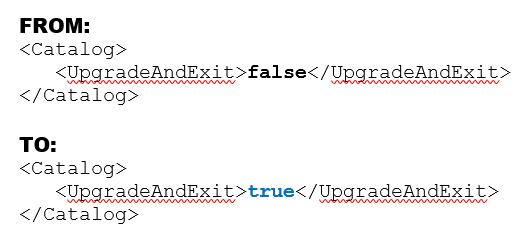
To resolve this, you need to run a full catalog upgrade on the OBIEE 11g catalog. This involves modifying the instanceconfig.xml file as follows:

Change the value of the UpgradeAndExit parameter from “false” to “true” as shown in the example below.

upgradecatalog

Restart the presentation services.
After this is complete, edit the files again and change “true” back to “false“, and restart the presentation services again.

You should now be able to upgrade your catalog to an OBIEE 12c version.

I hope this helps. Thanks for reading.