QlikView Sheet Objects Quick Overview

This post provides a quick overview for each of the QlikView Sheet Objects.
Sheet Objects are the various objects that a developer or analyst places on a QlikView document’s sheet to provide the rich functionality of dashboards.

By right-clicking on an open area in a sheet, the below menu will appear.  Select “New Sheet Object” to see the available Sheet Object options – which are – List Box, Statistics Box, Multi Box, Table Box, Chart, Input Box, Current Selections Box, Button, Text Object, Line/Arrow Object, Slider/Calendar Object, Bookmark Object, Search Object, Container, Custom Object, and System Table.
Qlik_SheetObject_ListBox

The sheet objects can also be created from the Design Toolbar selections.
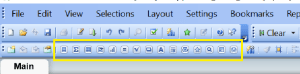
Qlik_SheetObject_DesignMenu

Some of our example images are taken from the Movies Database application that comes with QlikView.

List Box
The “List Box” is one of the most heavily used QlikView sheet objects.  It lists all the distinct values of a particular field. For example, you may have a List Box that displays all the products available within your data set.  The List Box is often used as a menu, where a user selects a value to analyze the data based on that value.
Qlik_SheetObject_ListBox_example2
The above example displays 3 List Boxes – the Director list box, the Actor list box, and the Title list box. When a user selects one or more values from one or more list boxes 9or any other object), the data in all other objects cascade to show only records relevant to that combination of selections.

Statistics Box
The “Statistics Box” is used to show aggregated representations of the data.  There are several statistical aggregation functions that are available, such as Sum, Average, Min, Max, Std Dev, Null Count, and several more.
Qlik_SheetObject_StatisticsBox_example
The above example shows “Statistics” for the Rating field – the number of ratings, the average rating, the min and max ratings, and the average and median ratings.

Multi Box
A Multi Box allows you to display several fields in a single object, with the values for each field available via a drop down. This object can be described as a set of List Boxes compacted together. The example screenshot below shows a Multi Box with the 3 fields, Director/Actor/Title, and by clicking any of the fields, you will get a drop down of all the values for that field – similar to a List Box for that field.
Qlik_SheetObject_MultiBox_example

Clicking on Director will display the list of all Directors, as shown below. Similarly, you can Actor or Title to get those respective drop down lists.
Qlik_SheetObject_MultiBox_dropdown_example

Table Box
The Table Box, as the name implies, displays a table of records for the selected data fields.
Qlik_SheetObject_TableBox_example

Chart
The Chart object is used for creating charts of various types. Some of the chart types available include bar, line, combo, radar, scatter, grid, pie, block, funnel, gauge, and mekko charts, and pivot and straight tables.
Qlik_SheetObject_Chart
The above shows one of the properties dialog tabs for the chart object – which shows some of the various chart types you can create.

Input Box
The Input Box object allows for users to enter a value. (which sets a variable that can be used for further processing)
Qlik_SheetObject_InputBox

Current Selections Box
The Current Selections Box displays all the selections that the user has selected. The Current Selections box is usually placed at the top of a sheet (dashboard page) in a position that allows users to easily see the selections that have been made.
Users are able to clear selections by clicking on the eraser beside the selection in the Current Selections Box, and the data on the sheet will change accordingly.
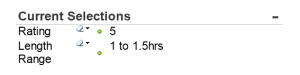
Qlik_SheetObject_CurrentSelectionsBox
In the example above, the user has selected Rating 5 and Length Range 1 to 1.5 hrs.

Button
The Button object creates a button that can be configured to execute various types of actions. When clicked the configured action will be executed.
Qlik_SheetObject_Button

Text Object
The Text Object is used for adding simple text to the document/sheet. It can be used to display informational messages, directions, descriptions or titles and labels, or any kind of information that needs to be shared with viewers/users of the document.
Qlik_SheetObject_TextObject

Line/Arrow Object
This object is used to create a line with or without arrows, and vertical or horizontal or diagonal. This object can be used for many purposes such showing relationships and flows.
Qlik_SheetObject_LineArrow

Slider/Calendar Object
The Slider/Calendar object is used to create either a slider with multiple values that the user can slide across to select, or a calendar that the user can use to find and select a date.
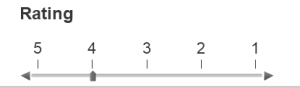
Qlik_SheetObject_Slider                 Qlik_SheetObject_Calendar
In the above slider, the user has selected Rating 4.  In the calendar object, clicking the grid icon opens a calendar that allows selection.

Bookmark Object
The Bookmark object is used to save the selection state of the current sheet. If a bookmark is created after a specific Actor has been selected, when you select that bookmark, the selection and corresponding data in the sheet will be displayed based on that saved selection state of the bookmark.
Multiple bookmarks can be saved for each sheet. Each having a different set of saved selections.
Qlik_SheetObject_Bookmark

Search Object
The Search Object allows users to search for values in entire data set or within a specific set of fields.
Qlik_SheetObject_Search

Container
The Container is a sheet space saving object that can contain multiple other objects, such as multiple chart objects. This allows you to display multiple views of the data within the same sheet “real estate” and change the view by clicking on the appropriate tab to get to each chart.
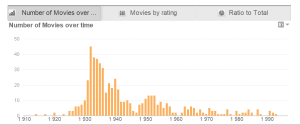
Qlik_SheetObject_Container
In the above example, the container contains 3 objects (3 charts), and therefore displays 3 tabs across the top, one for each chart. There are different possible orientations for the tabs – they can be to the left, right, top (as in this example), or bottom.

Custom Object
The custom object is a sheet object specifically intended to carry custom defined OCX replacement controls.
The Custom Object: Object Menu can be accessed from the Object menu, when the custom object is the active object.
Replacement controls are windowless OCX controls programmed by Qlik, yourself or third party vendors, which comply with the specifications for QlikView replacement OCX controls. The OCX control will be drawn in a rectangle on the sheet outlined by the underlying custom object. Communication between the OCX control and the QlikView document is maintained via the internal macro interpreter.

System Table
The System Table object creates a pivot table that shows the data structure of the qlikview document.
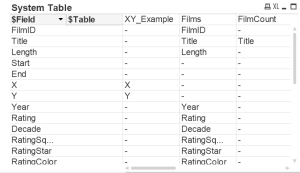
Qlik_SheetObject_SystemTable

In future posts, we will be covering each object in depth.

Working with special character letters in Oracle database (grave accent, acute accent, circumflex accent, tilde, and umlaut)

We have some external data feeds that we receive as csv files, and we load them into our data warehouse and process them.    It turns out that data values that include special characters were getting messed up at some point before or during the load to the Oracle database.

In this post, I will go over one way to select, insert or update data values that contain these special characters.  The “special characters” I am referring to are the grave accent, acute accent, circumflex accent, tilde, and umlaut.

The most common one we come across is the “acute accent” which is present in words such as café or entrée (accent over the e in both words).

If you want to insert these words without the accents, into an example table, WORDS, with a single column, SPECIAL_CHAR_WORD, it would simply be:

insert into WORDS (SPECIAL_CHAR_WORD) values ('cafe');
insert into WORDS (SPECIAL_CHAR_WORD) values ('entree');

But if you want to insert these words with the accents, then you would need to do this:

insert into WORDS (SPECIAL_CHAR_WORD) values UNISTR('cafe301');
insert into WORDS (SPECIAL_CHAR_WORD) values UNISTR('entre301e');

To select the word café with the accent, run this statement:

select UNISTR('cafe301') from dual;

Once a column value is already in a table in the proper format, you can simply select the column name using a normal SQL select statement, and the output will show properly (maybe with just the need for some formatting as you will later in the article).

And for update – to update the word entree with the word entrée, run this statement:

update WORD set SPECIAL_CHAR_WORD = UNISTR('entre301e') where SPECIAL_CHAR_WORD = 'entree';

To see several special characters (grave accent, acute accent, circumflex accent, tilde, and umlaut), run this statement …

select UNISTR('bare300ge') from dual   -- barège    -- grave accent
union
select UNISTR('entre301e') from dual   -- entrée    -- acute accent
union
select UNISTR('pa302turer') from dual  -- pâturer   -- circumflex accent
union
select UNISTR('jalapen303o') from dual -- jalapeño  -- tilde
union 
select UNISTR('fu308r') from dual;          -- für    --umlaut

… the output would look like this … which seems not quite right …
Special_Characters_UNISTR

Add the COMPOSE statement (which is just for formatting) as shown below …

select COMPOSE(UNISTR('bare300ge')) as SPECIAL_CHAR_WORD from dual   -- barège    -- grave accent
union
select COMPOSE(UNISTR('entre301e')) from dual   -- entrée    -- acute accent
union
select COMPOSE(UNISTR('pa302turer')) from dual  -- pâturer   -- circumflex accent
union
select COMPOSE(UNISTR('jalapen303o')) from dual -- jalapeño  -- tilde
union 
select COMPOSE(UNISTR('fu308r')) from dual;     -- führer    --umlaut

and the output will look like this …

Special_Characters_UNISTR_and_COMPOSE2

As  you can see, the key to this is knowing the code for the special character you need, and then using the UNISTR function to add the special character to the rest of the text, and if necessary, use COMPOSE for display purposes.

Thanks for reading. Hope you found this helpful.

Maximum number of characters allowed in the Informatica SQL Qualifier & Lookup transformations’ SQL Query

The Informatica SQL Qualifier and Lookup transformations’ SQL Query parameter has a limitation on the number of characters that your SQL can contain. There is no limitation on the number of lines, the limitation is on the number of characters.

Your SQL is allowed a maximum of of 32,767 characters. If you copied and pasted SQL into the field, after 32767 characters the query will be truncated.  If you are typing into the field, after 32767 characters, no more characters can be entered.

To reduce your SQL character count, removing unnecessary spaces used for formatting will help. You may also examine your aliases to see if they can be shortened.

Statistics Basics – Descriptive vs Inferential Statistics

Descriptive Statistics
Statistics that quantitatively describes an observed data set. Analysis for descriptive statistics is performed on and conclusions drawn from the observed data only, and does not take into account any larger population of data.

Inferential Statistics
Statistics that make inferences about a larger population of data based on the observed data set. Analysis for inferential statistics takes into account that the observed data is taken from a larger population of data, and infers or predicts characteristics about the population.

Statistics Basics – Measures of Central Tendency & Measures of Variability

Measures of Central Tendency and Measures of Variability are frequently used in data analysis.  This post provides simple definitions of the common measures.


Measures of Central Tendency

Mean / Average – sum of all data points or observations in a dataset divided by the total number of data points or observations in the dataset.

The mean or average of this dataset with 5 numbers {2, 4, 6, 8, 10} is: 6

Sum of all data points:     (2+4+6+8+10)
Divided by:                       ———————–  = 6
Number of data points:              5

Median – with the values (data points) in the dataset listed in increasing (ascending) order, the median is the midpoint of the values, such that there are an equal number of data points above and below the median.  If there are an odd number of data points in the dataset, then the median value will be a single midpoint value. If there an even number of data points in the dataset, then the median value will be the mean/average of the two midpoint values.

The median of the same dataset {2, 4, 6, 8, 10} is:  6
This dataset has an odd number of data points (5), and the middle data point is the value 6, with 2 numbers below (2, 4) and 2 numbers above (8, 10).

Using an example of a dataset with an even number of data points:
The median of this dataset {2, 4, 6, 8, 10, 12} is: (6 + 8) / 2 = 7
Since there are 2 middle data points (6, 8), then we need to calculate the mean of those 2 numbers to determine the median.

Mode – the data point that appears the most times in the dataset.

Using our original dataset {2, 4, 6, 8, 10}, since each of the values only appear once, none appearing more times than the others, this dataset does not have a mode.

Using a new dataset {2, 2, 4, 4, 4, 4, 6, 8, 8, 8, 10}, the Mode in this case is: 4
4 is the value that appears the most times in the dataset.

Measures of Variability

Min – the minimum value of the all values in the dataset.
Min {2, 3, 3, 4, 5, 5, 5, 6, 7, 1, 3, 2, 7, 7, 8, 2, 3, 9} is 1.

Max – the maximum value of the all values in the dataset.
Max {2, 3, 3, 4, 5, 5, 5, 6, 7, 1, 3, 2, 7, 7, 8, 2, 3, 9} is 9.

Variance – a calculated value that quantifies how close or how dispersed the values in the dataset are to/from their average/mean value.  It is the average of the squared differences from the mean.

Variance of {2, 3, 4, 5, 6} is calculated as follows …

First find the Mean.  Mean = (2 + 3 + 4 + 5 + 6) / 5 = 4

Then, find the Squared Differences from the Mean … where ^2 means squared …
(2 – 4)^2 = (-2)^2 = 4
(3 – 4)^2 = (-1)^2 = 1
(4 – 4)^2 = (0)^2 = 0
(5 – 4)^2 = (1)^2 = 1
(6 – 4)^2 = (2)^2 = 4
Average of Squared Differences: (4 + 1 + 0 + 1 + 4) / 5 = 2

Standard Deviation – a calculated value that quantifies how close or how dispersed the values in the dataset are to/from each other.  It is the square root of the Variance (defined above).

For the above dataset, Standard Deviation {2, 3, 4, 5, 6} = Square Root (2) =~ 1.414

Kurtosis – a calculated value that represents how close the tail of the distribution of the dataset is to the tail of a normal distribution*.

Skewness – a calculated value that represents how close the symmetry of the distribution of the dataset is to the symmetry of a normal distribution*.

* A normal distribution, also known as the bell curve, is a probability distribution in which most values are toward the center (closer to the average) and less and less observations occur as you go further from the center.

Range – the difference between the largest number in the dataset and the smallest number in the dataset.
Range {2, 4, 6, 8, 10} = 10 – 2 = 8


Thanks for reading!


Updating R packages

In this post, I cover updating R packages in RStudio.  You have a few options for updating your R packages in RStudio.

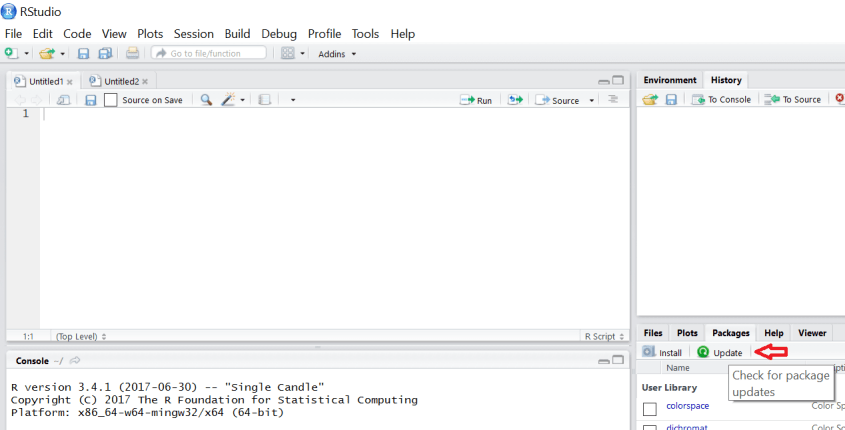
(Option 1) From the menu, select Tools -> “Check for Package Updates”RStudio_Menu_Tools_CheckforPackageUpdates

You will get this message if all packages are up-to-date:

RStudio_AllPackagesUpToDate

(Option 2) From the Packages tab in the bottom-right pane, click on “Update”RStudio_PackagesTab_Update

(Option 3) Execute the command update.packages()

RStudio_Script_UpdatePackages

You may see output like this …

RStudio_Script_UpdatePackages2

Enter “y” to update, “N” to not update, and “c” to cancel.

Thanks for reading!

Changing the Oracle logo in OBIEE 12c

Most customers want to change the Oracle logo located in the top-left corner of the OBIEE website to their own company’s logo.

obiee12c_oracle_logo

After upgrading from OBIEE 11g to OBIEE 12c, your previous change for this logo will not carry forward, or of course, if you did a new install, you will need to make a change to replace the Oracle logo with your own.  This post explains the simplest way to change the Oracle logo in OBIEE 12c.

Perform a search (recursive search) on file system of your OBIEE 12c server, in all OBIEE directories, for files with “oracle_logo” or “oracle_logo.png”.
Your search will return many directories containing this file.  You will need to change the file in a subset of these directories.

Since you will be likely using the “s_Alta” style in OBIEE 12c, pick out the directories with “s_Alta” in their path.  There should be about 9 directories and they will look like the directories listed below.  If you are not using “s_Alta”, then pick the directories with the appropriate style.

Get your company logo and make it a similar size to the Oracle Logo image.  Rename your company logo file to the name oracle_logo.png.

Go into each of the directories you identified in the above steps, and rename the oracle_logo.png file to oracle_logo.bkup or oracle_logo.orig.
Then, copy your company logo (that is now renamed to oracle_logo.png) into all the directories.

The directory paths may look something like these shown below, but will be different.  If you not using BI Mobile App Designer (bimad) or BI Publisher (bipublisher), you can ignore the bottom 6 directories, and just update the 3 analytics directories.

./user_projects/domains/bi/servers/obips1/tmp/earmanager/analytics/rXWkmiVVOSYZhmHWZK763w/res/s_Alta/master/oracle_logo.png
./user_projects/domains/bi/servers/bi_server1/tmp/_WL_user/analytics/eiguw6/war/res/s_Alta/master/oracle_logo.png
./user_projects/domains/bi/servers/bi_server1/tmp/_WL_user/analytics/za01ic/war/res/s_Alta/master/oracle_logo.png
 
./user_projects/domains/bi/servers/bi_server1/tmp/_WL_user/bimad_11.1.1/hkbdzw/war/theme/alta/images/oracle_logo.png
./user_projects/domains/bi/servers/bi_server1/tmp/_WL_user/bimad_11.1.1/hkbdzw/war/theme/alta/mobile/images/oracle_logo.png
./user_projects/domains/bi/servers/bi_server1/tmp/_WL_user/bimad_11.1.1/hkbdzw/war/theme/alta/master/oracle_logo.png
 
./user_projects/domains/bi/servers/bi_server1/tmp/_WL_user/bipublisher_11.1.1/to5gma/war/theme/alta/images/oracle_logo.png
./user_projects/domains/bi/servers/bi_server1/tmp/_WL_user/bipublisher_11.1.1/to5gma/war/theme/alta/mobile/images/oracle_logo.png
./user_projects/domains/bi/servers/bi_server1/tmp/_WL_user/bipublisher_11.1.1/to5gma/war/theme/alta/master/oracle_logo.png


Good luck with your change.  Thanks for reading!


Exploring the RStudio Interface

In this post we will explore the RStudio interface.  This is where you will manage your R environment, issue commands for processing and analyzing data, create scripts, view results, and much more.  Below is an image of the default RStudio interface.

RStudio_Environment

On the left:
Console – the window where you enter commands, and where output is displayed.

On the top-right:
Environment tab – shows the variables and values created through the console
History tab – shows the history of past executed commands

On the bottom-right:
Files tab – displays folders and files from the file system, from which you can select files, set working directory, create folders, copy and move folders and files, and more.
Plots tab – displays the plots that have been created and allows for you to export them.
Packages tab – displays all the packages currently installed and available.  Loaded packages will have the checkbox checked and packages must be loaded before they can be used.
Help tab – useful for getting help about R and R packages, and keyword search is available which can be very helpful when you don’t know exactly what you are looking for.
Viewer tab – can be used to view local web content, such as, static HTML files written to the session temporary directory or a locally run web application.

On the top-left (when a script is created or opened):
– Script pane and tabs – When you create or open a R script, it will create a new pane area in the top-left of the application window, and the Console pane will get shifted down to the bottom-left area.

RStudio_Environment_with_Script_pane

A new Script tab will open in this pane for each new script opened or created. From this window, you will be able to run your script line by line or in its entirety, among many other functions.

Thanks for reading!

Installing, Loading, Unloading, and Removing R Packages in RStudio

R has thousands of packages available for statistics and data analytics, but before you can use them, they need to be installed.  In this post I cover installing, loading, unloading, and removing R packages in RStudio. In these examples, I use the ggplot2 package – a popular graphics and visualization package in R.  Wherever you see ggplot2 in the examples below, you can replace it with the package you want to perform these actions on.

To install a package via the User Interface

In RStudio, select Tools -> Install Packages from the main menu, or click Install in the Packages tab on the bottom-right.
R_Installing_Packages_ToolsMenu

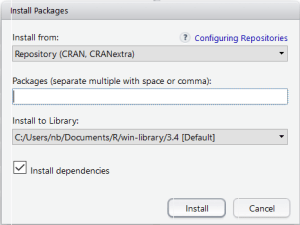
The Install Packages dialog appears.
R_Installing_Packages_ToolsMenu_InstallDialog

Start typing the name of the package you want to install, and a list of all packages that start with the letters you have type will show up in the selection list.
R_Installing_Packages_ToolsMenu_InstallDialog_PartialNameFind

Select (or type the full name of) the package you want to install, ensure that “Install dependencies” is checked, and click “Install”.
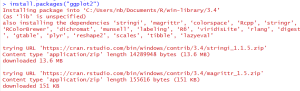
The statement will be automatically entered and run as shown below.
R_Installing_Packages_ToolsMenu_Output

And the output will show if the package is successfully installed.
R_Installing_Packages_ToolsMenu_Output2

At this point, you will be able to see the package in the list in the Packages tab on the right.
R_Installing_Packages_ToolsMenu_Output3

To install a package via script
Instead of using the user interface (menu), you can also install packages directly via script.

install.packages("ggplot2")

See script statement below.  And as before, the package shows in the Packages tab.
R_Installing_Packages_Script

After a package has been installed, it needs to be loaded before you can use it.

Loading and Unloading a package (via user interface or script):

To load a package you can simply check the checkbox beside the package name in the Packages tab – as shown by the yellow box highlight below.  This will automatically enter and execute the command shown with the yellow arrow.

Or you can enter the script, by entering the command as shown with the green arrow:

library("ggplot2")

As an alternative, the require(ggplot2) command will also load the package.

To unload the package, you can simply uncheck the checkbox beside the package name in the Packages tab, or enter the command shown by the red arrow:

detach("package:ggplot2", unload=TRUE)

R_Loading_Unloading_Packages You will notice that after running the detach command, the Package checkbox will not be checked (will be unchecked).

To remove (uninstall) a package (via user interface or script):

To remove a package, you can simply click the “x” icon shown to the right of the package in the Packages window. See the yellow box highlight beside ggplot2 below.

Or you can run the script command as shown below in the Console window.

remove.packages("ggplot2")

R_Removing_Packages_Script_or_GUI

The below shows the output after removing a package.  You will notice that the package is no longer in the Packages list on the right hand side.  In this example, ggplot2 is no longer in the list of packages.
R_Removing_Packages_Output

An advantage of using the script option instead of the user interface methods to perform the above actions is that you will have a history of what you have done.

Thanks for reading!

Installing RStudio on Windows

RStudio is an open-source integrated development environment (IDE) for R. It also has commercial versions with expansive capabilities available (at a cost).  It runs on the desktop with multiple operating systems, or in a browser connected to a RStudio server.  RStudio includes a console, syntax-highlighting editor that supports direct code execution, as well as tools for plotting, history, debugging and workspace management. This post covers installing RStudio.  Note that R needs to be installed first – see this post for installing R.

To get started, go to http://www.rstudio.com.

Under RStudio, click Download.
RStudio_download

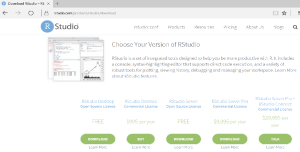
Choose the desired version of RStudio.  You will likely want the “RStudio Desktop (Open Source License)” version. On the same page, you will be able to read about the various options available – free and pay versions.
RStudio_choose_version

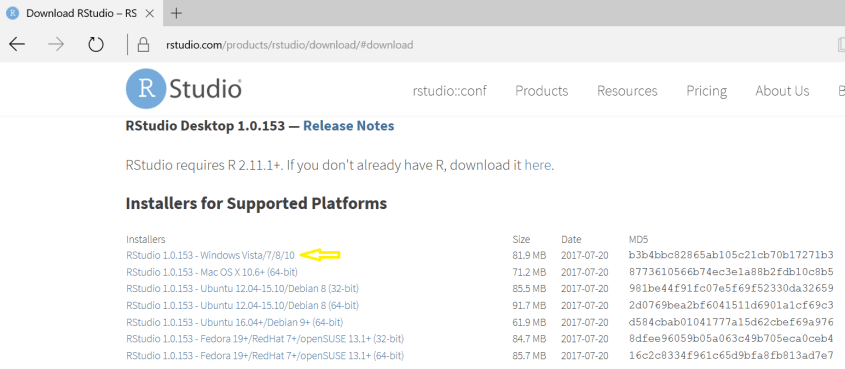
This will bring you down in the page to the installers.  Choose the installer that is appropriate for you.  In this example, we are installing on Windows, and so we chose the “RStudio 1.0.153 – Windows Vista/7/8/10” version.  Note: RStudio requires that R is installed.  If you have not already installed R, do so first (see this post for Installing R).
RStudio_choose_installer

After the download is complete, run the exe by double-clicking on it.
RStudio_install_run_exe

Click Next at the Welcome screen.
RStudio_install_welcome_1

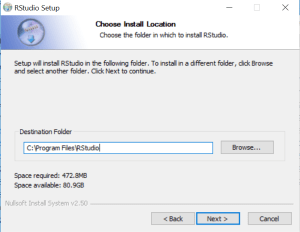
Choose the install directory, click Next
RStudio_install_location_2

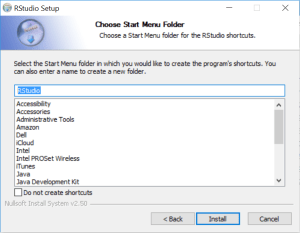
Chooses a Start Menu Folder, click Install
RStudio_install_start_menu_folder_3

Installing …
RStudio_install_installing_4

Complete the installation.
RStudio_install_complete_5

Run RStudio
RStudio_install_RStudio_icon

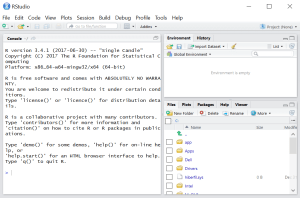
RStudio IDE
RStudio_install_run_RStudio

You will notice that the left window “Console” is the same as the “R Console” window in the stand-alone R installation.  This is because RStudio is built on top of R.

Good luck on your R journey!