Category: Business Intelligence

Create and configure deployment pipelines

This post is a part of the DP-600: Implementing Analytics Solutions Using Microsoft Fabric Exam Prep Hub; and this topic falls under these sections: 
Maintain a data analytics solution
--> Maintain the analytics development lifecycle
--> Create and configure deployment pipelines

Development pipelines in Microsoft Fabric provide a structured, governed way to promote analytics content across environments—typically Development, Test, and Production. They are a core lifecycle management feature that helps teams deploy changes safely, consistently, and with minimal risk. For the DP-600 exam, you should understand what development pipelines are, how they are configured, what they support, and how they differ from Git-based version control.

What Are Development Pipelines?

A development pipeline is a Fabric feature that:

  • Connects multiple workspaces into an ordered promotion flow
  • Enables controlled deployment of items between environments
  • Supports validation and testing before production release

Pipelines are especially important for enterprise-scale analytics solutions.

Typical Pipeline Structure

A standard Fabric pipeline consists of three stages:

  1. Development
    • Active development
    • Frequent changes
    • Used by engineers and analysts
  2. Test
    • Validation and user acceptance testing
    • Data and logic verification
    • Limited access
  3. Production
    • Certified, trusted content
    • Broad consumer access
    • Minimal direct changes

Each stage is linked to a separate Fabric workspace.

Creating a Development Pipeline

At a high level, the process is:

  1. Create a deployment pipeline in Microsoft Fabric
  2. Assign a workspace to each stage:
    • Dev workspace
    • Test workspace
    • Prod workspace
  3. Configure pipeline settings
  4. Control who can deploy between stages

Once created, the pipeline provides a visual interface showing item differences across stages.

What Items Can Be Deployed Through Pipelines?

Development pipelines support deployment of many Fabric items, including:

  • Semantic models
  • Reports and dashboards
  • Dataflows Gen2
  • Lakehouses and Warehouses (supported scenarios)
  • Other supported analytics artifacts

Exam note:
Not every Fabric item supports pipeline deployment equally—expect questions to focus on Power BI and core analytics items.

How Deployment Works

Comparing Changes

  • Pipelines show differences between stages
  • You can review what will change before deploying

Deploying Content

  • Deploy from Dev → Test
  • Validate
  • Deploy from Test → Prod

Deployments:

  • Copy item definitions
  • Can update existing items or create new ones
  • Do not automatically move workspace permissions

Deployment Rules and Parameters

Pipelines support deployment rules, such as:

  • Changing data source connections per environment
  • Switching parameters between Dev, Test, and Prod
  • Avoiding hard-coded environment values

This is critical for:

  • Separating development and production data
  • Supporting safe testing

Pipelines vs Git Integration (Exam Comparison)

This distinction is frequently tested.

FeatureDevelopment PipelinesGit Integration
PurposeEnvironment promotionSource control
FocusDeploymentVersioning
Tracks historyNoYes
Supports branchingNoYes
Typical useDev → Test → ProdCode collaboration

Key insight:
They are complementary, not competing features.

Permissions and Governance

To use pipelines:

  • Users need appropriate pipeline permissions
  • Workspace access is still required
  • Production deployments are often restricted to a small group

Pipelines support governance by:

  • Reducing direct changes in production
  • Enforcing controlled release processes
  • Improving auditability

Common Exam Scenarios

You may be asked to:

  • Choose pipelines for controlled promotion of reports
  • Identify when pipelines are preferable to manual publishing
  • Combine pipelines with Git and PBIP
  • Configure different data sources per environment
  • Prevent accidental production changes

Example:

A report must be tested before being released to executives.
Correct concept: Use a development pipeline with Dev, Test, and Prod stages.

Best Practices to Remember

  • Use separate workspaces per environment
  • Restrict production deployment permissions
  • Combine pipelines with:
    • PBIP projects
    • Git integration
    • Endorsements and certification
  • Avoid direct editing in production

Key Exam Takeaways

  • Development pipelines manage content promotion across environments
  • They connect multiple Fabric workspaces
  • Pipelines support comparison, validation, and controlled deployment
  • They do not replace Git-based version control
  • A core feature of the Fabric analytics lifecycle

Exam Tips

  • If a question focuses on moving content safely from development to production, the correct answer is development pipelines.
  • If it focuses on tracking changes or collaboration, the answer is Git or PBIP.
  • Know how pipelines support:
    • Dev/Test/Prod lifecycle
    • Governance & change control
    • Environment-specific configuration
    • Enterprise-scale BI practices
  • Common exam traps:
    • Confusing workspace roles with deploy permissions
    • Assuming pipelines manage security or performance
    • Forgetting deployment rules

Practice Questions

Question 1 (Single choice)

What is the PRIMARY purpose of a deployment pipeline in Microsoft Fabric?

A. Schedule dataset refreshes
B. Promote content across lifecycle environments
C. Enable row-level security
D. Optimize DAX performance

Correct Answer: B

Explanation:
Deployment pipelines are designed to promote content across environments (for example, Development → Test → Production) in a controlled and governed manner.

  • ❌ A: Refresh scheduling is handled separately
  • ❌ C: Security is not the primary purpose
  • ❌ D: Performance tuning is unrelated

Question 2 (Multi-select)

Which stages are available by default in a Fabric deployment pipeline? (Select all that apply.)

A. Development
B. Test
C. Production
D. Sandbox

Correct Answers: A, B, C

Explanation:
Fabric deployment pipelines use a three-stage lifecycle:

  • Development
  • Test
  • Production

There is no default Sandbox stage.


Question 3 (Scenario-based)

A team wants analysts to freely modify reports, while only approved changes reach production. Which pipeline stage should analysts primarily work in?

A. Production
B. Test
C. Development
D. Any stage

Correct Answer: C

Explanation:
The Development stage is intended for:

  • Frequent changes
  • Experimentation
  • Initial validation

Higher stages are more controlled.


Question 4 (Single choice)

Which permission is required to deploy content from one stage to the next in a deployment pipeline?

A. Viewer
B. Contributor
C. Admin
D. Pipeline deploy permission

Correct Answer: D

Explanation:
Deploying content requires explicit pipeline deployment permissions, not just workspace roles.

  • ❌ Admin alone is not sufficient
  • ❌ Contributor may edit but not deploy

Question 5 (Scenario-based)

You deploy a semantic model from Test to Production. What happens to data source connections by default?

A. They are deleted
B. They remain unchanged
C. They can be overridden per stage
D. They must be manually reconfigured

Correct Answer: C

Explanation:
Deployment pipelines support parameter and data source rules, allowing environment-specific connections.


Question 6 (Multi-select)

Which items can be deployed using deployment pipelines? (Select all that apply.)

A. Reports
B. Semantic models
C. Dashboards
D. Notebooks

Correct Answers: A, B, C

Explanation:
Deployment pipelines support Power BI artifacts, including:

  • Reports
  • Semantic models
  • Dashboards

❌ Notebooks are Fabric artifacts but are not deployed via Power BI deployment pipelines.


Question 7 (Scenario-based)

A deployment shows warnings that some items are skipped. What is the MOST likely cause?

A. The workspace is full
B. Unsupported artifacts exist
C. The dataset is too large
D. Git integration is disabled

Correct Answer: B

Explanation:
Unsupported or incompatible artifacts (for example, unsupported report types) may be skipped during deployment.


Question 8 (Single choice)

Which feature allows different environments to use different data sources during deployment?

A. Row-level security
B. Dynamic format strings
C. Deployment rules
D. Incremental refresh

Correct Answer: C

Explanation:
Deployment rules allow:

  • Data source switching
  • Parameter overrides
  • Environment-specific configuration

Question 9 (Scenario-based)

You want production users to access only certified content. How do deployment pipelines help?

A. By enforcing sensitivity labels
B. By promoting tested content only
C. By encrypting production reports
D. By disabling edit access

Correct Answer: B

Explanation:
Deployment pipelines ensure:

  • Content is validated in Test
  • Only approved changes reach Production

They support trust and governance, not encryption or labeling.


Question 10 (Multi-select)

Which best practices apply when configuring deployment pipelines? (Select all that apply.)

A. Restrict deploy permissions
B. Use separate data sources per stage
C. Allow all users to deploy to Production
D. Validate content in Test before Production

Correct Answers: A, B, D

Explanation:
Best practices include:

  • Limited deploy access
  • Environment-specific configurations
  • Mandatory testing before production

❌ Allowing everyone to deploy defeats governance.


Perform impact analysis of downstream dependencies from lakehouses, data warehouses, dataflows, and semantic models in Microsoft Fabric

This post is a part of the DP-600: Implementing Analytics Solutions Using Microsoft Fabric Exam Prep Hub; and this topic falls under these sections: 
Maintain a data analytics solution
--> Maintain the analytics development lifecycle
--> Perform impact analysis of downstream dependencies from lakehouses,
data warehouses, dataflows, and semantic models

Impact analysis in Microsoft Fabric helps analytics engineers understand how changes to upstream data assets affect downstream items such as datasets, reports, dashboards, notebooks, and pipelines. It is a critical lifecycle practice that reduces the risk of breaking analytics solutions when making schema, logic, or data changes.

For the DP-600 exam, you should understand what impact analysis is, which Fabric tools support it, what dependencies are tracked, and how to use it in real-world lifecycle scenarios.

What Is Impact Analysis?

Impact analysis answers the question:

“If I change or delete this item, what else will be affected?”

It allows you to:

  • Identify downstream dependencies
  • Assess risk before making changes
  • Communicate potential impacts to stakeholders
  • Support safe development and deployment practices

Impact analysis is observational and informational—it does not enforce controls.

Where Impact Analysis Is Used in Fabric

Impact analysis applies across many Fabric items, including:

  • Lakehouses
  • Data Warehouses
  • Dataflows Gen2
  • Semantic models
  • Reports and dashboards
  • Notebooks and pipelines

These items form a connected analytics graph, which Fabric can visualize.

Lineage View: The Core Tool for Impact Analysis

The primary tool for impact analysis in Fabric is Lineage View.

What Lineage View Shows

  • Upstream data sources
  • Transformations and processing steps
  • Downstream consumers
  • Relationships between items

Lineage view provides a visual map of dependencies across workloads.

Impact Analysis by Asset Type

Lakehouses

Changing a Lakehouse can impact:

  • Notebooks reading tables
  • Semantic models using Direct Lake
  • Dataflows writing or reading data
  • Reports built on dependent models

Common risk: Dropping or renaming a column.

Data Warehouses

Warehouse changes may affect:

  • Views and SQL queries
  • Semantic models using DirectQuery
  • Reports and dashboards
  • External tools

Exam insight: Schema changes are a common source of downstream failures.

Dataflows Gen2

Dataflows often sit between raw data and analytics.

Changes can impact:

  • Lakehouses or Warehouses they load into
  • Semantic models consuming curated tables
  • Pipelines orchestrating refreshes

Semantic Models

Semantic models are among the most sensitive assets.

Changes may affect:

  • Reports and dashboards
  • Excel workbooks
  • Composite models
  • End-user self-service analytics

Exam note: Removing measures or renaming fields is high risk.

How to Perform Impact Analysis (High Level)

  1. Select the item (Lakehouse, Warehouse, Dataflow, or Semantic Model)
  2. Open Lineage view
  3. Review downstream dependencies
  4. Identify:
    • Reports
    • Datasets
    • Pipelines
    • Other dependent items
  5. Communicate or mitigate risk before making changes

Impact Analysis in the Development Lifecycle

Impact analysis is typically performed:

  • Before deploying changes
  • Before modifying schemas
  • Before deleting items
  • During troubleshooting

It supports:

  • Safe Git commits
  • Controlled pipeline deployments
  • Production stability

Common Exam Scenarios

You may see questions such as:

  • A column change breaks multiple reports → impact analysis was skipped
  • An engineer needs to know which reports use a dataset → lineage view
  • A Lakehouse schema update affects downstream models → review dependencies
  • A dataset should not be modified due to executive reports → high downstream impact

Example:

Before removing a table from a semantic model, what should you do?
Correct concept: Perform impact analysis using lineage view.

Impact Analysis vs Deployment Pipelines

These concepts are related but distinct.

FeatureImpact AnalysisDeployment Pipelines
PurposeRisk assessmentControlled promotion
EnforcedNoYes
TimingBefore changesDuring deployment
ToolLineage viewPipeline UI

Best Practices to Remember

  • Always check lineage before schema changes
  • Pay extra attention to semantic models and certified items
  • Communicate impacts to report owners
  • Pair impact analysis with:
    • Version control
    • Development pipelines
    • Endorsements and certification

Key Exam Takeaways

  • Impact analysis identifies downstream dependencies
  • Lineage view is the primary tool in Fabric
  • Applies to Lakehouses, Warehouses, Dataflows, and Semantic Models
  • Supports safe lifecycle and governance practices
  • A common scenario-based exam topic

Final Exam Tip

  • If a question asks what will break if I change this, the answer is impact analysis via lineage view.
  • If it asks how to safely move changes, the answer is pipelines or Git.
  • Expect questions that test:
    • When to perform impact analysis
    • Which items are affected by changes
    • Operational decision-making before deployments
  • Common traps:
    • Confusing impact analysis with lineage documentation
    • Assuming Fabric blocks breaking changes automatically
    • Forgetting semantic models are often the most impacted layer

Practice Questions

Question 1 (Single choice)

What is the PRIMARY purpose of impact analysis in Microsoft Fabric?

A. Improve query performance
B. Identify downstream objects affected by a change
C. Enforce data security policies
D. Reduce data refresh frequency

Correct Answer: B

Explanation:
Impact analysis helps you understand what items depend on a given artifact, so you can assess the risk of changes.

  • ❌ A: Performance tuning is separate
  • ❌ C: Security is not the focus
  • ❌ D: Refresh tuning is unrelated

Question 2 (Multi-select)

Which Fabric items can be analyzed for downstream dependencies? (Select all that apply.)

A. Lakehouses
B. Data warehouses
C. Dataflows
D. Semantic models

Correct Answers: A, B, C, D

Explanation:
Microsoft Fabric supports dependency tracking across all major analytical artifacts, enabling end-to-end lineage visibility.


Question 3 (Scenario-based)

You plan to rename a column in a lakehouse table. Which Fabric feature should you use FIRST?

A. Version control
B. Deployment pipeline
C. Impact analysis
D. Incremental refresh

Correct Answer: C

Explanation:
Renaming a column may break:

  • Semantic models
  • SQL queries
  • Reports

Impact analysis identifies what will be affected before the change.


Question 4 (Single choice)

Where do you access impact analysis for an item in Fabric?

A. Power BI Desktop
B. Microsoft Purview portal
C. Item settings in the Fabric workspace
D. Azure DevOps

Correct Answer: C

Explanation:
Impact analysis is accessible directly from the item context or settings within a Fabric workspace.

  • ❌ Purview focuses on governance/catalog
  • ❌ DevOps is not used for lineage

Question 5 (Scenario-based)

A dataflow loads data into a lakehouse that feeds multiple semantic models. What does impact analysis show?

A. Only the lakehouse
B. Only the semantic models
C. All downstream dependencies
D. Only refresh schedules

Correct Answer: C

Explanation:
Impact analysis provides a full dependency graph, showing all downstream items affected by changes.


Question 6 (Multi-select)

Which changes typically REQUIRE impact analysis before execution? (Select all that apply.)

A. Dropping columns
B. Renaming tables
C. Changing data types
D. Adding a new report page

Correct Answers: A, B, C

Explanation:
Structural changes can break dependencies. Adding a report page does not affect downstream items.


Question 7 (Scenario-based)

A semantic model is used by several reports and dashboards. What happens if you delete the model without impact analysis?

A. Nothing; reports are cached
B. Reports automatically reconnect
C. Reports and dashboards break
D. Fabric blocks the deletion

Correct Answer: C

Explanation:
Deleting a semantic model removes the data source for:

  • Reports
  • Dashboards

Impact analysis helps prevent such disruptions.


Question 8 (Single choice)

Which view best represents impact analysis results?

A. Tabular grid
B. SQL execution plan
C. Dependency graph
D. DAX query view

Correct Answer: C

Explanation:
Impact analysis is presented as a visual dependency graph, showing upstream and downstream relationships.


Question 9 (Scenario-based)

Which role MOST benefits from performing impact analysis regularly?

A. Report consumers
B. Workspace admins and data engineers
C. End-user analysts
D. External auditors

Correct Answer: B

Explanation:
Admins and engineers are responsible for:

  • Schema changes
  • Deployments
  • Stability

Impact analysis supports safe operational changes.


Question 10 (Multi-select)

Which best practices apply when using impact analysis? (Select all that apply.)

A. Perform before structural changes
B. Use in conjunction with deployment pipelines
C. Skip for minor schema updates
D. Communicate findings to stakeholders

Correct Answers: A, B, D

Explanation:
Impact analysis should:

  • Precede schema changes
  • Inform deployment decisions
  • Be communicated to stakeholders

❌ “Minor” changes can still break dependencies.


Deploy and Manage Semantic Models Using the XMLA Endpoint

This post is a part of the DP-600: Implementing Analytics Solutions Using Microsoft Fabric Exam Prep Hub; and this topic falls under these sections: 
Maintain a data analytics solution
--> Implement security and governance
--> Deploy and manage semantic models by using the XMLA endpoint

The XMLA endpoint enables advanced, enterprise-grade management of Power BI semantic models in Microsoft Fabric. It allows analytics engineers to deploy, modify, automate, and govern semantic models using external tools and scripts—bringing full ALM (Application Lifecycle Management) capabilities to analytics solutions.

For the DP-600 exam, you should understand what the XMLA endpoint is, when to use it, what it enables, and how it fits into the analytics development lifecycle.

What Is the XMLA Endpoint?

The XMLA (XML for Analysis) endpoint is a programmatic interface that exposes semantic models in Fabric as Analysis Services-compatible models.

Through the XMLA endpoint, you can:

  • Deploy semantic models
  • Modify model metadata
  • Manage partitions and refreshes
  • Automate changes across environments
  • Integrate with DevOps workflows

Exam note:
The XMLA endpoint is enabled by default in Fabric workspaces backed by appropriate capacity.

When to Use the XMLA Endpoint

The XMLA endpoint is used when you need:

  • Advanced model editing beyond Power BI Desktop
  • Automated deployments
  • Bulk changes across models
  • Integration with CI/CD pipelines
  • Scripted refresh and partition management

It is commonly used in enterprise and large-scale deployments.

Tools That Use the XMLA Endpoint

Several tools connect to Fabric semantic models through XMLA:

  • Tabular Editor
  • SQL Server Management Studio (SSMS)
  • PowerShell scripts
  • Azure DevOps pipelines
  • Custom automation tools

These tools operate directly on the semantic model metadata.

Common XMLA-Based Management Tasks

Deploying Semantic Models

  • Push model definitions from source control
  • Promote models across Dev, Test, and Prod
  • Align models with environment-specific settings

Managing Model Metadata

  • Create or modify:
    • Measures
    • Calculated columns
    • Relationships
    • Perspectives
  • Apply bulk changes efficiently

Managing Refresh and Partitions

  • Configure incremental refresh
  • Trigger or monitor refresh operations
  • Manage large models efficiently

XMLA Endpoint and the Development Lifecycle

XMLA plays a key role in:

  • CI/CD pipelines for analytics
  • Automated model validation
  • Environment promotion
  • Controlled production updates

It complements:

  • PBIP projects
  • Git integration
  • Development pipelines

Permissions and Requirements

To use the XMLA endpoint:

  • The workspace must be on supported capacity
  • The user must have sufficient permissions:
    • Workspace Admin or Member
  • Access is governed by Fabric and Entra ID

Exam insight:
Viewers cannot use XMLA to modify models.

XMLA Endpoint vs Power BI Desktop

FeaturePower BI DesktopXMLA Endpoint
Visual modelingYesNo
Scripted changesNoYes
AutomationLimitedStrong
Bulk editsNoYes
CI/CD integrationLimitedYes

Key takeaway:
Power BI Desktop is for design; XMLA is for enterprise management and automation.

Common Exam Scenarios

Expect questions such as:

  • Automating semantic model deployment → XMLA
  • Making bulk changes to measures → XMLA
  • Managing partitions for large models → XMLA
  • Integrating Power BI models into DevOps → XMLA
  • Editing a production model without Desktop → XMLA

Example:

A company needs to automate semantic model deployments across environments.
Correct concept: Use the XMLA endpoint.

Best Practices to Remember

  • Use XMLA for production changes and automation
  • Combine XMLA with:
    • Git repositories
    • Tabular Editor
    • Deployment pipelines
  • Limit XMLA access to trusted roles
  • Avoid manual production edits when automation is available

Key Exam Takeaways

  • XMLA enables advanced semantic model management
  • Supports automation, scripting, and CI/CD
  • Used with tools like Tabular Editor and SSMS
  • Requires appropriate permissions and capacity
  • A core ALM feature for DP-600

Exam Tips

  • If a question mentions automation, scripting, bulk model changes, or CI/CD, the answer is almost always the XMLA endpoint.
  • If it mentions visual report design, the answer is Power BI Desktop.
  • Expect questions that test:
    • When to use XMLA vs Power BI Desktop
    • Tool selection (Tabular Editor vs pipelines)
    • Security and permissions
    • Enterprise deployment scenarios
  • High-value keywords to remember:
    • XMLA • TMSL • External tools • CI/CD • Metadata management

Practice Questions

Question 1 (Single choice)

What is the PRIMARY purpose of the XMLA endpoint in Microsoft Fabric?

A. Enable SQL querying of lakehouses
B. Provide programmatic management of semantic models
C. Secure data using row-level security
D. Schedule data refreshes

Correct Answer: B

Explanation:
The XMLA endpoint enables advanced management and deployment of semantic models using tools such as:

  • Tabular Editor
  • SQL Server Management Studio (SSMS)
  • Power BI REST APIs

Question 2 (Multi-select)

Which tools can connect to a Fabric semantic model via the XMLA endpoint? (Select all that apply.)

A. Tabular Editor
B. SQL Server Management Studio (SSMS)
C. Power BI Desktop
D. Azure Data Studio

Correct Answers: A, B

Explanation:

  • Tabular Editor and SSMS use XMLA to manage models.
  • ❌ Power BI Desktop uses a local model, not XMLA.
  • ❌ Azure Data Studio does not manage semantic models via XMLA.

Question 3 (Scenario-based)

You want to deploy a semantic model from Development to Production while preserving model metadata. What is the BEST approach?

A. Export and re-import a PBIX file
B. Use deployment pipelines only
C. Use XMLA with model scripting
D. Rebuild the model manually

Correct Answer: C

Explanation:
XMLA enables:

  • Model scripting (TMSL)
  • Metadata-preserving deployments
  • Controlled promotion across environments

Question 4 (Single choice)

Which capability requires the XMLA endpoint to be enabled?

A. Creating reports
B. Editing DAX measures outside Power BI Desktop
C. Viewing model lineage
D. Applying sensitivity labels

Correct Answer: B

Explanation:
Editing measures, calculation groups, and partitions using external tools requires XMLA connectivity.


Question 5 (Scenario-based)

An enterprise team wants to automate semantic model deployment through CI/CD pipelines. Which XMLA-based artifact is MOST commonly used?

A. PBIP project file
B. TMSL scripts
C. DAX Studio queries
D. SQL views

Correct Answer: B

Explanation:
Tabular Model Scripting Language (TMSL) is the standard XMLA-based format for:

  • Creating
  • Updating
  • Deploying semantic models programmatically

Question 6 (Multi-select)

Which operations can be performed through the XMLA endpoint? (Select all that apply.)

A. Create and modify measures
B. Configure partitions and refresh policies
C. Apply row-level security
D. Build report visuals

Correct Answers: A, B, C

Explanation:
XMLA supports model-level operations. Report visuals are created in Power BI reports, not via XMLA.


Question 7 (Scenario-based)

You attempt to connect to a semantic model via XMLA but the connection fails. What is the MOST likely cause?

A. XMLA endpoint is disabled for the workspace
B. Dataset refresh is in progress
C. Data source credentials are missing
D. The report is unpublished

Correct Answer: A

Explanation:
XMLA must be:

  • Enabled at the capacity or workspace level
  • Supported by the Fabric SKU

Question 8 (Single choice)

Which security requirement applies when using the XMLA endpoint?

A. Viewer permissions are sufficient
B. Read permission only
C. Contributor or higher workspace role
D. Report Builder permissions

Correct Answer: C

Explanation:
Managing semantic models via XMLA requires Contributor, Member, or Admin roles.


Question 9 (Scenario-based)

A developer edits calculation groups using Tabular Editor via XMLA. What happens after saving changes?

A. Changes remain local only
B. Changes are immediately published to the semantic model
C. Changes require a dataset refresh to apply
D. Changes are stored in the PBIX file

Correct Answer: B

Explanation:
Edits made via XMLA tools apply directly to the deployed semantic model in Fabric.


Question 10 (Multi-select)

Which are BEST practices when managing semantic models using XMLA? (Select all that apply.)

A. Use source control for TMSL scripts
B. Limit XMLA access to production workspaces
C. Make direct changes in production without testing
D. Combine XMLA with deployment pipelines

Correct Answers: A, B, D

Explanation:
Best practices include:

  • Version control
  • Controlled access
  • Structured deployments

❌ Direct production changes without testing increase risk.


Create and Update Reusable Assets, including Power BI template (.pbit) files, Power BI data source (.pbids) files, and shared semantic models in Microsoft Fabric

This post is a part of the DP-600: Implementing Analytics Solutions Using Microsoft Fabric Exam Prep Hub; and this topic falls under these sections: 
Maintain a data analytics solution
--> Maintain the analytics development lifecycle
--> Create and update reusable assets, including Power BI template (.pbit)
files, Power BI data source (.pbids) files, and shared semantic models

Reusable assets are a key lifecycle concept in Microsoft Fabric and Power BI. They enable consistency, scalability, and efficiency by allowing teams to standardize how data is connected, modeled, and visualized across multiple solutions.

For the DP-600 exam, you should understand what reusable assets are, how to create and manage them, and when each type is appropriate.

What Are Reusable Assets?

Reusable assets are analytics artifacts designed to be:

  • Used by multiple users or teams
  • Reapplied across projects
  • Centrally governed and maintained

Common reusable assets include:

  • Power BI template (.pbit) files
  • Power BI data source (.pbids) files
  • Shared semantic models

Power BI Template Files (.pbit)

What Is a PBIT File?

A .pbit file is a Power BI template that contains:

  • Report layout and visuals
  • Data model structure (tables, relationships, measures)
  • Parameters and queries (without data)

It does not include actual data.

When to Use PBIT Files

PBIT files are ideal when:

  • Standardizing report design and metrics
  • Distributing reusable report frameworks
  • Supporting self-service analytics at scale
  • Onboarding new analysts

Creating and Updating PBIT Files

  • Create a report in Power BI Desktop
  • Remove data (if present)
  • Save as Power BI Template (.pbit)
  • Store in source control or shared repository
  • Update centrally and redistribute as needed

Power BI Data Source Files (.pbids)

What Is a PBIDS File?

A .pbids file is a JSON-based file that defines:

  • Data source connection details
  • Server, database, or endpoint information
  • Authentication type (but not credentials)

Opening a PBIDS file launches Power BI Desktop and guides users through connecting to the correct data source.

When to Use PBIDS Files

PBIDS files are useful for:

  • Standardizing data connections
  • Reducing configuration errors
  • Guiding business users to approved sources
  • Supporting governed self-service analytics

Managing PBIDS Files

  • Create manually or export from Power BI Desktop
  • Store centrally (e.g., Git, SharePoint)
  • Update when connection details change
  • Pair with shared semantic models where possible

Shared Semantic Models

What Are Shared Semantic Models?

Shared semantic models are centrally managed datasets that:

  • Define business logic, measures, and relationships
  • Serve as a single source of truth
  • Are reused across multiple reports

They are one of the most important reusable assets in Fabric.

Benefits of Shared Semantic Models

  • Consistent metrics across reports
  • Reduced duplication
  • Centralized governance
  • Better performance and manageability

Managing Shared Semantic Models

Shared semantic models are:

  • Developed by analytics engineers
  • Published to Fabric workspaces
  • Shared using Build permission
  • Governed with:
    • RLS and OLS
    • Sensitivity labels
    • Endorsements (Promoted/Certified)

How These Assets Work Together

A common pattern:

  • PBIDS → Standardizes connection
  • Shared semantic model → Defines logic
  • PBIT → Standardizes report layout

This layered approach is frequently tested in exam scenarios.

Reusable Assets and the Development Lifecycle

Reusable assets support:

  • Faster development
  • Consistent deployments
  • Easier maintenance
  • Scalable self-service analytics

They align naturally with:

  • PBIP projects
  • Git version control
  • Development pipelines
  • XMLA-based automation

Common Exam Scenarios

You may be asked:

  • How to distribute a standardized report template → PBIT
  • How to ensure users connect to the correct data source → PBIDS
  • How to enforce consistent business logic → Shared semantic model
  • How to reduce duplicate datasets → Shared model + Build permission

Example:

Multiple teams need to create reports using the same metrics and layout.
Correct concepts: Shared semantic model and PBIT.

Best Practices to Remember

  • Centralize ownership of shared semantic models
  • Certify trusted reusable assets
  • Store templates and PBIDS files in source control
  • Avoid duplicating business logic in individual reports
  • Pair reusable assets with governance features

Key Exam Takeaways

  • Reusable assets improve consistency and scalability
  • PBIT files standardize report design
  • PBIDS files standardize data connections
  • Shared semantic models centralize business logic
  • All are core lifecycle tools in Fabric

Exam Tips

  • If a question focuses on standardization, reuse, or self-service at scale, think PBIT, PBIDS, and shared semantic models—and choose the one that matches the problem being solved.
  • Expect scenarios that test:
    • When to use PBIT vs PBIDS vs shared semantic models
    • Governance and consistency
    • Enterprise BI scalability
  • Quick memory aid:
    • PBIT = Layout + Model (no data)
    • PBIDS = Connection only
    • Shared model = Logic once, reports many

Practice Questions

Question 1 (Single choice)

What is the PRIMARY purpose of a Power BI template (.pbit) file?

A. Store report data for reuse
B. Share report layout and model structure without data
C. Store credentials securely
D. Enable real-time data refresh

Correct Answer: B

Explanation:
A .pbit file contains:

  • Report layout
  • Semantic model (tables, relationships, measures)
  • No data

It’s used to standardize report creation.


Question 2 (Multi-select)

Which components are included in a Power BI template (.pbit)? (Select all that apply.)

A. Report visuals
B. Data model schema
C. Data source credentials
D. DAX measures

Correct Answers: A, B, D

Explanation:

  • Templates include visuals, schema, relationships, and measures.
  • ❌ Credentials and data are never included.

Question 3 (Scenario-based)

Your organization wants users to quickly connect to approved data sources while preventing incorrect connection strings. Which reusable asset is BEST?

A. PBIX file
B. PBIT file
C. PBIDS file
D. Shared semantic model

Correct Answer: C

Explanation:
PBIDS files:

  • Predefine connection details
  • Guide users to approved data sources
  • Improve governance and consistency

Question 4 (Single choice)

Which statement about Power BI data source (.pbids) files is TRUE?

A. They contain report visuals
B. They contain DAX measures
C. They define connection metadata only
D. They store dataset refresh schedules

Correct Answer: C

Explanation:
PBIDS files only store:

  • Data source type
  • Server/database info
    They do NOT include visuals, data, or logic.

Question 5 (Scenario-based)

You want multiple reports to use the same curated dataset to ensure consistent KPIs. What should you implement?

A. Multiple PBIX files
B. Power BI templates
C. Shared semantic model
D. PBIDS files

Correct Answer: C

Explanation:
A shared semantic model allows:

  • Centralized logic
  • Single source of truth
  • Multiple reports connected via Live/Direct Lake

Question 6 (Multi-select)

Which benefits are provided by shared semantic models? (Select all that apply.)

A. Consistent calculations across reports
B. Reduced duplication of datasets
C. Independent refresh schedules per report
D. Centralized security management

Correct Answers: A, B, D

Explanation:

  • Shared models enforce consistency and reduce maintenance.
  • ❌ Refresh is managed at the model level, not per report.

Question 7 (Scenario-based)

You update a shared semantic model’s calculation logic. What is the impact?

A. Only new reports see the change
B. All connected reports reflect the change
C. Reports must be republished
D. Only the workspace owner sees updates

Correct Answer: B

Explanation:
All reports connected to a shared semantic model automatically reflect changes.


Question 8 (Single choice)

Which reusable asset BEST supports report creation without requiring Power BI Desktop modeling skills?

A. PBIX file
B. PBIT file
C. PBIDS file
D. Shared semantic model

Correct Answer: D

Explanation:
Users can build reports directly on shared semantic models using existing fields and measures.


Question 9 (Scenario-based)

You want to standardize report branding, page layout, and slicers across teams. What should you distribute?

A. PBIDS file
B. Shared semantic model
C. PBIT file
D. XMLA script

Correct Answer: C

Explanation:
PBIT files are ideal for:

  • Visual consistency
  • Reusable layouts
  • Standard filters and slicers

Question 10 (Multi-select)

Which are BEST practices when managing reusable Power BI assets? (Select all that apply.)

A. Store PBIT and PBIDS files in version control
B. Update shared semantic models directly in production without testing
C. Document reusable asset usage
D. Combine shared semantic models with deployment pipelines

Correct Answers: A, C, D

Explanation:
Best practices emphasize:

  • Governance
  • Controlled updates
  • Documentation

❌ Direct production edits increase risk.


COUNT vs. COUNTA in Power BI DAX: When and How to Use Each

When building measures in Power BI using DAX, two commonly used aggregation functions are COUNT and COUNTA. While they sound similar, they serve different purposes and choosing the right one can prevent inaccurate results in your reports.

COUNT: Counting Numeric Values Only

The COUNT function counts the number of non-blank numeric values in a column.

DAX syntax:
COUNT ( Table[Column] )

Key characteristics of COUNT”:

  • Works only on numeric columns
  • Ignores blanks
  • Ignores text values entirely

When to use COUNT:

  • You want to count numeric entries such as:
    • Number of transactions
    • Number of invoices
    • Number of scores, quantities, or measurements
  • The column is guaranteed to contain numeric data

Example:
If Sales[OrderAmount] contains numbers and blanks, COUNT(Sales[OrderAmount]) returns the number of rows with a valid numeric amount.

COUNTA: Counting Any Non-Blank Values

The COUNTA function counts the number of non-blank values of any data type, including text, numbers, dates, and Boolean values.

DAX syntax:
COUNTA ( Table[Column] )

Key characteristics of “COUNTA”:

  • Works on any column type
  • Counts text, numbers, dates, and TRUE/FALSE
  • Ignores blanks only

When to use COUNTA:

  • You want to count:
    • Rows where a column has any value
    • Text-based identifiers (e.g., Order IDs, Customer Names)
    • Dates or status fields
  • You are effectively counting populated rows

Example:
If Customers[CustomerName] is a text column, COUNTA(Customers[CustomerName]) returns the number of customers with a non-blank name.

COUNT vs. COUNTA: Quick Comparison

FunctionCountsIgnoresTypical Use Case
COUNTNumeric values onlyBlanks and textCounting numeric facts
COUNTAAny non-blank valueBlanks onlyCounting populated rows

Common Pitfall to Avoid

Using COUNTA on a numeric column can produce misleading results if the column contains zeros or unexpected values. Remember:

  • Zero (0) is counted by both COUNT and COUNTA
  • Blank is counted by neither

If you are specifically interested in numeric measurements, COUNT is usually the safer and clearer choice.

In Summary

  • Use COUNT when the column represents numeric data and you want to count valid numbers.
  • Use COUNTA when you want to count rows where something exists, regardless of data type.

Understanding this distinction ensures your DAX measures remain accurate, meaningful, and easy to interpret.

Thanks for reading!

Power BI load error: load was cancelled by error in loading a previous table

You may run into this error when loading Power BI:

"load was cancelled by error in loading a previous table"

If you do get this error, keep scrolling down to see what the “inducing” error is. This message is an indication that there was an error previous to getting to the current table in the process. The real, initial error will be more descriptive. Start with resolving that error(s), and then this one will go away.

I hope you found this helpful.

Power BI refresh error: Column ‘X’ in table ‘Y’ contains blank values and this is not allowed for columns on the one-side of a many-to-one relationship or for columns that are used as the primary key of a table

I was getting this error message when I attempted to refresh a Power BI application:

"Column 'Date' in table 'Date Dim' contains blank values and this is not allowed for columns on the one-side of a many-to-one relationship or for columns that are used as the primary key of a table"

However, despite what the message indicated, I double-checked and confirmed that I did not have any blank values in the ‘Date Dim’ table.

It turns out that you may also get this error (although incorrectly worded in my opinion) if the blanks are in the joining table. In my case, I had blanks in a ‘Snapshot Date’ column in the fact table that was joined to the ‘Date Dim’ table. Once these blanks were filled, the refresh ran without error.

One thing to look out for in these cases (since this is what happened in my case), if your source is Excel, undo all filters to make sure that you do not have any rows being filtered out when checking for blanks values across your columns, because this could potentially inadvertently hide the rows with the blank values and cause you to miss them.

I hope you found this helpful.

Developing metrics for your analytics project

When starting an analytics project, one of the most important decisions you will make is identifying the right metrics. Metrics serve as the compass for the initiative—they show whether you are on the right track, communicate achievements, highlight challenges, uncover blind spots, and ultimately, along with guiding future decisions, they demonstrate the value of the project to stakeholders. But designing metrics is not as simple as picking a single “success number.” To truly guide decision-making, you need a holistic set of measures that reflect multiple dimensions of performance.

Why a Holistic View Matters

Analytics projects sometimes fall into the trap of focusing on only one type of metric. For example, a project might track quantity (e.g., number of leads generated) while ignoring quality (e.g., lead conversion rate). Or it may measure cost savings but fail to consider user satisfaction, leading to short-term wins but long-term disengagement.

Develop Metrics from Multiple Dimensions

To avoid this pitfall, it’s critical to develop a balanced framework that includes multiple perspectives:

  • Quantity: How much output is produced? Examples include number of units produced, sales revenue, or number of new customers added.
  • Quality: What is the quality of the output? Examples include accuracy rates, defect counts, or error percentages.
  • Time: How long does it take to achieve the output? Or in other words, what timeframe is the quantity and quality measured over? Is it Sales revenue per hour, per day, per month, or per year?
  • Costs: What resources are being consumed? Metrics might include infrastructure costs, labor hours and costs, materials costs, or overall project spend.
  • Satisfaction: How do stakeholders, customers, or employees feel about the results? Feedback surveys, adoption rates, product ratings, and net promoter scores (NPS) are common ways of identifying this information.

Each of these perspectives contributes to the full story of your analytics project. If one dimension is missing, you risk optimizing for one outcome at the expense of another.

Efficiency, Effectiveness, and Impact Metrics

Another way you can classify your metrics to achieve a holistic view is with three overarching categories: Efficiency, Effectiveness, and Impact.

  • Efficiency Metrics
    • These measure how well resources are used and answers “are we doing things right?“. They focus on inputs versus outputs.
      • Example: “Average work hours per product” shows how quickly work gets done.
      • Example: “Cost per customer acquired” reflects the efficiency of your sales operations.
    • Efficiency metrics often tie directly to quantity, cost, and time.
  • Effectiveness Metrics
    • These measure how well goals are achieved—whether the project delivers the intended results, and answers “are we doing the right things?“.
      • Example: “Customer satisfaction” demonstrates how happy customers are with our products and services.
      • Example: “Actual to Target” shows how things are tracking compared to the goals that were set.
    • Effectiveness metrics often involve quality, satisfaction, and time.
  • Impact Metrics
    • These measure the broader business or organizational outcomes influenced by some activity.
      • Example: “Market share and revenue growth” shows financial state from a broader market and overall standpoint.
      • Example: “Return on Investment (ROI)” is the ultimate metrics for financial performance.
    • Impact metrics communicates how we are doing with our long-term, strategic goals. They often combine quantity, quality, satisfaction, and time dimensions.

The Significance of the Time Dimension

Among all the dimensions used in metrics, time is especially powerful because it adds critical context to nearly every metric. Without time, numbers can be misleading. Just about all metrics are more relevant when the time component is added. Time transforms static measures into dynamic insights. For instance:

  • A quantity metric of “100 new customers” becomes far more meaningful when paired with “this month” versus “since company founding.”
  • A quality metric of “95% data accuracy” is less impressive if it takes weeks to achieve, compared to real-time cleansing.
  • A cost metric of “$100,000 project spend” raises different questions depending on whether it’s a one-time investment or a recurring monthly expense.

By always asking, “Over what time frame?”, you unlock a truer understanding of performance. In short, the time dimension transforms static measures into dynamic insights. It allows you to answer not just “What happened?” but also “When did it happen?”, “How long did it take?”, and “How is it changing over time?”—questions that are generally crucial for actionable decision-making.

Time adds context to every other metric. Think of it as the axis that brings your measures to life. Quantity without time tells you how much, but not how fast. Quality without time shows accuracy, but not whether results are timely enough to act upon. Costs without time hide the pace at which expenses accumulate. And satisfaction without time misses whether perceptions improve, decline, or stay consistent over an initiative’s lifecycle.

The Significance of the Timeliness

Another important consideration is timeliness. Metrics must be accessible to decision makers in a timely manner to allow them to make timely decisions. For example:

  • A metric may deliver accurate insights, but if it takes three weeks to refresh the data and the dashboard that displays it, the value erodes.
  • A machine learning model may predict outcomes with high accuracy, but if the scoring process delays operational decisions, the benefit diminishes.

Therefore, in addition to deciding on and building the metrics for a project, the delivery mechanism of the metrics (such as a dashboard) must also be thought out to ensure that the entire process, from data sourcing to aggregations to dashboard refresh for example, can all happen in a timely manner to, in turn, make the metrics available to users in a timely manner.

Putting It All Together

When developing metrics for your analytics project, take a step back and ensure you have a comprehensive, multi-angle approach, by asking:

  • Do we know how much is being achieved/produced (quantity)?
  • Do we know how well it is being achieved/produced (quality)?
  • Do we know how fast results are being delivered (time)?
  • Do we know how much it costs to achieve (costs)?
  • Do we know how it feels to those affected (satisfaction)?
  • Do we know whether we are efficiently using resources?
  • Do we know whether we are effective in reaching goals?
  • Do we know what impact this work is having on the organization?
  • And for the above questions, always get a perspective on time … when? over what timeframe?
  • When are updates to the metrics needed by (real-time, hourly, daily, weekly, monthly, etc.)?

By building metrics across these dimensions, you create a more reliable, meaningful, and balanced framework for measuring success. More importantly, you ensure that the analytics project supports not only the immediate technical objectives but also the broader organizational goals.

Thanks for reading! Good luck on your analytics journey!

Choosing the Right Chart to display your data in Power BI or any other analytics tool

Data visualization is at the heart of analytics. Choosing the right chart or visual can make the difference between insights that are clear and actionable, and insights that remain hidden. There are many visualization types available for showcasing your data, and choosing the right ones for your use cases is important. Below, we’ll walk through some common scenarios and share information on the charts best suited for them, and will also touch on some Power BI–specific visuals you should know about.

1. Showing Trends Over Time

When to use: To track how a measure changes over days, months, or years.

Best charts:

  • Line Chart: The classic choice for time series data. Best when you want to show continuous change. In Power BI, the line chart visual can also be used for forecasting trends.
  • Area Chart: Like a line chart but emphasizes volume under the curve—great for cumulative values or when you want to highlight magnitude.
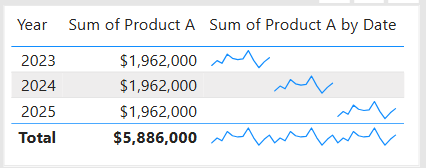
  • Sparklines (Power BI): Miniature line charts embedded in tables or matrices. Ideal for giving quick context without taking up space.

2. Comparing Categories

When to use: To compare values across distinct groups (e.g., sales by region, revenue by product).

Best charts:

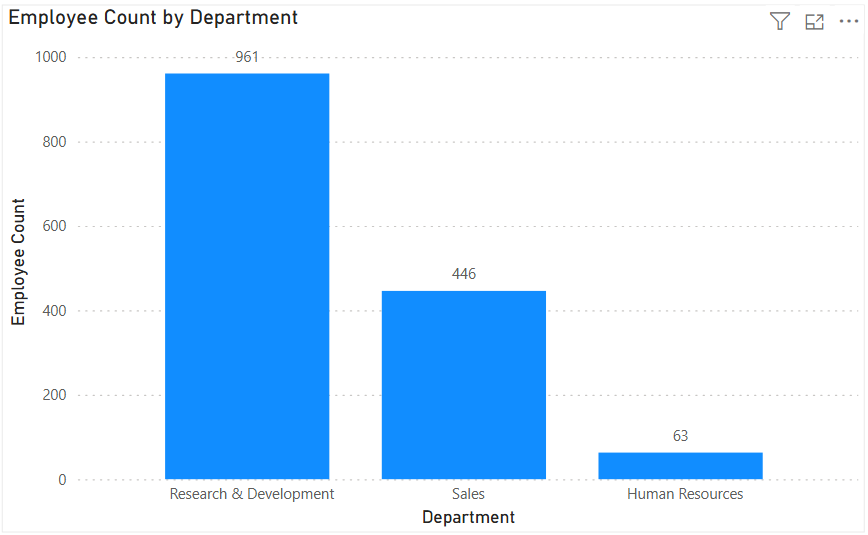
  • Column Chart: Vertical bars for category comparisons. Good when categories are on the horizontal axis.
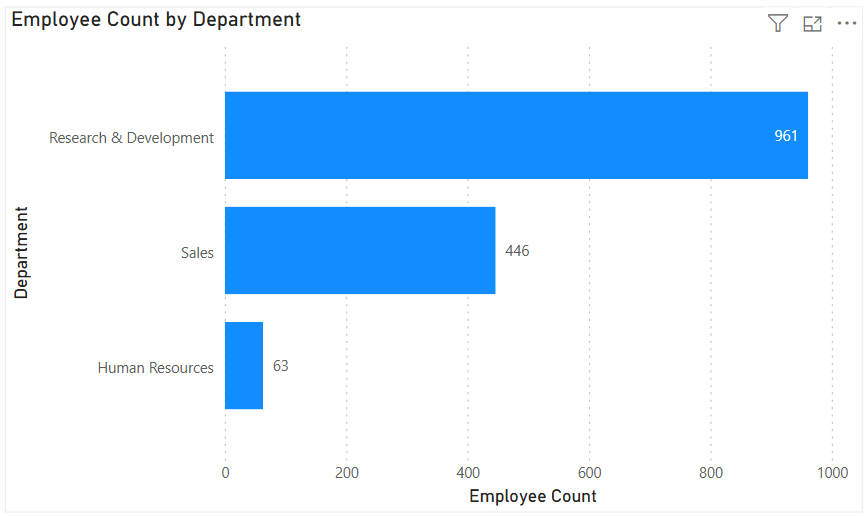
  • Bar Chart: Horizontal bars—useful when category names are long or when ranking items. Is usually a better choice than the column chart when there are many values.
  • Stacked Column/Bar Chart: Show category totals and subcategories in one view. Works for proportional breakdowns, but can get hard to compare across categories.

3. Understanding Relationships

When to use: To see whether two measures are related (e.g., advertising spend vs. sales revenue).

Best charts:

  • Scatter Chart: Plots data points across two axes. Useful for correlation analysis. Add a third variable with bubble size or color to generate more insights. This chart can also be useful for identifying anomalies/outliers in the data.
  • Line & Scatter Combination: Power BI lets you overlay a line for trend direction while keeping the scatter points.
  • Line & Bar/Column Chart Combination: Power BI offers some of these combination charts also to allow you to relate your comparison measures to your trend measures.

4. Highlighting Key Metrics

Sometimes you don’t need a chart—you just want a single number to stand out. These types of visuals are great for high-level executive dashboards, or for the summary page of dashboards in general.

Best visuals in Power BI:

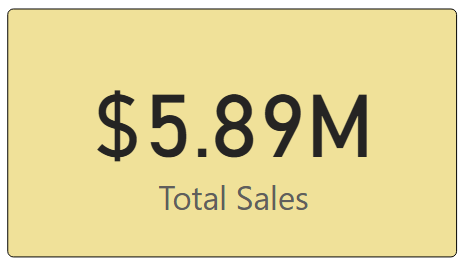
  • Card Visual: Displays one value clearly, like Total Sales.
  • KPI Visual: Adds target context and status indicator (e.g., actual vs. goal).
  • Gauge Visual: Circular representation of progress toward a goal—best for showing percentages or progress to target. For example, Performance Rating score shown on the scale of the goal.

5. Distribution Analysis

When to use: To see how data is spread across categories or ranges.

Best charts:

  • Column/Bar Chart with bins: Useful for creating histograms in Power BI.
  • Box-and-Whisker Chart (custom visual): Shows median, quartiles, and outliers.
  • Pie/Donut Charts: While often overused, they can be effective for showing composition when categories are few (ideally 3–5). For example, show the number and percentage of employees in each department.

6. Spotting Problem Areas

When to use: To identify anomalies or areas needing attention across a large dataset.

Best charts:

  • Heatmap: A table where color intensity represents value magnitude. Excellent for finding hot spots or gaps. This can be implemented in Power BI by using a Matrix visual with conditional formatting in Power BI.
  • Treemap: Breaks data into rectangles sized by value—helpful for hierarchical comparisons and for easily identifying the major components of the whole.

7. Detail-Level Exploration

When to use: To dive into raw data while keeping formatting and hierarchy.

Best visuals:

  • Table: Shows granular row-level data. Best for detail reporting.
  • Matrix: Adds pivot-table–like functionality with rows, columns, and drill-down. Often combined with conditional formatting and sparklines for added insight.

8. Part-to-Whole Analysis

When to use: To see how individual parts contribute to a total.

Best charts:

  • Stacked Charts: Show both totals and category breakdowns.
  • 100% Stacked Charts: Normalize totals so comparisons are by percentage share.
  • Treemap: Visualizes hierarchical data contributions in space-efficient blocks.

Quick Reference: Which Chart to Use?

ScenarioBest Visuals
Tracking trends, forecasting trendsLine, Area, Sparklines
Comparing categoriesColumn, Bar, Stacked
Showing relationshipsScatter, Line + Scatter, Line + Column/Bar
Highlighting metricsCard, KPI, Gauge
Analyzing distributionsHistogram (columns with bins), Box & Whisker, Pie/Donut (for few categories)
Identifying problem areasHeatmap (Matrix with colors), Treemap, Scatter
Exploring detail dataTable, Matrix
Showing part-to-wholeStacked Column/Bar, 100% Stacked, Treemap, Pie/Donut

The below graphic shows the visualization types available in Power BI. You can also import additional visuals by clicking the “3-dots” (get more visuals) at the bottom of the visualization icons.

Summary

Power BI, and other BI/analytics tools, offers a rich set of visuals, each designed to represent data in a way that suits a specific set of analytical needs. The key is to match the chart type with the story you want the data to tell. Whether you’re showing a simple KPI, uncovering trends, or surfacing problem areas, choosing the right chart ensures your insights are clear, actionable, and impactful. In addition, based on your scenario, it can also be beneficial to get feedback from the user population on what other visuals they might find useful or what other ways they would they like to see the data.

Thanks for reading! And good luck on your data journey!

Microsoft Fabric OneLake Catalog – description and links to resources

What is OneLake Catalog?

Microsoft Fabric OneLake Catalog is the next generation, enhanced version of the OneLake Data Hub. It provides a complete solution in a central location for team members (data engineers, data scientists, analysts, business team members, and other stakeholders) to browse, manage, and govern all their data from a single, intuitive location. It provides an intuitive and efficient user interface and truly simplifies and transforms the way we can manage, explore, and utilize content in Fabric. Usage is contextual and it has unified all Fabric item types (including Power BI items) and expanded support to all Fabric item types, integrating experiences, and providing detailed views of data subitems. It is a great tool.

Why use OneLake Catalog?

This tool will make your work within Fabric easier, and it will reduce duplication of items due to improved discoverability, and it will enhance our ability to govern data objects within the platform. So, check out the resources below to learn more.

Here is a link to a detailed Microsoft blog post introducing the OneLake Catalog:

And here is a link to a Microsoft Learn OneLake Catalog overview:

And finally, this is a link to a great, short (less than 5 min) video that gives an overview of the OneLake Catalog:

Thanks for reading! Good luck on your data journey!