Category: Business Intelligence Platform

QlikView Sheet Objects Quick Overview

This post provides a quick overview for each of the QlikView Sheet Objects.
Sheet Objects are the various objects that a developer or analyst places on a QlikView document’s sheet to provide the rich functionality of dashboards.

By right-clicking on an open area in a sheet, the below menu will appear.  Select “New Sheet Object” to see the available Sheet Object options – which are – List Box, Statistics Box, Multi Box, Table Box, Chart, Input Box, Current Selections Box, Button, Text Object, Line/Arrow Object, Slider/Calendar Object, Bookmark Object, Search Object, Container, Custom Object, and System Table.
Qlik_SheetObject_ListBox

The sheet objects can also be created from the Design Toolbar selections.
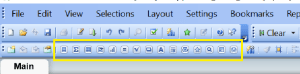
Qlik_SheetObject_DesignMenu

Some of our example images are taken from the Movies Database application that comes with QlikView.

List Box
The “List Box” is one of the most heavily used QlikView sheet objects.  It lists all the distinct values of a particular field. For example, you may have a List Box that displays all the products available within your data set.  The List Box is often used as a menu, where a user selects a value to analyze the data based on that value.
Qlik_SheetObject_ListBox_example2
The above example displays 3 List Boxes – the Director list box, the Actor list box, and the Title list box. When a user selects one or more values from one or more list boxes 9or any other object), the data in all other objects cascade to show only records relevant to that combination of selections.

Statistics Box
The “Statistics Box” is used to show aggregated representations of the data.  There are several statistical aggregation functions that are available, such as Sum, Average, Min, Max, Std Dev, Null Count, and several more.
Qlik_SheetObject_StatisticsBox_example
The above example shows “Statistics” for the Rating field – the number of ratings, the average rating, the min and max ratings, and the average and median ratings.

Multi Box
A Multi Box allows you to display several fields in a single object, with the values for each field available via a drop down. This object can be described as a set of List Boxes compacted together. The example screenshot below shows a Multi Box with the 3 fields, Director/Actor/Title, and by clicking any of the fields, you will get a drop down of all the values for that field – similar to a List Box for that field.
Qlik_SheetObject_MultiBox_example

Clicking on Director will display the list of all Directors, as shown below. Similarly, you can Actor or Title to get those respective drop down lists.
Qlik_SheetObject_MultiBox_dropdown_example

Table Box
The Table Box, as the name implies, displays a table of records for the selected data fields.
Qlik_SheetObject_TableBox_example

Chart
The Chart object is used for creating charts of various types. Some of the chart types available include bar, line, combo, radar, scatter, grid, pie, block, funnel, gauge, and mekko charts, and pivot and straight tables.
Qlik_SheetObject_Chart
The above shows one of the properties dialog tabs for the chart object – which shows some of the various chart types you can create.

Input Box
The Input Box object allows for users to enter a value. (which sets a variable that can be used for further processing)
Qlik_SheetObject_InputBox

Current Selections Box
The Current Selections Box displays all the selections that the user has selected. The Current Selections box is usually placed at the top of a sheet (dashboard page) in a position that allows users to easily see the selections that have been made.
Users are able to clear selections by clicking on the eraser beside the selection in the Current Selections Box, and the data on the sheet will change accordingly.
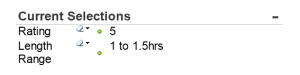
Qlik_SheetObject_CurrentSelectionsBox
In the example above, the user has selected Rating 5 and Length Range 1 to 1.5 hrs.

Button
The Button object creates a button that can be configured to execute various types of actions. When clicked the configured action will be executed.
Qlik_SheetObject_Button

Text Object
The Text Object is used for adding simple text to the document/sheet. It can be used to display informational messages, directions, descriptions or titles and labels, or any kind of information that needs to be shared with viewers/users of the document.
Qlik_SheetObject_TextObject

Line/Arrow Object
This object is used to create a line with or without arrows, and vertical or horizontal or diagonal. This object can be used for many purposes such showing relationships and flows.
Qlik_SheetObject_LineArrow

Slider/Calendar Object
The Slider/Calendar object is used to create either a slider with multiple values that the user can slide across to select, or a calendar that the user can use to find and select a date.
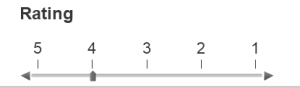
Qlik_SheetObject_Slider                 Qlik_SheetObject_Calendar
In the above slider, the user has selected Rating 4.  In the calendar object, clicking the grid icon opens a calendar that allows selection.

Bookmark Object
The Bookmark object is used to save the selection state of the current sheet. If a bookmark is created after a specific Actor has been selected, when you select that bookmark, the selection and corresponding data in the sheet will be displayed based on that saved selection state of the bookmark.
Multiple bookmarks can be saved for each sheet. Each having a different set of saved selections.
Qlik_SheetObject_Bookmark

Search Object
The Search Object allows users to search for values in entire data set or within a specific set of fields.
Qlik_SheetObject_Search

Container
The Container is a sheet space saving object that can contain multiple other objects, such as multiple chart objects. This allows you to display multiple views of the data within the same sheet “real estate” and change the view by clicking on the appropriate tab to get to each chart.
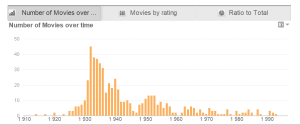
Qlik_SheetObject_Container
In the above example, the container contains 3 objects (3 charts), and therefore displays 3 tabs across the top, one for each chart. There are different possible orientations for the tabs – they can be to the left, right, top (as in this example), or bottom.

Custom Object
The custom object is a sheet object specifically intended to carry custom defined OCX replacement controls.
The Custom Object: Object Menu can be accessed from the Object menu, when the custom object is the active object.
Replacement controls are windowless OCX controls programmed by Qlik, yourself or third party vendors, which comply with the specifications for QlikView replacement OCX controls. The OCX control will be drawn in a rectangle on the sheet outlined by the underlying custom object. Communication between the OCX control and the QlikView document is maintained via the internal macro interpreter.

System Table
The System Table object creates a pivot table that shows the data structure of the qlikview document.
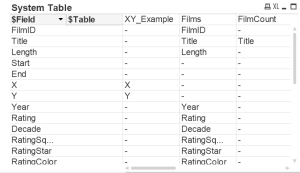
Qlik_SheetObject_SystemTable

In future posts, we will be covering each object in depth.

Changing the Oracle logo in OBIEE 12c

Most customers want to change the Oracle logo located in the top-left corner of the OBIEE website to their own company’s logo.

obiee12c_oracle_logo

After upgrading from OBIEE 11g to OBIEE 12c, your previous change for this logo will not carry forward, or of course, if you did a new install, you will need to make a change to replace the Oracle logo with your own.  This post explains the simplest way to change the Oracle logo in OBIEE 12c.

Perform a search (recursive search) on file system of your OBIEE 12c server, in all OBIEE directories, for files with “oracle_logo” or “oracle_logo.png”.
Your search will return many directories containing this file.  You will need to change the file in a subset of these directories.

Since you will be likely using the “s_Alta” style in OBIEE 12c, pick out the directories with “s_Alta” in their path.  There should be about 9 directories and they will look like the directories listed below.  If you are not using “s_Alta”, then pick the directories with the appropriate style.

Get your company logo and make it a similar size to the Oracle Logo image.  Rename your company logo file to the name oracle_logo.png.

Go into each of the directories you identified in the above steps, and rename the oracle_logo.png file to oracle_logo.bkup or oracle_logo.orig.
Then, copy your company logo (that is now renamed to oracle_logo.png) into all the directories.

The directory paths may look something like these shown below, but will be different.  If you not using BI Mobile App Designer (bimad) or BI Publisher (bipublisher), you can ignore the bottom 6 directories, and just update the 3 analytics directories.

./user_projects/domains/bi/servers/obips1/tmp/earmanager/analytics/rXWkmiVVOSYZhmHWZK763w/res/s_Alta/master/oracle_logo.png
./user_projects/domains/bi/servers/bi_server1/tmp/_WL_user/analytics/eiguw6/war/res/s_Alta/master/oracle_logo.png
./user_projects/domains/bi/servers/bi_server1/tmp/_WL_user/analytics/za01ic/war/res/s_Alta/master/oracle_logo.png
 
./user_projects/domains/bi/servers/bi_server1/tmp/_WL_user/bimad_11.1.1/hkbdzw/war/theme/alta/images/oracle_logo.png
./user_projects/domains/bi/servers/bi_server1/tmp/_WL_user/bimad_11.1.1/hkbdzw/war/theme/alta/mobile/images/oracle_logo.png
./user_projects/domains/bi/servers/bi_server1/tmp/_WL_user/bimad_11.1.1/hkbdzw/war/theme/alta/master/oracle_logo.png
 
./user_projects/domains/bi/servers/bi_server1/tmp/_WL_user/bipublisher_11.1.1/to5gma/war/theme/alta/images/oracle_logo.png
./user_projects/domains/bi/servers/bi_server1/tmp/_WL_user/bipublisher_11.1.1/to5gma/war/theme/alta/mobile/images/oracle_logo.png
./user_projects/domains/bi/servers/bi_server1/tmp/_WL_user/bipublisher_11.1.1/to5gma/war/theme/alta/master/oracle_logo.png


Good luck with your change.  Thanks for reading!


Installing the OBIEE 12c Client on Windows

Installing the OBIEE 12c Client is straight forward.  Here are the steps.

Visit the Oracle Business Intelligence page on the Oracle website. Go to the Downloads tab.
OBIEE12c_Downloads
Select the version of Oracle Business Intelligence (OBI) 12c that you want to install.

When the version download page appears, select “Accept the License Agreement”, and then under “Oracle Business Intelligence Developer Client Tool (12.x.x.x)”, click on “for Windows x86-64 bit” – (see green arrows below)
AcceptLicenseAgreement_ThenDownload

Download and save the file to your computer.

After the download is complete, go to the downloaded zip file … bi_client_12.x.x.x.x_Windows.X64.zip
OBIEE12C_ExtractZip
Right-click on the file and select Extract All.  Or extract using another method.

After the executable has been extracted, right-click on it and “Run as administrator”.
OBIEE12c_RunAsAdministrator

This will start the installer

OBIEE12c_PreparingTheInstaller   OBIEE12c_Step0of5

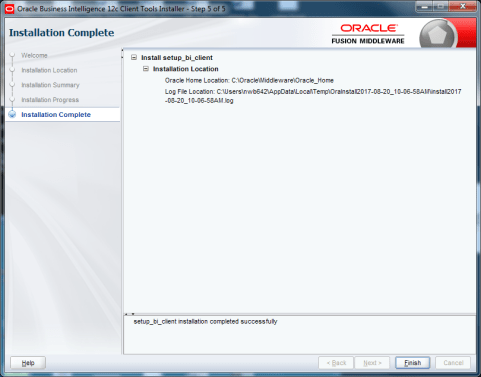
Click through the next 5 steps

OBIEE12c_Step2of5

OBIEE12c_Step3of5

OBIEE12c_Step5of5

After the installation is complete, run one of the applications: Start -> Oracle Business Intelligence Client -> Administration
OBIEE12c_Run

The Oracle BI Administration Tool should open and be ready for you to use it.
OBIEE12c_BIAdministrationTool

Thanks for reading. Hope this helps.

Issues identified after upgrading from OBIEE 11g to OBIEE 12c

After upgrading our Development environment from OBIEE 11g to OBIEE 12c, we encountered some issues.  This post describes some of the issues we have identified so far and how we resolved them.

  1. Images are missing.
    • This was fixed by moving all images to the new OBIEE 12c images directories.
  2. Dashboards with hidden pages are broken.
    • This was initially resolved by moving the hidden pages to the end of the dashboards list in the dashboard properties dialog.
    • We later discovered that there is an Oracle patch for this, and applying it resolved the issue.
  3. Colors on graphs are different.
    • This will need to be resolved by configuring reports with specific colors.
  4. Some of the graphs scales are changed
    • This was resolved by setting the appropriate graph scale properties.
  5. The order of the items in the legend on some graphs changed
    • This was left as is. It seems there is no “resolution” for this (no way to make it exactly as it was before), but it seems to be ok as is.
  6. Prompts shifted
    • This was resolved by setting the dashboard column objects’ (that contain the prompts) width properties
  7. Dashboard Pages missing after upgrade
    • This was resolved by changing and resaving the dashboard pages in 11g and re-migrating the catalog to 12c.
  8. In some cases, the Subject Areas do not show (missing) in Manage Privileges.
    • A restart of the services resolved this.


I will keep adding to this list as new issues are encountered and resolved.

Good luck with your upgrade!


Dashboards with hidden pages behave strangely after upgrade to OBIEE 12c

After upgrading from OBIEE 11g to OBIEE 12c, some dashboards behaved strangely.  Things that were wrong include:

  • unable to edit the dashboard from the dashboard page
  • unable to see some of the dashboard pages / tabs
  • click on one tab and it takes you to another tab

It turns out that all the dashboards affected by this behavior were dashboards with hidden pages / tabs.

There is a workaround for this.  The workaround is – move all the hidden pages / tabs to be at the end of the list of dashboards pages in the dashboard properties view.  After doing this, the dashboard will work as expected.

There is also an Oracle patch for this bug.  It is Patch # 23511448.  As of the time of this post, it was still an interim patch and not yet a production patch.  From our perspective, the patch seems to have resolved the issue without causing any new issues.  However, since it’s still an interim patch, apply at your own risk.

Thanks for reading.

The CONCATENATE statement, concat() function, and string concatenation operator (&) in QlikView

In QlikView, there is the CONCATENATE statement, the CONCAT() function, and the string concatenation operator (the ampersand – &).  These are all very different and in this post I will explain each of them.

CONCATENATE statement

The CONCATENATE statement is used in conjunction with the LOAD statement.  It appends the rows of one table to another.  It is similar to a UNION ALL statement in SQL.

Let’s take a look at a couple examples using the following tables:

Employee_Location

Employee_ID Employee_Name Employee_Location
1 John NY
2 Mary NJ

Employee_Office

Employee_ID Employee_Name Employee_State
3 Jane FL
4 Evan NY

Employee_Position

Employee_ID Employee_Name Employee_Position
5 Paul Cashier
6 Sonia Salesperson

If we concatenated the Employee_Location and Employee_Office tables using the following load script …

[Employee_Location]:
 LOAD
 [Employee_ID]       as [%Employee ID],
 [Employee_Name]     as [Employee Name],
 [Employee_Location] as [Employee Location]
 FROM [… data source details for Employee_Location …]

CONCATENATE (Employee_Location)
 LOAD
 [Employee_ID]        as [%Employee ID],
 [Employee_Name]      as [Employee Name],
 [Employee_State]     as [Employee Location]  --aliased column
 FROM [… data source details for Employee_Office …]

We would get this result …

Employee_Location

Employee ID Employee Name Employee Location
1 John NY
2 Mary NJ
3 Jane FL
4 Evan NY

Now, if we concatenated the Employee_Location and Employee_Position tables using the following script…

[Employee_Information]:
 LOAD
 [Employee_ID]       as [%Employee ID],
 [Employee_Name]     as [Employee Name],
 [Employee_Location] as [Employee Location]
 FROM [… data source details for Employee_Location …]

CONCATENATE (Employee_Information)
 LOAD
 [Employee_ID]        as [%Employee ID],
 [Employee_Name]      as [Employee Name],
 [Employee_Position]  as [Employee Position]
 FROM [… data source details for Employee_Position …]

We would get this result …

Employee_Information

Employee ID Employee Name Employee Location Employee Position
1 John NY  
2 Mary NJ  
5 Paul   Cashier
6 Sonia   Salesperson

Notice that the concatenation works even if the tables do not have the same number of columns.  This provide more flexibility than the UNION or UNION ALL statements in SQL where you need to add a dummy column to the select list of your first table before performing the union.

Concat() function

The concat() function concatenates all the values of a column into a single delimited string.  The column and the delimiter are specified as parameters in the function.  You also have the option of producing the result string with only distinct values.

For example, if you have the following table …

Product_ID Product_Description Product_Category
1212 Pen Office Supplies
3214 Paper Paper
1345 Sharpener Office Supplies
1177 Eraser Office Supplies
2780 Calculator Electronics
2901 Computer Electronics
This statement: CONCAT(Product_Category, ‘,’)

Produces: Electronics, Electronics, Office Supplies, Office Supplies, Office Supplies, Paper
Notice there is a space after the comma in the delimiter, and therefore, there is a space after the comma in the output

This statement:   CONCAT(Product_Category, ‘|’)

Produces: Electronics|Electronics|Office Supplies|Office Supplies|Office Supplies|Paper
Notice there is no space in the delimiter, and therefore, no space between the values in the output

This statement:  CONCAT(DISTINCT Product_Category, ‘ | ’)

Produces:             Electronics | Office Supplies | Paper
Notice spaces in the delimiter, and distinct output.

Concatenation operator ( & )

When you need to concatenate 2 strings together, you use the concatenation operator – the ampersand (&).  For example, if you have address values in separate columns as in the table below …

Street City State Zip
123 Main St Orlando FL 32801

… you can output the address as one concatenated string by using the concatenation operator as shown in the script below …

[Street] & ‘, ‘ & [City] & ‘, ‘ & [State] & ‘ ‘ & [Zip]

[Notice a comma and a space is concatenated between Street, City and State; 
and only a space is concatenate between State and Zip]

… and that would produce the following result …
123 Main St, Orlando, FL 32801

DAC Execution Plan Failure – “No active subject areas for execution plan”

When your Oracle Business Intelligence Applications (OBIA) DAC Execution Plan fails with a message that looks like this …

“Retrieving execution plan informationMESSAGE:::com.siebel.analytics.etl.execution.exceptions.EmptyExecutionPlanException: No active subject areas for execution plan were found
EXCEPTION CLASS::: com.siebel.analytics.etl.execution.ExecutionPlanInitializationException

com.siebel.analytics.etl.execution.ExecutionParameters.(ExecutionParameters.java:111)
com.siebel.analytics.etl.execution.ExecutionParameterHelper.(ExecutionParameterHelpe”

It is likely that you have a missing Subject Area in your Execution Plan in DAC.  You need to attach the Subject Area to the Execution Plan and rebuild the Plan.

After doing this your job should run successfully.


How to generate detailed Oracle BI (OBIEE) Repository Documentation

In this post, I will show the steps for using the OBIEE “Repository Documentation” utility to generate repository (RPD) lineage information.  I will also provide a couple example of how this documentation (output file) can be used.

To access and run the Repository Documentation utility,  from the BI Admin Tool menu, select Tools -> Utilities.

biadmintool_menu_tools_utilities

From the Utilities dialog, select “Repository Documentation”, and click “Execute…”

utilitiesdialog

In the “Save As” dialog, select the destination and enter the name you would like for the output file.

saverepositorydocumentationdialog

When it finishes, it will generate the output csv file.  Note  – this will likely be a large file.  It will contain all your repository objects.

obieerepositoryoutputfile

The RPD documentation file will contain the following columns:
Subject Area, Presentation Table, Presentation Column, Description – Presentation Column, Business Model, Derived logical table, Derived logical column, Description – Derived Logical Column, Expression, Logical Table, Logical Column, Description – Logical Column, Logical Table Source, Expression, Initialization Block, Variable, Database, Physical Catalog, Physical Schema, Physical Table, Alias, Physical Column, Description – Physical Column

You can use this file to quickly track lineage from physical sources to the logical columns to the presentation columns and identify all the logic and variables in between.
You can also use it to identify where and how much a specified table, column, variable, etc. is used which will help you to identify dependencies and know the effect of making changes or deleting elements.

Development, Data Governance, and Quality Assurance teams may find this information useful in this format.

The ways of adding data to your Qlik Sense application

This post covers the basics of navigation and selection for getting data into your Qlik Sense application.  More information about each option will be detailed in upcoming posts.

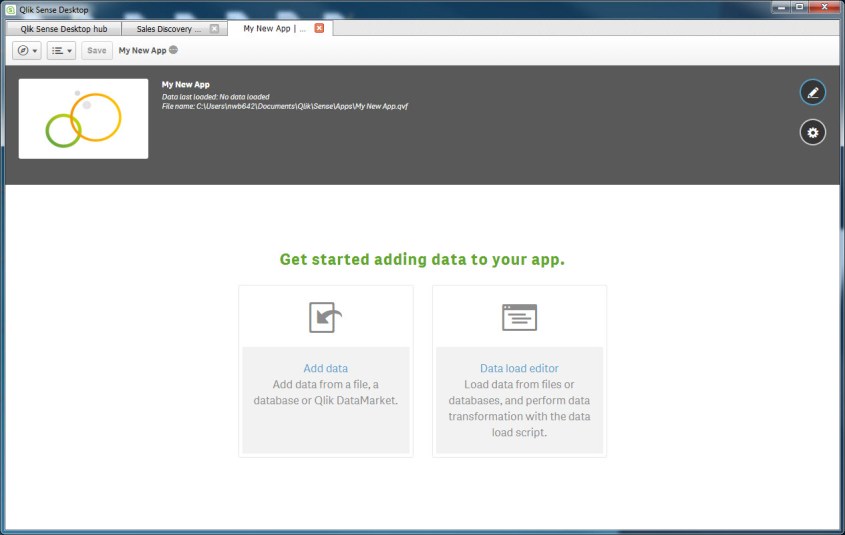
When you are working with a new app to which data has not yet been loaded, with the app open you can use the “Add data” or “Data load editor” icons shown below the app title area to initiate a data load.

Use the “Add data” icon to add data from a file, database, or Qlik DataMarket using the Quick Data Load (QDL) wizard.
Use the “Data load editor” (DLE) to load data from files or databases, and perform data transformation with data load scripts.
qliksense_newapp_adddata_dataloadeditor

If your app already has data, the area below the app title area will contain existing Sheets, Bookmarks, and Stories.  But you will still be able to access the QDL and the DLE.

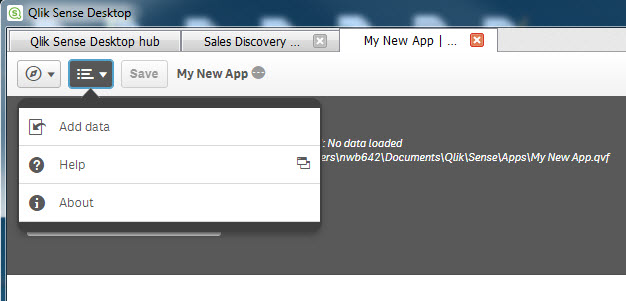
For the QDL wizard, you can access it from the Global Menu, and select the “Add data” menu item.
qliksense_globalmenu_adddata

For the DLE, you can access it from the Navigation menu, and select the “Data load editor” menu item.
qliksense_navigationmenu_dataloadeditor

More details about what comes next will be in upcoming posts.

Qlik Sense Desktop Hub Overview

When you start Qlik Sense, it will open to the “hub” page. And you may also see a “Welcome…” dialog window.

qliksensedesktopwelcomedialog From the “Welcome …” window, you may click the “Create a new App” button to start the process of creating a new app, or click the “x” in the top-right to close the window.

Optionally, you may uncheck the “Show this dialog at startup” checkbox before closing it, if you do not want to show this window on each startup of Qlik Sense.  If this was unchecked previously, then this Welcome dialog would not have appeared.

Once you have closed the Welcome dialog, you  will then be in the main hub interface. Let’s take a look at it.

qliksensedesktophubinterface

At the top left, you will see the Global Menu. From this menu you can access Help and About, and also access the Dev Hub.  The Global Menu expanded is shown below.

qliksenseglobalmenu

Below the Global Menu is the Apps area.  Here you will see the applications that have been created and saved.

At the bottom of the page, you will see a “Getting started…” button.  Clicking here will bring you to a Qlik Sense support page containing information and resources to help you get started with Qlik Sense.

To the right in the main area of the window, there is a “Create new app” button which you will use when you need to create a new app.

Then, there is an icon for sorting the apps alphabetically – ascending or descending.  Then, another pair of icons for organizing the display of the apps – either in grid format or in list format.

Above that (top-right), you will find the icon for Qlik Cloud, and another icon for Search.