Author: thedatacommunity

Oracle Business Intelligence Applications (OBIA) Fact Tables

Dimensionally modeled (star-schema designed) data warehouses are primarily made up of two types of tables – Fact and Dimension.  Fact tables store the measurements generated by business events (# of orders, amount of dollars, etc.); and Dimension tables store the descriptive attributes that provide context to the measurements (product [product name], customer [customer type], date, etc.).

This post describes the types of Fact tables found in Oracle Business Intelligence Applications (OBIA) data warehouse – Oracle Business Analytics Warehouse (OBAW).  There will be future posts that describe in detail the other table types in OBIA (Dimension, Internal, etc.).

The 5 types of Fact tables used in the OBAW are:

  1. Transactional
  2. Aggregate
  3. Cycle Lines
  4. Snapshot
  5. State Transition.

The Transactional Fact Table is the main type of fact table. It stores the lowest-level of information from transactional sources. An example of a Fact table in OBIA (Financial Analytics) is: W_GL_BALANCE_F
Note: Fact tables in OBIA end with “_F”.
This table stores the current balance for GL accounts by GL_ACCOUNT and other dimensions.

The Aggregate Fact Table is typically used for performance improvements.  It is a summarized or rolled-up version of the Transactional fact table.  Instead of querying the data at the transactional level – which is the most detailed level and the level with the most records, the Aggregate table allows you to query the data at a more rolled up level when appropriate.  One of the most frequent roll-ups is time – for example, a transactional table at a day level is rolled up to the month level.
Aggregate tables can be tens of times less (or even hundreds) than their transactional versions.  These types of tables are also very common in OBIA and in data warehousing in general.

An example of an Aggregate Fact Table in OBIA (Financial Analytics) is: W_GL_BALANCE_A
Note: Aggregate Fact tables in OBIA end with “_A”.
This table stores the GL account balances aggregated by GL Account Segment and other dimensions. Instead of having data at the GL_ACCOUNT level as in the Transactional fact table, the data is at the GL Account Segment level in the Aggregate table.  Aggregate Fact tables are derived from Transactional Fact  Tables or other Aggregate Fact tables. This table is derived from the transactional fact table mentioned above: W_GL_BALANCE_F.

The Snapshot Fact Table stores “snapshots” of measurements taken at well-defined, predetermined time intervals – such as daily, monthly, annually, etc.  Examples include Inventory and Account Balance snapshots, and AR/AP aging snapshots.  Common items such as financial reports or bank statements are examples of reports from Snapshot Fact tables.

An example of a Snapshot table in OBIA(Supply Chain Analytics) is: W_INVENTORY_DAILY_BAL_F
Oracle’s description of this table will help to clarify its makeup and purpose.
The W_INVENTORY_DAILY_BAL_F fact table is used to represent at a point in time information of all inventory balances and inventory values related to products whose inventory is maintained by the business organization, these would typically include all inbound (purchased from external entities) products as well as outbound (sold to external entities) products. The inventory balance information is trended by copying historical snapshot information from this table at periodic points in time into history table W_INVENTORY_MONTHLY_BAL_F.
The W_INVENTORY_MONTHLY_BAL_F table stores a snapshot of inventory balance.
There is one row for each product and product storage location whose point in time inventory quantity and value information is maintained. The storage location could represent a warehouse or further divisions within a warehouse. This aspect is configurable within the product. All the dimension key links to the other Oracle Business Analytics Warehouse dimension tables, such as W_DAY_D, W_BUSN_LOC_D, W_PRODUCT_D, W_INVENTORY_PRODUCT_D, and so on, represent information associations at that point in time for that product inventory information. The DATE_WID column represents the date on which the inventory balance information is valid.

These tables can also have Aggregate versions:
As mentioned in the description for the W_INVENTORY_DAILY_BAL_F table above, there is an aggregate version.  However, snapshot tables are not necessarily aggregated like transactional tables, because many times the measures are non-additive or semi-additive. For example, you would not take your account monthly balance in January and add it to your account monthly balance in February to determine how much money you have – that would be wrong.

The W_INVENTORY_MONTHLY_BAL_F fact table is used to represent the monthly information of all the inventory balances and the inventory values related to products whose inventory is maintained by the business organization. This information includes all inbound (purchased from external entities) products and outbound (sold to external entities) products. The aggregation period is configurable, and has a preconfigured value of Monthly.
There is one row for each product and product storage location whose point in time (as of a month) inventory quantity and value information is maintained. All the dimension key links to the other Oracle Business Analytics Warehouse dimension tables such as W_DAY_D, W_BUSN_LOC_D, W_PRODUCT_D, W_INVENTORY_PRODUCT_D, and so on, and represents information and associations at that point in time for that product inventory information. The PERIOD_START_DT_WID and PERIOD_END_DT_WID column represents the aggregation bucket start and end dates. The column INV_BALANCE_DT_WID represents the date within this aggregation period on which the inventory balance information is valid.

The Cycle Lines Fact Table store measurements for multiple related business events and are therefore typically derived from multiple fact tables. They typically store process cycle times or provide the ability to easily determine process cycle times.  These tables are also called Accumulating Snapshot Fact tables because they are snapshots of different events accumulated on each other.  An example of a Cycle Lines Fact table is W_PURCH_CYCLE_LINE_F.

Here is Oracle’s description of the table which should help clarify its purpose: W_PURCH_CYCLE_LINE_F table tracks the time duration of all events pertaining to the purchase process commencing with a requisition. Information in this table enables analysis of the direct spend process within an organization beginning with a purchase requisition, its approval, the creation of an approved purchase order, its submission to a supplier, the creation of a purchase schedule and ending with its receipt of the products. It can be used to calculate the time taken to receive products that have been ordered, the time between the first receipt and last receipt of products that have scheduled for delivery. The W_PURCH_CYCLE_LINE_F table contains all the various dates associated with the processes such as submission, approval, ordering and receiving as well as quantities and amounts. While Other spend related fact tables capture individual process such as requesting, ordering, scheduling this table combines all the in one place for ease of analysis and reporting.

These Cycle Lines tables can also have aggregate versions. For example: W_PURCH_CYCLE_LINE_A This is an aggregate table of W_PURCH_CYCLE_LINE_F at a higher level of dimensionality. The Product dimension is replaced by a Product type dimension to give a high level analysis of the sourcing data. It stores Purchase Cycle Line records aggregated over a preconfigured Monthly time period and product types.

State Transition Fact Tables store state-transition metrics based on business events, such as customer state – new, top, dormant, lost, etc – based on the customer order activity.  These tables store or allow you to easily derived counts of the various states.  State Transition Fact tables are derived from Transactional or Snapshot fact tables.

Below are two examples of State Transition Fact tables in OBIA (Marketing Analytics):

The Customer Status History Fact: W_CUSTOMER_STATUS_HIST_F
This is a fact table that tracks the status of customers based on the frequency of orders they place with the organization. Possible statuses are NEW, RECENT, DORMANT and LOST. The time duration for each status bucket is configurable, out of the box being a calendar year.
The grain of this table is at a Customer, Customer Status and the Status Start Date level. Other important columns in this table include the Sold to and the Ship to location for the customer. These are derived based on the status bucket start date against the Customer Locations dimension table.

The Loyalty Member Status History Fact: W_LOY_MEMBER_STATUS_HIST_F
W_LOY_MEMBER_STATUS_HIST_F Fact table stores status changes of Loyalty members. Grain: One record for each member status changed.

That’s it for OBIA fact tables.  Understanding the types of fact tables and their purpose helps us to make better design choices when we set out to build new fact tables to represent business events, and it also helps us to quicker recognize and better analyze the data in these tables.
I hope you found this information useful. If you have information about other fact table types, please share.

How to clear the BI Server cache using command line script or via the Issue SQL page

This post will explain how to clear the BI Server cache using either (1) a script, or (2) the user interface.
You may need to clear your cache to allow the data in the cache to get refreshed.

(1) Clearing the cache using Command Line script …

This example is for Linux/Unix, but can be easily adjusted for Windows.

Create a file called purgecache.txt … and place it at … [FMW_HOME]/instances/instance1/bifoundation/OracleBIApplication/coreapplication/setup

In the file, enter the code “call SAPurgeAllCache()” – (without the quotes) – which is a special BI Server command for clearing the entire cache.

Then create a shell script called purgecache.sh, located in a directory where you store your custom scripts … which includes the following 2 commands …

 (Note: there is a space after the dot in the below command)
. /[FMW_HOME]/instances/instance1/bifoundation/OracleBIApplication/coreapplication/setup/bi-init.sh  

(Note: the below is ONE long command; not 2 commands)
[FMW_HOME]/Oracle_BI1/bifoundation/server/bin/nqcmd -d AnalyticsWeb -u administrator -p pswd –s [FMW_HOME]/instances/instance1/bifoundation/OracleBIApplication/coreapplication/setup/purgecache.txt

Then you may execute the shell script just as you would any other script (for example  ./purgecache.sh ) -or- you may add this new script to your crontab if desired – for example, to run each night before your cache seeding reports run.

(2) Clearing the cache using the Issue SQL page …

Log into OBIEE Analytics using an ID that has the “Administration” link privilege.
http://server:9704/analytics

Click on the “Administration” link located at the top right of the page.

Administration_link

Click on the “Issue SQL” link at the bottom left of the page.

Issue_SQL_link

In the Issue SQL window, enter the command:  “call SAPurgeAllCache()” (without the quotes)
Click the “Issue SQL” button to execute the command.

Issue_SQL_Window_and_command

You should see a message indicating that the command was executed successfully (assuming you have caching turned on).

Your cache directory located at …
[FMW_HOME]/instances/instance1/bifoundation/OracleBIServerComponent/ coreapplication_obis1/cache
… should now be empty.

Changing the maximum number of values in a drop down list in OBIEE 11g – MaxDropDownValues

When you create a prompt that uses a drop down list in OBIEE, the drop down list is limited to 256 values by default.  If your list contains more values and you would like to see more values without having to click the “More” button, or if you would like to show less values, there is a configuration parameter that you can change to increase the number of values shown up to 1000.  You can set it to any value up to 1000, including values less than the default of 256.

To do this, edit the instanceconfig.xml file.  This file is located at …
[$FMW_HOME]/instances/instance1/config/OracleBIPresentationServicesComponent/coreapplication_obips1

Add the MaxDropDownValues parameter to the file.  If you do not already have a Prompts section, add it, and then add MaxDropDownValues between the Prompts tags.  And make sure that all this is between the ServerInstance tags which will already be there in the file.

Your config file will look something like this …

<ServerInstance>
…
…
    <Prompts>
        <MaxDropDownValues>1000</MaxDropDownValues> 
    </Prompts>
…
</ServerInstance>

Setting_MaxDropDownValues_InstanceConfig

After making these changes, you will need to restart BI Presentation Services for them to take effect. Then your drop down list will show up to 1000 (or less) values by default…

DropDownList_ShowingMax

Note: The numbers shown in the screenshot have no meaning whatsoever; they are just randomly generated sample data for example purposes. So, any similarity that they may have to any other number is strictly coincidental.

Weird prompt values in dashboard prompts after upgrade

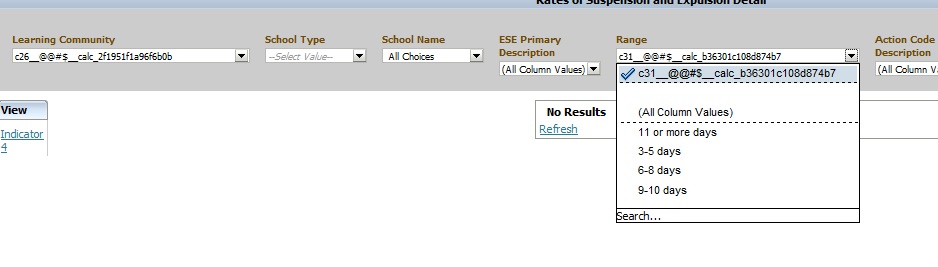
Have you noticed weird prompt values in your reports after upgrading OBIEE from 10g to 11g?  Below is an example of what you might see …

Weird_Prompt_Values

This is usually caused by calculated columns in the report.  You will need to remove those columns, and then add them back to the report.  And then, depending on what your calculated columns were being used for, you may want to consider using Selection Steps instead to accomplish the same logic.

If you know of another way to fix this scenario, please share.

Informatica Unconnected Transformations

There are 3 Informatica transformations (External Procedure, Lookup, and Stored Procedure) that can be unconnected in a valid mapping.  An unconnected transformation is one that is not connected to the pipeline – that is, it is not connected to any other transformation via a link.  Unconnected transformations, especially unconnected lookup transformations, are widely in OBIA mappings.

Unconnected transformations are defined in a mapping and are called / invoked from another transformation in the mapping.  They can be called from any transformation that supports the transformation expression language.

Below is a list of the 3 Informatica Unconnected Transformations and how they are called or invoked from another transformation:

 Transformation  How its called / invoked
 External Procedure  :EXT.external_procedure_transformation(argument1, argument2, …)
 Lookup  :LKP.lookup_transformation(argument1, argument2, …)
 Stored Procedure  :SP.stored_procedure_transformation( argument1, argument2, [, PROC_RESULT])

Any mapping with an unconnected transformation must also include another transformation that calls the unconnected transformation.

All of the 3 Unconnected Transformations can also be used in connected mode.  However, when you want to execute the transformation logic for a subset of the rows passing through the mapping (especially when it’s a small percentage of the rows), you will want to consider using the transformations in unconnected mode and with conditional logic.  The conditional logic will cause the unconnected transformation to execute only when necessary, and therefore, may improve perfiormance.

The example below shows a call to an unconnected lookup transformation (lkp_item_id) that is invoked only when the desired item_id value is NULL.  In a case where only a small percentage of the rows have an item_id that is NULL, then the lookup would only be invoked for a small number of rows, as opposed to all rows if the transformation was connected.

                       IIF  ( ISNULL(item_id),   :LKP.lkp_item_id ( item_name ),   item_id )

As a side note, the Sequence Generator transformation can also be invoked from a function call, but it is a connected transformation.

 Transformation  How its called / invoked
 Sequence Generator  :SEQ.sequence_generator_transformation.CURRVAL

Adobe Flash 11.8.800.168 causing graphs/charts not to show in Internet Explorer 8

There is an issue with Internet Explorer 8 and Adobe Flash browser plugin that causes graphs/charts not to show up in OBIEE 11g.  This is not the same as the issue that can be resolved by setting the thousand place separator property. 

The versions that have the issue are Adobe Flash 11.8.800.168 and IE8.  The same Adobe release works fine with IE9 and also works great with Firefox.  So users on those browser versions would not have been affected.

The good news is … Adobe released an emergency release within 3 days of this problem release.  The new version is 11.8.800.174.  After downloading and installing this version, we were able to see all graphs/charts.   

You can access the latest and previous Adobe Flash versions here …
http://helpx.adobe.com/flash-player/kb/archived-flash-player-versions.html#main_Archived_Flash_Player_versions_for_developers

Good luck.

Informatica Command-line Programs

Frequently used Informatica Programs are:

  • pmcmd – used to manage workflows, such as starting, stopping and scheduling
  • pmrep – used to perform PowerCenter Repository administration tasks, such as update repository information and perform repository functions
  • infacmd – used to administer Informatica application services
  • infasetup – used to administer Informatica domain and nodes
  • pmpasswd – used to encrypt passwords for use in parameter files or environment variables

Command-line and Interactive Execution
All 5 programs (pmcmd, pmrep, infacmd, infasetup, and pmpasswd) can be executed in Command-line mode.
Three of them (pmcmd, pmrep and infacmd) can be executed in Interactive mode.

Program Locations
All programs except infasetup are located in [InformaticaInstallDirectory]/server/bin.  infasetup is located in [InformaticaInstallDirectory]/server.

Summary
Below is a table that summarizes the features/usage of each of these programs into one location:

InformaticaCommandLinePrograms

Direct Links to various OBIEE User and Administration Presentation functions

These are some direct links to various OBIEE User and Administration functions.  These can be useful to know for efficiency and at times can also be useful for debugging security.

To go directly to “Home Page”
http://servername:9704/analytics/saw.dll?bieehome

To go directly to “Dashboard”
http://servername:9704/analytics/saw.dll?Dashboard

To go directly to “Manage Privileges”
http://servername:9704/analytics/saw.dll?PrivilegeAdmin

To go directly to “Manage Catalog Groups”
http://servername:9704/analytics/saw.dll?ManageGroups

To go directly to “Manage Sessions”
http://servername:9704/analytics/saw.dll?Sessions

To go directly to “Manage Agent Sessions”
http://servername:9704/analytics/saw.dll?ManageIBotSessions

To go directly to “Issue SQL”
http://servername:9704/analytics/saw.dll?IssueRawSQL&Done=%2fanalytics%2fsaw.dll%3fAdmin

To go directly to “Manage Map Data”
http://servername:9704/analytics/saw.dll?ManageMapData

To go directly to “Manage BI Publisher”
http://servername:9704/analytics/saw.dll?bipublisherEntry&Done=%2fanalytics%2fsaw.dll%3fAdmin&Action=admin

How to run Catalog Manager in GUI mode from the Linux Server

OBIEE Catalog Manager can be accessed from a client tool on Windows or from a server side process.  There are times when it is required that you run the Catalog Manager in offline mode, and at those times you will be required to run it on the server.

Although there is a command line option for Catalog Manager, it is easier to work with it in a Graphical User Interface (GUI) mode and at times its necessary to use that mode.

Start Xming (or another X-Windows type tool) on your local PC or laptop. [This will allow the Linux screens to show up on your desktop when you run the shell script on the Linux server]

For more on Xming, visit http://en.wikipedia.org/wiki/Xming

Connect to your Linux server from your desktop/laptop using Putty (or other tool).   Then go to the catalog manager directory:

cd [$FMW_HOME]/instances/instance1/bifoundation/OracleBIPresentationServicesComponent/coreapplication_obips1/catalogmanager

runcat-start-catalogmanager

Start up Catalog Manager by running:    ./runcat.sh

This will start Catalog Manager, and it will be running on the Linux server, but the screens will be showing on your desktop/laptop.

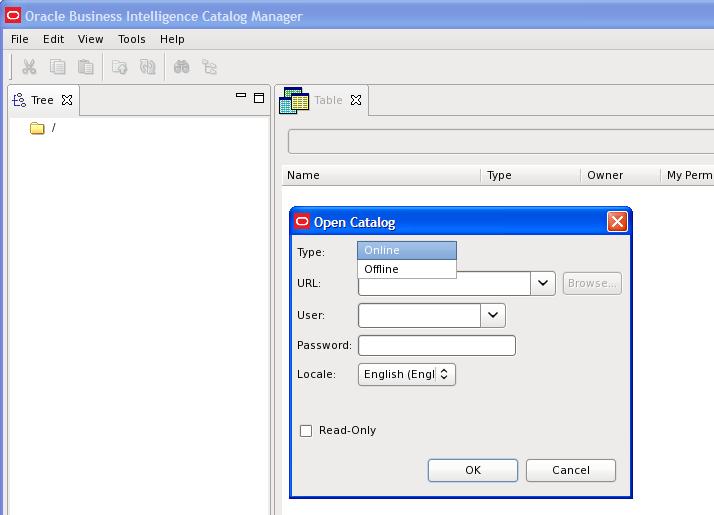
From the main Catalog Manager window, you can then click on File –>Open Catalog

catalogmanager_interface

And then select the Type based on how you want to connect – Online or Offline mode.  Accessing Catalog Manager in this way is most likely needed when you need to connect in Online mode.

And then of course, you need to enter the URL – which is the full path to the catalog, for example:[$FMW_HOME]/instances/instance1/bifoundation/OracleBIPresentationServicesComponent/coreapplication_obips1/catalog/default

And enter the User and Password.

catalogmanager_onlineoffline_login

Assuming everything was entered correctly, you will be connected to the catalog.  You can then use the interface to browse the catalog and perform other tasks on catalog objects.

catalogmanager_browsing

Good luck!

User having inconsistent login issues or user taking a long time to login or authenticate in OBIEE 11g

If you are using Active Directory for authentication for your OBIEE system, and are experiencing situations where some users are taking a long time to authenticate/login, then this post might be helpful.  This could also be useful for configuring LDAP systems other than Active Directory, but I cannot say for sure.

What could potentially be happening to users experiencing the problem is … they belong to Active Directory groups (or LDAP groups) with deep hierarchies, and the system has to traverse all those hierarchies to retrieve all their LDAP information which ends up taking quite a bit of time.  A possible solution is to limit the number of LDAP levels that will be searched/traversed to get the users Groups information.

Login to WebLogic Administration Console (aka WLS or Admin Console), then click on “Security Realms” on the left, and then click the name of the realm that you use for security (for example, “myrealm”).

WLS_SecurityRealm

Click the Providers tab.   And then click the name of your Active Directory provider.

WLS_SecurityProviders

Then select the Provider Specific tab.

ProviderSpecificSettings

Scroll down to the section titled “Groups”.

ProviderSpecific_Groups_parameters

Change the Group Membership Searching setting from unlimited to limited.

And then set Max Group Membership Search Level – change it from 0 (no limit) to 1 (or to the smallest number necessary for your environment).

This will prevent long searches for those users that are in many groups with deep hierarchies (such as groups within groups within groups and so on). This could cut the search time tremendously, thereby reducing the authentication time and preventing login timeouts.

Good luck!