Tag: Upgrade from OBIEE 10g to OBIEE 11g

Weird prompt values in dashboard prompts after upgrade

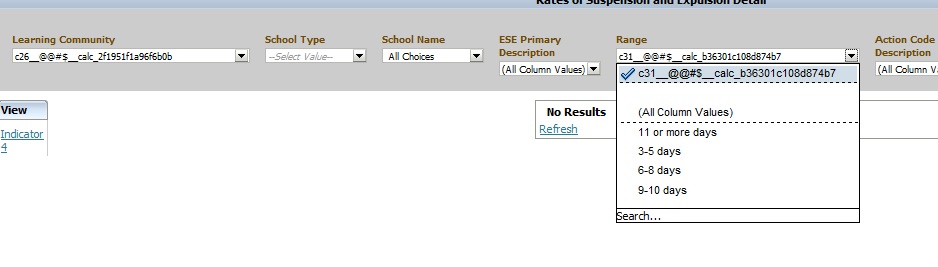
Have you noticed weird prompt values in your reports after upgrading OBIEE from 10g to 11g?  Below is an example of what you might see …

Weird_Prompt_Values

This is usually caused by calculated columns in the report.  You will need to remove those columns, and then add them back to the report.  And then, depending on what your calculated columns were being used for, you may want to consider using Selection Steps instead to accomplish the same logic.

If you know of another way to fix this scenario, please share.

UPGAST-00014 error when upgrading OBIEE 10g RPD and Catalog to OBIEE 11g

If you get this error during Step 4 of the Upgrade Assistant for upgrading OBIEE 10g RPD and/or Catalog to 11g, then this post might be helpful.

UPGAST-00014: unable to connect to WebLogic Server at localhost:7001
t3://localhost:7001: Destination unreachable; nested exception is: java.net.ConnectException: Connection refused; No available router to destination

UPGAST-00014-error

Perform the following steps that may resolve your problem:

– Log in to Administration Console.  http://yourserver:7001/console
– Click the ‘Servers’ link.

UPGAST-00014-clickServers

Then in the Summary of Servers page / Configuration tab, click ‘AdminServer(admin)’.

UPGAST-00014-AdminServer

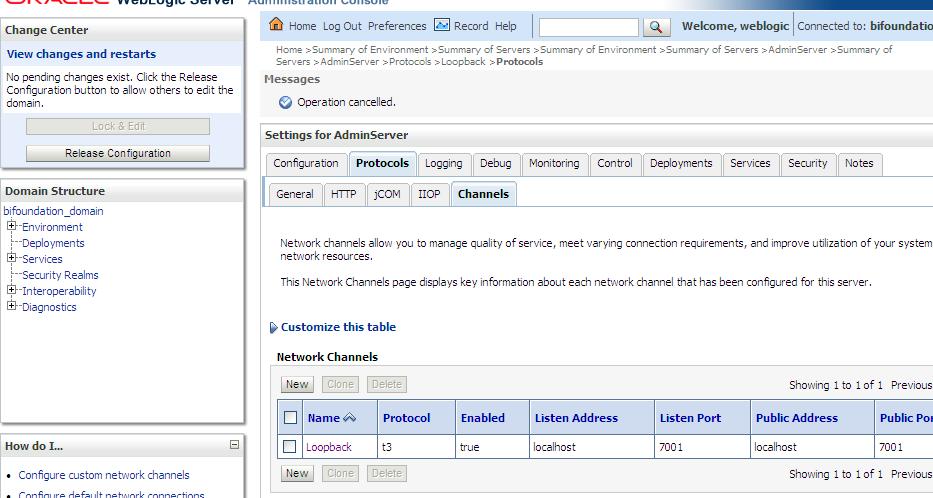
– From the Settings for AdminServer page, select the ‘Protocols’ tab, then the ‘Channels’ subtab.
– And then Click ‘Lock & Edit’ button in the upper left Change Center.

UPGAST-00014-ProtocolsChannels

– Click the New button to begin creating a new Network Channel.
– Enter the following information…
Name: Loopback (or whatever name you like)
Protocol: t3

– The click Next

UPGAST-00014-ChannelConfig1

– The enter …
Listen Address: localhost
Listen port: 7001
Click Finish

UPGAST-00014-ChannelConfig2

The new Network Channel (Loopback) is added.  Activate the changes by clicking on the “Activate Changes” button.

UPGAST-00014-ChannelCreated

Now, retry running the Upgrade Assistant. There is no need to restart any of the services.
You should now get past Step 4 (the point at which you were getting the error before).

How to remove the popup menu when navigating from one report to another via a navigation link

When you click on a navigation link value, by default a pop-up arises with the name of the possible report(s) that you can navigating to.  Even if it’s just one possible report, the pop-up still occurs (see example below). This happens after upgrading from OBIEE 10g to 11g, and there is no system wide setting to fix this.

Navigation-Popup

This can be annoying to users because its an extra unnecessary click. They want to be navigated to the next report after the single click on the navigation link.  Especially if they worked on OBIEE 10g before and did not have to do this. The good news is, removing this popup is easy.

Edit Dashboard

Edit the Analysis

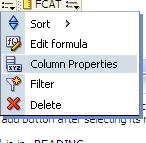
Edit the Column Properties for the relevant column

EditColumnProperties

In the Column Properties dialog, go to the Interaction tab.
Check the box below the Action Links table for “Do not display in a popup if only one action link is available at runtime”

DoNotDisplayPopup

Once you check the box for one column in your analysis, it will become checked for all navigation link columns in that analysis  – so you do not need to check for others columns after you have done for any one column.

You will now be navigated directly to the next report without the popup showing. Unfortunately, this has to be done for each report because there is no system wide setting to change it for all.

Changing the name of a Subject Area in OBIEE 10g (in preparation for upgrade to 11g)

This article shares a few steps for renaming a “Subject Area” in OBIEE 10g.  OBIEE 10g allowed leading spaces in Subject Area names. You may have done this to alter the sort order of your Subject Areas without using leading numbers. This would result in only a Warning message when you checked the repository’s consistency.  However, leading spaces in Subject Area names is not allowed in OBIEE 11g, and will result in an Error.

So, if you are upgrading to OBIEE 11g then you will need to change the Subject Area name(s) to remove leading spaces or you may need to change Subject Area name(s) for other reasons.

Here are a few steps to consider but I recommend that you perform these steps for one subject area first, confirm all is well, then repeat steps for all subject areas.

  1. Stop the Presentation Server.
  2. In the Oracle BI Administration Tool, manually rename the Subject Area(s) in the Presentation Layer (and remove the leading spaces if that was the reason for the rename).
  3. Log into Catalog Manager in online mode, and navigate to Tools –> XML Search and Replace
  4. Carefully set the text you would like to replace with the new text – but make sure the text string is unique enough so that you do not inadvertently changed text that you don’t want to change.  Repeat for each name change that is required.
  5. You may need to manually open your prompts in Answers to change the Subject Area names in the custom SQLs used to generate defaults and drop down lists.
  6. Restart the Presentation Server and test your changes.

Upgrading OBIEE 10g to 11g – Information Sources

I am in the process of planning an OBIEE 10g to 11g upgrade.  As you would expect, finding the appropriate documentation is the first step in the process.  Instead of rehashing what is already out there, this article simply shares some of the resources that I found along the way as I prepared for the upgrade.

Learn more about OBIEE 11g new features.

This link takes you to a “menu” of oracle documentation for Oracle Fusion Middleware Release 1 (11.1.1.6) – the latest release at the time of this writing. This is probably the most comprehensive source for information about this topic.

From the link above, click on “Business Intelligence” in the bottom-left and then locate the various documents – such as “Installation Guide”, “Upgrade Guide”, etc.

Specifically, click here for the System Requirements document; and click here for the Certification document.

I found this presentation by Rittman Mead on “Upgrading from OBIEE 10g to OBIEE 11g” useful – it provided a great overview of what’s involved in the upgrade process.   And another short article by Rittman Mead on “How, Why, Should I Upgrade to OBIEE 11.1.1.6?” added a few tidbits of information.

In this article from the howtobi blog, “Upgrading OBIEE 10g content to 11g”, you will find great step-by-step upgrade instructions.  Another step-by-step article, Upgrading OBIEE10g RPD and Web Catalog to OBIEE 11g, was found on the obieefans blog.

This is an article in Oracle Magazine covering the essentials of the upgrade process.

You may also want to view this tutorial on Oracle Learning Library:   Upgrading Oracle Business Intelligence from 10g to 11g

Although some of the information overlaps from article to article, it’s still a good idea to read various articles to pick up a few different bits of information from each.  I would recommend highlighting or capturing important content from each document, and start putting together a task list/project plan that you continuously enhance as you learn more.

When you are ready, the OBIEE 11g software can be downloaded here.

And to get a preview of what 11g looks like and some of the new features, you can check out these two tutorials on the Oracle Learning Library site:  Creating a Repository using Oracle BI 11g Administration Tool and Creating Analyses and Dashboards 11g

And of course, there is a lot more information out there.

Good luck with your upgrade!