Tag: OBIEE

Weird prompt values in dashboard prompts after upgrade

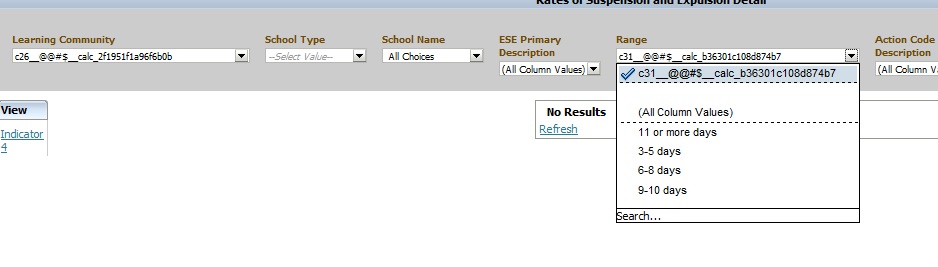
Have you noticed weird prompt values in your reports after upgrading OBIEE from 10g to 11g?  Below is an example of what you might see …

Weird_Prompt_Values

This is usually caused by calculated columns in the report.  You will need to remove those columns, and then add them back to the report.  And then, depending on what your calculated columns were being used for, you may want to consider using Selection Steps instead to accomplish the same logic.

If you know of another way to fix this scenario, please share.

Creating a new Security Realm in OBIEE 11g

When setting up security in OBIEE 11g, you may modify the default security realm (myrealm) that installs with OBIEE.   But even better, you may create a new security realm and leave the default realm untouched.

My preference is to leave the default realm untouched and create a new realm – this is a best practice in my opinion.  I think it is helpful to always be able to go back and look at the features and settings of the default security realm.  And you can name your new security realm more appropriately, such as, ABCIncSecurityRealm.

The link below (Paul Cannon’s Blog) brings you to a blog post about configuring OBIEE to use LDAP authentication, and the first part of the post covers creating the new security realm.  It is very detailed. I used it the first time I created a new security realm.

http://paulcannon-bi.blogspot.com/2012/07/configuring-ldap-authentication-for.html

Good luck creating your new security realm.

How to collapse or minimize a dashboard section by default in OBIEE

In OBIEE, you can easily set a dashboard section to be “Collapsible” which allows a user to collapse or minimize that section when desired.  By default, when a dashboard page is opened, the sections are maximized or expanded (i.e., not collapsed).
MaximizedExpandedSection

But what if you have a requirement to have a section minimized or collapsed by default?  There is no flag or option to do that.   This post shows you how to make a section minimized / collapsed by default.

I found the solution for making a dashboard section collapse by default here… http://www.orakelite.com/2013/01/iii-javascriptcss-tips-to-obiee-ui.html
However, the author did not include some details which I will cover here.

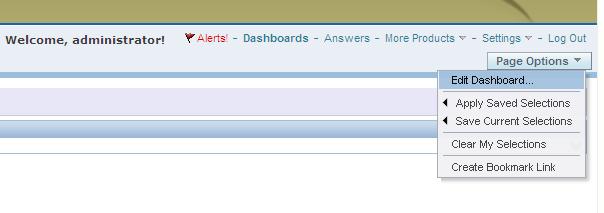
First, you need to make the section collapsible, by simply editing the dashboard…
EditDashboard

… and then setting the “Collapsible” property of the relevant section.
CollapsibleProperty

You will need to add the following Java Script to the section you want to minimize by default.
The text highlighted in the Java Script is the Section ID of the section to be minimized by default. So first you will need to find this Section ID.
——–

var sectionId = “d:dashboard~p:ve9fga7bp3omltnr~s:9qfn1ms6bco9bsva“;
var sectionDiv = document.getElementById(“Embed”+sectionId);
var plusImg = document.getElementById(sectionId+”Max”);
var minusImg = document.getElementById(sectionId+”Min”);
var contentsTable = document.getElementById(sectionId+”Contents”);
minusImg.style.display = “none”;
contentsTable.style.display = “none”;
plusImg.style.display = “”;
sectionDiv.setAttribute(“minimized”, “true”);

——–
To determine the value of the Section ID, you need to go to the dashboard page and from the browser menu, select View –> Source.

Search for the section by name, or just search for the word “section”. This should help you to identify what Section ID is related to the section you are interested in. (In example below, the black arrow points to the SECTION ID, and the red arrow points to the user given section name that can be used to search. )

SectionName

Use your Section ID in the Java Script code above.

Place the Java Script code in a “Text” dashboard object inside the section you want to control.

MinimizeSectionJavaScript 

Save your dashboard page changes.

Now when you reopen the dashboard page, the section will be minimized / collapsed by default.

CollapsedSection

Direct Links to various OBIEE User and Administration Presentation functions

These are some direct links to various OBIEE User and Administration functions.  These can be useful to know for efficiency and at times can also be useful for debugging security.

To go directly to “Home Page”
http://servername:9704/analytics/saw.dll?bieehome

To go directly to “Dashboard”
http://servername:9704/analytics/saw.dll?Dashboard

To go directly to “Manage Privileges”
http://servername:9704/analytics/saw.dll?PrivilegeAdmin

To go directly to “Manage Catalog Groups”
http://servername:9704/analytics/saw.dll?ManageGroups

To go directly to “Manage Sessions”
http://servername:9704/analytics/saw.dll?Sessions

To go directly to “Manage Agent Sessions”
http://servername:9704/analytics/saw.dll?ManageIBotSessions

To go directly to “Issue SQL”
http://servername:9704/analytics/saw.dll?IssueRawSQL&Done=%2fanalytics%2fsaw.dll%3fAdmin

To go directly to “Manage Map Data”
http://servername:9704/analytics/saw.dll?ManageMapData

To go directly to “Manage BI Publisher”
http://servername:9704/analytics/saw.dll?bipublisherEntry&Done=%2fanalytics%2fsaw.dll%3fAdmin&Action=admin

How to run Catalog Manager in GUI mode from the Linux Server

OBIEE Catalog Manager can be accessed from a client tool on Windows or from a server side process.  There are times when it is required that you run the Catalog Manager in offline mode, and at those times you will be required to run it on the server.

Although there is a command line option for Catalog Manager, it is easier to work with it in a Graphical User Interface (GUI) mode and at times its necessary to use that mode.

Start Xming (or another X-Windows type tool) on your local PC or laptop. [This will allow the Linux screens to show up on your desktop when you run the shell script on the Linux server]

For more on Xming, visit http://en.wikipedia.org/wiki/Xming

Connect to your Linux server from your desktop/laptop using Putty (or other tool).   Then go to the catalog manager directory:

cd [$FMW_HOME]/instances/instance1/bifoundation/OracleBIPresentationServicesComponent/coreapplication_obips1/catalogmanager

runcat-start-catalogmanager

Start up Catalog Manager by running:    ./runcat.sh

This will start Catalog Manager, and it will be running on the Linux server, but the screens will be showing on your desktop/laptop.

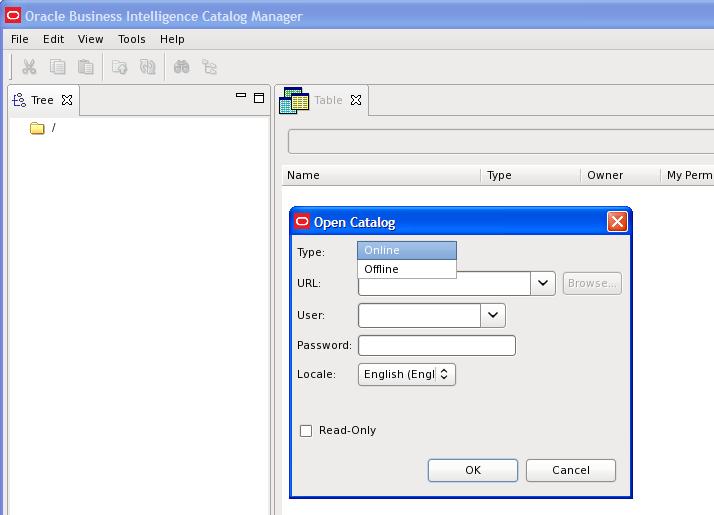
From the main Catalog Manager window, you can then click on File –>Open Catalog

catalogmanager_interface

And then select the Type based on how you want to connect – Online or Offline mode.  Accessing Catalog Manager in this way is most likely needed when you need to connect in Online mode.

And then of course, you need to enter the URL – which is the full path to the catalog, for example:[$FMW_HOME]/instances/instance1/bifoundation/OracleBIPresentationServicesComponent/coreapplication_obips1/catalog/default

And enter the User and Password.

catalogmanager_onlineoffline_login

Assuming everything was entered correctly, you will be connected to the catalog.  You can then use the interface to browse the catalog and perform other tasks on catalog objects.

catalogmanager_browsing

Good luck!

Windows command to find equivalent directory name without space

You may occasionally run into an issue with OBIEE where it cannot locate the Java directories or files.  This is usually because Java has been installed in its default location under “C:Program Files…”.  This post may be helpful in resolving this issue.

At times, some OBIEE processes or programs do not like the spaces in directory or file names.  So, for example, you may get an error because the program does not locate the files under the “C:Program Files…” directory (due to the space in the name).

To resolve this, you will need to update the necessary Environment Variables to use the no-space equivalent of the windows directory.  To find the equivalent no-space name,  from your windows command prompt, go to the relevant directory (for example … cd C:) and enter … dir /X (as shown below).

dirX

Notice to the left of the regular directory name, there is another no-space name.  For example, “Program Files” has a no-space equivalent of PROGRA~1.

Now update all the relevant OBIEE related Environment Variables to use this no-space name instead of the regular name (see example below).

envvar

Oracle E-Business Suite (EBS) Foundation Tables

This post is simply a list of Oracle E-Business Suite (EBS) Foundation tables. The Foundation tables contain data that relate to the entire suite of applications – they are not specific to any one module.

Some foundation tables are used in Oracle BI Applications (OBIA), for example, the FND_USER, FND_USER_RESP_GROUPS, and FND_RESPONSIBILITY_VL tables are used in security-related Initialization Blocks.

In general, it’s good to be familiar with these tables when working on OBIEE projects or any BI platform with EBS as a source system.

Foundation Table Purpose
FND_APPLICATION Stores applications registered with Oracle Application Object Library.
FND_APPLICATION_TL Stores translated information about all the applications registered with Oracle Application Object Library.
FND_APP_SERVERS This table will track the servers used by the E-Business Suite system.
FND_ATTACHED_DOCUMENTS Stores information relating a document to an application entity.
FND_CONCURRENT_PROCESSES Stores information about concurrent managers.
FND_CONCURRENT_PROCESSORS Stores information about immediate (subroutine) concurrent program libraries.
FND_CONCURRENT_PROGRAMS Stores information about concurrent programs. Each row includes a name and description of the concurrent program.
FND_CONCURRENT_PROGRAMS_TL Stores translated information about concurrent programs in each of the installed languages.
FND_CONCURRENT_QUEUES Stores information about concurrent managers.
FND_CONCURRENT_QUEUE_SIZE Stores information about the number of requests a concurrent manager can process at once, according to its work shift.
FND_CONCURRENT_REQUESTS Stores information about individual concurrent requests.
FND_CONCURRENT_REQUEST_CLASS Stores information about concurrent request types.
FND_CONC_REQ_OUTPUTS This table stores output files created by Concurrent Request.
FND_CURRENCIES Stores information about currencies.
FND_DATABASES It tracks the databases employed by the eBusiness suite. This table stores information about the database that is not instance specific.
FND_DATABASE_INSTANCES Stores instance specific information. Every database has one or more instance.
FND_DESCRIPTIVE_FLEXS Stores setup information about descriptive flexfields.
FND_DESCRIPTIVE_FLEXS_TL Stores translated setup information about descriptive flexfields.
FND_DOCUMENTS Stores language-independent information about a document.
FND_EXECUTABLES Stores information about concurrent program executables.
FND_FLEX_VALUES Stores valid values for key and descriptive flexfield segments.
FND_FLEX_VALUE_SETS Stores information about the value sets used by both key and descriptive flexfields.
FND_LANGUAGES Stores information regarding languages and dialects.
FND_MENUS It lists the menus that appear in the Navigate Window, as determined by the System Administrator when defining responsibilities for function security.
FND_MENUS_TL Stores translated information about the menus in FND_MENUS.
FND_MENU_ENTRIES Stores information about individual entries in the menus in FND_MENUS.
FND_PROFILE_OPTIONS Stores information about user profile options.
FND_REQUEST_GROUPS Stores information about report security groups.
FND_REQUEST_SETS Stores information about report sets.
FND_RESPONSIBILITY Stores information about responsibilities. Each row includes the name and description of the responsibility, the application it belongs to, and values that identify the main menu, and the first form that it uses.
FND_RESPONSIBILITY_TL Stores translated information about responsibilities.
FND_RESP_FUNCTIONS Stores security exclusion rules for function security menus. Security exclusion rules are lists of functions and menus inaccessible to a particular responsibility.
FND_SECURITY_GROUPS Stores information about security groups used to partition data in a Service Bureau architecture.
FND_SEQUENCES Stores information about the registered sequences in your applications.
FND_TABLES Stores information about the registered tables in your applications.
FND_TERRITORIES Stores information for countries, alternatively known as territories.
FND_USER Stores information about application users.
FND_VIEWS Stores information about the registered views in your applications.
FND_USER_RESPONSIBILITY
FND_RESPONSIBILITY_VL
FND_ORACLE_USERID
FND_DATA_GROUP_UNITS

OBIEE Recent Releases & Support Information

12/5/2012: Picked up this information from the Business Analytics newsletter from Oracle.  It’s good to see that a cumulative patch is now available for all the 11.1.1.6.x releases.  Also, note that it seems the support for OBIEE 10.1.3.x will expire in July 2013 – that time will be here before you know it.

—————————————————————————————

10.1.3.x

The Premier Support for Oracle Business Intelligence Enterprise Edition 10.1.3.x ended in July 2013. For additional information on the de-support status and for details for moving towards recent release refer to:

  • OBIEE 11g: Required and Recommended Patches and Patch Sets [Doc ID 1488475.1]
  • ALERT: Required and Recommended Patch Levels For OBIEE 10g (10.1.3.x) Versions (Doc ID 1082987.1)

11.1.1.5.4

Oracle Business Intelligence Enterprise Edition (OBIEE) 11.1.1.5.4 Bundle Patch was released Oct-12.

This is available for download from the My Oracle Support | Patches and Updates:

Additional information is available from:

Refer to “Retiring Product” section for important information pertaining to OBIEE 11.1.1.5.x

11.1.1.6.x – Patch Set Updates

The OBIEE Patch Set Update (PSU) that were recently released are as follows:

  • OBIEE 11.1.1.6.4 PSU  – Sept 2012
  • OBIEE 11.1.1.6.5 PSU  – Oct 2012
  • OBIEE 11.1.1.6.6 PSU  – Nov 2012

11.1.1.6.6

Oracle Business Intelligence Enterprise Edition (OBIEE) 11.1.1.6.6 Bundle Patch was released Nov-12.

Bundle patches are a collection of controlled, well tested critical bug fixes for a specific product which may include security contents and occasionally minor enhancements. These are cumulative in nature meaning the latest bundle patch in a particular series would include the contents of the previous bundle patches released. A suite bundle patch is an aggregation of multiple product bundle patches that are part of a product suite.

For OBIEE on 11.1.1.6.0, it is planned for monthly run of bundle patch cadence. For the 11.1.1.6.6 bundle patch:

  • is now for download from My Oracle Support | Patches & Updates
  • includes 67 bug fixes.
  • is cumulative, so it includes everything in 11.1.1.6.1, 11.1.1.6.2, 11.1.1.6.2BP1, 11.1.1.6.4 and 11.1.1.6.5

Bundled Patch Details

  • 1 of 7 – Oracle Business Intelligence Installer [Patch 15844023]
  • 2 of 7 – Oracle Real Time Decisions [Patch 15844066]
  • 3 of 7 – Oracle Business Intelligence Publisher [Patch 14800665]
  • 4 of 7 – Oracle Business Intelligence ADF Components [Patch 15843961]
  • 5 of 7 – Enterprise Performance Management Components Installed from BI Installer 11.1.1.6.x [Patch 15844096]
  • 6 of 7 – Oracle Business Intelligence [Patch 14791926]
  • 7 of 7 – Oracle Business Intelligence Platform Client Installers and MapViewer [Patch 15839347]

Additional information may be found in the following Knowledge Articles:

Oracle Business Intelligence Enterprise Edition 11g (OBIEE 11g) Books

There are a few Oracle Business Intelligence Enterprise Edition 11g (OBIEE 11g) books on the market currently.  For quite sometime, not many books have been available for OBIEE, and in particular OBIEE 11g.

Anyway, below are 2 books that I think are worthwhile, and 1 that you might want to look into … the links take you to Amazon, and shows the paperback versions. But you can easily navigate to the Kindle versions from there. 

Oracle Business Intelligence Enterprise Edition 11g: A Hands-On Tutorial by Christian Screen, Haroun Khan and Adrian Ward (Jul 19, 2012)

Oracle Business Intelligence 11g Developers Guide by Mark Rittman (Sep 18, 2012)

Implement Oracle Business Intelligence (Volume 1) by Mr. Riaz Ahmed (Mar 30, 2012)

I read pretty much all of the Screen/Khan/Ward book and found it to be good, but experts might find it a bit basic.  I just started reading the Rittman book, got through the first 3 chapters, and so far it has been very good. 

I have not read the Ahmed book because it is not yet available on the Kindle, and that’s my preferred way of buying books due to its convenience. But it might be worthwhile checking it out.

Happy Reading!

EVALUATE_SUPPORT_LEVEL inside NQSConfig.INI is not set

If you use the Oracle EVALUATE function in OBIEE, then you will need to set a parameter in the NQSConfig.INI file in OBIEE 11g.

If you get this error below, then you are using the EVALUATE function somewhere inside OBIEE (in one of your analyses/requests) and the parameter needs to be set appropriately in the NQSConfig.INI file.

State: HY000. Code: 10058. [NQODBC] [SQL_STATE: HY000] [nQSError: 10058] A general error has occurred.
[nQSError: 43113] Message returned from OBIS.
EVALUATE_SUPPORT_LEVEL inside NQSConfig.INI is not set to support EVALUATE. (HY000)

This is what you need to do to correct the problem… 

Edit the NQSConfig.INI file, located at: OBIEE_INSTANCE/config/OracleBIServerComponent/coreapplication_obisn

This is what you will see by default in the config file…
————-
# EVALUATE_SUPPORT_LEVEL:
# 1: evaluate is supported for users with manageRepositories permssion
# 2: evaluate is supported for any user.
# other: evaluate is not supported if the value is anything else.
EVALUATE_SUPPORT_LEVEL = 0; 
————-

Change the parameter as follows: EVALUATE_SUPPORT_LEVEL = 2;

Save and restart the BI Server.  Your requests should work fine now.