Tag: OBIEE RPD

UPGAST-00014 error when upgrading OBIEE 10g RPD and Catalog to OBIEE 11g

If you get this error during Step 4 of the Upgrade Assistant for upgrading OBIEE 10g RPD and/or Catalog to 11g, then this post might be helpful.

UPGAST-00014: unable to connect to WebLogic Server at localhost:7001
t3://localhost:7001: Destination unreachable; nested exception is: java.net.ConnectException: Connection refused; No available router to destination

UPGAST-00014-error

Perform the following steps that may resolve your problem:

– Log in to Administration Console.  http://yourserver:7001/console
– Click the ‘Servers’ link.

UPGAST-00014-clickServers

Then in the Summary of Servers page / Configuration tab, click ‘AdminServer(admin)’.

UPGAST-00014-AdminServer

– From the Settings for AdminServer page, select the ‘Protocols’ tab, then the ‘Channels’ subtab.
– And then Click ‘Lock & Edit’ button in the upper left Change Center.

UPGAST-00014-ProtocolsChannels

– Click the New button to begin creating a new Network Channel.
– Enter the following information…
Name: Loopback (or whatever name you like)
Protocol: t3

– The click Next

UPGAST-00014-ChannelConfig1

– The enter …
Listen Address: localhost
Listen port: 7001
Click Finish

UPGAST-00014-ChannelConfig2

The new Network Channel (Loopback) is added.  Activate the changes by clicking on the “Activate Changes” button.
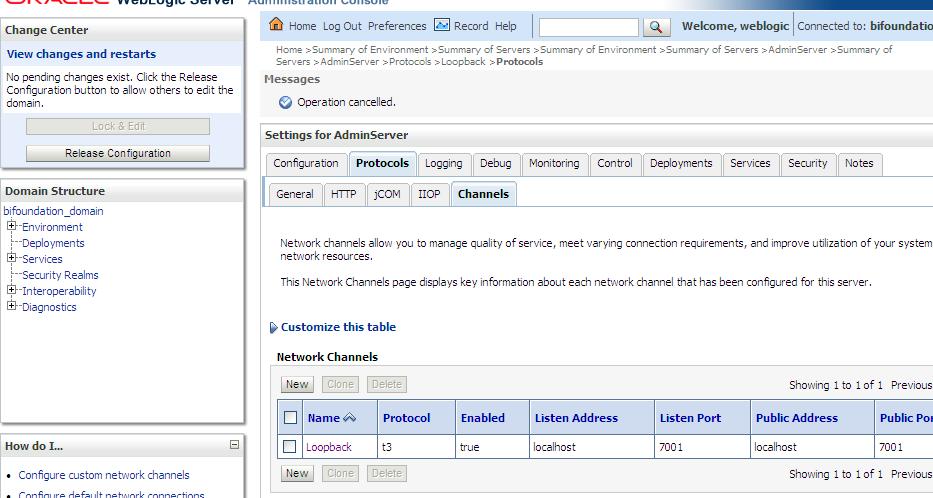
UPGAST-00014-ChannelCreated

Now, retry running the Upgrade Assistant. There is no need to restart any of the services.
You should now get past Step 4 (the point at which you were getting the error before).

OBIEE Repository (rpd) development tips

A few tips on BI Repository (RPD) Development …

Physical Layer

  • Import metadata when possible, instead of creating it manually
  • Only import objects that you need or forsee you may need in the near future
  • Import Tables, Keys, and Foreign Keys – which is the default option
  • Create Aliases of Physical Tables – to eliminate unwanted joins and to satisfy any naming conventions you may have chosen
  • Use the Physical diagram to configure joins
  • Create all relevant joins in a star-schema / dimensional model

BMM Layer

  • Use terminology that users are familiar with – words of the business instead of technical physical table and column names
  • Use the Rename Wizard to rename most of your logical objects when possible (this can save you a lot of time)
  • Delete unnecessary objects from your BMM layer
  • Create derived columns for calculations that you forsee using in multiple reports/presentation areas

Presentation Layer

  • Only move the columns you need users to see and work with to your Presentation Layer
  • Rename objects to match the language of the business and ensure that the meaning is very clear
  • Organize your presentation columns in a logical/meaningful order – for example, in a hierarchical order or alphabetic order such as Product Category, Product sub-category, Product -or- Region, Country, State, City, Zip

General

  • Check Global Consistency & resolve warnings and errors
  • Disable caching during development & testing
  • Verify your design by checking the SQL generated and sent to the database