Tag: OBIEE 11g

Error downloading data to Excel in OBIEE 12c

If you get the error …

“There was an error processing your download. Please check with your administrator.”

… when Exporting / Downloading data from an analysis in OBIEE, then this post might be helpful.

In OBIEE, you have a few options for exporting / downloading data from an analysis / report as shown below. You can export / download to PDF, Excel 2007+, PowerPoint 2007+, Web Archive (.mht), or in CSV, Tab Delimited, or XML data formats.

OBIEE_Export_Analysis_Data

If you are trying to download data from an analysis and get this error …

OBIEE_Export_to_Excel_Failed

“There was an error processing your download. Please check with your administrator.”
then try the following fix. Note, you might find that you are able to download to CSV, but get the error when you try to download to Excel.

Edit the config.xml file
Located at the directory specified below (for OBIEE 12c):
ORACLE_HOME/user_projects/domains/bi/config/fmwconfig/biconfig/OBIJH

FYI, this is the location of the config.xml file in OBIEE 11g
[MW_HOME]/instances/instance1/config/OracleBIJavaHostComponent/coreapplication_obijh1

Locate the section and the parameter within that section. It may look like below, but there could be more or less parameters within the section than shown here.

<XMLP>
<InputStreamLimitInKB>8192</InputStreamLimitInKB>
<ReadRequestBeforeProcessing>true</ReadRequestBeforeProcessing>
</XMLP>

Change the value of the InputStreamLimitInKB parameter to 0 as shown below…

<XMLP>
<InputStreamLimitInKB>0</InputStreamLimitInKB>
<ReadRequestBeforeProcessing>true</ReadRequestBeforeProcessing>
</XMLP>

Restart the OBIEE services and try your export again.

If it succeeds, then we know for sure that altering this parameter fixes it.
Setting the above parameter value to zero (0) means that there is no limit. So, you may now go back and modify the value to a number that is suitable for your environment, such as, 8192, 15384, 65536, etc.
Issues identified after upgrading from OBIEE 11g to OBIEE 12c

After upgrading our Development environment from OBIEE 11g to OBIEE 12c, we encountered some issues.  This post describes some of the issues we have identified so far and how we resolved them.

  1. Images are missing.
    • This was fixed by moving all images to the new OBIEE 12c images directories.
  2. Dashboards with hidden pages are broken.
    • This was initially resolved by moving the hidden pages to the end of the dashboards list in the dashboard properties dialog.
    • We later discovered that there is an Oracle patch for this, and applying it resolved the issue.
  3. Colors on graphs are different.
    • This will need to be resolved by configuring reports with specific colors.
  4. Some of the graphs scales are changed
    • This was resolved by setting the appropriate graph scale properties.
  5. The order of the items in the legend on some graphs changed
    • This was left as is. It seems there is no “resolution” for this (no way to make it exactly as it was before), but it seems to be ok as is.
  6. Prompts shifted
    • This was resolved by setting the dashboard column objects’ (that contain the prompts) width properties
  7. Dashboard Pages missing after upgrade
    • This was resolved by changing and resaving the dashboard pages in 11g and re-migrating the catalog to 12c.
  8. In some cases, the Subject Areas do not show (missing) in Manage Privileges.
    • A restart of the services resolved this.


I will keep adding to this list as new issues are encountered and resolved.

Good luck with your upgrade!


Dashboards with hidden pages behave strangely after upgrade to OBIEE 12c

After upgrading from OBIEE 11g to OBIEE 12c, some dashboards behaved strangely.  Things that were wrong include:

  • unable to edit the dashboard from the dashboard page
  • unable to see some of the dashboard pages / tabs
  • click on one tab and it takes you to another tab

It turns out that all the dashboards affected by this behavior were dashboards with hidden pages / tabs.

There is a workaround for this.  The workaround is – move all the hidden pages / tabs to be at the end of the list of dashboards pages in the dashboard properties view.  After doing this, the dashboard will work as expected.

There is also an Oracle patch for this bug.  It is Patch # 23511448.  As of the time of this post, it was still an interim patch and not yet a production patch.  From our perspective, the patch seems to have resolved the issue without causing any new issues.  However, since it’s still an interim patch, apply at your own risk.

Thanks for reading.

Upgrading OBIEE 11g to OBIEE 12c – First thing to ensure

Our team is currently in the process of upgrading our OBIEE 11g environments to OBIEE 12c. I have been gathering information about the process and will be sharing information on our experience as we progress.

I wanted to point of the first thing you want to ensure before planning/starting the upgrade from 11g to 12c – this may save you a little time. Or if you have already started, and encountered an error relating to … catalog version is not supported … then this post might be helpful.

You can upgrade the OBIEE catalog from OBIEE 11.1.1.7.x or OBIEE 11.1.1.9.x to OBIEE 12c. This should upgrade without any major issues.
But you may unexpectedly run into the above problem if you had upgraded the OBIEE 11g catalog using patch sets and had not run the full catalog upgrade. This results in the catalog being used as an 11.1.1.7 or 11.1.1.9 environment, but the version stored in the catalog is still older (such as 11.1.1.3 or 11.1.1.5).
Then when you try to upgrade from OBIEE 11g to OBIEE 12c, you get the error because the catalog is still technically not yet on an approved version for upgrade.

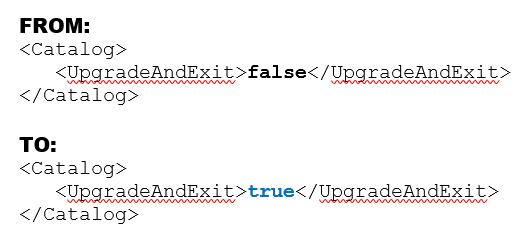
To resolve this, you need to run a full catalog upgrade on the OBIEE 11g catalog. This involves modifying the instanceconfig.xml file as follows:

Change the value of the UpgradeAndExit parameter from “false” to “true” as shown in the example below.

upgradecatalog

Restart the presentation services.
After this is complete, edit the files again and change “true” back to “false“, and restart the presentation services again.

You should now be able to upgrade your catalog to an OBIEE 12c version.

I hope this helps. Thanks for reading.

How to conditionally set Interaction (Action Links) on a column in OBIEE 11g

This post shows an example of how to conditionally set Interaction (Action Links) on a column.

Most times, when you set “Interaction” on a column, you set it for the column under all conditions – this is the default.  However, it is possible to conditionally set “Interaction” on a column – so that the Interaction link is conditionally available.

Let’s look at an example …

You have a pivot table displaying Values by day range as shown below.  Interaction is set on the measure value, and therefore, a user can click on any of the measure values (in any column and any row) to drill/navigate to a more detailed report for example. 

(Note that all the measure values are “blue” indicating that they are hyperlinks allowing navigation to some other BI content).
1-Pivot_with_Interaction_Set_On_Measure_Value

Let’s now assume that you only want to make the Interaction available for the measure values associated with “Value A”.  Therefore, the row in your pivot table associated with “Value A” will have measure values that are clickable (hyperlinks), while the “Value B” row values will not.  In other words, you only want to allow drill down/navigation on “Value A” data.

To do this, from your analysis, edit the column properties, and go to the Interaction tab, and Edit the relevant Action Link.

3-Edit_Action_Link

Change the “Show Link” property from “Always” to “Conditionally”.

4-Show_Link_Conditionally

Then enter the condition(s) in the Conditions box. Such as in our example, we want to show/activate the action link only for “Value A” values.  So, choose the column, and then select “Value A” (and of course, do not select “Value B”).

5-Select_Value_for_Action_LInk

Now when you go back to your report, action links will only be available on the measure values for “Value A” row.

(Note that only the measure values associated with “Value A” are “blue” indicating that they are hyperlinks allowing navigation to some other BI content; while “Value B” values are black indicating that they are not clickable.)
6-After_Setting_Conditionally

You can add more conditions and more complex conditions as necessary. One thought that came to mind … I could even see this being used to conditionally set Action Links based on users – allowing some users to be able to click the action links while others just see the data without being able to click and navigate to other detail.

Changing the maximum number of values in a drop down list in OBIEE 11g – MaxDropDownValues

When you create a prompt that uses a drop down list in OBIEE, the drop down list is limited to 256 values by default.  If your list contains more values and you would like to see more values without having to click the “More” button, or if you would like to show less values, there is a configuration parameter that you can change to increase the number of values shown up to 1000.  You can set it to any value up to 1000, including values less than the default of 256.

To do this, edit the instanceconfig.xml file.  This file is located at …
[$FMW_HOME]/instances/instance1/config/OracleBIPresentationServicesComponent/coreapplication_obips1

Add the MaxDropDownValues parameter to the file.  If you do not already have a Prompts section, add it, and then add MaxDropDownValues between the Prompts tags.  And make sure that all this is between the ServerInstance tags which will already be there in the file.

Your config file will look something like this …

<ServerInstance>


    <Prompts>
        <MaxDropDownValues>1000</MaxDropDownValues> 
    </Prompts>

</ServerInstance>

Setting_MaxDropDownValues_InstanceConfig

After making these changes, you will need to restart BI Presentation Services for them to take effect. Then your drop down list will show up to 1000 (or less) values by default…

DropDownList_ShowingMax

Note: The numbers shown in the screenshot have no meaning whatsoever; they are just randomly generated sample data for example purposes. So, any similarity that they may have to any other number is strictly coincidental.

Weird prompt values in dashboard prompts after upgrade

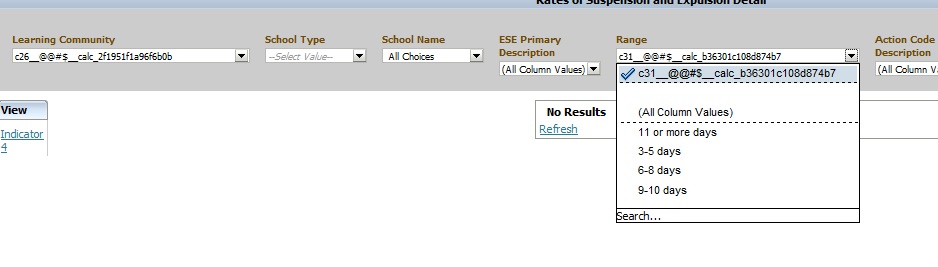
Have you noticed weird prompt values in your reports after upgrading OBIEE from 10g to 11g?  Below is an example of what you might see …

Weird_Prompt_Values

This is usually caused by calculated columns in the report.  You will need to remove those columns, and then add them back to the report.  And then, depending on what your calculated columns were being used for, you may want to consider using Selection Steps instead to accomplish the same logic.

If you know of another way to fix this scenario, please share.

Creating a new Security Realm in OBIEE 11g

When setting up security in OBIEE 11g, you may modify the default security realm (myrealm) that installs with OBIEE.   But even better, you may create a new security realm and leave the default realm untouched.

My preference is to leave the default realm untouched and create a new realm – this is a best practice in my opinion.  I think it is helpful to always be able to go back and look at the features and settings of the default security realm.  And you can name your new security realm more appropriately, such as, ABCIncSecurityRealm.

The link below (Paul Cannon’s Blog) brings you to a blog post about configuring OBIEE to use LDAP authentication, and the first part of the post covers creating the new security realm.  It is very detailed. I used it the first time I created a new security realm.

http://paulcannon-bi.blogspot.com/2012/07/configuring-ldap-authentication-for.html

Good luck creating your new security realm.

User having inconsistent login issues or user taking a long time to login or authenticate in OBIEE 11g

If you are using Active Directory for authentication for your OBIEE system, and are experiencing situations where some users are taking a long time to authenticate/login, then this post might be helpful.  This could also be useful for configuring LDAP systems other than Active Directory, but I cannot say for sure.

What could potentially be happening to users experiencing the problem is … they belong to Active Directory groups (or LDAP groups) with deep hierarchies, and the system has to traverse all those hierarchies to retrieve all their LDAP information which ends up taking quite a bit of time.  A possible solution is to limit the number of LDAP levels that will be searched/traversed to get the users Groups information.

Login to WebLogic Administration Console (aka WLS or Admin Console), then click on “Security Realms” on the left, and then click the name of the realm that you use for security (for example, “myrealm”).

WLS_SecurityRealm

Click the Providers tab.   And then click the name of your Active Directory provider.

WLS_SecurityProviders

Then select the Provider Specific tab.

ProviderSpecificSettings

Scroll down to the section titled “Groups”.

ProviderSpecific_Groups_parameters

Change the Group Membership Searching setting from unlimited to limited.

And then set Max Group Membership Search Level – change it from 0 (no limit) to 1 (or to the smallest number necessary for your environment).

This will prevent long searches for those users that are in many groups with deep hierarchies (such as groups within groups within groups and so on). This could cut the search time tremendously, thereby reducing the authentication time and preventing login timeouts.

Good luck!

OBIEE 11g config and log file locations

These are some key log files and config files in OBIEE 11g. These might be frequently accessed for debugging and checking current parameter settings.

bi_server1.log  &  bi_server1-diagnostic.log
(bi_server1.out  &  access.log are also captured in this directory)
[$FMW_HOME]/user_projects/domains/bifoundation_domain/servers/bi_server1/logs

nqserver.log    &    nqquery.log
[$FMW_HOME]/instances/instance1/diagnostics/logs/OracleBIServerComponent/coreapplication_obis1

sawlog.log
[$FMW_HOME]/instances/instance1/diagnostics/logs/OracleBIPresentationServicesComponent/coreapplication_obips1

NQSConfig.INI   &  DBFeatures.INI
[$FMW_HOME]/instances/instance1/config/OracleBIServerComponent/coreapplication_obis1

instanceconfig.xml      &     credentialstore.xml
[$FMW_HOME]/instances/instance1/config/OracleBIPresentationServicesComponent/coreapplication_obips1

config.xml
[$FMW_HOME]/user_projects/domains/bifoundation_domain/config

system-jazn-data.xml
[$FMW_HOME]/user_projects/domains/bifoundation_domain/config/fmwconfig