Tag: OBIEE 10g

Weird prompt values in dashboard prompts after upgrade

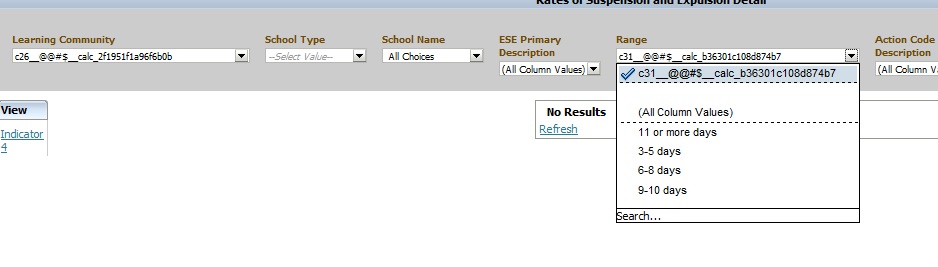
Have you noticed weird prompt values in your reports after upgrading OBIEE from 10g to 11g?  Below is an example of what you might see …

Weird_Prompt_Values

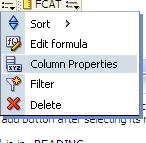
This is usually caused by calculated columns in the report.  You will need to remove those columns, and then add them back to the report.  And then, depending on what your calculated columns were being used for, you may want to consider using Selection Steps instead to accomplish the same logic.

If you know of another way to fix this scenario, please share.

Workaround for installing OBIEE10g on Windows7

It has been a while since I have had to install OBIEE 10g.  But recently I needed to install it on a Windows 7 laptop.

When installing OBIEE 10g on Windows 7, you may run into the following error.  This post may help you to get around this issue.

obiee_10g_on_Win7

The error reads:
Oracle Business Intelligence is not supported on this Windows version. Oracle Business Intelligence is only supported on Windows XP x86, Windows 2003 x86, Windows 2003 AMD64, Windows 2003 EM64T, Windows Vista x86, Windows Vista AMD64, Windows Vista EM64T, and Windows 2000 x86.

There is a workaround that will allow you to complete the install. Please follow these steps:

– From within Windows Explorer, right-click the setup.exe file and choose Properties.
– Select the Compatability tab, and go to the “Compatability mode” section.
– Check the check-box beside “Run this program in compatibility mode for:”
– And select “Windows Vista” from the drop down box.
– Save your change and then re-run the setup.exe program.

This time you should get past where you encountered the previous message that prevented you from installing the software.

UPGAST-00014 error when upgrading OBIEE 10g RPD and Catalog to OBIEE 11g

If you get this error during Step 4 of the Upgrade Assistant for upgrading OBIEE 10g RPD and/or Catalog to 11g, then this post might be helpful.

UPGAST-00014: unable to connect to WebLogic Server at localhost:7001
t3://localhost:7001: Destination unreachable; nested exception is: java.net.ConnectException: Connection refused; No available router to destination

UPGAST-00014-error

Perform the following steps that may resolve your problem:

– Log in to Administration Console.  http://yourserver:7001/console
– Click the ‘Servers’ link.

UPGAST-00014-clickServers

Then in the Summary of Servers page / Configuration tab, click ‘AdminServer(admin)’.

UPGAST-00014-AdminServer

– From the Settings for AdminServer page, select the ‘Protocols’ tab, then the ‘Channels’ subtab.
– And then Click ‘Lock & Edit’ button in the upper left Change Center.

UPGAST-00014-ProtocolsChannels

– Click the New button to begin creating a new Network Channel.
– Enter the following information…
Name: Loopback (or whatever name you like)
Protocol: t3

– The click Next

UPGAST-00014-ChannelConfig1

– The enter …
Listen Address: localhost
Listen port: 7001
Click Finish

UPGAST-00014-ChannelConfig2

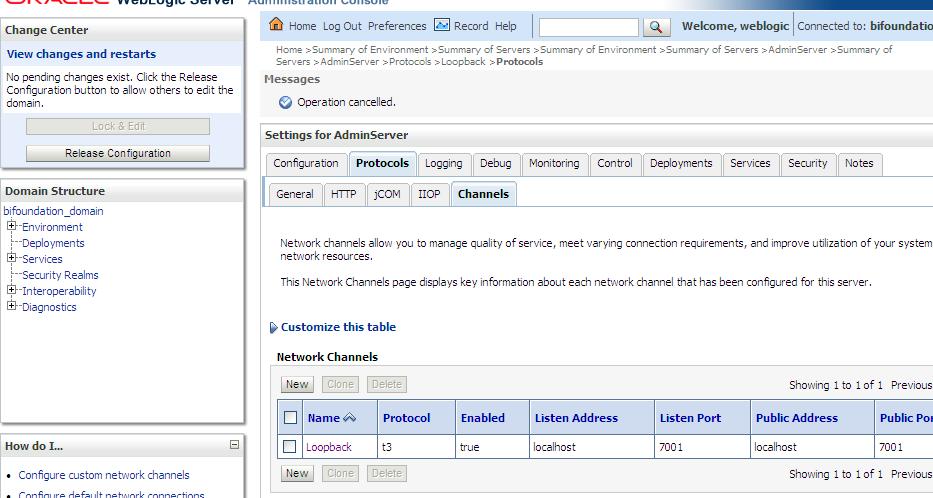
The new Network Channel (Loopback) is added.  Activate the changes by clicking on the “Activate Changes” button.

UPGAST-00014-ChannelCreated

Now, retry running the Upgrade Assistant. There is no need to restart any of the services.
You should now get past Step 4 (the point at which you were getting the error before).

Renaming the Views in an Analysis for use in a View Selector in OBIEE 10g & OBIEE 11g

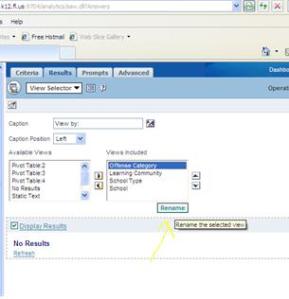
In OBIEE 10g, we renamed the Views directly inside the View Selector definition like here…

Rename-View-10g

In OBIEE 11g, we rename the View inside the View definition itself … like here …

Rename-View-11g-1

then rename …

Rename-View-11g-2

And then you will use/select the new name in the View Selector (instead of renaming it in the View Selector). 

This is much better because you know exactly what view is being used in the View Selector.  Whereas in 10g, at times it took more effort to determine what original view the renamed views related to.

How to hide the Refresh, ‘Printer Friendly’ and ‘Add to Briefing Book’ Icons at the bottom of a dashboard page in OBIEE 10g

I was recently asked to completely remove or hide, from a particular page, the ‘Refresh’, ‘Printer Friendly’ and ‘Add to Briefing Book’ icons that automatically show up at the bottom of the OBIEE dashboard page in OBIEE 10g.

Refresh-PrinterFriendly-BriefingBook-Icons

I had never had the need to do this before, so I did a search and thankfully I quickly found the solution here …

http://obiee-bip.blogspot.com/2011/07/how-to-hide-refresh-printer-friendly.html

For your convenience, I will reiterate the solution here …

1. Edit Dashboard

2. Add a Text box object into the Dashboard Page

3. Add the following script to the Text Properties


function RemoveDefaults() {
var tds = document.getElementsByTagName(‘span’);
for (var td = 0; td

4. Check the option ” Contains HTML Markup “

5. Save the changes and view the Dashboard Page, the icons for Refresh, Printer Friendly & Add Briefing Book Options are hidden for that specific Dashboard Page alone

Data type related error in OBIEE 11g – Error Codes: OPR4ONWY:U9IM8TAC:OI2DL65P

If you receive an error like this in OBIEE 11g, this post may help you resolve the problem.  This is an error that you may get after upgrading from OBIEE 10g to 11g.

Error Codes: OPR4ONWY:U9IM8TAC:OI2DL65P
State: HY000. Code: 10058. [NQODBC] [SQL_STATE: HY000] [nQSError: 10058] A general error has occurred. [nQSError: 43113] Message returned from OBIS. [nQSError: 43119] Query Failed: [nQSError: 59140] The evaluation of the index 11 expression on row count -1 failed. [nQSError: 59001] Binary Logical operation is not permitted on VARBINARY, INTEGER operand(s). (HY000)

DataTypeError

OBIEE 10g is a lot more forgiving than 11g.  So what worked in 10g may not work in 11g – such as data type mismatches.  For this error, you need to check the data types of your columns and the data types of the values being used in your column calculations.

For example, you may have a column formula like this …

sum(case when “Table”.”Column”=3 then 1 else 0 end)

Note the column is being used like an INTEGER. This worked in 10g, but does not in 11g.

When you check the data type in your RPD, it may show that the column is a VARCHAR.  You then will need to put quotes around the value (the ‘3’) … like this …

sum(case when “Table”.”Column”=’3’ then 1 else 0 end)

This should hopefully solve the problem.

Using Custom Images in OBIEE 10g & 11g

In both OBIEE 10g and 11g, custom images need to be placed in 2 folders before use within reports/dashboards.

 In OBIEE 10g, images need to be placed in:

(1)     $BIHOMEoc4j_bij2eehomeapplicationsanalyticsanalyticsress_oracle10images

Windows directory path example:
C:OracleBIoc4j_bij2eehomeapplicationsanalyticsanalyticsress_oracle10images

Linux directory path example:
/usr/local/OracleBI/oc4j_bi/j2ee/home/applications/analytics/analytics/res/s_oracle10/images

-and-

(2)    $BI_HOMEwebappress_oracle10images

Windows directory path example:
C:OracleBIwebappress_oracle10images

Linux directory path example:
/usr/local/OracleBI/web/app/res/s_oracle10/images


In OBIEE 11g, images need to be placed in:

(1)    $OBIEE_FMW_HOMEuser_projectsdomainsbifoundation_domainserversbi_server1tmp_WL_useranalytics_11.1.17dezjlwarress_blafpimages

Windows directory path example:
C:obiee11guser_projectsdomainsbifoundation_domainserversAdminServertmp_WL_useranalytics_11.1.1silp1vwarress_blafpimages

Linux directory path example:
/u01/product/middleware/user_projects/domains/bifoundation_domain/servers/bi_server1/tmp/_WL_user/analytics_11.1.1/7dezjl/war/res/s_blafp/images

-and-

(2)    $OBIEE_FMW_HOMEOracle_BIbifoundationwebappress_blafpimages

Windows directory path example:
C:obiee11gOracle_BI1bifoundationwebappress_blafpimages

Linux directory path example:
/u01/product/middleware/Oracle_BI1/bifoundation/web/app/res/s_blafp/images

Note: you may also create or use directories at the same level or below the images directories under the s_oracle10 (in 10g) and s_blafp (in 11g) directories, for example, if you wanted to put all your custom images into a separate directory.

Then in Answers / Analysis, you would reference the image as shown below.

Edit the Column Properties:
ImagesDirectories-ColumnProperties

Then, in the Style tab, within the Cell area, click on the Image object…

ImagesDirectories-ClickImage

Then in the Graphics dialog, select “Custom Image” and enter  fmap:images/your_custom_image.jpg.

Note: If your images are in a directory other than the images directory, you need to supply that path, but still starting below s_oracle10 or s_blafp directories.

And set the Image Placement property. Images Left (shows the Image to the left of the column data), Images Right (displays the image to the right of the column data), Images Only (displays the image only – no column data)
ImagesDirectories-ImageNameAndPlacement

If new images were placed into the directories after the last BI Server / Presentation Server restart, you will need to restart the BI Server and Presentation Server for the images to be displayed.

How to remove the popup menu when navigating from one report to another via a navigation link

When you click on a navigation link value, by default a pop-up arises with the name of the possible report(s) that you can navigating to.  Even if it’s just one possible report, the pop-up still occurs (see example below). This happens after upgrading from OBIEE 10g to 11g, and there is no system wide setting to fix this.

Navigation-Popup

This can be annoying to users because its an extra unnecessary click. They want to be navigated to the next report after the single click on the navigation link.  Especially if they worked on OBIEE 10g before and did not have to do this. The good news is, removing this popup is easy.

Edit Dashboard

Edit the Analysis

Edit the Column Properties for the relevant column

EditColumnProperties

In the Column Properties dialog, go to the Interaction tab.
Check the box below the Action Links table for “Do not display in a popup if only one action link is available at runtime”

DoNotDisplayPopup

Once you check the box for one column in your analysis, it will become checked for all navigation link columns in that analysis  – so you do not need to check for others columns after you have done for any one column.

You will now be navigated directly to the next report without the popup showing. Unfortunately, this has to be done for each report because there is no system wide setting to change it for all.

OBIEE 10g: Unable to sort table although “Enable column sorting in dashboards” is checked

I discovered an interesting scenario recently. Although “Enable column sorting in dashboards” was checked (turned on), I was unable to sort on a particular table.  The mouse icon changed when I moused-over the column headings which gave the impression that it would sort, but it simply did not work.

Turns out there was an invalid “view” above the Table object in the Compound Layout. This happens when an object is removed from an analysis/request and its placeholder is not removed from the Compound Layout. See the screenshot below – notice the empty placeholder above the table with the message “The view that was in this position the the Compound Layout is no longer available. …”.

To fix the problem, simply remove/delete that invalid view from the compound layout and you will now be able to sort the table.

OBIEE 10g and OBIEE 11g directory structure comparisons

I got this chart from one of Oracle’s documents, and thought it would be handy to post for easy lookup and it might come in handy for someone searching for information on the directory parallels between OBIEE 10g and OBIEE 11g.

OBIEE 11g Key Directories and the corresponding 10g directories

Directory or Files 10g & 11g Locations
AdminTool.sh equalizerpds.sh/equalizerpds.exe JobManager.sh MigrateEUL.sh NQClient.sh nqcmd.sh/nqcmd.exe 10g: BI_ORACLE_HOME/server/Bin


11g: BI_ORACLE_HOME/bifoundation/server/bin

DBFeatures.INI NQSConfig.INI 10g: BI_ORACLE_HOME/server/Config


11g: ORACLE_INSTANCE/config/OracleBIServerComponent
/coreapplication_obisn

NQClusterConfig.INI 10g: BI_ORACLE_HOME/server/Config


11g: ORACLE_INSTANCE/config/OracleBIApplication
/coreapplication

NQQuery.log NQSAdminTool.log NQServer.log 10g: BI_ORACLE_HOME/server/Log


11g: ORACLE_INSTANCE/diagnostics/logs
/OracleBIServerComponent/coreapplication_obis1

Oracle BI Server repository directory:

  • SampleAppLite.rpd
  • paint.rpd
10g: BI_ORACLE_HOME/server/Repository


11g: ORACLE_INSTANCE/bifoundation
/OracleBIServerComponent/coreapplication_obisn/repository

Samples:

  • order.xml
  • Product.xml
  • samplesales.udml
10g: BI_ORACLE_HOME/server/Sample/samplesales


11g: ORACLE_INSTANCE/bifoundation/OracleBIServerComponent
/coreapplication_obisn/sample/SampleAppFiles

Usage Tracking:

  • SQL_Server_Time
  • UsageTracking.rpd
  • UsageTracking.zip
10g: BI_ORACLE_HOME/server/Sample/usagetracking


11g: ORACLE_INSTANCE/bifoundation/OracleBIServerComponent
/coreapplication_obisn/sample/usagetracking

Other Schemas (for example):

  • Oracle_alter_nq_acct.sql
  • SAACCT.DB2.sql
  • SAACCT.MSSQL.sql
  • SAACCT.Oracle.sql

Note: Use the Repository Creation Utility to install the Oracle BI Schema

10g: BI_ORACLE_HOME/server/Sample/Schema


11g: ORACLE_INSTANCE/bifoundation/OracleBIServerComponent
/coreapplication_obisn/schema

  • credentialstore.xml
  • instanceconfig.xml (for Presentation Services)
  • userpref_currencies.xml
10g: OracleBIData/web/config


11g: ORACLE_INSTANCE/config
/OracleBIPresentationServicesComponent/coreapplication_obipsn

  • JavaHost
  • sawlog0.log
10g: OracleBIData/web/log


11g: ORACLE_INSTANCE/diagnostics/logs
/OracleBIPresentationServicesComponent/coreapplication_obipsn

catalogmanager.exe 10g: BI_ORACLE_HOMEwebcatalogmanager


11g: ORACLE_INSTANCEbifoundation
OracleBIPresentationServicesComponentcoreapplication_obipsn

catalogmanagerruncat.cmd

instanceconfig.xml (for Oracle BI Scheduler) 10g: OracleBIDatawebconfig


11g: ORACLE_INSTANCEconfigOracleBISchedulerComponent
coreapplication_obischn

  • odbc.ini
  • user.sh
10g: BI_ORACLE_HOME/setup


11g: ORACLE_INSTANCE/bifoundation/OracleBIApplication
/coreapplication/setup