
It is customary to add a “Last Refreshed Date” to dashboards to notify users of when the dashboard was last refreshed. Here will go through the steps of adding a “Last Refreshed Date” to a Power BI dashboard.
Open the dashboard you want to add the notification to in Power BI Desktop, and then Get Date -> Blank Query. Name the new query as “Last Refreshed Date” or something like that.

Then, set the value as shown below, by typing “= DateTime.LocalNow()” into the formula area:
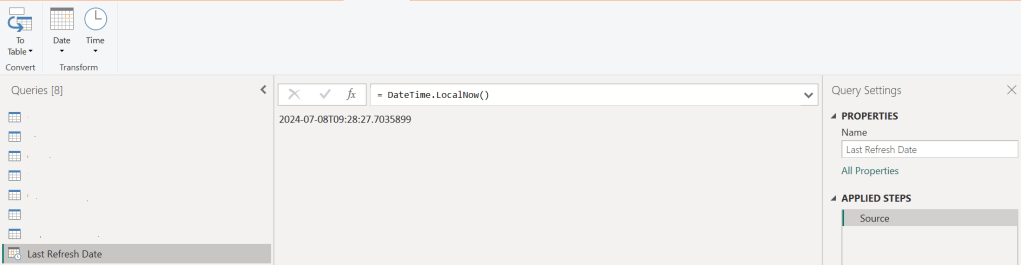
Next, convert the value to a Table by clicking the “To Table” icon, and then clicking the “To table” option:

A table with the single date column is created

Set the data type as Date/Time …
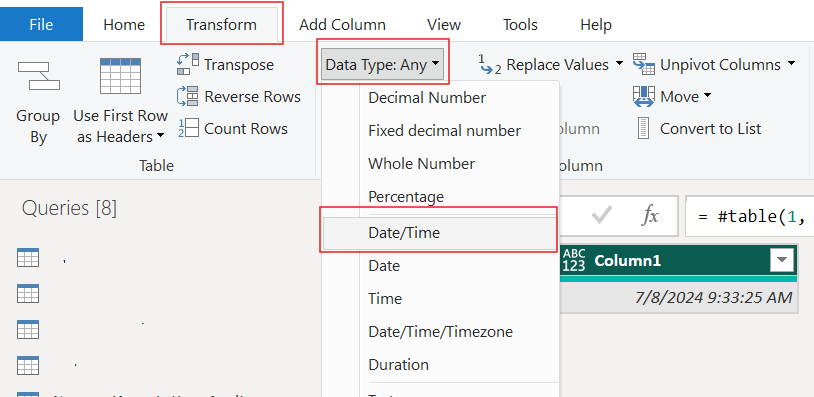
… and rename the column to something meaningful, such as “Last Refreshed Date” …

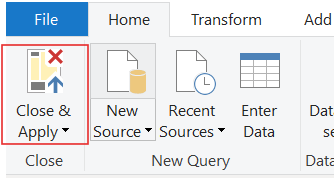
Close and apply your changes.
The table will be added to your Power BI model. It should have no relationships.

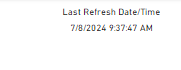
Now, add a Card visual to your dashboard, place it where it is visible but out of the way, such as in the top-right or bottom-right corner, and add the Last Refreshed Date column to it from the new table. Now, whenever your dashboard is refreshed, this new table and visual will also be updated/refreshed.
Thanks for reading!
 The Data Community