Oracle Business Analytics Warehouse (OBAW) Table Types & Descriptions

Oracle Business Intelligence Applications are driven by a data warehouse (Oracle Business Analytics Warehouse – OBAW) the stores transformed and aggregated data from the many sources that the application supports.  This post describes the various types of tables that make up the OBAW – how they are used and how to identify them.

Table Type

Table   Prefix

Table Type Description
Aggregate Tables

_A

Contain summed data
Dimension tables

_D

Star analysis dimensions
Delete tables

_DEL

Tables that store the IDs of the   entities that were physically deleted from the source system and should be   flagged as deleted from the data warehouse.
Dimension Hierarchy tables

_DH

Tables that store the dimension’s   hierarchical structure
Dimension Helper tables

_DHL

Tables that store M:M relationships   between two joining dimension tables
Staging tables for Dimension Helper

_DHLS

Staging tables for storing M:M   relationships between two joining dimension tables
Staging for Dimension Hierarchy

_DHS

Staging tables for storing the   hierarchy structures of dimensions that have not been through the final ETL   transformations
Staging tables for Dimension

_DS

Tables used to   hold dimension information that have not been through the final ETL   transformations.
Fact tables

_F

Contain   the metrics being analyzed by dimensions.
Fact Staging tables

_FS

Staging tables   used to hold the metrics being analyzedby dimensions   that have not been through the final

ETL   transformations.

Internal tables

_G, _GS,   _S

Internal tables   are used primarily by ETL mappings for data transformation and controlling   ETL runs.
Helper tables

_H

Helper tables are   inserted between the fact and dimension tables to support a many-to-many   (M:M) relationship between fact and dimension records.
Map dimension tables

_M

Tables that store   cross-referencing mappings between the external data ID and the internal ID.
Mini dimension tables

_MD

Include   combinations of the most queried attributes of their parent dimensions. The   database joins these small tables to the fact tables.
Primary extract tables

_PE

Tables that are   used to support the soft delete feature.The table   includes all the primary key columns (integration ID column) from the source   system. When a delete event happens, the full extract from the source compares   the data previously extracted in the primary extract table to determine if a   physical deletion was done in the Siebel application. The soft delete feature   is disabled by default. Therefore, the primary extract tables are not populated   until you enable the soft delete feature.
Persisted staging tables

_PS

Tables that   source multiple data extracts from the same source table.These tables   perform some common transformations required by multiple target objects. They   also simplify the source object to a form that is consumable by the warehouse   needed for multiple target objects. These tables are never truncated during   the life of the data warehouse. These are truncated only during full load, and   therefore, persist the data throughout.
Pre-staging temporary tables

_TMP

Source-specific   tables used as part of the ETL processes to conform the data to fit the   universal staging tables (table types _DS and _FS). These tables contain intermediate   results that are created as part of the conforming process.
Unbounded dimension tables

_UD

Tables containing   information that is not bounded in transactional database data but should be   treated as bounded data in the Oracle Business Analytics Warehouse.
Staging tables for Usage Accelerator

_WS

Tables containing   the necessary columns for the ETL transformations.

Staging Tables
The primary Staging Tables are the Dimension Staging (_DS) and Fact Staging (_FS) tables.  Other Staging tables include Staging for Dimension Helper (_DHLS), Staging for Dimension Hierarchy (_DHS), Persisted Staging (_PS), and Staging for Usage Accelerator (_WS).

When data is extracted from Sources, it is first loaded into a staging area before being loaded into the OBAW.

The Staging Tables stage incremental data from the source system.  On each ETL run, the staging tables’ data is truncated and then re-populated with new or changed data from the source. So these Staging Tables will hold only incremental data except for the initial load when it holds all the data from the source for a predetermined period of time.

Staging tables’ structure is independent of source data structures and resembles the structure of data warehouse tables. This resemblance allows staging tables to be used also as interface tables between the transactional database sources and data warehouse target tables.

Fact Tables
The OBAW Fact tables are suffixed with _F.

Fact tables contain the metrics generated from transactions in the business captured by the source systems.

Fact tables in the Oracle Business Analytics Warehouse contain a surrogate key if the records in the fact table need to be updated or if the fact table has an aggregate table on top of it. Each fact table also contains one or more numeric foreign key columns to link it to various dimension tables.

Aggregate Tables
The OBAW Aggregate tables are suffixed with _A.

The Aggregate tables hold pre-aggregated Fact and Dimension table data. This is one of the major performance features of a data warehouse because the data does not have to be aggregated on-demand, and query results can be quickly returned.

Dimension Tables
The Dimension tables in OBAW are suffixed with _D.

The Dimension Tables provide context / meaning to the Fact tables measures data.

The unique numeric key (ROW_WID) for each dimension table is generated during the load process. This key is used to join each dimension table with its corresponding fact table or tables. It is also used to join the dimension with any associated hierarchy table or extension table. The ROW_WID columns in the Oracle Business Analytics Warehouse tables are numeric. In every dimension table, the ROW_WID value of zero is reserved for Unspecified. If one or more dimensions for a given record in a fact table is unspecified, the corresponding key fields in that record are set to zero.

Mini Dimension Tables
The Mini Dimension tables are suffixed with _MD.  Their purpose is for performance enhancement.

Mini-dimension tables include combinations of the most queried attributes of their parent dimensions. They improve query performance because the database does not need to join the fact tables to the big parent dimensions but can join these small tables to the fact tables instead.

Hierarchy Tables
Hierarchy tables in the OBAW are suffixed with _DH.

Some dimension tables have hierarchies into which each record rolls. This hierarchy information is stored in a separate table, with one record for each record in the corresponding dimension table. This information allows users to drill up and down through the hierarchy in reports.  There are two types of hierarchies in the Oracle Business Analytics Warehouse: a structured hierarchy in which there are fixed levels, and a hierarchy with parent-child relationships. Structured hierarchies are simple to model, since each child has a fixed number of parents and a child cannot be a parent. The second hierarchy, with unstructured parent-child relationships, is difficult to model because each child record can potentially be a parent and the number of levels of parent-child relationships is not fixed.

Helper Tables
Helper tables in OBAW are prefixed with _H (Helper) and _DHL (Dimension Helper).

Helper tables are used by the Oracle Business Analytics Warehouse to solve complex problems that cannot be resolved by simple dimensional schemas.  In a typical dimensional schema, fact records join to dimension records with a many-to-one relationship. To support a many-to-many relationship between fact and dimension records, a helper table is inserted between the fact and dimension tables.  The helper table can have multiple records for each fact and dimension key combination. This allows queries to retrieve facts for any given dimension value. It should be noted that any aggregation of fact records over a set of dimension values might contain overlaps (due to a many-to-many relationship) and can result in double counting.

At times there is a requirement to query facts related to the children of a given parent in the dimension by specifying only the parent value (example: manager’s sales fact that includes sales facts of the manager’s subordinates). In this situation, one helper table containing multiple records for each parent-child dimension key combination is inserted between the fact and the dimension. This allows queries to be run for all subordinates by specifying only the parent in the dimension.-

Internal Tables
Internal tables in the OBAW are suffixed with _G, _GS and _S.

Internal tables are used primarily by ETL (extract-transform-load) mappings for data transformation and for controlling ETL runs. These tables are not queried by end users and are not directly managed by the Oracle Data Warehouse Administration Console (DAC).

‘No fact table exists at the requested level’ error in OBIEE 11g

If you receive an error like this when you attempt to run a report, this post might help you.  This is an error that may occur after upgrading from OBIEE 10g to 11g.

State: HY000. Code: 10058. [NQODBC] [SQL_STATE: HY000] [nQSError: 10058] A general error has occurred. [nQSError: 43113] Message returned from OBIS. [nQSError: 43119] Query Failed: [nQSError: 14025] No fact table exists at the requested level of detail:

Check each column used in your report and each column used in the filter definition to ensure that they are referencing the correct table.

A likely cause of this error is that one or more of your select columns or filter columns is referencing a column in a different subject area that the one being used in your report (different from the one you intended).

OBIEE 10g was more forgiving than 11g – and maybe fortunately, so that errors like these do not go unnoticed/undetected.

How to hide the Refresh, ‘Printer Friendly’ and ‘Add to Briefing Book’ Icons at the bottom of a dashboard page in OBIEE 10g

I was recently asked to completely remove or hide, from a particular page, the ‘Refresh’, ‘Printer Friendly’ and ‘Add to Briefing Book’ icons that automatically show up at the bottom of the OBIEE dashboard page in OBIEE 10g.

Refresh-PrinterFriendly-BriefingBook-Icons

I had never had the need to do this before, so I did a search and thankfully I quickly found the solution here …

http://obiee-bip.blogspot.com/2011/07/how-to-hide-refresh-printer-friendly.html

For your convenience, I will reiterate the solution here …

1. Edit Dashboard

2. Add a Text box object into the Dashboard Page

3. Add the following script to the Text Properties


function RemoveDefaults() {
var tds = document.getElementsByTagName(‘span’);
for (var td = 0; td

4. Check the option ” Contains HTML Markup “

5. Save the changes and view the Dashboard Page, the icons for Refresh, Printer Friendly & Add Briefing Book Options are hidden for that specific Dashboard Page alone

Data type related error in OBIEE 11g – Error Codes: OPR4ONWY:U9IM8TAC:OI2DL65P

If you receive an error like this in OBIEE 11g, this post may help you resolve the problem.  This is an error that you may get after upgrading from OBIEE 10g to 11g.

Error Codes: OPR4ONWY:U9IM8TAC:OI2DL65P
State: HY000. Code: 10058. [NQODBC] [SQL_STATE: HY000] [nQSError: 10058] A general error has occurred. [nQSError: 43113] Message returned from OBIS. [nQSError: 43119] Query Failed: [nQSError: 59140] The evaluation of the index 11 expression on row count -1 failed. [nQSError: 59001] Binary Logical operation is not permitted on VARBINARY, INTEGER operand(s). (HY000)

DataTypeError

OBIEE 10g is a lot more forgiving than 11g.  So what worked in 10g may not work in 11g – such as data type mismatches.  For this error, you need to check the data types of your columns and the data types of the values being used in your column calculations.

For example, you may have a column formula like this …

sum(case when “Table”.”Column”=3 then 1 else 0 end)

Note the column is being used like an INTEGER. This worked in 10g, but does not in 11g.

When you check the data type in your RPD, it may show that the column is a VARCHAR.  You then will need to put quotes around the value (the ‘3’) … like this …

sum(case when “Table”.”Column”=’3’ then 1 else 0 end)

This should hopefully solve the problem.

OBIEE Recent Releases & Support Information

12/5/2012: Picked up this information from the Business Analytics newsletter from Oracle.  It’s good to see that a cumulative patch is now available for all the 11.1.1.6.x releases.  Also, note that it seems the support for OBIEE 10.1.3.x will expire in July 2013 – that time will be here before you know it.

—————————————————————————————

10.1.3.x

The Premier Support for Oracle Business Intelligence Enterprise Edition 10.1.3.x ended in July 2013. For additional information on the de-support status and for details for moving towards recent release refer to:

  • OBIEE 11g: Required and Recommended Patches and Patch Sets [Doc ID 1488475.1]
  • ALERT: Required and Recommended Patch Levels For OBIEE 10g (10.1.3.x) Versions (Doc ID 1082987.1)

11.1.1.5.4

Oracle Business Intelligence Enterprise Edition (OBIEE) 11.1.1.5.4 Bundle Patch was released Oct-12.

This is available for download from the My Oracle Support | Patches and Updates:

Additional information is available from:

Refer to “Retiring Product” section for important information pertaining to OBIEE 11.1.1.5.x

11.1.1.6.x – Patch Set Updates

The OBIEE Patch Set Update (PSU) that were recently released are as follows:

  • OBIEE 11.1.1.6.4 PSU  – Sept 2012
  • OBIEE 11.1.1.6.5 PSU  – Oct 2012
  • OBIEE 11.1.1.6.6 PSU  – Nov 2012

11.1.1.6.6

Oracle Business Intelligence Enterprise Edition (OBIEE) 11.1.1.6.6 Bundle Patch was released Nov-12.

Bundle patches are a collection of controlled, well tested critical bug fixes for a specific product which may include security contents and occasionally minor enhancements. These are cumulative in nature meaning the latest bundle patch in a particular series would include the contents of the previous bundle patches released. A suite bundle patch is an aggregation of multiple product bundle patches that are part of a product suite.

For OBIEE on 11.1.1.6.0, it is planned for monthly run of bundle patch cadence. For the 11.1.1.6.6 bundle patch:

  • is now for download from My Oracle Support | Patches & Updates
  • includes 67 bug fixes.
  • is cumulative, so it includes everything in 11.1.1.6.1, 11.1.1.6.2, 11.1.1.6.2BP1, 11.1.1.6.4 and 11.1.1.6.5

Bundled Patch Details

  • 1 of 7 – Oracle Business Intelligence Installer [Patch 15844023]
  • 2 of 7 – Oracle Real Time Decisions [Patch 15844066]
  • 3 of 7 – Oracle Business Intelligence Publisher [Patch 14800665]
  • 4 of 7 – Oracle Business Intelligence ADF Components [Patch 15843961]
  • 5 of 7 – Enterprise Performance Management Components Installed from BI Installer 11.1.1.6.x [Patch 15844096]
  • 6 of 7 – Oracle Business Intelligence [Patch 14791926]
  • 7 of 7 – Oracle Business Intelligence Platform Client Installers and MapViewer [Patch 15839347]

Additional information may be found in the following Knowledge Articles:

Using Custom Images in OBIEE 10g & 11g

In both OBIEE 10g and 11g, custom images need to be placed in 2 folders before use within reports/dashboards.

 In OBIEE 10g, images need to be placed in:

(1)     $BIHOMEoc4j_bij2eehomeapplicationsanalyticsanalyticsress_oracle10images

Windows directory path example:
C:OracleBIoc4j_bij2eehomeapplicationsanalyticsanalyticsress_oracle10images

Linux directory path example:
/usr/local/OracleBI/oc4j_bi/j2ee/home/applications/analytics/analytics/res/s_oracle10/images

-and-

(2)    $BI_HOMEwebappress_oracle10images

Windows directory path example:
C:OracleBIwebappress_oracle10images

Linux directory path example:
/usr/local/OracleBI/web/app/res/s_oracle10/images


In OBIEE 11g, images need to be placed in:

(1)    $OBIEE_FMW_HOMEuser_projectsdomainsbifoundation_domainserversbi_server1tmp_WL_useranalytics_11.1.17dezjlwarress_blafpimages

Windows directory path example:
C:obiee11guser_projectsdomainsbifoundation_domainserversAdminServertmp_WL_useranalytics_11.1.1silp1vwarress_blafpimages

Linux directory path example:
/u01/product/middleware/user_projects/domains/bifoundation_domain/servers/bi_server1/tmp/_WL_user/analytics_11.1.1/7dezjl/war/res/s_blafp/images

-and-

(2)    $OBIEE_FMW_HOMEOracle_BIbifoundationwebappress_blafpimages

Windows directory path example:
C:obiee11gOracle_BI1bifoundationwebappress_blafpimages

Linux directory path example:
/u01/product/middleware/Oracle_BI1/bifoundation/web/app/res/s_blafp/images

Note: you may also create or use directories at the same level or below the images directories under the s_oracle10 (in 10g) and s_blafp (in 11g) directories, for example, if you wanted to put all your custom images into a separate directory.

Then in Answers / Analysis, you would reference the image as shown below.

Edit the Column Properties:
ImagesDirectories-ColumnProperties

Then, in the Style tab, within the Cell area, click on the Image object…

ImagesDirectories-ClickImage

Then in the Graphics dialog, select “Custom Image” and enter  fmap:images/your_custom_image.jpg.

Note: If your images are in a directory other than the images directory, you need to supply that path, but still starting below s_oracle10 or s_blafp directories.

And set the Image Placement property. Images Left (shows the Image to the left of the column data), Images Right (displays the image to the right of the column data), Images Only (displays the image only – no column data)
ImagesDirectories-ImageNameAndPlacement

If new images were placed into the directories after the last BI Server / Presentation Server restart, you will need to restart the BI Server and Presentation Server for the images to be displayed.

How to remove the popup menu when navigating from one report to another via a navigation link

When you click on a navigation link value, by default a pop-up arises with the name of the possible report(s) that you can navigating to.  Even if it’s just one possible report, the pop-up still occurs (see example below). This happens after upgrading from OBIEE 10g to 11g, and there is no system wide setting to fix this.

Navigation-Popup

This can be annoying to users because its an extra unnecessary click. They want to be navigated to the next report after the single click on the navigation link.  Especially if they worked on OBIEE 10g before and did not have to do this. The good news is, removing this popup is easy.

Edit Dashboard

Edit the Analysis

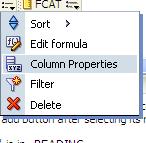
Edit the Column Properties for the relevant column

EditColumnProperties

In the Column Properties dialog, go to the Interaction tab.
Check the box below the Action Links table for “Do not display in a popup if only one action link is available at runtime”

DoNotDisplayPopup

Once you check the box for one column in your analysis, it will become checked for all navigation link columns in that analysis  – so you do not need to check for others columns after you have done for any one column.

You will now be navigated directly to the next report without the popup showing. Unfortunately, this has to be done for each report because there is no system wide setting to change it for all.

Oracle Business Intelligence Enterprise Edition 11g (OBIEE 11g) Books

There are a few Oracle Business Intelligence Enterprise Edition 11g (OBIEE 11g) books on the market currently.  For quite sometime, not many books have been available for OBIEE, and in particular OBIEE 11g.

Anyway, below are 2 books that I think are worthwhile, and 1 that you might want to look into … the links take you to Amazon, and shows the paperback versions. But you can easily navigate to the Kindle versions from there. 

Oracle Business Intelligence Enterprise Edition 11g: A Hands-On Tutorial by Christian Screen, Haroun Khan and Adrian Ward (Jul 19, 2012)

Oracle Business Intelligence 11g Developers Guide by Mark Rittman (Sep 18, 2012)

Implement Oracle Business Intelligence (Volume 1) by Mr. Riaz Ahmed (Mar 30, 2012)

I read pretty much all of the Screen/Khan/Ward book and found it to be good, but experts might find it a bit basic.  I just started reading the Rittman book, got through the first 3 chapters, and so far it has been very good. 

I have not read the Ahmed book because it is not yet available on the Kindle, and that’s my preferred way of buying books due to its convenience. But it might be worthwhile checking it out.

Happy Reading!

EVALUATE_SUPPORT_LEVEL inside NQSConfig.INI is not set

If you use the Oracle EVALUATE function in OBIEE, then you will need to set a parameter in the NQSConfig.INI file in OBIEE 11g.

If you get this error below, then you are using the EVALUATE function somewhere inside OBIEE (in one of your analyses/requests) and the parameter needs to be set appropriately in the NQSConfig.INI file.

State: HY000. Code: 10058. [NQODBC] [SQL_STATE: HY000] [nQSError: 10058] A general error has occurred.
[nQSError: 43113] Message returned from OBIS.
EVALUATE_SUPPORT_LEVEL inside NQSConfig.INI is not set to support EVALUATE. (HY000)

This is what you need to do to correct the problem… 

Edit the NQSConfig.INI file, located at: OBIEE_INSTANCE/config/OracleBIServerComponent/coreapplication_obisn

This is what you will see by default in the config file…
————-
# EVALUATE_SUPPORT_LEVEL:
# 1: evaluate is supported for users with manageRepositories permssion
# 2: evaluate is supported for any user.
# other: evaluate is not supported if the value is anything else.
EVALUATE_SUPPORT_LEVEL = 0; 
————-

Change the parameter as follows: EVALUATE_SUPPORT_LEVEL = 2;

Save and restart the BI Server.  Your requests should work fine now.

OBIEE 10g: Unable to sort table although “Enable column sorting in dashboards” is checked

I discovered an interesting scenario recently. Although “Enable column sorting in dashboards” was checked (turned on), I was unable to sort on a particular table.  The mouse icon changed when I moused-over the column headings which gave the impression that it would sort, but it simply did not work.

Turns out there was an invalid “view” above the Table object in the Compound Layout. This happens when an object is removed from an analysis/request and its placeholder is not removed from the Compound Layout. See the screenshot below – notice the empty placeholder above the table with the message “The view that was in this position the the Compound Layout is no longer available. …”.

To fix the problem, simply remove/delete that invalid view from the compound layout and you will now be able to sort the table.