One of the first things you may notice when creating new reports in Power BI, especially if converting existing reports from other BI tools to Power BI, is that the canvas (page) size is relatively small. In many cases it is too small to hold all the visualizations, slicers, text and headers you want to include. This is by design I think, where the intent is to keep the number of visualizations and information on a report page to a focused set. However, you may find that the default settings are a bit too small. You can customize the canvas size as follows:
In the Report view, make sure that no visualizations are selected (click on a blank area on the report page if necessary). Go to the Visualizations pane.
Click the Format icon. Then expand the Canvas settings section. There you can choose Custom from the Type dropdown, and set your desired custom Height and Width for the canvas area.
Note: If you have not upgraded your Power BI Desktop in the last few months, the Visualizations pane and Format icon may look a little different.
Power BI allows us to connect to many different data sources – from relational databases, NoSQL databases, files, and more – to source data for consumption in Power BI. From the data sourced, you can create additional data (new calculated columns, metrics, transformed data, etc.), build data models, and create reports and dashboards.
There are a few storage modes related to how the data is retrieved, stored, and processed in Power BI. The storage modes are Import, DirectQuery, Live Connection, and Dual. The storage mode is set at the table level for each table in the Power BI data model. I will now describe these modes.
Import
With the Import storage mode, Power BI imports and caches the data from the sources. Once the data import is complete, the data in Power BI will remain the same until is refreshed by the Power BI refresh process for that dataset.
This storage mode allows for the usage of the most Power BI features for data modeling and analysis. For example, Import mode is required for using two of the popular Power BI features, Quick Insights and Q&A. Also, this mode is almost always the best for performance. However, it’s not necessarily the best option in all scenarios. Since the data is imported, the file size can get large and can sometimes take a considerable amount of time to load. But generally, for relatively static, low volume data, it is the preferred choice.
Queries submitted to an imported dataset will return data from the cached data only.
DirectQuery
With the DirectQuery storage mode, no data is cached in Power BI, but the metadata of the source tables, columns, data types, and relationships is cached. Instead, the data is directly queries on the source database when needed by a Power BI query, such as when a user runs a Power BI report that uses the data.
For Since the data is not imported, if all the tables in the data model use DirectQuery, the Power BI file size will be very small compared to a model with imported data.
Live Connection
The Live Connection storage mode is a special case of the DirectQuery mode. It is only available when sourcing from Power BI Service datasets or Analysis Services data models. There are limitations when using this mode. Data modeling is limited to creating measures, and therefore, you cannot apply transformations to the data, and you cannot define relationships within the data. And you can only have one data source in your data model.
Dual
With the Dual storage mode, a table may use Import mode or DirectQuery mode, depending on the mode of the other tables included in the query. For example, you may have a scenario in which you have a Date table that is connected to one transaction table that needs to reflect the data in the source, and is therefore set to DirectQuery mode, and also connected to another transaction table that only has less than 100,000 rows and is set to Import storage mode. By setting the Date table to Dual storage mode, Power BI will use DirectQuery when the query involves the date table and the first transaction table, while using Import mode when the query involves the date table and the second transaction table.
The below table summarizes the Power BI data storage modes:
Import
DirectQuery
Live Connection
Dual
-Data is imported and cached in Power BI
-Preferred for static, relatively small datasets
-All Power BI functionality is available – including DAX, Calculated tables, Q&A and Quick Insights
-Can connect to Analysis Services but Live Connection is preferred
-Can have unlimited data sources
-Typically provides the best performance
-Data is queried on the source when needed
-Use for large datasets and when data changes in source need to be updated immediately
-Features such as Q&A, Quick Insights, Calculated Tables, and many DAX queries are not supported
-Limited data transformation functionality
-Parent-child functionality not supported
-For relational databases
-Not supported for Analysis Services
-Performance greatly dependent on the source data source
-A special case of DirectQuery
-Used for connecting to multi-dimensional data sources, such as Analysis Services
-Can be used only with Power BI datasets and Analysis Services
-Can have only one data source
-No data transformation available
-Q&A and Quick Insights not available
-Can create measures
-A combination of Import and DirectQuery
-Power BI will choose the appropriate option based on the storage mode of the tables involved in the query
-Can improve performance
Summary of Power BI storage modes
Note: the content in this post is relevant for the PL-300 Analyzing Data with Microsoft Power BI certification exam.
Thanks for reading! I hope you found this information useful.
Power BI has 4 roles. Those roles, in order of increasing access/capabilities, are Viewer, Contributor, Member, and Admin. Before granting roles to users in your environment, it’s best to have a solid understanding of what each role has access to and is capable of doing.
The table below provides a list of capabilities of each role. As you will see, each roles “absorbs” or “inherits” the capabilities of all the roles below it in the hierarchy – for example, the Contributor can do everything the Viewer can do plus more, and the Member can do everything the Contributor can do plus more.
The Power BI Workspace roles
Viewer
Contributor
Member
Admin
View dashboards, reports, and workbooks in the workspace
Everything that the Viewer can do
Everything that the Contributor can do
Everything that the Member can do
Read data from dataflows in the workspace
Add, edit, delete content workspaces
Add other users as members, contributors, or viewers to the workspace
Update and delete the workspace
Row-level security applies to viewers
Schedule refreshes and use the on-premises gateway within workspaces
Publish and update the workspace app
Add and remove other users of any role from the workspace
Feature dashboards and reports from workspaces
Share and allow others to reshape items from the workspace
Have access to the lineage view
Feature the workspace app
Have full access to all datasets within a workspace
A few things to keep in mind regarding roles:
Only the Member and Admin roles can perform access related tasks and publish apps.
Both Member and Admin roles can update workspaces, but only the Admin role can delete.
By default, the Contributor role cannot update apps, but there is a workspace setting that allows Contributors to update apps.
Both the Member and Admin roles can add users, but only the Admin role can add other Admins.
A Power BI Pro license is needed to be able to fully utilize the Admin role.
This article was intended to be an easy read; more detailed information regarding Power BI roles can be found here on the Microsoft site.
Our team at work recently started using the Power BI platform. We are just getting going but I am already loving this tool. Our current enterprise BI platforms are Qlik and OBI (Oracle Business Intelligence), however, Power BI has has gained significant traction in business teams over the last couple years where it used for departmental reporting and analysis.
I see why the business teams love this tool and am excited about bringing it into our portfolio of tools for delivering analytic solutions across the company. These are some of the reasons I like Power BI:
First and foremost, we have not yet come across anything that we currently do in Qlik or OBI that we will not be able to do in Power BI. This was very important.
Power BI has a very intuitive and well laid out interface. You can easily switch between the visualizations, the data, and the data model. And within each of those tabs, you easily navigate using the well-placed objects and menu items. I found the interface easy to get accustomed to.
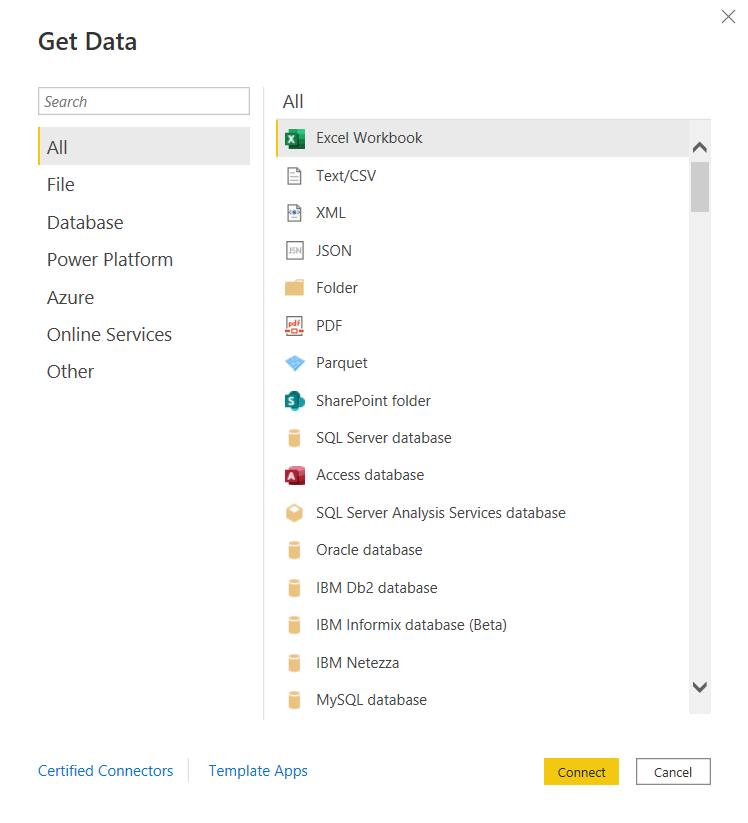
You can connect to just about any data source. The list is long. It seems the only source missing is an alien database on Mars. 🙂 I am kidding, but I did not find a native connector for Informix – the most uncommon database that we currently have as a source, but of course, ODBC and JDBC are available for those scenarios. Take a look.
and there are many more!
Some notable connectors are SQL Server Analysis Services, PostgreSQL, Amazon Redshift, Google BigQuery, Snowflake, various Azure data sources, Salesforce, Spark, GitHub, Databricks, and many more.
There are many awesome features for handling Excel data. And although we try to avoid Excel data as a source, it’s just not possible at times, and sometimes it makes sense to use those sources. However, the Power Query functionality allows users to perform ETL tasks on any data from any source.
Power BI has many built-in visualization options.
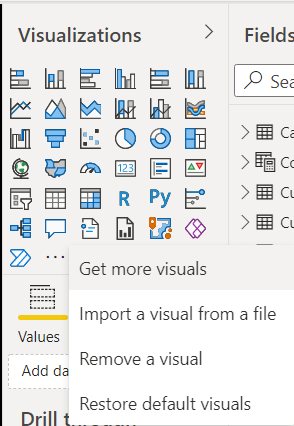
And you have the ability to “get more” from the marketplace.
Data modeling in Power BI is based on a methodology that our team is very familiar with: Dimensional Modeling, also known as, Star-Schema Modeling. And this is a proven method that works for efficient analytic solutions. In Power BI, it is also easy to create relationships between tables, change data types, and build hierarchies.
Within the data models, you can also use a versatile language called DAX (Data Analysis Expressions) to manipulate data, filter data, build measures, and more. I find that what’s possible with DAX brings Power BI into a whole other tier of flexibility compared to other tools. There is a bit of a learning curve for DAX, but you can start by focusing on a few key functions, and then expand your knowledge over time.
As you would expect in any modern BI platform, the security features in Power BI provide for object-level and data-level security. We have set up some simple security scenarios so far and it was straightforward. We will be digging more into setting up some more complex security scenarios soon and will report on that experience.
Data profiling features are built into Power BI, which may save you some time from having to jump into another query tool to profile your data.
Along with some standard analytic features, such as TopN, conditional formatting, and aggregate functions, Power BI also offers AI visuals, R and Python visuals, and advanced algorithms (such as key influencers and outliers) are available. I can foresee us using these features in the future.
Integration options with Office 365, SharePoint, and Teams.
Power BI is a great platform for one of the most significant trends in analytics – that is, users clamoring for Self-Service Analytics. With the ability to easily secure and share Power BI datasets, and users able to easily connect and use that data with an intuitive, optional code, tool that they may already have exposure to, it will be easier to implement self-service solutions. There are also some cool features for report consumers, such as personalization of visuals and mobile view.
A company called P3Adaptive delivered an awesome training for us, but there are tons of free resources available for learning. A good place to start is the Power BI lessons on Microsoft Learn – Power BI. And then, sign up for Dashboard in a Day (DIAD), a free one-day instructor-led training. You can find and register for DIAD classes here: Microsoft Events – DIAD
There are reasons why the Power BI platform has been at the top of the “Gartner Magic Quadrant for Business Intelligence and Analytics Platforms” for the last 3 years. It has a lot going for it and the company seems to be aggressive about continuous improvement.
I look forward to the Power BI journey and the ongoing quest to make our data as valuable as possible for our company.
Information and resources for the data professionals' community



 and there are many more!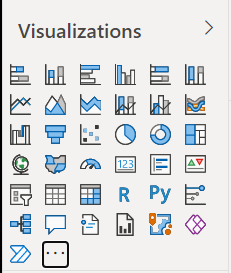


 The Data Community