Category: Power BI

Improve DAX performance

This post is a part of the DP-600: Implementing Analytics Solutions Using Microsoft Fabric Exam Prep Hub; and this topic falls under these sections: 
Implement and manage semantic models (25-30%)
--> Optimize enterprise-scale semantic models
--> Improve DAX performance

Effective DAX (Data Analysis Expressions) is essential for high-performance semantic models in Microsoft Fabric. As datasets and business logic become more complex, inefficient DAX can slow down query execution and degrade report responsiveness. This article explains why DAX performance matters, common performance pitfalls, and best practices to optimize DAX in enterprise-scale semantic models.


Why DAX Performance Matters

In Fabric semantic models (Power BI datasets + Direct Lake / Import / composite models), DAX is used to define:

  • Measures (dynamic calculations)
  • Calculated columns (row-level expressions)
  • Calculated tables (derived data structures)

When improperly written, DAX can become a bottleneck — especially on large models or highly interactive reports (many slicers, visuals, etc.). Optimizing DAX ensures:

  • Faster query execution
  • Better user experience
  • Lower compute consumption
  • More efficient use of memory

The DP-600 exam tests your ability to identify and apply performance-aware DAX patterns.


Understand DAX Execution Engines

DAX queries are executed by two engines:

  • Formula Engine (FE) — processes logic that can’t be delegated
  • Storage Engine (SE) — processes optimized aggregations and scans

Performance improves when more computation can be done in the Storage Engine (columnar operations) rather than the Formula Engine (row-by-row logic).

Rule of thumb: Favor patterns that minimize work done in the Formula Engine.


Common DAX Performance Anti-Patterns

1. Repeated Calculations Without Variables

Example:

Total Sales + Total Cost - Total Discount

If Total Sales, Total Cost, and Total Discount all compute the same sub-expressions repeatedly, the engine may evaluate redundant logic multiple times.

Anti-Pattern:

Repeated expressions without variables.


2. Nested Iterator Functions

Using iterators like SUMX or FILTER on large tables many times in a measure increases compute overhead.

Example:

SUMX(
    FILTER(FactSales, FactSales[SalesAmount] > 0),
    FactSales[Quantity] * FactSales[UnitPrice]
)

Filtering inside iterators and then iterating again adds overhead.


3. Large Row Context with Filters

Complex FILTER expressions that operate on large intermediate tables will push computation into the Formula Engine, which is slower.


4. Frequent Use of EARLIER

While useful, EARLIER is often replaced with clearer, faster patterns using variables or iterator functions.


Best Practices for Optimizing DAX


1. Use Variables (VAR)

Variables reduce redundant computations, enhance readability, and often improve performance:

Measure Optimized =
VAR BaseTotal = SUM(FactSales[SalesAmount])
RETURN
IF(BaseTotal > 0, BaseTotal, BLANK())

Benefits:

  • Computed once per filter context
  • Reduces repeated expression evaluation

2. Favor Storage Engine Over Formula Engine

Use functions that can be processed by the Storage Engine:

  • SUM, COUNT, AVERAGE, MIN, MAX run faster
  • Avoid SUMX when a plain SUM suffices

Example:

Total Sales = SUM(FactSales[SalesAmount])

Over:

Total Sales =
SUMX(FactSales, FactSales[SalesAmount])


3. Simplify Filter Expressions

When possible, use simpler filter arguments:

Better:

CALCULATE([Total Sales], DimDate[Year] = 2025)

Instead of:

CALCULATE([Total Sales], FILTER(DimDate, DimDate[Year] = 2025))

Why?
The simpler condition is more likely to push to the Storage Engine without extra row processing.


4. Use TRUE/FALSE Filters

When filtering on a Boolean or condition:

Better:

CALCULATE([Total Sales], FactSales[IsActive] = TRUE)

Instead of:

CALCULATE([Total Sales], FILTER(FactSales, FactSales[IsActive] = TRUE))


5. Limit Column and Table Scans

  • Remove unused columns from the model
  • Avoid high-cardinality columns in calculations where unnecessary
  • Use star schema design to improve filter propagation

6. Reuse Measures

Instead of duplicating logic:

Total Profit =
[Total Sales] - [Total Cost]

Reuse basic measures within more complex logic.


7. Prefer Measures Over Calculated Columns

Measures calculate at query time and respect filter context; calculated columns are evaluated during refresh. Use calculated columns only when necessary.


8. Reduce Iterators on Large Tables

If SUMX is needed for row-level expressions, consider summarizing first or using aggregation tables.


9. Understand Evaluation Context

Complex measures often inadvertently alter filter context. Use functions like:

  • ALL
  • REMOVEFILTERS
  • KEEPFILTERS

…carefully, as they affect performance and results.


10. Leverage DAX Studio or Performance Analyzer

While not directly tested with UI steps, knowing when to use tools to diagnose DAX is helpful:

  • Performance Analyzer identifies slow visuals
  • DAX Studio exposes query plans and engine timings

Performance Patterns and Anti-Patterns

PatternGood / BadNotes
VAR usageGoodMakes measures efficient and readable
SUM over SUMXGood if applicableLeverages Storage Engine
FILTER inside SUMXBadForces row context early
EARLIER / nested row contextBadHard to optimize, slows performance
Simple CALCULATE filtersGoodMore likely to fold

Example Before / After

Before (inefficient):

Measure = 
SUMX(
    FILTER(FactSales, FactSales[SalesAmount] > 1000),
    FactSales[Quantity] * FactSales[UnitPrice]
)

After (optimized):

VAR FilteredSales =
    CALCULATETABLE(
        FactSales,
        FactSales[SalesAmount] > 1000
    )
RETURN
SUMX(
    FilteredSales,
    FilteredSales[Quantity] * FilteredSales[UnitPrice]
)

Why better?
Explicit filtering via CALCULATETABLE often pushes more work to the Storage Engine than iterating within FILTER.


Exam-Focused Takeaways

For DP-600 questions related to DAX performance:

  • Identify inefficient row context patterns
  • Prefer variables and simple aggregations
  • Favor Storage Engine–friendly functions
  • Avoid unnecessary nested iterators
  • Recognize when a measure should be rewritten for performance

Summary

Improving DAX performance is about writing efficient calculations and avoiding patterns that force extra processing in the Formula Engine. By using variables, minimizing iterator overhead, simplifying filter expressions, and leveraging star schema design, you can significantly improve query responsiveness — a key capability for enterprise semantic models and the DP-600 exam.

Practice Questions:

Here are 10 questions to test and help solidify your learning and knowledge. As you review these and other questions in your preparation, make sure to …

  • Identifying and understand why an option is correct (or incorrect) — not just which one
  • Look for and understand the usage scenario of keywords in exam questions to guide you
  • Expect scenario-based questions rather than direct definitions

Question 1

You have a DAX measure that repeats the same complex calculation multiple times. Which change is most likely to improve performance?

A. Convert the calculation into a calculated column
B. Use a DAX variable (VAR) to store the calculation result
C. Replace CALCULATE with SUMX
D. Enable bidirectional relationships

Correct Answer: B

Explanation:
DAX variables evaluate their expression once per query context and reuse the result. This avoids repeated execution of the same logic and reduces Formula Engine overhead, making variables one of the most effective performance optimization techniques.


Question 2

Which aggregation function is generally the most performant when no row-by-row logic is required?

A. SUMX
B. AVERAGEX
C. SUM
D. FILTER

Correct Answer: C

Explanation:
Native aggregation functions like SUM, COUNT, and AVERAGE are optimized to run in the Storage Engine, which is much faster than iterator-based functions such as SUMX that require row-by-row evaluation in the Formula Engine.


Question 3

Why is this DAX pattern potentially slow on large tables?

CALCULATE([Total Sales], FILTER(FactSales, FactSales[SalesAmount] > 1000))

A. FILTER disables relationship filtering
B. FILTER forces evaluation in the Formula Engine
C. CALCULATE cannot push filters to the Storage Engine
D. The expression produces incorrect results

Correct Answer: B

Explanation:
The FILTER function iterates over rows, forcing Formula Engine execution. When possible, using simple Boolean expressions inside CALCULATE (e.g., FactSales[SalesAmount] > 1000) allows the Storage Engine to handle filtering more efficiently.


Question 4

Which CALCULATE filter expression is more performant?

A. FILTER(Sales, Sales[Year] = 2024)
B. Sales[Year] = 2024
C. ALL(Sales[Year])
D. VALUES(Sales[Year])

Correct Answer: B

Explanation:
Simple Boolean filters allow DAX to push work to the Storage Engine, while FILTER requires row-by-row evaluation. This distinction is frequently tested on the DP-600 exam.


Question 5

Which practice helps reduce the Formula Engine workload?

A. Using nested iterator functions
B. Replacing measures with calculated columns
C. Reusing base measures in more complex calculations
D. Increasing column cardinality

Correct Answer: C

Explanation:
Reusing base measures promotes efficient evaluation plans and avoids duplicated logic. Nested iterators and high cardinality columns increase computational complexity and slow down queries.


Question 6

Which modeling choice can indirectly improve DAX query performance?

A. Using snowflake schemas
B. Increasing the number of calculated columns
C. Removing unused columns and tables
D. Enabling bidirectional relationships by default

Correct Answer: C

Explanation:
Removing unused columns reduces memory usage, dictionary size, and scan costs. Smaller models lead to faster Storage Engine operations and improved overall query performance.


Question 7

Which DAX pattern is considered a performance anti-pattern?

A. Using measures instead of calculated columns
B. Using SUMX when SUM would suffice
C. Using star schema relationships
D. Using single-direction filters

Correct Answer: B

Explanation:
Iterator functions like SUMX should only be used when row-level logic is required. Replacing simple aggregations with iterators unnecessarily shifts work to the Formula Engine.


Question 8

Why can excessive use of EARLIER negatively impact performance?

A. It prevents relationship traversal
B. It creates complex nested row contexts
C. It only works in measures
D. It disables Storage Engine scans

Correct Answer: B

Explanation:
EARLIER introduces nested row contexts that are difficult for the DAX engine to optimize. Modern DAX best practices recommend using variables instead of EARLIER.


Question 9

Which relationship configuration can negatively affect DAX performance if overused?

A. Single-direction filtering
B. Many-to-one relationships
C. Bidirectional filtering
D. Active relationships

Correct Answer: C

Explanation:
Bidirectional relationships increase filter propagation paths and query complexity. While useful in some scenarios, overuse can significantly degrade performance in enterprise-scale models.


Question 10

Which tool should you use to identify slow visuals caused by inefficient DAX measures?

A. Power Query Editor
B. Model View
C. Performance Analyzer
D. Deployment Pipelines

Correct Answer: C

Explanation:
Performance Analyzer captures visual query durations, DAX query times, and rendering times, making it the primary tool for diagnosing DAX and visual performance issues in Power BI and Fabric semantic models.

Implement Incremental Refresh for Semantic Models

This post is a part of the DP-600: Implementing Analytics Solutions Using Microsoft Fabric Exam Prep Hub; and this topic falls under these sections: 
Implement and manage semantic models (25-30%)
--> Optimize enterprise-scale semantic models
--> Implement Incremental Refresh for Semantic Models

Overview

Incremental refresh is a key optimization technique for enterprise-scale semantic models in Microsoft Fabric and Power BI. Instead of fully refreshing all data during each refresh cycle, incremental refresh allows you to refresh only new or changed data, significantly improving refresh performance, reducing resource consumption, and enabling scalability for large datasets.

In the DP-600 exam, this topic appears under Optimize enterprise-scale semantic models and focuses on when, why, and how to configure incremental refresh correctly.


What Is Incremental Refresh?

Incremental refresh is a feature for Import mode and Hybrid (Import + DirectQuery) semantic models that:

  • Partitions data based on date/time columns
  • Refreshes only a recent portion of data
  • Retains historical data without reprocessing it
  • Optionally supports real-time data using DirectQuery

Incremental refresh is not applicable to:

  • Direct Lake–only semantic models
  • Pure DirectQuery models

Key Benefits

Incremental refresh provides several enterprise-level advantages:

  • Faster refresh times for large datasets
  • Reduced memory and CPU usage
  • Improved reliability of scheduled refreshes
  • Better scalability for growing fact tables
  • Enables near-real-time analytics when combined with DirectQuery

Core Configuration Components

1. Date/Time Column Requirement

Incremental refresh requires a column that:

  • Is of type Date, DateTime, or DateTimeZone
  • Represents a monotonically increasing timeline (for example, OrderDate or TransactionDate)

This column is used to define data partitions.


2. RangeStart and RangeEnd Parameters

Incremental refresh relies on two Power Query parameters:

  • RangeStart – Beginning of the refresh window
  • RangeEnd – End of the refresh window

These parameters:

  • Must be of type Date/Time
  • Are used in a filter step in Power Query
  • Are evaluated dynamically during refresh

Exam tip: These parameters are required, not optional.


3. Refresh and Storage Policies

When configuring incremental refresh, you define two key time windows:

PolicyPurpose
Store rows from the pastDefines how much historical data is retained
Refresh rows from the pastDefines how much recent data is refreshed

Example:

  • Store data for 5 years
  • Refresh data from the last 7 days

Only the refresh window is reprocessed during each refresh.


4. Optional: Detect Data Changes

Incremental refresh can optionally use a change detection column (for example, LastModifiedDate):

  • Only refreshes partitions where data has changed
  • Reduces unnecessary refresh operations
  • Column must be reliably updated when records change

This is especially useful for slowly changing dimensions.


Incremental Refresh with Real-Time Data (Hybrid Tables)

Incremental refresh can be combined with DirectQuery to support real-time data:

  • Historical data → Import mode
  • Recent data → DirectQuery

This configuration:

  • Uses the “Get the latest data in real time” option
  • Is commonly referred to as a Hybrid table
  • Balances performance with freshness

Deployment and Execution Behavior

  • Incremental refresh is defined in Power BI Desktop
  • Partitions are created only after publishing
  • Refresh execution happens in the Fabric service
  • Desktop refresh does not create partitions

Exam tip: Many questions test the difference between design-time configuration and service-side execution.


Limitations and Considerations

  • Requires Import or Hybrid mode
  • Date column must exist in the fact table
  • Cannot be configured directly in Fabric service
  • Schema changes may require full refresh
  • Partition count should be managed to avoid excessive overhead

Common DP-600 Exam Scenarios

You may be asked to:

  • Choose incremental refresh to solve long refresh times
  • Identify missing requirements (RangeStart/RangeEnd)
  • Decide between full refresh vs incremental refresh
  • Configure refresh windows for historical vs recent data
  • Combine incremental refresh with real-time analytics

When to Use Incremental Refresh (Exam Heuristic)

Choose incremental refresh when:

  • Fact tables are large and growing
  • Only recent data changes
  • Full refresh times are too long
  • Import mode is required for performance

Avoid it when:

  • Data volume is small
  • Real-time access is required for all data
  • Using Direct Lake–only models

Exam Tips

For DP-600, remember:

  • RangeStart / RangeEnd are mandatory
  • Incremental refresh = Import or Hybrid
  • Partitions are service-side
  • Refresh window ≠ storage window
  • Hybrid tables enable real-time + performance

Summary

Incremental refresh is a foundational optimization technique for large semantic models in Microsoft Fabric. For the DP-600 exam, focus on:

  • Required parameters (RangeStart, RangeEnd)
  • Refresh vs storage windows
  • Import and Hybrid model compatibility
  • Real-time and change detection scenarios
  • Service-side execution behavior

Practice Questions:

Here are 10 questions to test and help solidify your learning and knowledge. As you review these and other questions in your preparation, make sure to …

  • Identifying and understand why an option is correct (or incorrect) — not just which one
  • Look for and understand the usage scenario of keywords in exam questions to guide you
  • Expect scenario-based questions rather than direct definitions

Question 1

You have a large fact table with 5 years of historical data. Only the most recent data changes daily. Which feature should you implement to reduce refresh time?

A. DirectQuery mode
B. Incremental refresh
C. Calculated tables
D. Composite models

Correct Answer: B

Explanation:
Incremental refresh is designed to refresh only recent data while retaining historical partitions, significantly improving refresh performance for large datasets.


Question 2

Which two Power Query parameters are required to configure incremental refresh?

A. StartDate and EndDate
B. MinDate and MaxDate
C. RangeStart and RangeEnd
D. RefreshStart and RefreshEnd

Correct Answer: C

Explanation:
Incremental refresh requires RangeStart and RangeEnd parameters of type Date/Time to define partition boundaries.


Question 3

Where are incremental refresh partitions actually created?

A. Power BI Desktop during data load
B. Fabric Data Factory
C. Microsoft Fabric service after publishing
D. SQL endpoint

Correct Answer: C

Explanation:
Partitions are created and managed only in the Fabric service after the model is published. Desktop refresh does not create partitions.


Question 4

Which storage mode is required to use incremental refresh?

A. DirectQuery only
B. Direct Lake only
C. Import or Hybrid
D. Dual only

Correct Answer: C

Explanation:
Incremental refresh works with Import mode and Hybrid tables. It is not supported for DirectQuery-only or Direct Lake–only models.


Question 5

You configure incremental refresh to store 5 years of data and refresh the last 7 days. What happens during a scheduled refresh?

A. All data is fully refreshed
B. Only the last 7 days are refreshed
C. Only the last year is refreshed
D. Only new rows are loaded

Correct Answer: B

Explanation:
The refresh window defines how much data is reprocessed. Historical partitions outside that window are retained without refresh.


Question 6

Which column type is required for incremental refresh filtering?

A. Text
B. Integer
C. Boolean
D. Date/DateTime

Correct Answer: D

Explanation:
Incremental refresh requires a Date, DateTime, or DateTimeZone column to define time-based partitions.


Question 7

What is the purpose of the Detect data changes option?

A. To refresh all partitions automatically
B. To detect schema changes
C. To refresh only partitions where data has changed
D. To enable real-time DirectQuery

Correct Answer: C

Explanation:
Detect data changes uses a change-tracking column (e.g., LastModifiedDate) to avoid refreshing partitions when no data has changed.


Question 8

Which scenario best fits a Hybrid incremental refresh configuration?

A. All data must be queried in real time
B. Small dataset refreshed once per day
C. Historical data rarely changes, but recent data must be real time
D. Streaming data only

Correct Answer: C

Explanation:
Hybrid tables combine Import for historical data and DirectQuery for recent data, providing real-time access where needed.


Question 9

What happens if the date column used for incremental refresh contains null values?

A. Incremental refresh is automatically disabled
B. Only historical partitions fail
C. Refresh may fail or produce incorrect partitions
D. Null values are ignored safely

Correct Answer: C

Explanation:
The date column must be reliable. Null or invalid values can break partition logic and cause refresh failures.


Question 10

When should you avoid using incremental refresh?

A. When the dataset is large
B. When only recent data changes
C. When using Direct Lake–only semantic models
D. When refresh duration is long

Correct Answer: C

Explanation:
Incremental refresh is not supported for Direct Lake–only models, as Direct Lake handles freshness differently through OneLake access.


Create and configure deployment pipelines

This post is a part of the DP-600: Implementing Analytics Solutions Using Microsoft Fabric Exam Prep Hub; and this topic falls under these sections: 
Maintain a data analytics solution
--> Maintain the analytics development lifecycle
--> Create and configure deployment pipelines

Development pipelines in Microsoft Fabric provide a structured, governed way to promote analytics content across environments—typically Development, Test, and Production. They are a core lifecycle management feature that helps teams deploy changes safely, consistently, and with minimal risk. For the DP-600 exam, you should understand what development pipelines are, how they are configured, what they support, and how they differ from Git-based version control.

What Are Development Pipelines?

A development pipeline is a Fabric feature that:

  • Connects multiple workspaces into an ordered promotion flow
  • Enables controlled deployment of items between environments
  • Supports validation and testing before production release

Pipelines are especially important for enterprise-scale analytics solutions.

Typical Pipeline Structure

A standard Fabric pipeline consists of three stages:

  1. Development
    • Active development
    • Frequent changes
    • Used by engineers and analysts
  2. Test
    • Validation and user acceptance testing
    • Data and logic verification
    • Limited access
  3. Production
    • Certified, trusted content
    • Broad consumer access
    • Minimal direct changes

Each stage is linked to a separate Fabric workspace.

Creating a Development Pipeline

At a high level, the process is:

  1. Create a deployment pipeline in Microsoft Fabric
  2. Assign a workspace to each stage:
    • Dev workspace
    • Test workspace
    • Prod workspace
  3. Configure pipeline settings
  4. Control who can deploy between stages

Once created, the pipeline provides a visual interface showing item differences across stages.

What Items Can Be Deployed Through Pipelines?

Development pipelines support deployment of many Fabric items, including:

  • Semantic models
  • Reports and dashboards
  • Dataflows Gen2
  • Lakehouses and Warehouses (supported scenarios)
  • Other supported analytics artifacts

Exam note:
Not every Fabric item supports pipeline deployment equally—expect questions to focus on Power BI and core analytics items.

How Deployment Works

Comparing Changes

  • Pipelines show differences between stages
  • You can review what will change before deploying

Deploying Content

  • Deploy from Dev → Test
  • Validate
  • Deploy from Test → Prod

Deployments:

  • Copy item definitions
  • Can update existing items or create new ones
  • Do not automatically move workspace permissions

Deployment Rules and Parameters

Pipelines support deployment rules, such as:

  • Changing data source connections per environment
  • Switching parameters between Dev, Test, and Prod
  • Avoiding hard-coded environment values

This is critical for:

  • Separating development and production data
  • Supporting safe testing

Pipelines vs Git Integration (Exam Comparison)

This distinction is frequently tested.

FeatureDevelopment PipelinesGit Integration
PurposeEnvironment promotionSource control
FocusDeploymentVersioning
Tracks historyNoYes
Supports branchingNoYes
Typical useDev → Test → ProdCode collaboration

Key insight:
They are complementary, not competing features.

Permissions and Governance

To use pipelines:

  • Users need appropriate pipeline permissions
  • Workspace access is still required
  • Production deployments are often restricted to a small group

Pipelines support governance by:

  • Reducing direct changes in production
  • Enforcing controlled release processes
  • Improving auditability

Common Exam Scenarios

You may be asked to:

  • Choose pipelines for controlled promotion of reports
  • Identify when pipelines are preferable to manual publishing
  • Combine pipelines with Git and PBIP
  • Configure different data sources per environment
  • Prevent accidental production changes

Example:

A report must be tested before being released to executives.
Correct concept: Use a development pipeline with Dev, Test, and Prod stages.

Best Practices to Remember

  • Use separate workspaces per environment
  • Restrict production deployment permissions
  • Combine pipelines with:
    • PBIP projects
    • Git integration
    • Endorsements and certification
  • Avoid direct editing in production

Key Exam Takeaways

  • Development pipelines manage content promotion across environments
  • They connect multiple Fabric workspaces
  • Pipelines support comparison, validation, and controlled deployment
  • They do not replace Git-based version control
  • A core feature of the Fabric analytics lifecycle

Exam Tips

  • If a question focuses on moving content safely from development to production, the correct answer is development pipelines.
  • If it focuses on tracking changes or collaboration, the answer is Git or PBIP.
  • Know how pipelines support:
    • Dev/Test/Prod lifecycle
    • Governance & change control
    • Environment-specific configuration
    • Enterprise-scale BI practices
  • Common exam traps:
    • Confusing workspace roles with deploy permissions
    • Assuming pipelines manage security or performance
    • Forgetting deployment rules

Practice Questions

Question 1 (Single choice)

What is the PRIMARY purpose of a deployment pipeline in Microsoft Fabric?

A. Schedule dataset refreshes
B. Promote content across lifecycle environments
C. Enable row-level security
D. Optimize DAX performance

Correct Answer: B

Explanation:
Deployment pipelines are designed to promote content across environments (for example, Development → Test → Production) in a controlled and governed manner.

  • ❌ A: Refresh scheduling is handled separately
  • ❌ C: Security is not the primary purpose
  • ❌ D: Performance tuning is unrelated

Question 2 (Multi-select)

Which stages are available by default in a Fabric deployment pipeline? (Select all that apply.)

A. Development
B. Test
C. Production
D. Sandbox

Correct Answers: A, B, C

Explanation:
Fabric deployment pipelines use a three-stage lifecycle:

  • Development
  • Test
  • Production

There is no default Sandbox stage.


Question 3 (Scenario-based)

A team wants analysts to freely modify reports, while only approved changes reach production. Which pipeline stage should analysts primarily work in?

A. Production
B. Test
C. Development
D. Any stage

Correct Answer: C

Explanation:
The Development stage is intended for:

  • Frequent changes
  • Experimentation
  • Initial validation

Higher stages are more controlled.


Question 4 (Single choice)

Which permission is required to deploy content from one stage to the next in a deployment pipeline?

A. Viewer
B. Contributor
C. Admin
D. Pipeline deploy permission

Correct Answer: D

Explanation:
Deploying content requires explicit pipeline deployment permissions, not just workspace roles.

  • ❌ Admin alone is not sufficient
  • ❌ Contributor may edit but not deploy

Question 5 (Scenario-based)

You deploy a semantic model from Test to Production. What happens to data source connections by default?

A. They are deleted
B. They remain unchanged
C. They can be overridden per stage
D. They must be manually reconfigured

Correct Answer: C

Explanation:
Deployment pipelines support parameter and data source rules, allowing environment-specific connections.


Question 6 (Multi-select)

Which items can be deployed using deployment pipelines? (Select all that apply.)

A. Reports
B. Semantic models
C. Dashboards
D. Notebooks

Correct Answers: A, B, C

Explanation:
Deployment pipelines support Power BI artifacts, including:

  • Reports
  • Semantic models
  • Dashboards

❌ Notebooks are Fabric artifacts but are not deployed via Power BI deployment pipelines.


Question 7 (Scenario-based)

A deployment shows warnings that some items are skipped. What is the MOST likely cause?

A. The workspace is full
B. Unsupported artifacts exist
C. The dataset is too large
D. Git integration is disabled

Correct Answer: B

Explanation:
Unsupported or incompatible artifacts (for example, unsupported report types) may be skipped during deployment.


Question 8 (Single choice)

Which feature allows different environments to use different data sources during deployment?

A. Row-level security
B. Dynamic format strings
C. Deployment rules
D. Incremental refresh

Correct Answer: C

Explanation:
Deployment rules allow:

  • Data source switching
  • Parameter overrides
  • Environment-specific configuration

Question 9 (Scenario-based)

You want production users to access only certified content. How do deployment pipelines help?

A. By enforcing sensitivity labels
B. By promoting tested content only
C. By encrypting production reports
D. By disabling edit access

Correct Answer: B

Explanation:
Deployment pipelines ensure:

  • Content is validated in Test
  • Only approved changes reach Production

They support trust and governance, not encryption or labeling.


Question 10 (Multi-select)

Which best practices apply when configuring deployment pipelines? (Select all that apply.)

A. Restrict deploy permissions
B. Use separate data sources per stage
C. Allow all users to deploy to Production
D. Validate content in Test before Production

Correct Answers: A, B, D

Explanation:
Best practices include:

  • Limited deploy access
  • Environment-specific configurations
  • Mandatory testing before production

❌ Allowing everyone to deploy defeats governance.


COUNT vs. COUNTA in Power BI DAX: When and How to Use Each

When building measures in Power BI using DAX, two commonly used aggregation functions are COUNT and COUNTA. While they sound similar, they serve different purposes and choosing the right one can prevent inaccurate results in your reports.

COUNT: Counting Numeric Values Only

The COUNT function counts the number of non-blank numeric values in a column.

DAX syntax:
COUNT ( Table[Column] )

Key characteristics of COUNT”:

  • Works only on numeric columns
  • Ignores blanks
  • Ignores text values entirely

When to use COUNT:

  • You want to count numeric entries such as:
    • Number of transactions
    • Number of invoices
    • Number of scores, quantities, or measurements
  • The column is guaranteed to contain numeric data

Example:
If Sales[OrderAmount] contains numbers and blanks, COUNT(Sales[OrderAmount]) returns the number of rows with a valid numeric amount.

COUNTA: Counting Any Non-Blank Values

The COUNTA function counts the number of non-blank values of any data type, including text, numbers, dates, and Boolean values.

DAX syntax:
COUNTA ( Table[Column] )

Key characteristics of “COUNTA”:

  • Works on any column type
  • Counts text, numbers, dates, and TRUE/FALSE
  • Ignores blanks only

When to use COUNTA:

  • You want to count:
    • Rows where a column has any value
    • Text-based identifiers (e.g., Order IDs, Customer Names)
    • Dates or status fields
  • You are effectively counting populated rows

Example:
If Customers[CustomerName] is a text column, COUNTA(Customers[CustomerName]) returns the number of customers with a non-blank name.

COUNT vs. COUNTA: Quick Comparison

FunctionCountsIgnoresTypical Use Case
COUNTNumeric values onlyBlanks and textCounting numeric facts
COUNTAAny non-blank valueBlanks onlyCounting populated rows

Common Pitfall to Avoid

Using COUNTA on a numeric column can produce misleading results if the column contains zeros or unexpected values. Remember:

  • Zero (0) is counted by both COUNT and COUNTA
  • Blank is counted by neither

If you are specifically interested in numeric measurements, COUNT is usually the safer and clearer choice.

In Summary

  • Use COUNT when the column represents numeric data and you want to count valid numbers.
  • Use COUNTA when you want to count rows where something exists, regardless of data type.

Understanding this distinction ensures your DAX measures remain accurate, meaningful, and easy to interpret.

Thanks for reading!

Merging Two Excel Files or Sheets Using Power Query (with the merge based on Multiple Columns)

Excel Power Query is a powerful, no-code/low-code tool that allows you to combine and transform data from multiple sources in a repeatable and refreshable way. One common use case is merging two Excel files or worksheets based on multiple matching columns, similar to a SQL join. Power Query is a major part of Power BI, but it can be used in Excel.

When to Use Power Query for Merging

Power Query is ideal when:

  • You receive recurring Excel files with the same structure
  • You need a reliable, refreshable merge process
  • You want to avoid complex formulas like VLOOKUP or XLOOKUP across many columns

Step-by-Step Overview

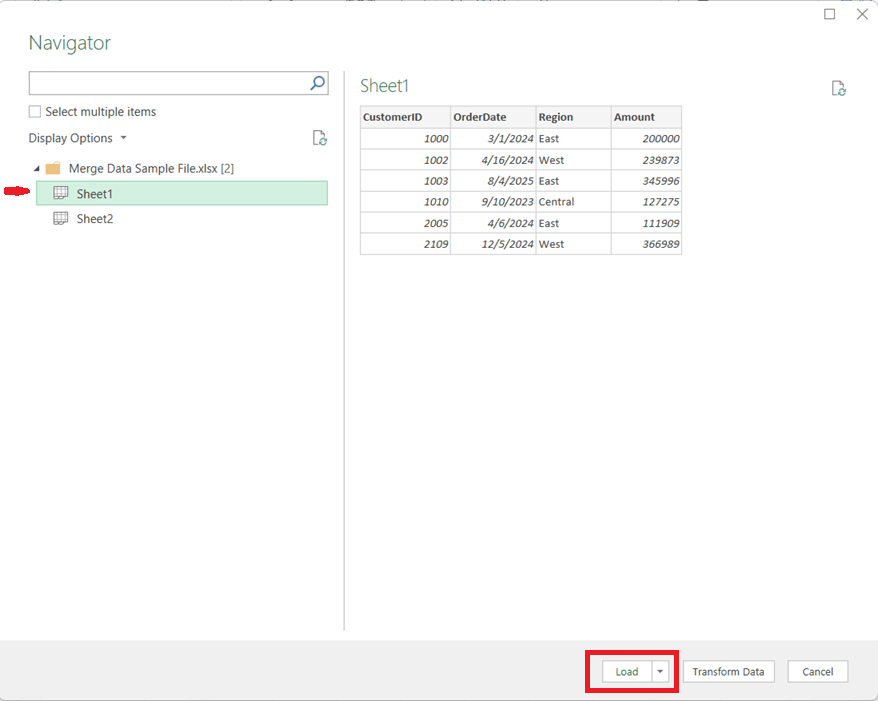
1. Load Both Data Sources into Power Query

  • Open Excel and go to Data → Get Data
  • Choose From Workbook (for separate files) or From Table/Range (for sheets in the same file)

Tip: Ensure the columns you plan to merge on have the same data types (e.g., text vs. number).


  • Load each dataset into Power Query as a separate query

2. Start the Merge Operation

  • In Power Query, select the primary table
  • Go to Query → Merge Queries
  • Choose the secondary table from the dropdown

3. Select Multiple Matching Columns

  • Click the first matching column in the primary table
  • Hold Ctrl (or Cmd on Mac) and select additional matching columns
  • Repeat the same column selections in the secondary table, in the same order

For example, if you needed to perform the merge on CustomerID, OrderDate, and Region, you would click Customer ID, then hold the Ctrl key and click OrderDate, then (while still holding down the Ctrl key) click Region.

Power Query treats this as a composite key, and all selected columns must match for rows from both tables to merge.


4. Choose the Join Type

Select the appropriate join kind:

  • Left Outer – Keep all rows from the first table (most common) and brings in the values for the matching rows from the second table
  • Inner – Keep only matching rows from both tables
  • Full Outer – Keep all rows from both tables, merging the table where there is a match and having just the values from the respective tables when there is no match

Click OK to complete the merge.


5. Expand the Merged Data

  • A new column appears containing nested tables
  • Click the expand icon to select which columns to bring in
  • Remove unnecessary columns to keep the dataset clean

6. Load and Refresh

  • Click Close & Load
  • The merged dataset is now available in Excel
  • When source files change, simply click Refresh to update everything automatically

Key Benefits

  • Handles multi-column joins cleanly and reliably
  • Eliminates fragile lookup formulas
  • Fully refreshable and auditable
  • Scales well as data volume grows

In Summary

Using Power Query to merge Excel data on multiple columns brings database-style joins into Excel, making your workflows more robust, maintainable, and professional. Once set up, it saves time and reduces errors—especially for recurring reporting and analytics tasks.

Thanks for reading!

How to update your Power BI source file location

The location of your source files has changed, and now you need to update your Power BI report to use the new location. To update the directory or location of your source file, in Power BI Desktop, click Transform Data -> Data Source Settings 

Then click on the entry that corresponds to the path you need to update.

Update or entirely change the path and click ok. Apply your changes.

It becomes a little more complicated when you are changing a local folder to a SharePoint location, which we will cover in another post, but for changing location of single files, it’s that simple. 

Thanks for reading!

Power BI load error: load was cancelled by error in loading a previous table

You may run into this error when loading Power BI:

"load was cancelled by error in loading a previous table"

If you do get this error, keep scrolling down to see what the “inducing” error is. This message is an indication that there was an error previous to getting to the current table in the process. The real, initial error will be more descriptive. Start with resolving that error(s), and then this one will go away.

I hope you found this helpful.

Power BI refresh error: Column ‘X’ in table ‘Y’ contains blank values and this is not allowed for columns on the one-side of a many-to-one relationship or for columns that are used as the primary key of a table

I was getting this error message when I attempted to refresh a Power BI application:

"Column 'Date' in table 'Date Dim' contains blank values and this is not allowed for columns on the one-side of a many-to-one relationship or for columns that are used as the primary key of a table"

However, despite what the message indicated, I double-checked and confirmed that I did not have any blank values in the ‘Date Dim’ table.

It turns out that you may also get this error (although incorrectly worded in my opinion) if the blanks are in the joining table. In my case, I had blanks in a ‘Snapshot Date’ column in the fact table that was joined to the ‘Date Dim’ table. Once these blanks were filled, the refresh ran without error.

One thing to look out for in these cases (since this is what happened in my case), if your source is Excel, undo all filters to make sure that you do not have any rows being filtered out when checking for blanks values across your columns, because this could potentially inadvertently hide the rows with the blank values and cause you to miss them.

I hope you found this helpful.

Choosing the Right Chart to display your data in Power BI or any other analytics tool

Data visualization is at the heart of analytics. Choosing the right chart or visual can make the difference between insights that are clear and actionable, and insights that remain hidden. There are many visualization types available for showcasing your data, and choosing the right ones for your use cases is important. Below, we’ll walk through some common scenarios and share information on the charts best suited for them, and will also touch on some Power BI–specific visuals you should know about.

1. Showing Trends Over Time

When to use: To track how a measure changes over days, months, or years.

Best charts:

  • Line Chart: The classic choice for time series data. Best when you want to show continuous change. In Power BI, the line chart visual can also be used for forecasting trends.
  • Area Chart: Like a line chart but emphasizes volume under the curve—great for cumulative values or when you want to highlight magnitude.
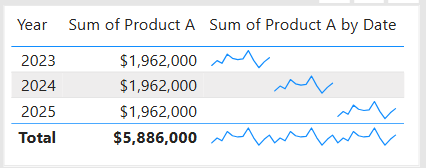
  • Sparklines (Power BI): Miniature line charts embedded in tables or matrices. Ideal for giving quick context without taking up space.

2. Comparing Categories

When to use: To compare values across distinct groups (e.g., sales by region, revenue by product).

Best charts:

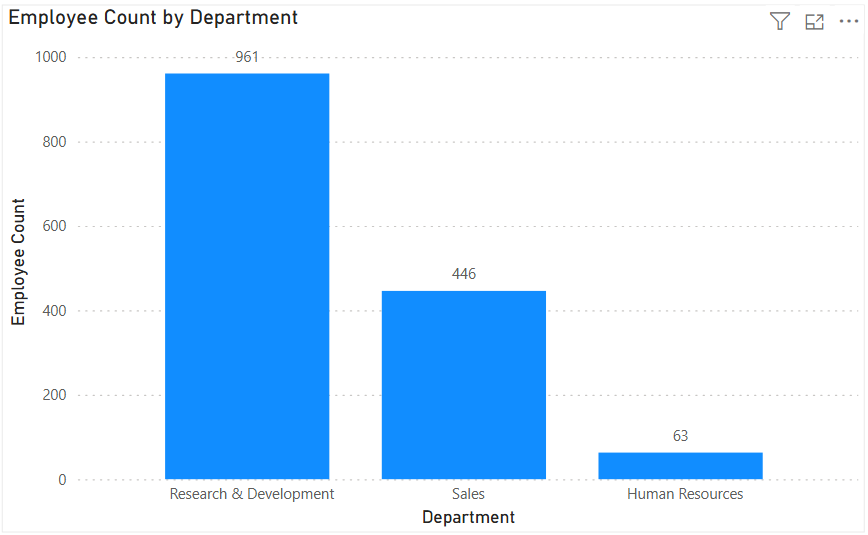
  • Column Chart: Vertical bars for category comparisons. Good when categories are on the horizontal axis.
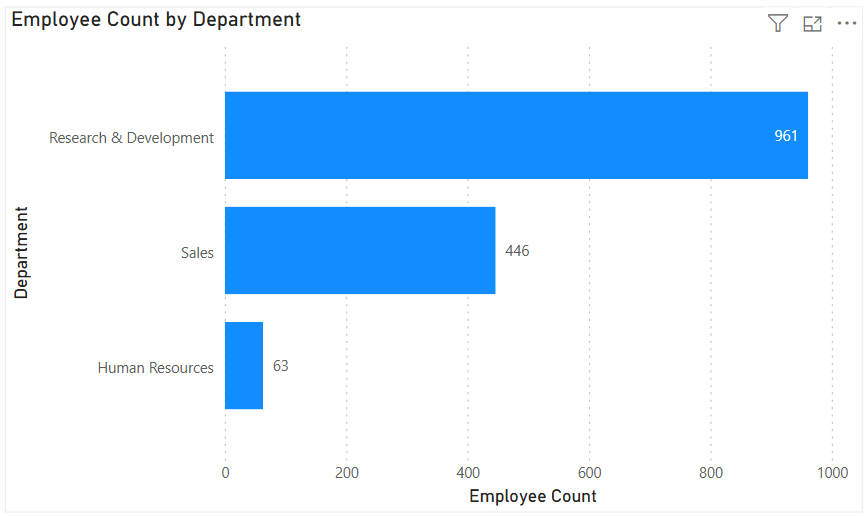
  • Bar Chart: Horizontal bars—useful when category names are long or when ranking items. Is usually a better choice than the column chart when there are many values.
  • Stacked Column/Bar Chart: Show category totals and subcategories in one view. Works for proportional breakdowns, but can get hard to compare across categories.

3. Understanding Relationships

When to use: To see whether two measures are related (e.g., advertising spend vs. sales revenue).

Best charts:

  • Scatter Chart: Plots data points across two axes. Useful for correlation analysis. Add a third variable with bubble size or color to generate more insights. This chart can also be useful for identifying anomalies/outliers in the data.
  • Line & Scatter Combination: Power BI lets you overlay a line for trend direction while keeping the scatter points.
  • Line & Bar/Column Chart Combination: Power BI offers some of these combination charts also to allow you to relate your comparison measures to your trend measures.

4. Highlighting Key Metrics

Sometimes you don’t need a chart—you just want a single number to stand out. These types of visuals are great for high-level executive dashboards, or for the summary page of dashboards in general.

Best visuals in Power BI:

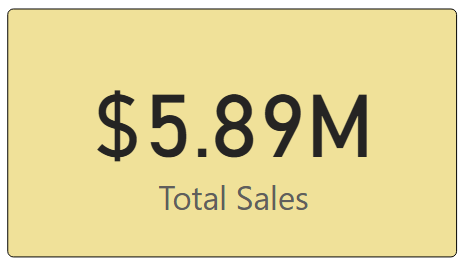
  • Card Visual: Displays one value clearly, like Total Sales.
  • KPI Visual: Adds target context and status indicator (e.g., actual vs. goal).
  • Gauge Visual: Circular representation of progress toward a goal—best for showing percentages or progress to target. For example, Performance Rating score shown on the scale of the goal.

5. Distribution Analysis

When to use: To see how data is spread across categories or ranges.

Best charts:

  • Column/Bar Chart with bins: Useful for creating histograms in Power BI.
  • Box-and-Whisker Chart (custom visual): Shows median, quartiles, and outliers.
  • Pie/Donut Charts: While often overused, they can be effective for showing composition when categories are few (ideally 3–5). For example, show the number and percentage of employees in each department.

6. Spotting Problem Areas

When to use: To identify anomalies or areas needing attention across a large dataset.

Best charts:

  • Heatmap: A table where color intensity represents value magnitude. Excellent for finding hot spots or gaps. This can be implemented in Power BI by using a Matrix visual with conditional formatting in Power BI.
  • Treemap: Breaks data into rectangles sized by value—helpful for hierarchical comparisons and for easily identifying the major components of the whole.

7. Detail-Level Exploration

When to use: To dive into raw data while keeping formatting and hierarchy.

Best visuals:

  • Table: Shows granular row-level data. Best for detail reporting.
  • Matrix: Adds pivot-table–like functionality with rows, columns, and drill-down. Often combined with conditional formatting and sparklines for added insight.

8. Part-to-Whole Analysis

When to use: To see how individual parts contribute to a total.

Best charts:

  • Stacked Charts: Show both totals and category breakdowns.
  • 100% Stacked Charts: Normalize totals so comparisons are by percentage share.
  • Treemap: Visualizes hierarchical data contributions in space-efficient blocks.

Quick Reference: Which Chart to Use?

ScenarioBest Visuals
Tracking trends, forecasting trendsLine, Area, Sparklines
Comparing categoriesColumn, Bar, Stacked
Showing relationshipsScatter, Line + Scatter, Line + Column/Bar
Highlighting metricsCard, KPI, Gauge
Analyzing distributionsHistogram (columns with bins), Box & Whisker, Pie/Donut (for few categories)
Identifying problem areasHeatmap (Matrix with colors), Treemap, Scatter
Exploring detail dataTable, Matrix
Showing part-to-wholeStacked Column/Bar, 100% Stacked, Treemap, Pie/Donut

The below graphic shows the visualization types available in Power BI. You can also import additional visuals by clicking the “3-dots” (get more visuals) at the bottom of the visualization icons.

Summary

Power BI, and other BI/analytics tools, offers a rich set of visuals, each designed to represent data in a way that suits a specific set of analytical needs. The key is to match the chart type with the story you want the data to tell. Whether you’re showing a simple KPI, uncovering trends, or surfacing problem areas, choosing the right chart ensures your insights are clear, actionable, and impactful. In addition, based on your scenario, it can also be beneficial to get feedback from the user population on what other visuals they might find useful or what other ways they would they like to see the data.

Thanks for reading! And good luck on your data journey!

Understanding Microsoft Fabric Shortcuts

Microsoft Fabric is a central platform for data and analytics, and one of its powerful features that supports it being an all-in-one platform is Shortcuts. Shortcuts provide a simple way to unify data across multiple locations without duplicating or moving it. This is a big deal because it saves a LOT of time and effort that is usually involved in moving data around.

What Are Shortcuts?

Shortcuts are references (or “pointers”) to data that resides in another storage location. Instead of copying the data into Fabric, a shortcut lets you access and query it as if it were stored locally.

This is especially valuable in today’s data landscape, where data often spans OneLake, Azure Data Lake Storage (ADLS), Amazon S3, or other environments.

Types of Shortcuts

There are 2 types of shortcuts: table shortcuts and file shortcuts

  1. Table Shortcuts
    • Point to existing tables in other Fabric workspaces or external sources.
    • Allow you to query and analyze the table without physically moving it.
  2. File Shortcuts
    • Point to files (e.g., Parquet, CSV, Delta Lake) stored in OneLake or other supported storage systems.
    • Useful for scenarios where files are your system of record, but you want to use them in Fabric experiences like Power BI, Data Engineering, or Data Science.

Benefits of Shortcuts

Shortcuts is a really useful feature, and here are some of its benefits:

  • No Data Duplication: Saves storage costs and avoids data sprawl.
  • Single Source of Truth: Data stays in its original location while being usable across Fabric.
  • Speed and Efficiency: Query and analyze external data in place, without lengthy ETL processes.
  • Flexibility: Works across different storage platforms and Fabric workspaces.

How and Where Shortcuts Can Be Created

  • In OneLake: You can create shortcuts directly in OneLake to link to data from ADLS Gen2, Amazon S3, or other OneLake workspaces.
  • In Fabric Experiences: Whether working in Data Engineering, Data Science, Real-Time Analytics, or Power BI, shortcuts can be created in lakehouses or KQL (Kusto Query Language) databases, and you can use them directly as data in OneLake. Any Fabric service will be able to use them without copying data from the data source.
  • In Workspaces: Shortcuts make it possible to connect across lakehouses stored in different workspaces, breaking down silos within an organization. The shortcuts can be generated from a lakehouse, warehouse, or KQL database.
  • Note that warehouses do not support the creation of shortcuts. However, you can query data stored within other warehouses and lakehouses.

How Shortcuts Can Be Used

  • Cross-Workspace Data Access: Analysts can query data in another team’s workspace without requesting a copy.
  • Data Virtualization: Data scientists can work with files stored in ADLS without having to move them into Fabric.
  • BI and Reporting: Power BI models can use shortcuts to reference external files or tables, enabling consistent reporting without duplication.
  • ETL Simplification: Instead of moving raw files into Fabric, engineers can create shortcuts and build transformations directly on the source.

Common Scenarios

  • A finance team wants to build Power BI reports on data stored by the operations team without moving the data.
  • A data scientist needs access to parquet files in Amazon S3 but prefers to analyze them within Fabric.
  • A company with multiple Fabric workspaces wants to centralize access to shared reference data (like customer or product master data) without replication.

In summary: Microsoft Fabric Shortcuts simplify data access across locations and workspaces. Whether table-based or file-based, they allow organizations to unify data without duplication, streamline analytics, and improve collaboration.

Here is a link to the Microsoft Learn OneLake documentation about Shortcuts. From there you will be able to explore all the Shortcut topics shown in the image below:

Thanks for reading! I hope you found this information useful.