Category: Data Integration

Configure Data Loading for Queries (PL-300 Exam Prep)

This post is a part of the PL-300: Microsoft Power BI Data Analyst Exam Prep Hub; and this topic falls under these sections:
Prepare the data (25–30%)
--> Transform and load the data
--> Configure Data Loading for Queries


Note that there are 10 practice questions (with answers and explanations) for each section to help you solidify your knowledge of the material. Also, there are 2 practice tests with 60 questions each available on the hub below the exam topics section.

Power BI doesn’t just connect to data — it decides what to load and when to load it. Configuring data loading properly ensures your model contains only the necessary data, improves performance, and aligns with business requirements.

In the context of the PL-300: Microsoft Power BI Data Analyst exam, you’ll be expected to understand how to control which queries load to the data model, use query folding where possible, and manage refresh settings appropriately.


Why Configuring Data Loading Matters

Before discussing how to configure data loading, it’s important to understand why it matters:

  • Model performance — unnecessary tables and columns consume memory and slow visuals
  • Refresh efficiency — fewer loaded objects means faster refresh
  • Manageability — only relevant data should end up in the model
  • Clarity — clean, minimal data models reduce mistakes and confusion

Power BI uses Power Query Editor as the staging area for all transformations and loading decisions.


Key Concepts

1. Enable Load vs Disable Load

Each query in Power Query has a toggle called “Enable Load” (or “Load to model”).

  • Enabled: The resulting table will load into the data model
  • Disabled: The query runs for transformations but does not create a table in the model

Common Usage:

  • Use Disable Load for staging or helper queries that feed other queries but aren’t needed as standalone tables in the model
  • Ensure only final tables are loaded into the model

2. Staging Queries

A staging query is a query used exclusively to prepare data for other queries. It should usually have Enable Load turned off so it doesn’t clutter the model.

Example:

  • A staging query cleans raw data
  • Final queries reference it
  • Only final queries load to the model

3. Query Dependencies

In Power BI Desktop, View → Query Dependencies shows a visual map of how queries relate.

  • Staging queries feed final tables
  • Ensures understandability and data lineage
  • Highlights which queries are loaded and which are not

Understanding query dependencies helps validate that:

  • Only the intended tables are loaded
  • Intermediate queries aren’t unnecessary

4. Incremental Refresh

Incremental refresh allows Power BI to refresh only new or changed data rather than the entire dataset.

Why this matters:

  • Essential for large datasets
  • Reduces refresh time and resource usage
  • Requires configuration in the Power BI Service and on tables with a date/time column

Incremental refresh is usually enabled in Table Settings with parameters like:

  • RangeStart
  • RangeEnd

These parameters determine the portion of data to refresh.


5. Query Folding

Query folding refers to the ability of Power Query to push transformations back to the source (e.g., SQL Server).

Why it matters:

  • Performance: operations happen at source
  • Large data sets benefit most

Configuration that enables query folding includes:

  • Filtering early
  • Aggregating early
  • Avoiding operations that break folding (e.g., certain custom columns)

While not strictly a “loading” setting, query folding directly affects how Power BI retrieves and loads data.


How to Configure Data Loading

In Power Query Editor

Disable Loading for Specific Queries

  1. Right-click the query
  2. Uncheck Enable Load
  3. Optional: Uncheck Include in report refresh

This prevents the query from creating a model table.


In the Data View (or Model View)

After loading:

  • Hide unnecessary columns
  • Hide unused tables from report view
  • Rename tables for clarity

Note: Hiding doesn’t remove the data — it simply declutters the field list.


Incremental Refresh Setup

To enable incremental refresh:

  1. Identify a Date/Time column
  2. Define RangeStart and RangeEnd parameters
  3. Use these parameters to filter the date column
  4. Enable Incremental Refresh in table settings

Power BI then only refreshes the relevant partition of data.


Best Practices

Load MINIMAL Necessary Tables

Avoid loading:

  • Staging queries
  • Helper queries
  • Intermediate transformations

Disable Load Early

This prevents clutter and improves refresh times.

Use Descriptive Names

Query and table names should reflect final usage (e.g., FactSales, DimProduct).

Understand Dependencies

Always validate that disabling load on a query won’t break dependent queries.

Preserve Query Folding

Design transformations that can be folded to source — especially for large data.


Common Mistakes (Often Tested)

❌ Loading staging queries into the model

This increases model size unnecessarily.

❌ Forgetting to define a key date column when setting up incremental refresh

Incremental refresh requires a proper date/time column.

❌ Breaking query folding early

Certain transformations can prevent folding and slow down refresh.

❌ Changing load settings after building relationships

Altering load settings on queries used in relationships can cause broken models.


How This Appears on the PL-300 Exam

The exam may present scenarios like:

  • A model has slow refresh times. What could you configure to improve efficiency?
  • Which queries should be loaded into the model?
  • How do staging queries affect model size?
  • When should incremental refresh be used?

Exam questions often expect you to explain the impact of loading decisions on performance and maintainability.


Quick Decision Guide

ScenarioRecommended Configuration
Helper query only used for transformationsDisable Load
Main dimensional tableEnable Load
Large historical datasetUse Incremental Refresh
Query with steps that can be pushed to sourceEnsure Query Folding

Final PL-300 Takeaways

  • Enable Load controls whether a query creates a model table
  • Disable Load for staging/helper queries
  • Incremental Refresh accelerates large dataset refresh
  • Query Folding improves performance during load
  • Validate via View Query Dependencies

Practice Questions

Go to the Practice Exam Questions for this topic.

Identify and Create Appropriate Keys for Relationships (PL-300 Exam Prep)

This post is a part of the PL-300: Microsoft Power BI Data Analyst Exam Prep Hub; and this topic falls under these sections:
Prepare the data (25–30%)
--> Transform and load the data
--> Identify and Create Appropriate Keys for Relationships


Note that there are 10 practice questions (with answers and explanations) for each section to help you solidify your knowledge of the material. Also, there are 2 practice tests with 60 questions each available on the hub below the exam topics section.

Establishing correct relationships is fundamental to building accurate, performant Power BI data models. At the core of every relationship are keys — columns that uniquely identify records and allow tables to relate correctly. For the PL-300: Microsoft Power BI Data Analyst exam, candidates must understand how to identify, create, and validate keys as part of this topic domain.


What Is a Key in Power BI?

A key is a column (or combination of columns) used to uniquely identify a row in a table and connect it to another table.

In Power BI models, keys are used to:

  • Define relationships between tables
  • Enable correct filter propagation
  • Support accurate aggregations and calculations

Common Types of Keys

Primary Key

  • A column that uniquely identifies each row in a table
  • Must be unique and non-null
  • Typically found in dimension tables

Example:
CustomerID in a Customers table


Foreign Key

  • A column that references a primary key in another table
  • Found in fact tables

Example:
CustomerID in a Sales table referencing Customers


Composite Key

  • A key made up of multiple columns
  • Used when no single column uniquely identifies a row

Example:
OrderDate + ProductID

PL-300 Tip: Power BI does not support native composite keys in relationships — you must create a combined column.


Identifying Appropriate Keys

When preparing data, always evaluate:

Uniqueness

  • The key column in the one-side of a relationship must contain unique values
  • Duplicate values cause many-to-many relationships

Completeness

  • Keys should not contain nulls
  • Nulls can break relationships and filter context

Stability

  • Keys should not change frequently
  • Avoid descriptive fields like names or emails as keys

Creating Keys in Power Query

Power Query is the preferred place to create or clean keys before loading data.

Common Techniques

Concatenate Columns

Used to create a composite key:

ProductID & "-" & StoreID

Remove Leading/Trailing Spaces

Prevents mismatches:

  • Trim
  • Clean

Change Data Types

Keys must have matching data types on both sides of a relationship.


Surrogate Keys vs Natural Keys

Natural Keys

  • Already exist in source systems
  • Business-meaningful (e.g., InvoiceNumber)

Surrogate Keys

  • Artificial keys created for modeling
  • Often integers or hashes

PL-300 Perspective:
You are more likely to consume surrogate keys than create them, but you must know why they exist and how to use them.


Keys and Star Schema Design

Power BI models should follow a star schema whenever possible:

  • Fact tables contain foreign keys
  • Dimension tables contain primary keys
  • Relationships are one-to-many

Example

  • FactSales → ProductID
  • DimProduct → ProductID (unique)

Relationship Cardinality and Keys

Keys directly determine cardinality:

CardinalityKey Requirement
One-to-manyUnique key on one side
Many-to-manyDuplicate keys on both sides
One-to-oneUnique keys on both sides

Exam Insight: One-to-many is preferred. Many-to-many often signals poor key design.


Impact on the Data Model

Poor key design can cause:

  • Incorrect totals
  • Broken slicers
  • Ambiguous filter paths
  • Performance degradation

Well-designed keys enable:

  • Predictable filter behavior
  • Accurate DAX calculations
  • Simpler models

Common Mistakes (Often Tested)

❌ Using descriptive columns as keys

Names and labels are not guaranteed to be unique.


❌ Mismatched data types

Text vs numeric keys prevent relationships from working.


❌ Ignoring duplicates in dimension tables

This results in many-to-many relationships.


❌ Creating keys in DAX instead of Power Query

Keys should be created before load, not at query time.


Best Practices for PL-300 Candidates

  • Ensure keys are unique and non-null
  • Prefer integer or stable identifier keys
  • Create composite keys in Power Query
  • Validate cardinality after creating relationships
  • Follow star schema design principles
  • Avoid unnecessary many-to-many relationships

How This Appears on the PL-300 Exam

You may see scenario questions like:

A relationship cannot be created between two tables because duplicates exist. What should you do?

Correct reasoning:

  • Identify or create a proper key
  • Remove duplicates or create a dimension table
  • Possibly generate a composite key

Quick Decision Guide

ScenarioAction
No unique column existsCreate a composite key
Duplicate values in dimensionClean or redesign table
Relationship failsCheck data types
Many-to-many relationshipRe-evaluate key design

Final PL-300 Takeaways

  • Relationships depend on clean, well-designed keys
  • Keys should be prepared before loading
  • One-to-many relationships are ideal
  • Composite keys must be explicitly created
  • Key design directly affects DAX and visuals

Practice Questions

Go to the Practice Exam Questions for this topic.

Merge and append queries (PL-300 Exam Prep)

This post is a part of the PL-300: Microsoft Power BI Data Analyst Exam Prep Hub; and this topic falls under these sections:
Prepare the data (25–30%)
--> Transform and load the data
--> Merge and append queries


Note that there are 10 practice questions (with answers and explanations) for each section to help you solidify your knowledge of the material. Also, there are 2 practice tests with 60 questions each available on the hub below the exam topics section.

Combining data from multiple sources or tables is a common requirement in real-world analytics. In Power Query, you accomplish this using two primary operations: Merge and Append. Understanding when and how to use each — and the impact they have on your data model — is essential for the PL-300 exam.


What Are “Merge” and “Append”?

Merge Queries

A merge operation combines two tables side-by-side based on matching values in one or more key columns — similar to SQL joins.

Think of it as a join:

  • Inner join
  • Left outer join
  • Right outer join
  • Full outer join
  • Anti joins
  • Etc.

Merge is used when you want to enrich a table with data from another table based on a common identifier.


Append Queries

An append operation stacks tables top-to-bottom, effectively combining rows from multiple tables with the same or similar structure.

Think of it as UNION:

  • Append two tables
  • Append three or more (chain append)
  • Works best when tables have similar columns

Append is used when you want to combine multiple datasets that share the same business structure (e.g., quarterly sales tables).


Power Query as the Correct Environment

Both merge and append operations are done in the Power Query Editor (before loading data into the model).

This means:

  • You shape data before modeling
  • You reduce model complexity
  • You avoid extra DAX calculations

Exam tip: The exam tests when to use merge vs append, not just how.


When to Use Append

Use Append when you have:

  • Multiple tables with the same columns and business meaning
  • Data split by time period or region (e.g., Jan, Feb, Mar)
  • A long “flat” dataset that you want to combine into one super-table

Scenario Example

You receive separate sales tables for each month. To analyze sales for the year, you append them into one dataset.


When to Use Merge

Use Merge when you need to:

  • Bring additional attributes into a table
  • Look up descriptive information
  • Combine facts with descriptive dimensions

Scenario Example

You have a fact table with ProductID and a product lookup table with ProductID and ProductName. You need to add ProductName to the fact table.


Types of Joins (Merge)

In Power Query, Merge supports multiple join types. Understanding them is often tested in PL-300 scenarios:

Join TypeWhat It ReturnsTypical Use Case
Left OuterAll rows from left + matching from rightEnrich main table
Right OuterAll rows from right + matching from leftLess common
InnerOnly matching rowsIntersection of datasets
Full OuterAll rows from both tablesWhen you don’t want to lose any rows
Anti JoinsRows that don’t matchData quality or missing keys

Exam Insight: The answer is often Left Outer for common enrichment scenarios.


Column Mismatch and Transform

Append Considerations

  • Column names and types should ideally match
  • Mismatched columns will still append, but will fill blanks where values don’t align
  • After appending, you may need to:
    • Reorder columns
    • Rename columns
    • Change data types

Merge Considerations

  • Keys must be of the same data type
  • If datatype mismatches exist (e.g., text vs number), the join may fail
  • After merging, you may need to:
    • Expand the new table
    • Select only needed columns
    • Rename expanded fields

Performance and Model Impact

Append Impacts

  • Combined table may be significantly larger
  • May improve performance if multiple small tables are consolidated
  • Avoids repetitive DAX measures

Merge Impacts

  • Adds columns and enriches tables
  • Can increase column cardinality
  • May require careful relationships after load

Differences Between Merge and Append

AspectMergeAppend
StructureSide-by-sideTop-to-bottom
Use CaseEnrichment / lookupStacking similar tables
Similar toSQL JoinSQL UNION
Requires key matchingYesOptional
Best for disparate dataYesOnly if structures align

Common Mistakes (Often Tested)

❌ Appending tables with wildly different structures

This results in extra null columns and a messy model.


❌ Merging on non-unique keys

Leads to duplication or unexpected rows.


❌ Forgetting to expand merged columns

After merge, you must expand the related table to pull in needed fields.


❌ Ignoring data types

Merges fail silently if keys are not the same type (text vs number).


Best Practices for PL-300 Candidates

  • Append only when tables represent the same kind of data
  • Merge when relating lookup/detail information
  • Validate column data types before merging
  • Clean and remove unnecessary columns before append/merge
  • Rename and reorder columns for clarity
  • Use descriptive steps and comments for maintainability

How This Appears on the PL-300 Exam

The exam often presents scenarios like:

You need to combine multiple regional sales tables into one dataset. Which transformation should you use?

Correct thought process: The tables have the same columns → Append


You need to add product details to a sales table based on product ID. What do you do?

Correct thought process: Combine tables on common key → Merge


Quick Decision Guide

ScenarioRecommended Transformation
Combine tables with same fieldsAppend
Add lookup information to a tableMerge
Create full dataset for modelingAppend first
Add descriptive columnsMerge next

Final PL-300 Takeaways

  • Append = stack tables (same structure)
  • Merge = combine tables (key relationship)
  • Always check data type compatibility
  • Transform before load improves model clarity
  • Merge/Appending decisions are often scenario-based

Practice Questions

Go to the Practice Exam Questions for this topic.

Create Fact Tables and Dimension Tables (PL-300 Exam Prep)

This post is a part of the PL-300: Microsoft Power BI Data Analyst Exam Prep Hub; and this topic falls under these sections:
Prepare the data (25–30%)
--> Transform and load the data
--> Create Fact Tables and Dimension Tables


Note that there are 10 practice questions (with answers and explanations) for each section to help you solidify your knowledge of the material. Also, there are 2 practice tests with 60 questions each available on the hub below the exam topics section.

Creating fact tables and dimension tables is a foundational step in preparing data for analysis in Power BI. For the PL-300: Microsoft Power BI Data Analyst exam, this topic tests your understanding of data modeling principles, especially how to structure data into a star schema using Power Query before loading it into the data model.

Microsoft emphasizes not just what fact and dimension tables are, but how and when to create them during data preparation.


Why Fact and Dimension Tables Matter

Well-designed fact and dimension tables:

  • Improve model performance
  • Simplify DAX measures
  • Enable accurate relationships
  • Support consistent filtering and slicing
  • Reduce ambiguity and calculation errors

Exam insight: Many PL-300 questions test whether you recognize when raw data should be split into facts and dimensions instead of remaining as a single flat table.


What Is a Fact Table?

A fact table stores quantitative, measurable data that you want to analyze.

Common Characteristics

  • Contains numeric measures (Sales Amount, Quantity, Cost)
  • Includes foreign keys to dimension tables
  • Has many rows (high granularity)
  • Represents business events (sales, orders, transactions)

Examples

  • Sales transactions
  • Inventory movements
  • Website visits
  • Financial postings

What Is a Dimension Table?

A dimension table stores descriptive attributes used to filter, group, and label facts.

Common Characteristics

  • Contains textual or categorical data
  • Has unique values per key
  • Fewer rows than fact tables
  • Provides business context

Examples

  • Customer
  • Product
  • Date
  • Geography
  • Employee

Star Schema (Exam Favorite)

The recommended modeling approach in Power BI is the star schema:

  • One central fact table
  • Multiple surrounding dimension tables
  • One-to-many relationships from dimensions to facts
  • Single-direction filtering (typically)

Exam insight: If a question asks how to optimize performance or simplify DAX, the answer is often “create a star schema.”


Creating Fact and Dimension Tables in Power Query

Starting Point: Raw or Flat Data

Many data sources arrive as a single wide table containing both measures and descriptive columns.

Typical Transformation Approach

  1. Identify measures
    • Numeric columns that should remain in the fact table
  2. Identify dimensions
    • Descriptive attributes (Product Name, Category, Customer City)
  3. Create dimension tables
    • Reference the original query
    • Remove non-relevant columns
    • Remove duplicates
    • Rename columns clearly
    • Ensure a unique key
  4. Create the fact table
    • Keep foreign keys and measures
    • Remove descriptive text fields now handled by dimensions

Keys and Relationships

Dimension Keys

  • Primary key in the dimension table
  • Must be unique and non-null

Fact Table Keys

  • Foreign keys referencing dimension tables
  • May repeat many times

Exam insight: PL-300 questions often test your understanding of cardinality (one-to-many) and correct relationship direction.


Common Dimension Types

Date Dimension

  • Often created separately
  • Supports time intelligence
  • Includes Year, Quarter, Month, Day, etc.

Role-Playing Dimensions

  • Same dimension used multiple times (e.g., Order Date, Ship Date)
  • Requires separate relationships

Impact on the Data Model

Creating proper fact and dimension tables results in:

  • Cleaner Fields pane
  • Easier measure creation
  • Improved query performance
  • Predictable filter behavior

Poorly designed models (single flat tables or snowflake schemas) can lead to:

  • Complex DAX
  • Ambiguous relationships
  • Slower performance
  • Incorrect results

Common Mistakes (Often Tested)

❌ Leaving Data in a Single Flat Table

This often leads to duplicated descriptive data and poor performance.


❌ Creating Dimensions Without Removing Duplicates

Dimension tables must contain unique keys.


❌ Including Measures in Dimension Tables

Measures belong in fact tables, not dimensions.


❌ Using Bi-Directional Filtering Unnecessarily

Often used to compensate for poor model design.


Best Practices for PL-300 Candidates

  • Design with a star schema mindset
  • Keep fact tables narrow and tall
  • Keep dimension tables descriptive
  • Use Power Query to shape tables before loading
  • Rename tables and columns clearly
  • Know when not to split (very small or static datasets)

Know when not to over-model: If the dataset is extremely small or used for a simple report, splitting into facts and dimensions may not add value.


How This Appears on the PL-300 Exam

Expect scenario-based questions such as:

  • A dataset contains sales values and product details — how should it be structured?
  • Which table should store numeric measures?
  • Why should descriptive columns be moved to dimension tables?
  • What relationship should exist between fact and dimension tables?

These questions test modeling decisions, not just terminology.


Quick Comparison

Fact TableDimension Table
Stores measurementsStores descriptive attributes
Many rowsFewer rows
Contains foreign keysContains primary keys
Central tableSurrounding tables
Used for aggregationUsed for filtering

Final Exam Takeaways

  • Fact and dimension tables are essential for scalable Power BI models
  • Create them during data preparation, not after modeling
  • The PL-300 exam emphasizes model clarity, performance, and correctness
  • Star schema design is a recurring exam theme

Practice Questions

Go to the Practice Exam Questions for this topic.

Convert Semi-Structured Data to a Table (PL-300 Exam Prep)

This post is a part of the PL-300: Microsoft Power BI Data Analyst Exam Prep Hub; and this topic falls under these sections:
Prepare the data (25–30%)
--> Transform and load the data
--> Convert Semi-Structured Data to a Table


Note that there are 10 practice questions (with answers and explanations) for each section to help you solidify your knowledge of the material. Also, there are 2 practice tests with 60 questions each available on the hub below the exam topics section.

In real-world analytics, data rarely arrives in a perfectly tabular format. Instead, analysts often work with semi-structured data, such as JSON files, XML documents, nested records, lists, or poorly formatted spreadsheets.

For the PL-300: Microsoft Power BI Data Analyst exam, Microsoft expects you to understand how to convert semi-structured data into a clean, tabular format using Power Query so it can be modeled, related, and analyzed effectively.


What Is Semi-Structured Data?

Semi-structured data does not follow a strict row-and-column structure but still contains identifiable elements and hierarchy.

Common examples include:

  • JSON files (nested objects and arrays)
  • XML files
  • API responses
  • Excel sheets with nested headers or inconsistent layouts
  • Columns containing records or lists in Power Query

Exam insight: The exam does not focus on file formats alone — it focuses on recognizing non-tabular structures and flattening them correctly.


Where This Happens in Power BI

All semi-structured data transformations are performed in Power Query Editor, typically using:

  • Convert to Table
  • Expand (↔ icon) for records and lists
  • Split Column
  • Transpose
  • Fill Down / Fill Up
  • Promote Headers
  • Remove Blank Rows / Columns

Common Semi-Structured Scenarios (Exam Favorites)

1. JSON and API Data

When loading JSON or API data, Power Query often creates columns containing:

  • Records (objects)
  • Lists (arrays)

These must be expanded to expose fields and values.

Example:

  • Column contains a Record → Expand to columns
  • Column contains a List → Convert to Table, then expand

2. Columns Containing Lists

A column may contain multiple values per row stored as a list.

Solution path:

  • Convert list to table
  • Expand values into rows
  • Rename columns

Exam tip: Lists usually become rows, while records usually become columns.


3. Nested Records

Nested records appear as a single column with structured fields inside.

Solution:

  • Expand the record
  • Select required fields
  • Remove unnecessary nested columns

4. Poorly Formatted Excel Sheets

Common examples:

  • Headers spread across multiple rows
  • Values grouped by section
  • Blank rows separating logical blocks

Typical transformation sequence:

  1. Remove blank rows
  2. Fill down headers
  3. Transpose if needed
  4. Promote headers
  5. Rename columns

Key Power Query Actions for This Topic

Convert to Table

Used when:

  • Data is stored as a list
  • JSON arrays need flattening
  • You need row-level structure

Expand Columns

Used when:

  • Columns contain records or nested tables
  • You want to expose attributes as individual columns

You can:

  • Expand all fields
  • Select specific fields
  • Avoid prefixing column names (important for clean models)

Promote Headers

Often used after:

  • Transposing
  • Importing CSV or Excel files with headers in the first row

Fill Down

Used when:

  • Headers or categories appear once but apply to multiple rows
  • Semi-structured data uses grouping instead of repetition

Impact on the Data Model

Converting semi-structured data properly:

  • Enables relationships to be created
  • Allows DAX measures to work correctly
  • Prevents ambiguous or unusable columns
  • Improves model usability and performance

Improper conversion can lead to:

  • Duplicate values
  • Inconsistent grain
  • Broken relationships
  • Confusing field names

Exam insight: Microsoft expects you to shape data before loading it into the model.


Common Mistakes (Often Tested)

❌ Expanding Too Early

Expanding before cleaning can introduce nulls, errors, or duplicated values.


❌ Keeping Nested Structures

Leaving lists or records unexpanded results in columns that cannot be analyzed.


❌ Forgetting to Promote Headers

Failing to promote headers leads to generic column names (Column1, Column2), which affects clarity and modeling.


❌ Mixing Granularity

Expanding nested data without understanding grain can create duplicated facts.


Best Practices for PL-300 Candidates

  • Inspect column types (Record vs List) before expanding
  • Expand only required fields
  • Rename columns immediately after expansion
  • Normalize data before modeling
  • Know when NOT to expand (e.g., reference tables or metadata)
  • Validate row counts after conversion

How This Appears on the PL-300 Exam

Expect scenario-based questions like:

  • A JSON file contains nested arrays — what transformation is required to analyze it?
  • An API response loads as a list — how do you convert it to rows?
  • A column contains records — how do you expose the attributes for reporting?
  • What step is required before creating relationships?

Correct answers focus on Power Query transformations, not DAX.


Quick Decision Guide

Data ShapeRecommended Action
JSON listConvert to Table
Record columnExpand
Nested list inside recordConvert → Expand
Headers in rowsTranspose + Promote Headers
Grouped labelsFill Down

Final Exam Takeaways

  • Semi-structured data must be flattened before modeling
  • Power Query is the correct place to perform these transformations
  • Understand the difference between lists, records, and tables
  • The exam tests recognition and decision-making, not syntax memorization

Practice Questions

Go to the Practice Exam Questions for this topic.

Resolve Data Import Errors (PL-300 Exam Prep)

This post is a part of the PL-300: Microsoft Power BI Data Analyst Exam Prep Hub; and this topic falls under these sections: 
Prepare the data (25–30%)
--> Profile and clean the data
--> Resolve data import errors


Note that there are 10 practice questions (with answers and explanations) at the end of each section to help you solidify your knowledge of the material. Also, there are 2 practice tests with 60 questions each available on the hub's main page.

Data import errors are a common issue when bringing data into Power BI. These errors typically arise during the Power Query stage and must be resolved before data can be successfully loaded into the data model. The PL-300 exam tests your ability to identify, interpret, and fix these errors using Power Query’s built-in tools and transformations.


What Are Data Import Errors?

Import errors occur when Power BI cannot process or convert incoming data as expected. These errors can arise from:

  • Invalid data formats
  • Incompatible data types
  • Data corruption
  • Unexpected null or missing values
  • Transformation steps that fail

Identifying and resolving these errors early ensures that your dataset is clean, consistent, and ready for modeling and reporting.


Where Import Errors Occur

Import errors are most commonly encountered:

🧩 During Data Type Conversion

When the source value cannot be converted to the target type
(e.g., text "N/A" converted to number)

🧩 In Applied Steps

If a transformation step references a column that doesn’t exist
or expects a format that isn’t present

🧩 While Combining Queries

When merging or appending tables with mismatched structures

🧩 When Parsing Complex Formats

Such as dates in nonstandard formats or malformed JSON


How Power BI Signals Import Errors

In Power Query Editor, import errors are typically shown as:

  • Error icons in the preview cells
  • A warning message in the query results (“Error” link)
  • Red dotted underlines or warnings in applied steps
  • The “Load failed” message when refreshing

The first step in resolving errors is to examine the error details.


Viewing Error Details

When an error appears in Power Query:

  1. Click the Error indicator in the cell or
  2. Use View → Column quality / Column profile

You can also filter the column to show only error values by filtering on Errors.

Exam tip:
Power BI often shows technical error messages, so part of the task is interpreting what the underlying issue is (e.g., type mismatch, invalid format, null where not expected).


Common Import Errors & How to Fix Them

1. Type Conversion Errors

Scenario: A column expected to be numeric contains text such as "Unknown".

Fix Options:

  • Use Replace Errors to substitute a default value
  • Use Replace Values to convert specific text to numeric (e.g., "Unknown"0)
  • Adjust data type after cleaning

Key Idea: Always fix the root cause before changing the data type.


2. Unexpected Null Values

Scenario: A key column has nulls where values are required, causing subsequent transformations to fail.

Fix Options:

  • Replace nulls with default values via Replace Values
  • Remove rows where the column is null
  • Use conditional logic (Add Column → Conditional Column) to handle nulls appropriately

Key Idea: Nulls can break transformations (like merges) if not handled first.


3. Transformation Step Errors

Scenario: A transformation step refers to a column removed or renamed earlier in the applied steps.

Fix Options:

  • Review and reorder steps in the APPLIED STEPS pane
  • Rename the column consistently before referencing it
  • Delete the problematic step and reapply it correctly

Key Idea: Power BI applies steps sequentially. A downstream step can fail if an upstream change invalidates assumptions.


4. Merge/Append Structure Errors

Scenario: You merge or append tables that don’t share compatible column structures (e.g., mismatched data types).

Fix Options:

  • Ensure columns used for merger/join have identical data types
  • Rename or reorder columns to match structures
  • Preclean individual tables before combining

Key Idea: Always validate structure and types before merging or appending tables.


5. Parsing & Date Format Errors

Scenario: Date values import as text due to regional format differences (MM/DD/YYYY vs DD/MM/YYYY).

Fix Options:

  • Change the column data type to Date after validating format
  • Use Transform → Using Locale to define the correct regional format
  • Use Custom Columns to parse dates manually with Date.FromText

Key Idea: Locale-aware parsing helps resolve ambiguous date formats.


Tools to Help Diagnose Import Errors

Power BI provides several tools to help you locate and fix import errors:

🔍 Error Filtering

Filter columns to show only error rows.

📊 Column Quality / Distribution / Profile

Use profiling tools to identify patterns, nulls, and anomalies.

🧠 Step Validation

Hover over each Applied Step to see whether it is valid or failing.

📝 Advanced Editor

Review M code for logic errors or incorrect references.


Best Practices for Fixing Import Errors

1. Clean Before Converting Types
Always fix textual anomalies and nulls before assigning data types.

2. Avoid Hard-Coding Values
Replace problematic values using conditional logic or parameters for maintenance.

3. Inspect Impact of Each Step
Use the Applied Steps pane to ensure each transformation is valid.

4. Test Incrementally
Fix errors one at a time and refresh often to confirm success.

5. Document Assumptions
Add comments or descriptive step names to make logic clearer.


How This Appears on the PL-300 Exam

The exam commonly tests your ability to:

✔ Identify why a query fails (type mismatch, nulls, missing column)
✔ Choose the correct sequence to fix the issue
✔ Understand the difference between Replace Errors and Remove Errors
✔ Apply transformations in the correct order (clean → convert → transform)

Most questions are scenario-based, asking what action you would take next to successfully import data.


Key Exam Takeaways

  • Import errors can be caused by data type mismatches, unexpected nulls, invalid formats, and broken transformation steps.
  • Use Power Query tools to diagnose and resolve errors before loading data into the model.
  • Always understand the root cause before applying a fix.
  • Knowing how to use Replace Errors, Replace Values, Conditional Columns, and Data Type changes is essential.

Practice Questions

Go to the Practice Exam Questions for this topic.

Evaluate Data including Data Statistics & Column Properties (PL-300 Exam Prep)

This post is a part of the PL-300: Microsoft Power BI Data Analyst Exam Prep Hub; and this topic falls under these sections: 
Prepare the data (25–30%)
--> Profile and clean the data
--> Evaluate data, including data statistics and column properties


Note that there are 10 practice questions (with answers and explanations) at the end of each section to help you solidify your knowledge of the material. Also, there are 2 practice tests with 60 questions each available on the hub below the exam topics section.

Before cleaning, transforming, or modeling data, a Power BI Data Analyst must first evaluate the quality and structure of the data. The PL-300 exam tests your ability to profile data, interpret data statistics, and understand column properties to identify issues such as missing values, incorrect data types, outliers, and inconsistent formats.

This topic lives under Profile and clean the data because effective data preparation starts with understanding what the data looks like and how it behaves.


What Does “Evaluate Data” Mean in Power BI?

Evaluating data means using Power BI (specifically Power Query) to:

  • Understand data distribution and completeness
  • Identify data quality issues
  • Verify correct data types and formats
  • Decide what cleaning or transformation steps are required

Rather than guessing, Power BI provides built-in profiling tools that summarize data characteristics automatically.


Data Profiling Tools in Power Query

Power BI includes several profiling features that appear in the Power Query Editor, primarily within the View tab.

Key Data Profiling Options

  • Column quality
  • Column distribution
  • Column profile

These tools help you quickly assess whether a column is usable, trustworthy, and correctly defined.


Column Quality

Column quality provides a high-level overview of data completeness and validity.

It visually displays:

  • Valid values
  • Error values
  • Empty (null) values

Why Column Quality Matters

  • Quickly highlights missing or broken data
  • Helps determine whether rows should be filtered, fixed, or removed
  • Useful for early detection of refresh or ingestion issues

📌 Exam insight:
Questions often test whether you can identify which tool reveals missing or invalid values—column quality is the answer.


Column Distribution

Column distribution shows how values are spread across a column.

It provides:

  • Frequency of values
  • Distinct vs unique counts
  • A histogram-style visualization (for numeric fields)

Common Uses

  • Spotting unexpected duplicates
  • Identifying skewed data
  • Detecting outliers
  • Validating categorical values

📌 Exam insight:
Column distribution is used to understand value frequency, not just nulls or errors.


Column Profile

Column profile gives the most detailed statistical view of a column.

Depending on the data type, it may include:

  • Minimum and maximum values
  • Average
  • Standard deviation
  • Count and distinct count
  • Null count

Typical Use Cases

  • Verifying numeric ranges (e.g., negative values where none should exist)
  • Checking date ranges
  • Understanding overall data shape before modeling

📌 Exam insight:
Column profile helps validate statistical characteristics, not formatting or naming.


Understanding Column Properties

Beyond statistics, Power BI also evaluates column properties, which affect how data behaves in the model and visuals.

Key Column Properties to Evaluate

Data Type

Examples:

  • Whole number
  • Decimal number
  • Text
  • Date / DateTime
  • Boolean

Incorrect data types can:

  • Break visuals
  • Prevent aggregations
  • Cause relationship issues

📌 Exam tip:
Always verify data types before applying transformations or creating measures.


Format

Controls how values appear (e.g., currency, percentage, date format).

  • Affects display, not calculation logic
  • Often adjusted after validating data type

Default Summarization

Determines how numeric columns aggregate in visuals:

  • Sum
  • Average
  • Count
  • Do not summarize

📌 Exam insight:
Default summarization is evaluated when deciding how columns behave in visuals—not during Power Query transformations.


Column Name & Description

  • Clear names improve usability
  • Descriptions help report consumers understand the data

While not deeply technical, the exam may include best-practice questions around data clarity and usability.


Evaluating Data at the Right Stage

Most evaluation tasks occur in Power Query, before data is loaded into the model.

Why?

  • Faster detection of issues
  • Prevents poor-quality data from entering the model
  • Reduces downstream modeling complexity

📌 Key distinction for the exam:

  • Power Query → data evaluation & cleaning
  • Model view → relationships & behavior
  • Report view → visualization

Common Exam Scenarios

You may encounter questions like:

Scenario 1

You need to quickly identify columns with missing or invalid values.

Correct concept: Column quality


Scenario 2

You want to understand how frequently values appear in a categorical column.

Correct concept: Column distribution


Scenario 3

You need to verify numeric ranges and detect outliers.

Correct concept: Column profile


Scenario 4

A numeric column is being treated as text and cannot be aggregated.

Correct concept: Incorrect data type (column property)


Best Practices to Remember

  • Enable profiling tools early in data preparation
  • Validate data types before transformations
  • Use statistics to guide cleaning decisions
  • Don’t rely on visuals alone to detect data quality issues

Key Exam Takeaways

For the PL-300 exam, remember:

  • Column quality → valid, error, and null values
  • Column distribution → frequency and distinct values
  • Column profile → statistical insights
  • Column properties affect aggregation, relationships, and visuals
  • Data evaluation happens primarily in Power Query

Understanding how to interpret what Power BI is telling you about your data is just as important as knowing how to clean it.


Practice Questions

Go to the Practice Exam Questions for this topic.

Glossary – 100 “Data Engineering” Terms

Below is a glossary that includes 100 common “Data Engineering” terms and phrases in alphabetical order. Enjoy!

TermDefinition & Example
Access ControlManaging who can access data. Example: Role-based permissions.
At-Least-Once ProcessingData may be processed more than once. Example: Duplicate-safe pipelines.
At-Most-Once ProcessingData processed zero or one time. Example: No retries on failure.
BackfillProcessing historical data. Example: Reloading last year’s data.
Batch ProcessingProcessing data in scheduled chunks. Example: Daily sales aggregation.
Blue-Green DeploymentDeployment strategy minimizing downtime. Example: Switching pipeline versions.
Canary ReleaseGradual rollout to detect issues. Example: New pipeline tested on 5% of data.
Change Data Capture (CDC)Capturing database changes. Example: Streaming updates from OLTP DB.
CheckpointingSaving progress during processing. Example: Spark streaming checkpoints.
Cloud StorageScalable remote data storage. Example: Azure Data Lake Storage.
Cold StorageLow-cost storage for infrequent access. Example: Archived logs.
Columnar StorageData stored by column instead of row. Example: Parquet files.
CompressionReducing data size. Example: Gzip-compressed files.
Compute EngineSystem performing data processing. Example: Spark cluster.
Consumption LayerData prepared for analytics. Example: Gold layer.
Cost OptimizationReducing infrastructure costs. Example: Query optimization.
Curated LayerCleaned and transformed data. Example: Silver layer.
DAG (Directed Acyclic Graph)Workflow structure with dependencies. Example: Airflow pipeline.
Data CatalogSearchable inventory of data assets. Example: Azure Purview.
Data ContractAgreement defining data structure and expectations. Example: Producer guarantees column names and types.
Data EngineeringThe practice of designing, building, and maintaining data systems. Example: Creating pipelines that feed analytics dashboards.
Data GovernancePolicies for data management and usage. Example: Access control rules.
Data IngestionCollecting data from source systems. Example: Ingesting API data hourly.
Data LakeCentralized storage for raw data. Example: S3-based data lake.
Data LatencyTime delay in data availability. Example: 5-minute pipeline delay.
Data LineageTracking data flow from source to output. Example: Source-to-dashboard trace.
Data MartSubset of warehouse for specific use. Example: Finance data mart.
Data MaskingObscuring sensitive data. Example: Masked credit card numbers.
Data MeshDomain-oriented decentralized data ownership. Example: Teams own their data products.
Data ModelingDesigning data structures for usage. Example: Star schema design.
Data ObservabilityMonitoring data health and pipelines. Example: Freshness alerts.
Data Partition PruningSkipping irrelevant partitions. Example: Querying one date only.
Data PipelineAn automated process that moves and transforms data. Example: Nightly ETL job from CRM to warehouse.
Data PlatformIntegrated set of data tools. Example: End-to-end analytics stack.
Data ProductA dataset treated as a product. Example: Curated customer table.
Data ProfilingAnalyzing data characteristics. Example: Value distributions.
Data QualityAccuracy, completeness, and reliability of data. Example: No duplicate records.
Data ReplayReprocessing historical events. Example: Rebuilding aggregates from logs.
Data RetentionRules for data lifespan. Example: Delete logs after 1 year.
Data SecurityProtecting data from unauthorized access. Example: Encryption at rest.
Data SerializationConverting data for storage or transport. Example: Avro encoding.
Data SinkThe destination where data is stored. Example: Data warehouse.
Data SourceThe origin of data. Example: ERP system, SaaS application.
Data ValidationEnsuring data meets expectations. Example: Null checks.
Data VersioningTracking dataset changes. Example: Snapshot tables.
Data WarehouseOptimized storage for analytics queries. Example: Azure Synapse Analytics.
Dead Letter Queue (DLQ)Storage for failed records. Example: Invalid messages routed for review.
Dimension TableTable storing descriptive attributes. Example: Customer details.
ELTExtract, Load, Transform approach. Example: Transforming data inside Snowflake.
ETLExtract, Transform, Load process. Example: Cleaning data before loading into a database.
Event TimeTimestamp when event occurred. Example: User click time.
Event-Driven ArchitectureSystems reacting to events in real time. Example: Trigger pipeline on file arrival.
Exactly-Once ProcessingEnsuring data is processed only once. Example: Preventing duplicate events.
Fact TableTable storing quantitative measures. Example: Order transactions.
Fault ToleranceSystem resilience to failures. Example: Node failure recovery.
File FormatHow data is stored on disk. Example: Parquet, CSV.
Foreign KeyField linking tables together. Example: CustomerID in orders table.
Full LoadReloading all data. Example: Initial table population.
High AvailabilitySystem uptime and reliability. Example: Multi-zone deployment.
Hot StorageHigh-performance storage for frequent access. Example: Real-time tables.
IdempotencyAbility to rerun pipelines safely. Example: Reprocessing without duplicates.
Incremental LoadLoading only new or changed data. Example: CDC-based ingestion.
IndexingCreating structures to speed queries. Example: Index on order date.
Infrastructure as Code (IaC)Managing infrastructure via code. Example: Terraform scripts.
LakehouseHybrid of data lake and warehouse. Example: Databricks Lakehouse.
Late-Arriving DataData that arrives after expected time. Example: Delayed event logs.
LoggingRecording system events. Example: Job execution logs.
Message QueueBuffer for asynchronous data transfer. Example: Kafka topic for events.
MetadataData about data. Example: Table definitions and lineage.
MetricsQuantitative indicators of performance. Example: Rows processed per run.
OrchestrationCoordinating pipeline execution. Example: DAG scheduling.
PartitioningDividing data for performance. Example: Partitioning by date.
Personally Identifiable Information (PII)Data identifying individuals. Example: Email addresses.
Pipeline MonitoringTracking pipeline execution status. Example: Failure notifications.
Primary KeyUnique identifier for a record. Example: CustomerID.
Processing TimeTimestamp when data is processed. Example: Ingestion time.
Query OptimizationImproving query efficiency. Example: Predicate pushdown.
Raw LayerStorage of unprocessed data. Example: Bronze layer.
Real-Time DataData available with minimal latency. Example: Live dashboard updates.
Retry LogicAutomatic reruns on failure. Example: Retry failed ingestion job.
ScalabilityAbility to handle growing workloads. Example: Auto-scaling clusters.
SchedulerTool managing execution timing. Example: Cron, Airflow.
SchemaThe structure of a dataset. Example: Table columns and data types.
Schema EvolutionHandling schema changes over time. Example: Adding new columns safely.
Secrets ManagementSecure handling of credentials. Example: Key Vault for passwords.
Semi-Structured DataData with flexible schema. Example: JSON, Parquet.
ServerlessInfrastructure managed by provider. Example: Serverless SQL pools.
Serving LayerLayer optimized for consumption. Example: BI-ready tables.
ShardingDistributing data across nodes. Example: User data split across servers.
Snowflake SchemaNormalized version of star schema. Example: Product broken into sub-dimensions.
Star SchemaFact table surrounded by dimensions. Example: Sales fact with date dimension.
Stream ProcessingProcessing data in real time. Example: Clickstream event processing.
Structured DataData with a fixed schema. Example: SQL tables.
Technical DebtLong-term cost of quick fixes. Example: Hardcoded transformations.
ThroughputAmount of data processed per unit time. Example: Records per second.
Transformation LayerLayer where business logic is applied. Example: dbt models.
Unstructured DataData without a predefined structure. Example: Images, PDFs.
WatermarkMarker for processed data. Example: Last processed timestamp.
WindowingGrouping stream data by time windows. Example: 5-minute aggregations.
Workload IsolationSeparating workloads to avoid contention. Example: Dedicated compute pools.

Please share your suggestions for any terms that should be added.

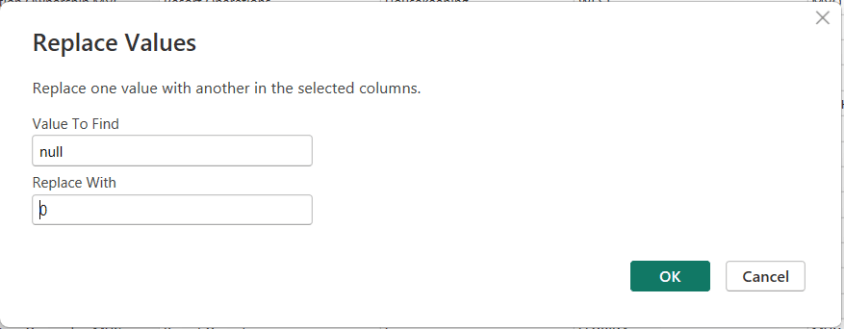
How to replace a NULL value in Power BI Power Query

In Power BI, handling NULL values is a common data-preparation step to get your data ready for analysis, and Power Query makes this easy using the Replace Values feature.

This option is available from both the Home menu …

… and the Transform menu in the Power Query Editor.

To replace NULLs, first select the column where the NULL values exist. Then choose Replace Values. When the dialog box appears, enter null as the value to find and replace, and specify the value you want to use instead—such as 0 for numeric columns or “Unknown” for text columns.

After confirming, Power Query automatically updates the column and records the step.

Thanks for reading!

AI in Human Resources: From Administrative Support to Strategic Workforce Intelligence

“AI in …” series

Human Resources has always been about people—but it’s also about data: skills, performance, engagement, compensation, and workforce planning. As organizations grow more complex and talent markets tighten, HR teams are being asked to move faster, be more predictive, and deliver better employee experiences at scale.

AI is increasingly the engine enabling that shift. From recruiting and onboarding to learning, engagement, and workforce planning, AI is transforming how HR operates and how employees experience work.


How AI Is Being Used in Human Resources Today

AI is now embedded across the end-to-end employee lifecycle:

Talent Acquisition & Recruiting

  • LinkedIn Talent Solutions uses AI to match candidates to roles based on skills, experience, and career intent.
  • Workday Recruiting and SAP SuccessFactors apply machine learning to rank candidates and surface best-fit applicants.
  • Paradox (Olivia) uses conversational AI to automate candidate screening, scheduling, and frontline hiring at scale.

Resume Screening & Skills Matching

  • Eightfold AI and HiredScore use deep learning to infer skills, reduce bias, and match candidates to open roles and future opportunities.
  • AI shifts recruiting from keyword matching to skills-based hiring.

Employee Onboarding & HR Service Delivery

  • ServiceNow HR Service Delivery uses AI chatbots to answer employee questions, guide onboarding, and route HR cases.
  • Microsoft Copilot for HR scenarios help managers draft job descriptions, onboarding plans, and performance feedback.

Learning & Development

  • Degreed and Cornerstone AI recommend personalized learning paths based on role, skills gaps, and career goals.
  • AI-driven content curation adapts as employee skills evolve.

Performance Management & Engagement

  • Betterworks and Lattice use AI to analyze feedback, goal progress, and engagement signals.
  • Sentiment analysis helps HR identify burnout risks or morale issues early.

Workforce Planning & Attrition Prediction

  • Visier applies AI to predict attrition risk, model workforce scenarios, and support strategic planning.
  • HR leaders use AI insights to proactively retain key talent.

Those are just a few examples of AI tools and scenarios in use. There are a lot more AI solutions for HR out there!


Tools, Technologies, and Forms of AI in Use

HR AI platforms combine people data with advanced analytics:

  • Machine Learning & Predictive Analytics
    Used for attrition prediction, candidate ranking, and workforce forecasting.
  • Natural Language Processing (NLP)
    Powers resume parsing, sentiment analysis, chatbots, and document generation.
  • Generative AI & Large Language Models (LLMs)
    Used to generate job descriptions, interview questions, learning content, and policy summaries.
    • Examples: Workday AI, Microsoft Copilot, Google Duet AI, ChatGPT for HR workflows
  • Skills Ontologies & Graph AI
    Used by platforms like Eightfold AI to map skills across roles and career paths.
  • HR AI Platforms
    • Workday AI
    • SAP SuccessFactors Joule
    • Oracle HCM AI
    • UKG Bryte AI

And there are AI tools being used across the entire employee lifecycle.


Benefits Organizations Are Realizing

Companies using AI effectively in HR are seeing meaningful benefits:

  • Faster Time-to-Hire and reduced recruiting costs
  • Improved Candidate and Employee Experience
  • More Objective, Skills-Based Decisions
  • Higher Retention through proactive interventions
  • Scalable HR Operations without proportional headcount growth
  • Better Strategic Workforce Planning

AI allows HR teams to spend less time on manual tasks and more time on high-impact, people-centered work.


Pitfalls and Challenges

AI in HR also carries significant risks if not implemented carefully:

Bias and Fairness Concerns

  • Poorly designed models can reinforce historical bias in hiring, promotion, or pay decisions.

Transparency and Explainability

  • Employees and regulators increasingly demand clarity on how AI-driven decisions are made.

Data Privacy and Trust

  • HR data is deeply personal; misuse or breaches can erode employee trust quickly.

Over-Automation

  • Excessive reliance on AI can make HR feel impersonal, especially in sensitive situations.

Failed AI Projects

  • Some initiatives fail because they focus on automation without aligning to HR strategy or culture.

Where AI Is Headed in Human Resources

The future of AI in HR is more strategic, personalized, and collaborative:

  • AI as an HR Copilot
    Assisting HR partners and managers with decisions, documentation, and insights in real time.
  • Skills-Centric Organizations
    AI continuously mapping skills supply and demand across the enterprise.
  • Personalized Employee Journeys
    Tailored learning, career paths, and engagement strategies.
  • Predictive Workforce Strategy
    AI modeling future talent needs based on business scenarios.
  • Responsible and Governed AI
    Stronger emphasis on ethics, explainability, and compliance.

How Companies Can Gain an Advantage with AI in HR

To use AI as a competitive advantage, organizations should:

  1. Start with High-Trust Use Cases
    Recruiting efficiency, learning recommendations, and HR service automation often deliver fast wins.
  2. Invest in Clean, Integrated People Data
    AI effectiveness depends on accurate and well-governed HR data.
  3. Design for Fairness and Transparency
    Bias testing and explainability should be built in from day one.
  4. Keep Humans in the Loop
    AI should inform decisions—not make them in isolation.
  5. Upskill HR Teams
    AI-literate HR professionals can better interpret insights and guide leaders.
  6. Align AI with Culture and Values
    Technology should reinforce—not undermine—the employee experience.

Final Thoughts

AI is reshaping Human Resources from a transactional function into a strategic engine for talent, culture, and growth. The organizations that succeed won’t be those that automate HR the most—but those that use AI to make work more human, more fair, and more aligned with business outcomes.

In HR, AI isn’t about replacing people—it’s about improving efficiency, elevating the candidate and employee experiences, and helping employees thrive.