Category: Business Intelligence

Creating a Custom Landing Page or Custom Home Page for your OBIEE / OBIA environment

Your organization may want to have a custom home page or landing page for your OBIEE or OBIA environment.  (I will use the term “Landing Page” going forward to not confuse it with the OBIEE delivered “Home Page”).  When users log in, they need to be automatically taken to this custom landing page instead of to the delivered OBIEE Home Page.

This post describes some of the reasons you may want a custom landing page, the content that could be on the page, how to automatically navigate users to the page, and security associated with the page.

Why would you want to create a Custom Landing Page?  The reasons will vary by organization, but these could be some of the reasons:

  1. Deliver the look and feel that your company or users desire.
  2. Allow for a place that serves as a central location for the content you want to emphasize, in the way you want to display it.
  3. Provide a central place for messages of any kind for your users.

What content will be on this Custom Landing Page?  Some of the possibilities are:

  1. Create a page with your custom logos, images, and colors that are in line with your company’s or department’s branding.
  2. A section with messages for your user community. This information could include things such as:
    1. The date/time of the last data load?
    2. The sources of the information displayed on your dashboards
    3. Information about recent dashboard releases
    4. Upcoming downtime
    5. Upcoming events such as user training events
    6. Action needed by the user community
  3. A section that lists links to useful resources, such as:
    1. user’s guides or tutorials
    2. dashboard and report glossary
    3. analysis/report request forms
    4. Security/Access Request forms
    5. general OBI information
  4. A section with Contact Information – containing information about who, what, when, how to contact people for help or information, or how to submit new requests for data/analyses/reports, maybe by functional area, etc.
  5. An area to display your company’s or division’s top key performance indicators (KPIs). These should be limited to just a few – I would say not more than 5 – and they should be relevant company-wide or “OBI user community-wide”.
  6. Links to dashboards. You may create an area or areas of links to various dashboards. Your dashboard list may include many of your dashboards or just a select few that you know are frequently used or that you want to emphasize.

All users that are authorized to use the OBI system will have access to this page.  So, maybe BI Consumer role will be provided access.

However, you will need to set security on the sections containing links to dashboards to allow access only to those authorized for the each set of dashboards.

Once your custom landing page is ready, you will then need to set it as the default page for users (or a subset of users).  To do this you will need to create an initialization block that sets the PORTALPATH built-in OBI variable to point to the new landing page dashboard page.

One final note … you can have multiple custom landing pages if you desire, for example, a different page for each division or a different page for each major group of users.  You would then need to set the PORTALPATH variable based on the user’s profile.

Good luck with your custom landing page project.
How to load data from multiple Excel files with similar but different names and varying number of sheets in QlikView

This post describes a scenario for loading data into QlikView from multiple Excel files with similar but different names and a different number of tabs.

Let’s say you need to load multiple Excel files containing information about orders into your QlikView application.  These files have different names, and each file may have a different amount of sheets.

For example, you may have several files with Order information from different sources for multiple dates such as:

CallCenter_Orders_20150312.xlsx
InStore_Orders_20150311.xlsx
SalesRep_Orders_20150312.xlsx
SalesRep_Orders_20150311.xlsx

Let’s say each file has one or more sheets representing regions/divisions – West, Mid-West, North East, and South.  Some files may have all 4 region/division sheets, while others may have just one region sheet.

This script is one possible way of loading this data in QlikView using a single script. With some adjustments, this script may also work for Qlik Sense, but I did not test exactly what changes would be needed.

//-----------------------------------------------
// set the errormode so that your script will not fail when one or more of
// the 4 sheets is not found in any particular file
 SET ErrorMode = 0;
OrdersFileData:
 LOAD [CustomerID]  as [Customer ID],
 [OrderID           as [Order Number],
 [OrderDate]        as [Order Date],
 [ShipDate]         as [Ship Date],
 [Notes]            as [Order Notes],
 [Turn around days] as [Turnaround Days],
 'WEST'             as [Division] //identify region/division on all records
 FROM [..DataText Files*Orders*.xlsx] //wildcard allows load from all
                                         //xlsx files with “Orders” in the name
 (ooxml, embedded labels, table is WEST);  //load from the West sheet
CONCATENATE (OrdersFileData) //append data from Midwest sheet from all files
 LOAD [CustomerID]  as [Customer ID],
 [OrderID]          as [Order Number],
 [OrderDate]        as [Order Date],
 [ShipDate]         as [Ship Date],
 [Notes]            as [Order Notes],
 [Turn around days] as [Turnaround Days],
 'MIDWEST'          as [Division]
 FROM [..DataText Files*Orders*.xlsx]
 (ooxml, embedded labels, table is MIDWEST);
CONCATENATE (OrdersFileData) //append data from Northeast sheet from all files
 LOAD [CustomerID] as [Customer ID],
 [OrderID] as [Order Number],
 [OrderDate] as [Order Date],
 [ShipDate] as [Ship Date],
 [Notes] as [Order Notes],
 [Turn around days] as [Turnaround Days],
 'NORTHEAST' as [Division]
 FROM [..DataText Files*Orders*.xlsx]
 (ooxml, embedded labels, table is NORTHEAST);
CONCATENATE (OrdersFileData) //append data from South sheet from all files
 LOAD [CustomerID] as [Customer ID],
 [OrderID] as [Order Number],
 [OrderDate] as [Order Date],
 [ShipDate] as [Ship Date],
 [Notes] as [Order Notes],
 [Turn around days] as [Turnaround Days],
 'SOUTH' as [Division]
 FROM [..DataText Files*Orders*.xlsx]
 (ooxml, embedded labels, table is SOUTH);

STORE OrdersFileData into ..DataQVDsOrdersData.QVD; // if loading to QVD 
DROP Table OrdersFileData; //if loading to QVD and not needed in memory
//-----------------------------------------------

Disallow online RPD updates in OBIEE

You may want to disable online updates on your OBIEE RPD for performance reasons or because you have a specific development process that prohibits online updates.

To disallow online RPD updates, do the following:
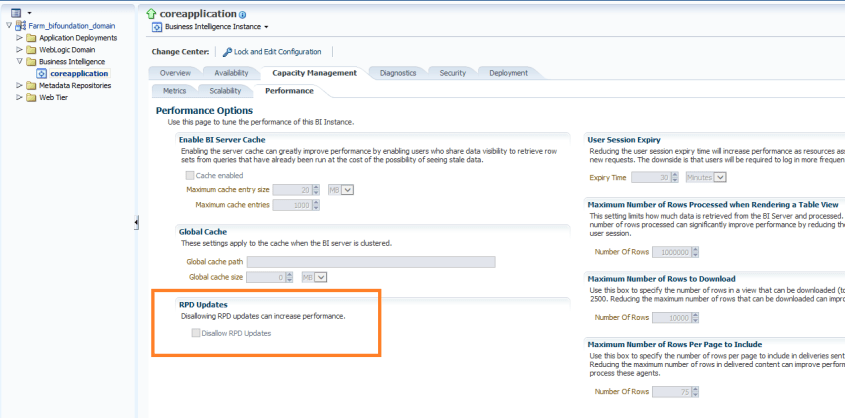
Log into Enterprise Manager. Navigate the tree menu to Business Intelligence -> coreapplication.  Click tabs “Capacity Management”, and “Performance”.

Under the RPD Updates section, check the box for “Disallow RPD updates”.

disallowRPD_updates

This will prevent online RPD updates for all.

If you want to allow a select group of people to have access to perform online updates, such as a lead developer or administrator, then don’t do the above, but instead provide Administrator role to those that should have the access, and remove it from those that should not (and give them BI Author role for example instead).


Installing Tableau Desktop

Tableau is a leading business intelligence software.  Its popularity has grown as a result of its ease of use, awesome visualizations, ability to connect easily to many data sources, its ability to make use of Big Data and Cloud sources, and many other traditional and cutting-edge features.

In this post, I will guide you through the installation of Tableau Desktop 9.  It’s pretty simple.

Go to http://www.tableau.com/ and click Products, or go directly to http://www.tableau.com/products.

tableau_installing_products

Under Tableau Desktop, click on “LEARN MORE”.

tableau_installing_tryitforfree

Click on “TRY IT FOR FREE”.

tableau_installing_download

Save the download to your computer.

tableau_installing_run

Click on Run from this dialog box

OR

Navigate to where you saved the download and double-click the file (in this example, TableauDesktop-64bit-9-3-4.exe) to execute or right-click the file and select Run as administrator.

tableau_installing_navigate

tableau_installing_runasadmin

tableau_installing_welcome

Read and accept the license agreement.

tableau_installing_welcome_accept_install

Click Install if you want to install with defaults.

Or you may also click Customize to change some default settings.  Clicking Customize will bring you to the following dialog.

tableau_installing_customize

From here you may change the install directory and check/uncheck options as you see fit.  Click Install.

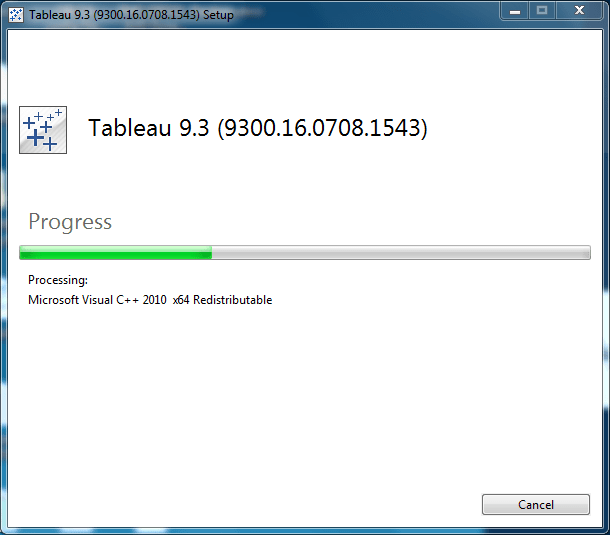
tableau_installing_installing

Installation in progress.

tableau_installing_activate

Installation is complete. Choose the desired Activation schedule.

You have 14 days from activation to use the product.

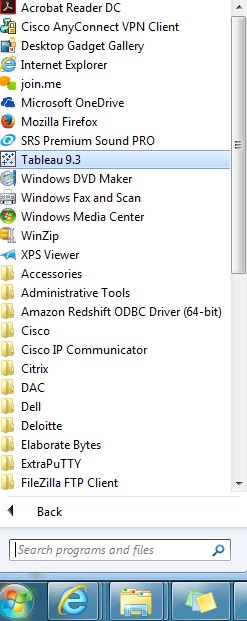
tableau_installing_windowsmenu

Unless you had unchecked this option, Tableau will be added to your Windows start menu.

It’s that simple.


Installing Qlik Sense 3.0 Desktop

This post will guide you through the steps for installing Qlik Sense 3.0 Desktop.

Visit this link to get information on installation requirements and steps:
Installing Qlik Sense Desktop Information

You will get to information such as that shown in the screenshot below …
QlikSense_Installation_installresourceslinks

Click on “System requirements” and “Browser support” to get information on system and browser requirements before starting the installation.  System requirements will show operating system, processor, memory and disk space requirements among other things. And browser support will specify the browsers required for each supported OS.

QlikSense_Installation_systemreqs
Click on “Obtaining the setup file” to access the installation file

QlikSense_Installation_downloadlink
Click “Download Qlik Sense Desktop”

QlikSense_Installation_FREEDOWNLOAD
Click the FREE DOWNLOAD button

QlikSense_Installation_downloading
After the download is complete, navigate to the folder where you saved the file.

QlikSense_Installation_runinstall
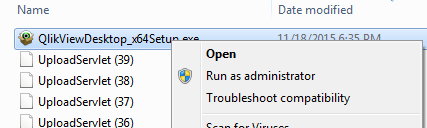
Run the setup executable (Qlik_Sense_Desktop_setup.exe) by double-clicking on it.  In some cases, it is best to right-click on the setup executable, and “Run as administrator”.
QlikSense_Installation_dotnetframework
Click on “Accept and Install” to acknowledge that Microsoft .NET Framework will be installed and continue to installation process.

QlikSense_Installation_install
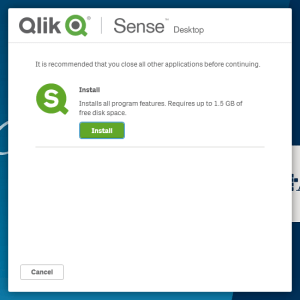
Close all other applications, and click Install.

QlikSense_Installation_license
Accept the license agreement and click Next.

QlikSense_Installation_shortcuts
If desired, check “Create desktop shortcuts”.  Click Install.

QlikSense_Installation_complete
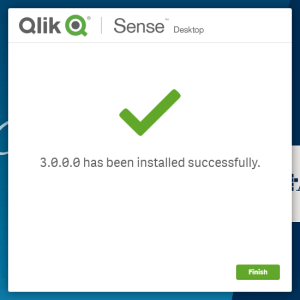
The installation is complete.  Click Finish.

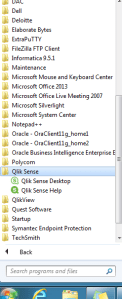
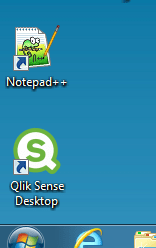
QlikSense_Installation_windowsmenu             QlikSense_Installation_desktopicon
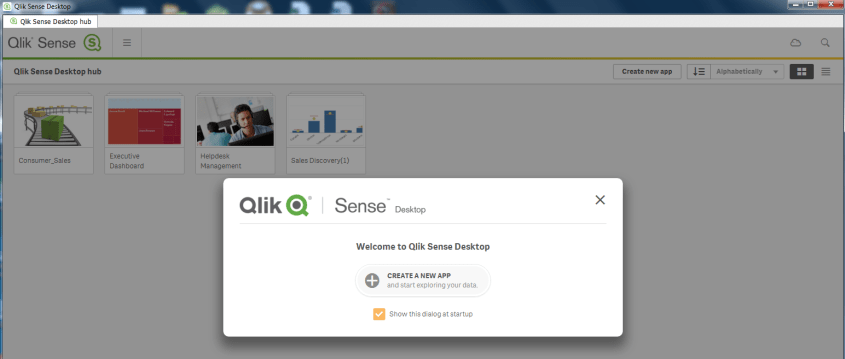
Either from the Windows menu or from the desktop icon, launch Qlik Sense.

QlikSense_Installation_launch
You are ready to start using Qlik Sense 3.0.  It’s that simple.

If you get an error message that reads … “An error occurred.  The service did not respond or could not process the request.” … then read the article on this site that addresses that issue to see how to resolve.

Qlik Sense Error on startup – The service did not respond or could not process the request

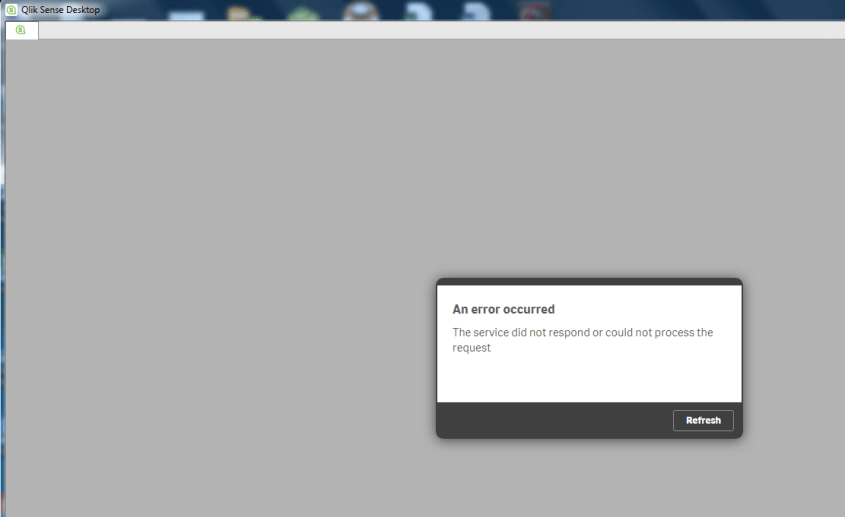
If you start the desktop version of Qlik Sense and get the following error message, this post might be helpful in resolving.

QlikSense_ServiceDidNotRespond_Loopback
An error occurred.  The service did not respond or could not process the request.

I ran into this error.  After doing a few searches to try to find the reason for this error, it turns out that this was a result of not having internet connectivity, and Qlik Sense 3.0 requires network connectivity.

To resolve, you can try again once you are somewhere that you have an internet/network connection, or you can create a loopback adapter, which will make Qlik Sense always have a network to connect to.

The following steps through how to install the loopback adapter on Windows 7.

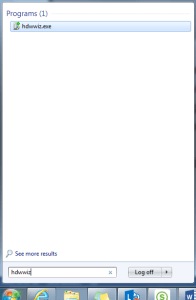
Click the Windows Start icon, and type hdwwiz into the Search box.
QlikSense_ServiceDidNotRespond_Loopback_RunAddHardware

The wizard opens with the Add Hardware dialog …
QlikSense_ServiceDidNotRespond_Loopback_Welcome
Click Next.

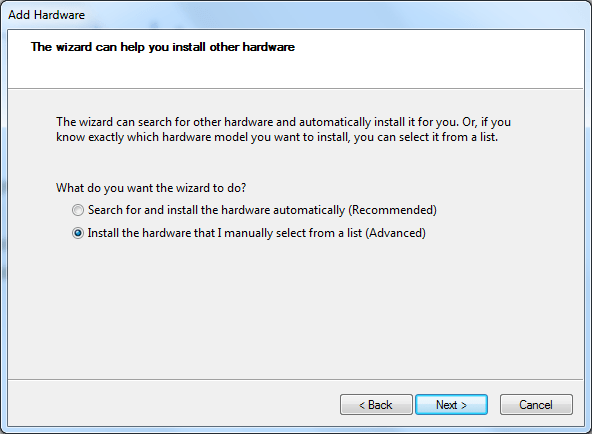
QlikSense_ServiceDidNotRespond_Loopback_select
Select “Install the hardware …” option, and click Next

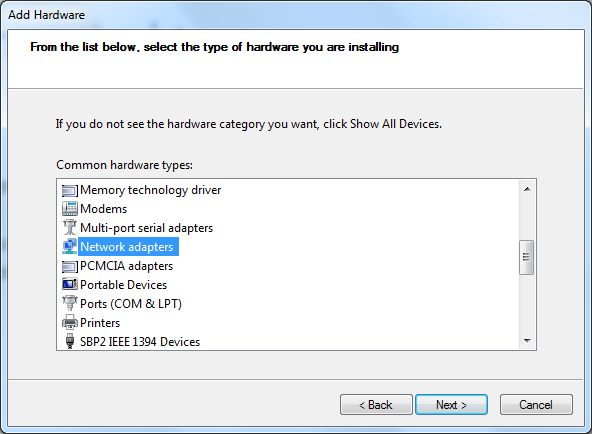
QlikSense_ServiceDidNotRespond_Loopback_networkadapters
Select “Network adapters” and click Next.

QlikSense_ServiceDidNotRespond_Loopback_msloopbackadapter
Select Microsoft (on the left), and then select Microsoft Loopback Adapter (on the right), and then click Next.

QlikSense_ServiceDidNotRespond_Loopback_install
Click Next

QlikSense_ServiceDidNotRespond_Loopback_install_complete
Click Finish.  After installing, Qlik Sense should launch without a problem.

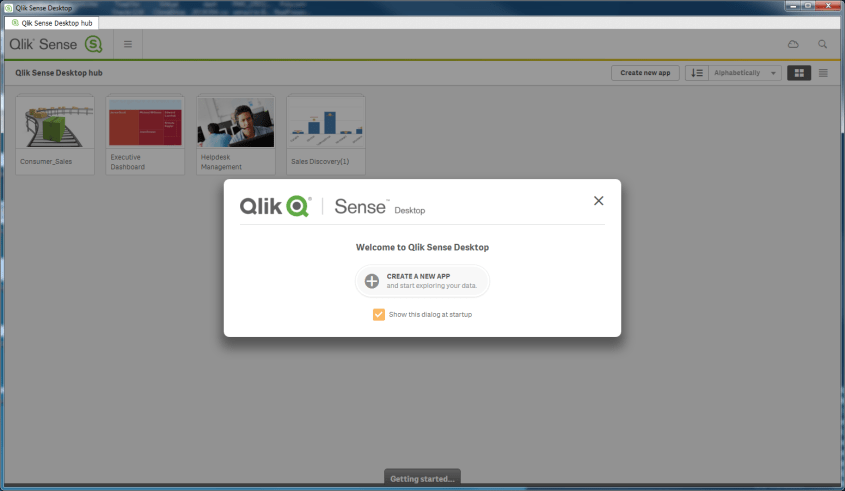
QlikSense_ServiceDidNotRespond_Loopback_QSLaunch

QlikView vs. Qlik Sense

What is the difference between QlikView and Qlik Sense?  QlikView and Qlik Sense are both business intelligence platforms from the same company (Qlik), but are different products. Qlik Sense is not just a new version or release of QlikView.

The below table shows the differences and similarities between the 2 products:

QlikView Qlik Sense
First version released in 1996 First version released in 2014

Data Discovery

Same analysis/calculation engine – scripts and formulas will mostly work between the 2 platforms

Same green-gray-white (included-excluded) functionality

Both products/platforms will be enhanced and supported for the foreseeable future

Guided Analytics – drill-down and drill-through

Self-service data analytics and visualization

Dashboards and analytics/reports built by developers and pre-canned and configured for flexible user interaction Metadata for reporting developed by developers, and users create analytics
Users typically do not have the ability to create new analysis, but use the various features built to slice and dice the data. Users slice and dice the data in any creative manner that they see fit.
Open APIs allow for embedding Qlik Sense into website and other applications, and also for extending the application.
Cutting edge web interface – Responsive web interface – adapt to different screen sizes – from PC to tablet to phones – on any HTML5-compatible browser
Collaboration and story telling
Extensive Pixel-perfect formatting options

Which is better?  It depends.

If you have a user base and business needs that require answers to specific questions, without the need for user self-service BI, then QlikView is a good option.  Also, for very high control over all features of the visualizations you create, QlikView is the better choice.

However, if you have a sophisticated user base that desires to create their own analyses and business needs are more toward data discovery, then Qlik Sense is a good option.  Also, if you plan to or would like to make analytics available on all kinds of devices, then Qlik Sense is the way to go due to the responsive web design interface.

Of course, there will be other factors such as cost, and available resources and skills within the BI Team and supporting teams.  As with any software choice, a full analysis of the options and how they best meet the requirements is needed.

What is Qlik Sense?

Qlik Sense is a business intelligence platform with strengths in self-service usage, data discovery, and visualization.  Qlik Sense is from the same company that develops QlikView, but it is a totally different product. It is not an upgrade to QlikView or a new version of QlikView. However, it provides the core functionality that QlikView offers – such as in-memory storage and processing, the included-excluded/green-white-gray feature, and associative data model; with some additional features and benefits – such as usability, cloud readiness, responsive design, data storytelling, and open APIs.

Qlik Sense is available in 3 editions – desktop (for use on a personal computer for a single-user), enterprise (create and consume via a web interface for the entire enterprise), and cloud (create and consume via web interface on any device while hosted on the Qlik cloud).

You can learn more about Qlik Sense, QlikView, and Qlik (the company that creates these software) by visiting the company’s website at: http://www.qlik.com/.

What is QlikView?

QlikView is a business intelligence platform.  It allows for quick development and deployment of business intelligence and analytics applications, and for easy consumption of those applications through the web by those authorized.

QlikView has a unique associative data model feature that allows for all of the data to be used for analysis without pre-defined drill-down or drill-through relationships.

QlikView also has an included-excluded type display feature (sometimes referred to with the phrase … the power of green-white-gray) that allows users to not only see what data is included in the selected set, but also see what data is not included, thereby enabling data discovery.

QlikView holds data for its applications in memory, which allows it to deliver results quickly without the need for pre-calculated / pre-aggregated cubes.

These features help to differentiate QlikView from other BI platforms, and are some of the reasons for its growth and its leadership position in the BI space.

You can learn more about QlikView and the company that creates this software, Qlik, by visiting the company’s website at: http://www.qlik.com/.

QlikView Desktop Installation

In this post, I will go through the simple process of installing QlikView Desktop.

From the Qlik website (www.qlik.com), navigate or search for the download.  Download the Free Personal Edition of QlikView. You will need to register to download.


Click the FREE DOWNLOAD button to download the software.QlikView_Installation_Download

After the download is complete, navigate to where you downloaded the software.  Double-click on the executable to run the program and start the install wizard, or in some cases, you may need to Right-click and select Run as administrator.

QlikView_Installation_Run

Choose your language and click OK.

QlikView_Installation_Lang

The Install Wizard is prepared.

QlikView_Installation_Wizard

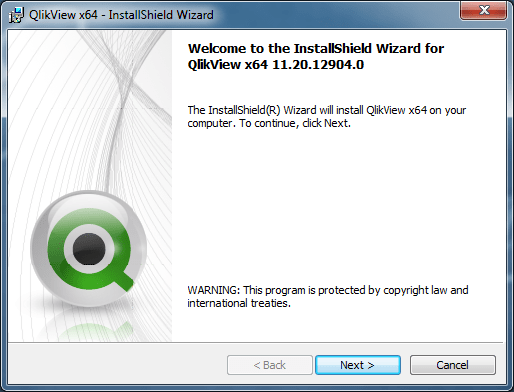
Click Next at the Welcome dialog.

QlikView_Installation_WizardWelcome

Accept the license agreement and click Next.

QlikView_Installation_license

Enter Name and Organization name.

QlikView_Installation_cust

Accept the default directory or choose / enter the directory to which QlikView should be installed. The example below shows a non-default directory selected.

QlikView_Installation_choosefolder

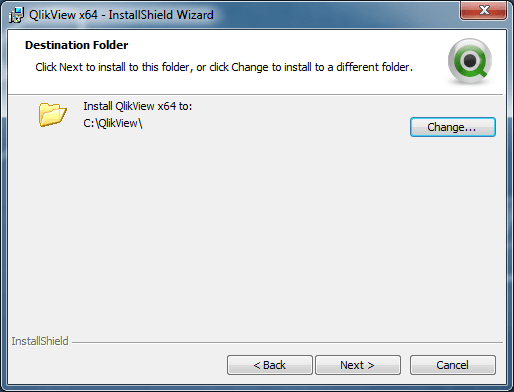
Click Next to confirm the destination folder.

QlikView_Installation_destinationfolder

Choose Complete installation type (makes sense in most cases).

QlikView_Installation_type

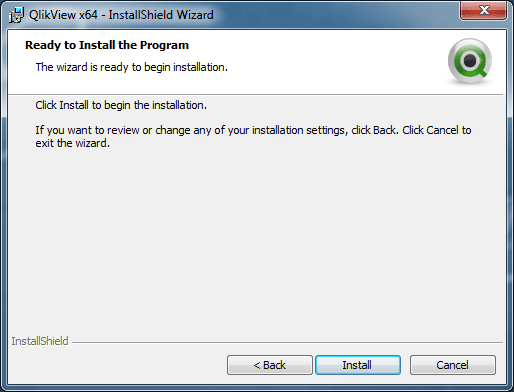
Click Install to start the installation

QlikView_Installation_ready

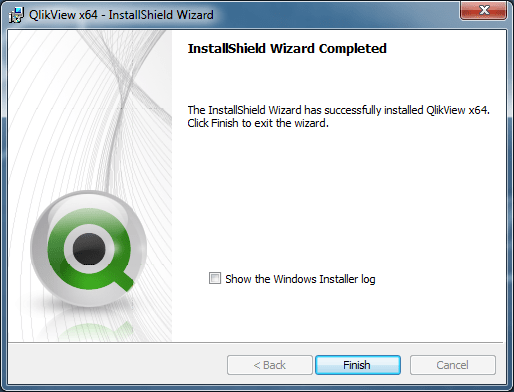
It’s Complete. Click Finish.

QlikView_Installation_complete

Go to the Windows Start menu and navigate to QlikView. Launch the program.

QlikView_Installation_windowsmenu

QlikView launches.

QlikView_Installation_launch

You have successfully installed QlikView and you are ready to get going. It’s that simple.