Category: Business Intelligence Platform

UPGAST-00014 error when upgrading OBIEE 10g RPD and Catalog to OBIEE 11g

If you get this error during Step 4 of the Upgrade Assistant for upgrading OBIEE 10g RPD and/or Catalog to 11g, then this post might be helpful.

UPGAST-00014: unable to connect to WebLogic Server at localhost:7001
t3://localhost:7001: Destination unreachable; nested exception is: java.net.ConnectException: Connection refused; No available router to destination

UPGAST-00014-error

Perform the following steps that may resolve your problem:

– Log in to Administration Console.  http://yourserver:7001/console
– Click the ‘Servers’ link.

UPGAST-00014-clickServers

Then in the Summary of Servers page / Configuration tab, click ‘AdminServer(admin)’.

UPGAST-00014-AdminServer

– From the Settings for AdminServer page, select the ‘Protocols’ tab, then the ‘Channels’ subtab.
– And then Click ‘Lock & Edit’ button in the upper left Change Center.

UPGAST-00014-ProtocolsChannels

– Click the New button to begin creating a new Network Channel.
– Enter the following information…
Name: Loopback (or whatever name you like)
Protocol: t3

– The click Next

UPGAST-00014-ChannelConfig1

– The enter …
Listen Address: localhost
Listen port: 7001
Click Finish

UPGAST-00014-ChannelConfig2

The new Network Channel (Loopback) is added.  Activate the changes by clicking on the “Activate Changes” button.
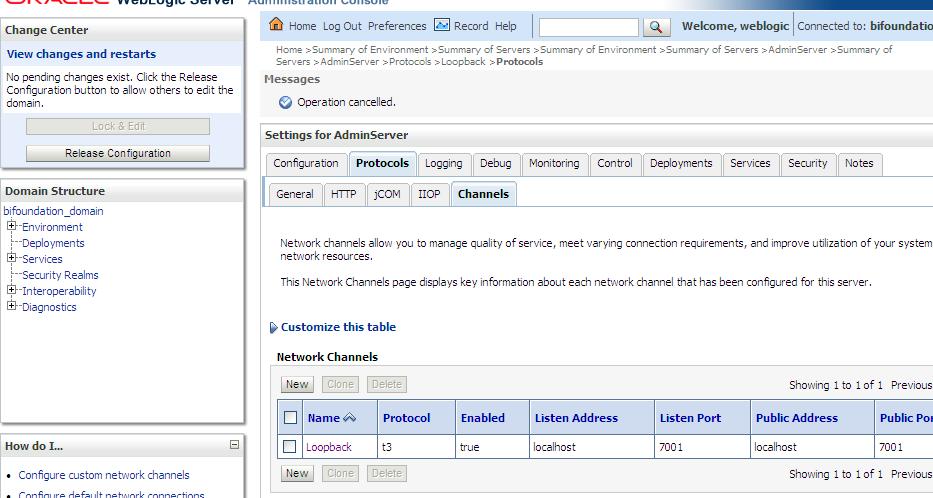
UPGAST-00014-ChannelCreated

Now, retry running the Upgrade Assistant. There is no need to restart any of the services.
You should now get past Step 4 (the point at which you were getting the error before).
Unable to see Administration link or dashboards with Administrator ID in OBIEE 11g

If you are unable to see Dashboards or the Administration link after logging in with the administrator ID in OBIEE 11g after upgrading from 10g, this post may help.

Log in to Analytics — http://yourserver:9704/analytics

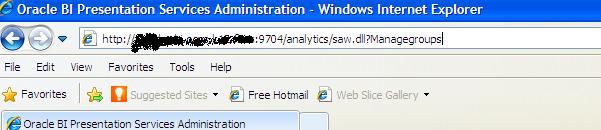
Manually change URL by attaching “saw.dll?Managegroups” to the end after analytics, so it looks like this … http://yourserver:9704/analytics/saw.dll?Managegroups

adminsecurity-managegroupsurl

Select the “Presentation Server Administrators” catalog group and Edit

edit-psa-catgrp

Add the “BI Administrator Role” Application Role by selecting it in the left and using the arrows to move it to the right.

edit-psa-catgrp2

Log out and log back in with the Administrator ID.

You should now be able to see the “Administration” link at the top right, and also be able to see the dashboards that you had access to by clicking or mousing-over the Dashboards link/dropdown.

administration_link_shows

OBIEE Repository (rpd) development tips

A few tips on BI Repository (RPD) Development …

Physical Layer

  • Import metadata when possible, instead of creating it manually
  • Only import objects that you need or forsee you may need in the near future
  • Import Tables, Keys, and Foreign Keys – which is the default option
  • Create Aliases of Physical Tables – to eliminate unwanted joins and to satisfy any naming conventions you may have chosen
  • Use the Physical diagram to configure joins
  • Create all relevant joins in a star-schema / dimensional model

BMM Layer

  • Use terminology that users are familiar with – words of the business instead of technical physical table and column names
  • Use the Rename Wizard to rename most of your logical objects when possible (this can save you a lot of time)
  • Delete unnecessary objects from your BMM layer
  • Create derived columns for calculations that you forsee using in multiple reports/presentation areas

Presentation Layer

  • Only move the columns you need users to see and work with to your Presentation Layer
  • Rename objects to match the language of the business and ensure that the meaning is very clear
  • Organize your presentation columns in a logical/meaningful order – for example, in a hierarchical order or alphabetic order such as Product Category, Product sub-category, Product -or- Region, Country, State, City, Zip

General

  • Check Global Consistency & resolve warnings and errors
  • Disable caching during development & testing
  • Verify your design by checking the SQL generated and sent to the database

Renaming the Views in an Analysis for use in a View Selector in OBIEE 10g & OBIEE 11g

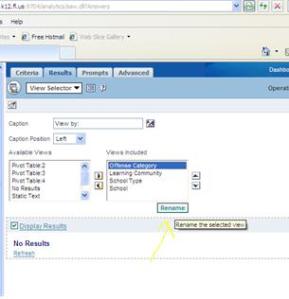
In OBIEE 10g, we renamed the Views directly inside the View Selector definition like here…

Rename-View-10g

In OBIEE 11g, we rename the View inside the View definition itself … like here …

Rename-View-11g-1

then rename …

Rename-View-11g-2

And then you will use/select the new name in the View Selector (instead of renaming it in the View Selector). 

This is much better because you know exactly what view is being used in the View Selector.  Whereas in 10g, at times it took more effort to determine what original view the renamed views related to.

‘No fact table exists at the requested level’ error in OBIEE 11g

If you receive an error like this when you attempt to run a report, this post might help you.  This is an error that may occur after upgrading from OBIEE 10g to 11g.

State: HY000. Code: 10058. [NQODBC] [SQL_STATE: HY000] [nQSError: 10058] A general error has occurred. [nQSError: 43113] Message returned from OBIS. [nQSError: 43119] Query Failed: [nQSError: 14025] No fact table exists at the requested level of detail:

Check each column used in your report and each column used in the filter definition to ensure that they are referencing the correct table.

A likely cause of this error is that one or more of your select columns or filter columns is referencing a column in a different subject area that the one being used in your report (different from the one you intended).

OBIEE 10g was more forgiving than 11g – and maybe fortunately, so that errors like these do not go unnoticed/undetected.

How to hide the Refresh, ‘Printer Friendly’ and ‘Add to Briefing Book’ Icons at the bottom of a dashboard page in OBIEE 10g

I was recently asked to completely remove or hide, from a particular page, the ‘Refresh’, ‘Printer Friendly’ and ‘Add to Briefing Book’ icons that automatically show up at the bottom of the OBIEE dashboard page in OBIEE 10g.

Refresh-PrinterFriendly-BriefingBook-Icons

I had never had the need to do this before, so I did a search and thankfully I quickly found the solution here …

http://obiee-bip.blogspot.com/2011/07/how-to-hide-refresh-printer-friendly.html

For your convenience, I will reiterate the solution here …

1. Edit Dashboard

2. Add a Text box object into the Dashboard Page

3. Add the following script to the Text Properties


function RemoveDefaults() {
var tds = document.getElementsByTagName(‘span’);
for (var td = 0; td

4. Check the option ” Contains HTML Markup “

5. Save the changes and view the Dashboard Page, the icons for Refresh, Printer Friendly & Add Briefing Book Options are hidden for that specific Dashboard Page alone

Data type related error in OBIEE 11g – Error Codes: OPR4ONWY:U9IM8TAC:OI2DL65P

If you receive an error like this in OBIEE 11g, this post may help you resolve the problem.  This is an error that you may get after upgrading from OBIEE 10g to 11g.

Error Codes: OPR4ONWY:U9IM8TAC:OI2DL65P
State: HY000. Code: 10058. [NQODBC] [SQL_STATE: HY000] [nQSError: 10058] A general error has occurred. [nQSError: 43113] Message returned from OBIS. [nQSError: 43119] Query Failed: [nQSError: 59140] The evaluation of the index 11 expression on row count -1 failed. [nQSError: 59001] Binary Logical operation is not permitted on VARBINARY, INTEGER operand(s). (HY000)

DataTypeError

OBIEE 10g is a lot more forgiving than 11g.  So what worked in 10g may not work in 11g – such as data type mismatches.  For this error, you need to check the data types of your columns and the data types of the values being used in your column calculations.

For example, you may have a column formula like this …

sum(case when “Table”.”Column”=3 then 1 else 0 end)

Note the column is being used like an INTEGER. This worked in 10g, but does not in 11g.

When you check the data type in your RPD, it may show that the column is a VARCHAR.  You then will need to put quotes around the value (the ‘3’) … like this …

sum(case when “Table”.”Column”=’3’ then 1 else 0 end)

This should hopefully solve the problem.

OBIEE Recent Releases & Support Information

12/5/2012: Picked up this information from the Business Analytics newsletter from Oracle.  It’s good to see that a cumulative patch is now available for all the 11.1.1.6.x releases.  Also, note that it seems the support for OBIEE 10.1.3.x will expire in July 2013 – that time will be here before you know it.

—————————————————————————————

10.1.3.x

The Premier Support for Oracle Business Intelligence Enterprise Edition 10.1.3.x ended in July 2013. For additional information on the de-support status and for details for moving towards recent release refer to:

  • OBIEE 11g: Required and Recommended Patches and Patch Sets [Doc ID 1488475.1]
  • ALERT: Required and Recommended Patch Levels For OBIEE 10g (10.1.3.x) Versions (Doc ID 1082987.1)

11.1.1.5.4

Oracle Business Intelligence Enterprise Edition (OBIEE) 11.1.1.5.4 Bundle Patch was released Oct-12.

This is available for download from the My Oracle Support | Patches and Updates:

Additional information is available from:

Refer to “Retiring Product” section for important information pertaining to OBIEE 11.1.1.5.x

11.1.1.6.x – Patch Set Updates

The OBIEE Patch Set Update (PSU) that were recently released are as follows:

  • OBIEE 11.1.1.6.4 PSU  – Sept 2012
  • OBIEE 11.1.1.6.5 PSU  – Oct 2012
  • OBIEE 11.1.1.6.6 PSU  – Nov 2012

11.1.1.6.6

Oracle Business Intelligence Enterprise Edition (OBIEE) 11.1.1.6.6 Bundle Patch was released Nov-12.

Bundle patches are a collection of controlled, well tested critical bug fixes for a specific product which may include security contents and occasionally minor enhancements. These are cumulative in nature meaning the latest bundle patch in a particular series would include the contents of the previous bundle patches released. A suite bundle patch is an aggregation of multiple product bundle patches that are part of a product suite.

For OBIEE on 11.1.1.6.0, it is planned for monthly run of bundle patch cadence. For the 11.1.1.6.6 bundle patch:

  • is now for download from My Oracle Support | Patches & Updates
  • includes 67 bug fixes.
  • is cumulative, so it includes everything in 11.1.1.6.1, 11.1.1.6.2, 11.1.1.6.2BP1, 11.1.1.6.4 and 11.1.1.6.5

Bundled Patch Details

  • 1 of 7 – Oracle Business Intelligence Installer [Patch 15844023]
  • 2 of 7 – Oracle Real Time Decisions [Patch 15844066]
  • 3 of 7 – Oracle Business Intelligence Publisher [Patch 14800665]
  • 4 of 7 – Oracle Business Intelligence ADF Components [Patch 15843961]
  • 5 of 7 – Enterprise Performance Management Components Installed from BI Installer 11.1.1.6.x [Patch 15844096]
  • 6 of 7 – Oracle Business Intelligence [Patch 14791926]
  • 7 of 7 – Oracle Business Intelligence Platform Client Installers and MapViewer [Patch 15839347]

Additional information may be found in the following Knowledge Articles:

Using Custom Images in OBIEE 10g & 11g

In both OBIEE 10g and 11g, custom images need to be placed in 2 folders before use within reports/dashboards.

 In OBIEE 10g, images need to be placed in:

(1)     $BIHOMEoc4j_bij2eehomeapplicationsanalyticsanalyticsress_oracle10images

Windows directory path example:
C:OracleBIoc4j_bij2eehomeapplicationsanalyticsanalyticsress_oracle10images

Linux directory path example:
/usr/local/OracleBI/oc4j_bi/j2ee/home/applications/analytics/analytics/res/s_oracle10/images

-and-

(2)    $BI_HOMEwebappress_oracle10images

Windows directory path example:
C:OracleBIwebappress_oracle10images

Linux directory path example:
/usr/local/OracleBI/web/app/res/s_oracle10/images


In OBIEE 11g, images need to be placed in:

(1)    $OBIEE_FMW_HOMEuser_projectsdomainsbifoundation_domainserversbi_server1tmp_WL_useranalytics_11.1.17dezjlwarress_blafpimages

Windows directory path example:
C:obiee11guser_projectsdomainsbifoundation_domainserversAdminServertmp_WL_useranalytics_11.1.1silp1vwarress_blafpimages

Linux directory path example:
/u01/product/middleware/user_projects/domains/bifoundation_domain/servers/bi_server1/tmp/_WL_user/analytics_11.1.1/7dezjl/war/res/s_blafp/images

-and-

(2)    $OBIEE_FMW_HOMEOracle_BIbifoundationwebappress_blafpimages

Windows directory path example:
C:obiee11gOracle_BI1bifoundationwebappress_blafpimages

Linux directory path example:
/u01/product/middleware/Oracle_BI1/bifoundation/web/app/res/s_blafp/images

Note: you may also create or use directories at the same level or below the images directories under the s_oracle10 (in 10g) and s_blafp (in 11g) directories, for example, if you wanted to put all your custom images into a separate directory.

Then in Answers / Analysis, you would reference the image as shown below.

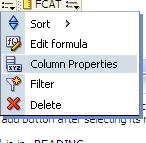
Edit the Column Properties:
ImagesDirectories-ColumnProperties

Then, in the Style tab, within the Cell area, click on the Image object…

ImagesDirectories-ClickImage

Then in the Graphics dialog, select “Custom Image” and enter  fmap:images/your_custom_image.jpg.

Note: If your images are in a directory other than the images directory, you need to supply that path, but still starting below s_oracle10 or s_blafp directories.

And set the Image Placement property. Images Left (shows the Image to the left of the column data), Images Right (displays the image to the right of the column data), Images Only (displays the image only – no column data)
ImagesDirectories-ImageNameAndPlacement

If new images were placed into the directories after the last BI Server / Presentation Server restart, you will need to restart the BI Server and Presentation Server for the images to be displayed.

How to remove the popup menu when navigating from one report to another via a navigation link

When you click on a navigation link value, by default a pop-up arises with the name of the possible report(s) that you can navigating to.  Even if it’s just one possible report, the pop-up still occurs (see example below). This happens after upgrading from OBIEE 10g to 11g, and there is no system wide setting to fix this.

Navigation-Popup

This can be annoying to users because its an extra unnecessary click. They want to be navigated to the next report after the single click on the navigation link.  Especially if they worked on OBIEE 10g before and did not have to do this. The good news is, removing this popup is easy.

Edit Dashboard

Edit the Analysis

Edit the Column Properties for the relevant column

EditColumnProperties

In the Column Properties dialog, go to the Interaction tab.
Check the box below the Action Links table for “Do not display in a popup if only one action link is available at runtime”

DoNotDisplayPopup

Once you check the box for one column in your analysis, it will become checked for all navigation link columns in that analysis  – so you do not need to check for others columns after you have done for any one column.

You will now be navigated directly to the next report without the popup showing. Unfortunately, this has to be done for each report because there is no system wide setting to change it for all.