Category: Business Intelligence Platform

Oracle PeopleSoft General Ledger data model and data flow

The PeopleSoft General Ledger is a module in the Oracle PeopleSoft Enterprise suite of applications. This post gives a brief overview of the data flow and data model of PeopleSoft General Ledger.  General Ledger applications are generally a central point for key financial reporting and this is also the case for PeopleSoft applications.

Oracle Business Intelligence Applications (OBIA) offers pre-built integration with Oracle Peoplesoft Enterprise, and the tables here are some of the source tables for Oracle Business Intelligence Application Financial Analytics.

PeopleSoftGeneralLedgerDataModelDataFlow

Data is brought into the GL Journal Header (JRNL_HEADER) and Journal Lines (JRNL_LN) tables via a number of methods – spreadsheet template import, flat-file import, or via a load process from other PeopleSoft modules.  There are multiple Journal Lines for each Journal Header.

The Journals are edited, and when valid, they can be Posted.  The Posting creates records in the Ledger table (LEDGER).  Ledger data is a common source for reporting – for example, P&L and Balance Sheet reporting will be done against Ledger data.

Some supporting tables for the GL module are:
GL_ACCOUNT_TBL:  contains the value and description of Account values
PRODUCT:   contains the value and description of Product values
DEPT_TBL: contains the value and description of Department values
BUS_UNIT_TBL_GL:  contains the value and description of Business Unit values
ACCT_TYPE_TBL:  contains the descriptions of Account Types – Asset, Liability, Equity, Expense, Revenue

Oracle EBS Receivables Data Flow and Data Model

The Accounts Receivable function is responsible for managing outgoing invoices to customers who purchased goods or services, and the collection and application of all payments, including payments for invoices.  The Oracle Receivables module (a part of the Oracle EBS Financials Suite) helps the Accounts Receivable departments to manage this function effectively and efficiently.

This post describes a summary of the Oracle Receivables data model and data flow.  Some of these tables are source tables for the Oracle Business Intelligence Applications – Financial Analytics module, specifically providing information for the Payabales dashboard.

OracleReceivablesDataflowDataModel

To be in the position where you need to handle and process a payment in Receivables, you need to have a buyer/payer (most times this is a customer but there are exceptions). Customer records are stored in the HZ_CUST_ACCOUNTS and HZ_PARTIES tables.  Each customer needs to have a site (a location/address of business) for which information is stored in HZ_CUST_ACCT_SITES_ALL and HZ_PARTY_SITES_ALL.

When a customer purchases goods or services from your company, an invoice is generated for the customer.  These invoice transactions are recorded in RA_CUSTOMER_TRX_ALL (invoice headers) and RA_CUSTOMER_TRX_LINES_ALL (invoice lines).

When the customer makes a payment, this generates new transactions.  These are recorded in AR_CASH_RECEIPTS_ALL and AR_CASH_RECEIPT_HISTORY.  If there is adjustment to an invoice, this is recorded in AR_ADJUSTMENTS.

Sometimes payments are received in batches, where a single payment is for multiple invoices.  These batch payments have records in AR_BATCHES.

The AR_PAYMENT_SCHEDULE table holds one record per payment.  Therefore, for payments that pay an invoice in full, there will only be one record related to that invoice.  However, if payments for an invoice are broken up into a payment plan, or if a partial payment is received for an invoice, additional records will be generated in this table for each payment.

I mentioned above that “most times payments are from customers, but there are exceptions”. An example of an exception is “payment from a bank for interest earned”.  The payment is not from a customer and it’s not for goods/services provided.  These types of payments are recorded in AR_MISC_CASH_DISTRIBUTIONS.

These transactions affect accounting which will eventually make their way to the GL (when the Receivables Transfer to GL program is run). The accounting transactions are generated in RA_CUST_TRX_LINE_GL_DIST and AR_RECEIVABLE_APPLICATIONS.

Windows command to find equivalent directory name without space

You may occasionally run into an issue with OBIEE where it cannot locate the Java directories or files.  This is usually because Java has been installed in its default location under “C:Program Files…”.  This post may be helpful in resolving this issue.

At times, some OBIEE processes or programs do not like the spaces in directory or file names.  So, for example, you may get an error because the program does not locate the files under the “C:Program Files…” directory (due to the space in the name).

To resolve this, you will need to update the necessary Environment Variables to use the no-space equivalent of the windows directory.  To find the equivalent no-space name,  from your windows command prompt, go to the relevant directory (for example … cd C:) and enter … dir /X (as shown below).

dirX

Notice to the left of the regular directory name, there is another no-space name.  For example, “Program Files” has a no-space equivalent of PROGRA~1.

Now update all the relevant OBIEE related Environment Variables to use this no-space name instead of the regular name (see example below).

envvar

Workaround for installing OBIEE10g on Windows7

It has been a while since I have had to install OBIEE 10g.  But recently I needed to install it on a Windows 7 laptop.

When installing OBIEE 10g on Windows 7, you may run into the following error.  This post may help you to get around this issue.

obiee_10g_on_Win7

The error reads:
Oracle Business Intelligence is not supported on this Windows version. Oracle Business Intelligence is only supported on Windows XP x86, Windows 2003 x86, Windows 2003 AMD64, Windows 2003 EM64T, Windows Vista x86, Windows Vista AMD64, Windows Vista EM64T, and Windows 2000 x86.

There is a workaround that will allow you to complete the install. Please follow these steps:

– From within Windows Explorer, right-click the setup.exe file and choose Properties.
– Select the Compatability tab, and go to the “Compatability mode” section.
– Check the check-box beside “Run this program in compatibility mode for:”
– And select “Windows Vista” from the drop down box.
– Save your change and then re-run the setup.exe program.

This time you should get past where you encountered the previous message that prevented you from installing the software.

Oracle EBS Payables Data Flow and Data Model

This post gives a quick overview of Oracle Payables data flow and data model for some of the most used tables in the module. This is not a complete coverage of the topic but aims to give a general idea of how records are stored in and moves through the module.

OraclePayablesDataflowDataModel

In Oracle Payables, before an AP transaction can be generated, a supplier must exist in the system.  When suppliers are created, records are created in AP_SUPPLIERS and AP_SUPPLIER_SITES.  Invoices are saved in AP_INVOICES (invoice header records) and AP_INVOICE_LINES (invoice lines records).

Payments generate records in AP_INVOICE_PAYMENTS and AP_PAYMENTS_SCHEDULE.  These tables will have 1 record for an invoice if the invoice is paid using a single payment, but will have multiple records for an invoice if the invoice is paid in installments or with more than one payment.

When an invoice is approved and when it is paid, accounting transactions are generated.  These transactions make their way to the GL_INTERFACE table via Payables Transfer to GL process.  In addition to interfacing with GL, Payables also interfaces with many other Oracle modules, such as, Purchasing, Assets, Projects, Inventory, and others (but will not be covered in this post).

Invoices can be entered into Oracle Payables from external systems via the AP_INVOICE_INTERFACE and AP_INVOICES_LINES_INTERFACE tables.  When the Payables Open Interface Import program is run, the records are brought into the regular header and lines tables (AP_INVOICE and AP_INVOICE_LINES).

When payments are made, the information about the payment is recorded in AP_CHECKS.

These are some of the sources for the star-schemas (dimension and fact tables) used in Oracle Business Intelligence Applications (OBIA) Financials module, and in particular, the Payables dashboard and analyses.

Oracle E-Business Suite (EBS) Foundation Tables

This post is simply a list of Oracle E-Business Suite (EBS) Foundation tables. The Foundation tables contain data that relate to the entire suite of applications – they are not specific to any one module.

Some foundation tables are used in Oracle BI Applications (OBIA), for example, the FND_USER, FND_USER_RESP_GROUPS, and FND_RESPONSIBILITY_VL tables are used in security-related Initialization Blocks.

In general, it’s good to be familiar with these tables when working on OBIEE projects or any BI platform with EBS as a source system.

Foundation Table Purpose
FND_APPLICATION Stores applications registered with Oracle Application Object Library.
FND_APPLICATION_TL Stores translated information about all the applications registered with Oracle Application Object Library.
FND_APP_SERVERS This table will track the servers used by the E-Business Suite system.
FND_ATTACHED_DOCUMENTS Stores information relating a document to an application entity.
FND_CONCURRENT_PROCESSES Stores information about concurrent managers.
FND_CONCURRENT_PROCESSORS Stores information about immediate (subroutine) concurrent program libraries.
FND_CONCURRENT_PROGRAMS Stores information about concurrent programs. Each row includes a name and description of the concurrent program.
FND_CONCURRENT_PROGRAMS_TL Stores translated information about concurrent programs in each of the installed languages.
FND_CONCURRENT_QUEUES Stores information about concurrent managers.
FND_CONCURRENT_QUEUE_SIZE Stores information about the number of requests a concurrent manager can process at once, according to its work shift.
FND_CONCURRENT_REQUESTS Stores information about individual concurrent requests.
FND_CONCURRENT_REQUEST_CLASS Stores information about concurrent request types.
FND_CONC_REQ_OUTPUTS This table stores output files created by Concurrent Request.
FND_CURRENCIES Stores information about currencies.
FND_DATABASES It tracks the databases employed by the eBusiness suite. This table stores information about the database that is not instance specific.
FND_DATABASE_INSTANCES Stores instance specific information. Every database has one or more instance.
FND_DESCRIPTIVE_FLEXS Stores setup information about descriptive flexfields.
FND_DESCRIPTIVE_FLEXS_TL Stores translated setup information about descriptive flexfields.
FND_DOCUMENTS Stores language-independent information about a document.
FND_EXECUTABLES Stores information about concurrent program executables.
FND_FLEX_VALUES Stores valid values for key and descriptive flexfield segments.
FND_FLEX_VALUE_SETS Stores information about the value sets used by both key and descriptive flexfields.
FND_LANGUAGES Stores information regarding languages and dialects.
FND_MENUS It lists the menus that appear in the Navigate Window, as determined by the System Administrator when defining responsibilities for function security.
FND_MENUS_TL Stores translated information about the menus in FND_MENUS.
FND_MENU_ENTRIES Stores information about individual entries in the menus in FND_MENUS.
FND_PROFILE_OPTIONS Stores information about user profile options.
FND_REQUEST_GROUPS Stores information about report security groups.
FND_REQUEST_SETS Stores information about report sets.
FND_RESPONSIBILITY Stores information about responsibilities. Each row includes the name and description of the responsibility, the application it belongs to, and values that identify the main menu, and the first form that it uses.
FND_RESPONSIBILITY_TL Stores translated information about responsibilities.
FND_RESP_FUNCTIONS Stores security exclusion rules for function security menus. Security exclusion rules are lists of functions and menus inaccessible to a particular responsibility.
FND_SECURITY_GROUPS Stores information about security groups used to partition data in a Service Bureau architecture.
FND_SEQUENCES Stores information about the registered sequences in your applications.
FND_TABLES Stores information about the registered tables in your applications.
FND_TERRITORIES Stores information for countries, alternatively known as territories.
FND_USER Stores information about application users.
FND_VIEWS Stores information about the registered views in your applications.
FND_USER_RESPONSIBILITY
FND_RESPONSIBILITY_VL
FND_ORACLE_USERID
FND_DATA_GROUP_UNITS

Oracle E-Business Suite (EBS) List of Flexfields

This post is simply a table listing of the Key Flexfields (KFFs) in Oracle E-Business Suite (EBS) (aka Oracle Applications). The table contains the flexfields, along with their Code, Owning Application and base table. 

Flexfields are commonly used in OBIEE reporting for EBS source systems. Flexfields are also an integral part of the Oracle Business Analytics Warehouse (OBAW) data model. It is worthwhile to be familiar with them.

  Name Code Owning Application Table Name
1 Account Aliases MDSP Oracle Inventory MTL_GENERIC_DISPOSITIONS
2 Accounting Flexfield GL# Oracle General Ledger GL_CODE_COMBINATIONS
3 Activity Flexfield FEAC Enterprise Performance Foundation  
4 AHL Route AHLR Complex Maintenance, Repair, and Overhaul  
5 Asset Key Flexfield KEY# Oracle Assets FA_ASSET_KEYWORDS
6 Bank Details KeyFlexField BANK Oracle Payroll PAY_EXTERNAL_ACCOUNTS
7 CAGR Flexfield CAGR Oracle Human Resources  
8 Category Flexfield CAT# Oracle Assets FA_CATEGORIES
9 Competence Flexfield CMP Oracle Human Resources  
10 Cost Allocation Flexfield COST Oracle Payroll PAY_COST_ALLOCATION_KEYFLEX
11 Grade Flexfield GRD Oracle Human Resources PER_GRADE_DEFINITIONS
12 Item Catalogs MICG Oracle Inventory MTL_ITEM_CATALOG_GROUPS
13 Item Categories MCAT Oracle Inventory MTL_CATEGORIES
14 Job Flexfield JOB Oracle Human Resources PER_JOB_DEFINITIONS
15 Location Flexfield LOC# Oracle Assets FA_LOCATIONS
16 Oracle Service Item Flexfield SERV Oracle Inventory MTL_SYSTEM_ITEMS
17 People Group Flexfield GRP Oracle Payroll PAY_PEOPLE_GROUPS
18 Personal Analysis Flexfield PEA Oracle Human Resources PER_ANALYSIS_CRITERIA
19 Position Flexfield POS Oracle Human Resources PER_POSITION_DEFINITIONS
20 Public Sector Budgeting BPS Oracle Public Sector Budgeting  
21 Sales Orders MKTS Oracle Inventory SALES_ORDER_ID
22 Sales Tax Location Flexfield RLOC Oracle Receivables AR_LOCATION_COMBINATIONS
23 Soft Coded KeyFlexfield SCL Oracle Human Resources HR_SOFT_CODING_KEYFLEX
24 Stock Locators MTLL Oracle Inventory MTL_ITEM_LOCATIONS
25 System Items MSTK Oracle Inventory MTL_SYSTEM_ITEMS
26 Territory Flexfield CT# Oracle Receivables RA_TERRITORIES
27 Training Resources RES Oracle Learning Management  

Forgot weblogic user password – How to reset the weblogic user

If you have forgotten your weblogic user password, and would like to reset the user, this post might help…

One of my colleagues could not remember the password for his weblogic user in his local OBIEE installation, and asked for my assistance.  I did not know how to go about resetting the password, and so I had to search for a solution. 

After trying the steps from a few different posts related to this issue, the steps in the post found here worked.

I made a few minor modifications and copied the steps here for your convenience.

—————–

Note: This process will remove all users created in WebLogic’s embedded LDAP server and there will only be one user (which will act as superuser) after doing below steps.

+++++++++++++++++++++++++++++++++++++++++++++++++++++

Steps to recreate weblogic superuser (when password of existing user is forgotten)

1.      Shutdown WebLogic Server (If Running) – Optional Step

2. Login to WebLogic Server and set environment variable

cd $DOMAIN_HOME/bin   (where DOMAIN_HOME is the directory in which your domain exists, default value is $MW_HOME/user_projects/domain/base_domain), and execute the following …

. ./setDomainEnv.sh (Linux/Unix)  -or- setDomainEnv.cmd (Windows)


3. Create an initialization file using the following command. (Note the DOT at end of this command)

java weblogic.security.utils.AdminAccount <weblogic_username> <weblogic_user_password> . 

For Example – (Note the DOT at end of this command):

java weblogic.security.utils.AdminAccount weblogic welcome1 .

This will create file  DefaultAuthenticatorInit.ldift in directory from which you executed this command .


4. Rename the original file DefaultAuthenticatormyrealmInit.ldift in the $DOMAIN_HOME/security/ (for example, rename to ORIG_DefaultAuthenticatormyrealmInit.ldift) and replace it with the new DefaultAuthenticatorInit.ldift generated in step 3


5. Rename the data directory under $DOMAIN_HOME/servers/<serverName>/data (for example, rename it to another directory like data.bak – the data directory contains files related to embedded LDAP and role mapping file).

Perform the above for the Admin Server, that is, where <serverName> is AdminServer; and then repeat the step for the managed server(s).

Repeat this step for all managed servers which are part of this domain.

Note: This step will remove all existing users/groups from WebLogic’s embedded LDAP server (recreate these users/groups in setp8)


6. Recreate the boot.properites file under $DOMAIN_HOME/servers/<serverName>/security with username and password created in step 3 above.  The contents of the file will be like this …
USERNAME=weblogic
PASSWORD=welcome1

As before, perform the above for the Admin Server, that is, where <serverName> is AdminServer; and then repeat the step for the managed server(s).

Repeat this step for all managed servers which are part of this domain.


7. Start (or restart) Admin Server and test if you can login to WebLogic Console using the new username and password. Access the WebLogic Console from a URL similar to this: http://<server>:7001/console


8. Recreate any users/groups (which were part of default authenticator prior to new super user creation) or import existing users (from WebLogic’s servers embedded LDAP server backup)

“Create” button Inactive in the Application Roles page in OBIEE 11g

There is a bug in OBIEE 11g that makes the “Create” button Inactive in the Application Roles page in OBIEE 11g. The good news is the solution is very simple.

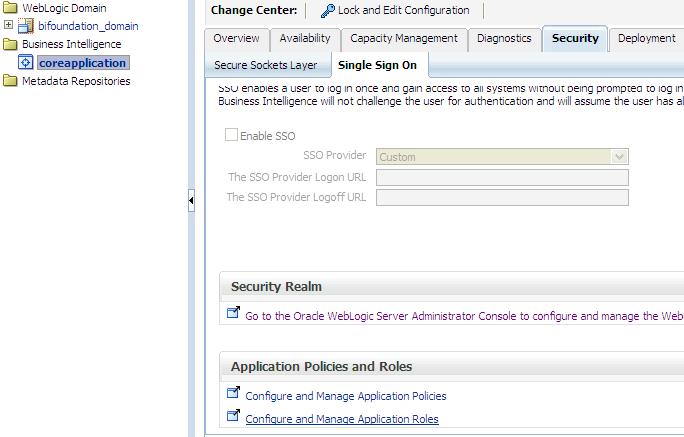
In case you have not yet seen this issue, but would like to know what this is referring to, then … login to the Enterprise Manager – http://yourserver:7001/em and expand Business Intelligence and click on coreapplication.  Then navigate to the Application Roles page using one of the methods below …

Either from:
(1)   the ‘Security’ -> ‘Single Sign On’ tab, select “Configure and Manage Application Roles”

Security-SingleSignOn-ApplicationRoles

(2) or from the coreapplication drop down menu, select Security -> Application Roles

coreapplication_dropdown-Security-ApplicationRoles

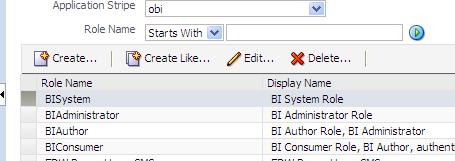
When you get to the Application Roles page, you will notice that the Create button is INACTIVE.

InactiveCreateButton

To activate the button, simply select the drop down for Application Stripe and select <No application stripe selected>, then reselect the appropriate Application Stripe such as obi.

The Create button will now be ACTIVE.  Of course, click the play button to generate the list of Application Roles if necessary.

CreateButtonActive

Setting up Putty to display screens on your desktop for installing or upgrading OBIEE 11g on Linux

When you attempt to run the RCU (Repository Creation Utility) or UA (Upgrade Assistant) scripts from your desktop/laptop using Putty for an OBIEE install or upgrade on a Linux server, you may get the following error …

UPGAST-00107: The DISPLAY environment variable is not set. The graphical user interface (GUI) requires that this environment variable be set on UNIX.

If you get this error, this post may help you to solve it.  You need to do some configuration in Putty.

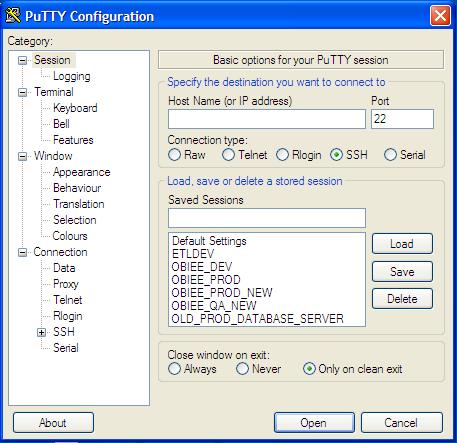
Open Putty.

Displaying_Images_Using_Putty_and_Xming1

Select the server that you want to configure from your list of servers. You will notice that the values get populated into the fields.

Displaying_Images_Using_Putty_and_Xming2

Expand SSH, the select X11.   Then Check “Enable X11 forwarding” checkbox, and enter “localhost:0.0” in the X display location box.

Displaying_Images_Using_Putty_and_Xming4

Do not click open at this point.

Go back up and click on Session in the left menu.

And then Save.

However, before you connect using Putty, you should run Xming.

Start -> All Programs -> Xming -> Xming

[If you do not have Xming, you can download it for free, then install it.]

Displaying_Images_Using_Putty_and_Xming7

Now when you open Putty and connect to your server, you should be able to run the install or upgrade processes and see the wizard screens for each step, for example …

>  ./ua   (run the UA script, then the wizard screen will appear)

SampleScreen_UA_Wizard