Category: Business Intelligence Platform

How to conditionally set Interaction (Action Links) on a column in OBIEE 11g

This post shows an example of how to conditionally set Interaction (Action Links) on a column.

Most times, when you set “Interaction” on a column, you set it for the column under all conditions – this is the default.  However, it is possible to conditionally set “Interaction” on a column – so that the Interaction link is conditionally available.

Let’s look at an example …

You have a pivot table displaying Values by day range as shown below.  Interaction is set on the measure value, and therefore, a user can click on any of the measure values (in any column and any row) to drill/navigate to a more detailed report for example. 

(Note that all the measure values are “blue” indicating that they are hyperlinks allowing navigation to some other BI content).
1-Pivot_with_Interaction_Set_On_Measure_Value

Let’s now assume that you only want to make the Interaction available for the measure values associated with “Value A”.  Therefore, the row in your pivot table associated with “Value A” will have measure values that are clickable (hyperlinks), while the “Value B” row values will not.  In other words, you only want to allow drill down/navigation on “Value A” data.

To do this, from your analysis, edit the column properties, and go to the Interaction tab, and Edit the relevant Action Link.

3-Edit_Action_Link

Change the “Show Link” property from “Always” to “Conditionally”.

4-Show_Link_Conditionally

Then enter the condition(s) in the Conditions box. Such as in our example, we want to show/activate the action link only for “Value A” values.  So, choose the column, and then select “Value A” (and of course, do not select “Value B”).

5-Select_Value_for_Action_LInk

Now when you go back to your report, action links will only be available on the measure values for “Value A” row.

(Note that only the measure values associated with “Value A” are “blue” indicating that they are hyperlinks allowing navigation to some other BI content; while “Value B” values are black indicating that they are not clickable.)

6-After_Setting_Conditionally

You can add more conditions and more complex conditions as necessary. One thought that came to mind … I could even see this being used to conditionally set Action Links based on users – allowing some users to be able to click the action links while others just see the data without being able to click and navigate to other detail.

Changing the maximum number of values in a drop down list in OBIEE 11g – MaxDropDownValues

When you create a prompt that uses a drop down list in OBIEE, the drop down list is limited to 256 values by default.  If your list contains more values and you would like to see more values without having to click the “More” button, or if you would like to show less values, there is a configuration parameter that you can change to increase the number of values shown up to 1000.  You can set it to any value up to 1000, including values less than the default of 256.

To do this, edit the instanceconfig.xml file.  This file is located at …
[$FMW_HOME]/instances/instance1/config/OracleBIPresentationServicesComponent/coreapplication_obips1

Add the MaxDropDownValues parameter to the file.  If you do not already have a Prompts section, add it, and then add MaxDropDownValues between the Prompts tags.  And make sure that all this is between the ServerInstance tags which will already be there in the file.

Your config file will look something like this …

<ServerInstance>


    <Prompts>
        <MaxDropDownValues>1000</MaxDropDownValues> 
    </Prompts>

</ServerInstance>

Setting_MaxDropDownValues_InstanceConfig

After making these changes, you will need to restart BI Presentation Services for them to take effect. Then your drop down list will show up to 1000 (or less) values by default…

DropDownList_ShowingMax

Note: The numbers shown in the screenshot have no meaning whatsoever; they are just randomly generated sample data for example purposes. So, any similarity that they may have to any other number is strictly coincidental.

Weird prompt values in dashboard prompts after upgrade

Have you noticed weird prompt values in your reports after upgrading OBIEE from 10g to 11g?  Below is an example of what you might see …

Weird_Prompt_Values

This is usually caused by calculated columns in the report.  You will need to remove those columns, and then add them back to the report.  And then, depending on what your calculated columns were being used for, you may want to consider using Selection Steps instead to accomplish the same logic.

If you know of another way to fix this scenario, please share.

Creating a new Security Realm in OBIEE 11g

When setting up security in OBIEE 11g, you may modify the default security realm (myrealm) that installs with OBIEE.   But even better, you may create a new security realm and leave the default realm untouched.

My preference is to leave the default realm untouched and create a new realm – this is a best practice in my opinion.  I think it is helpful to always be able to go back and look at the features and settings of the default security realm.  And you can name your new security realm more appropriately, such as, ABCIncSecurityRealm.

The link below (Paul Cannon’s Blog) brings you to a blog post about configuring OBIEE to use LDAP authentication, and the first part of the post covers creating the new security realm.  It is very detailed. I used it the first time I created a new security realm.

http://paulcannon-bi.blogspot.com/2012/07/configuring-ldap-authentication-for.html

Good luck creating your new security realm.

How to collapse or minimize a dashboard section by default in OBIEE

In OBIEE, you can easily set a dashboard section to be “Collapsible” which allows a user to collapse or minimize that section when desired.  By default, when a dashboard page is opened, the sections are maximized or expanded (i.e., not collapsed).

MaximizedExpandedSection

But what if you have a requirement to have a section minimized or collapsed by default?  There is no flag or option to do that.   This post shows you how to make a section minimized / collapsed by default.

I found the solution for making a dashboard section collapse by default here… http://www.orakelite.com/2013/01/iii-javascriptcss-tips-to-obiee-ui.html
However, the author did not include some details which I will cover here.

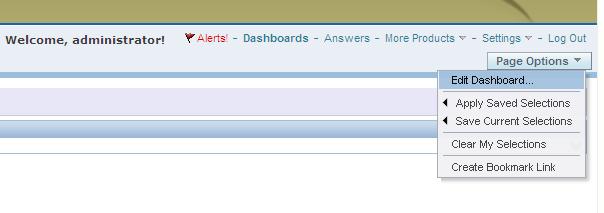
First, you need to make the section collapsible, by simply editing the dashboard…
EditDashboard

… and then setting the “Collapsible” property of the relevant section.
CollapsibleProperty

You will need to add the following Java Script to the section you want to minimize by default.
The text highlighted in the Java Script is the Section ID of the section to be minimized by default. So first you will need to find this Section ID.
——–

var sectionId = “d:dashboard~p:ve9fga7bp3omltnr~s:9qfn1ms6bco9bsva“;
var sectionDiv = document.getElementById(“Embed”+sectionId);
var plusImg = document.getElementById(sectionId+”Max”);
var minusImg = document.getElementById(sectionId+”Min”);
var contentsTable = document.getElementById(sectionId+”Contents”);
minusImg.style.display = “none”;
contentsTable.style.display = “none”;
plusImg.style.display = “”;
sectionDiv.setAttribute(“minimized”, “true”);

——–
To determine the value of the Section ID, you need to go to the dashboard page and from the browser menu, select View –> Source.

Search for the section by name, or just search for the word “section”. This should help you to identify what Section ID is related to the section you are interested in. (In example below, the black arrow points to the SECTION ID, and the red arrow points to the user given section name that can be used to search. )

SectionName

Use your Section ID in the Java Script code above.

Place the Java Script code in a “Text” dashboard object inside the section you want to control.

MinimizeSectionJavaScript 

Save your dashboard page changes.

Now when you reopen the dashboard page, the section will be minimized / collapsed by default.

CollapsedSection

Direct Links to various OBIEE User and Administration Presentation functions

These are some direct links to various OBIEE User and Administration functions.  These can be useful to know for efficiency and at times can also be useful for debugging security.

To go directly to “Home Page”
http://servername:9704/analytics/saw.dll?bieehome

To go directly to “Dashboard”
http://servername:9704/analytics/saw.dll?Dashboard

To go directly to “Manage Privileges”
http://servername:9704/analytics/saw.dll?PrivilegeAdmin

To go directly to “Manage Catalog Groups”
http://servername:9704/analytics/saw.dll?ManageGroups

To go directly to “Manage Sessions”
http://servername:9704/analytics/saw.dll?Sessions

To go directly to “Manage Agent Sessions”
http://servername:9704/analytics/saw.dll?ManageIBotSessions

To go directly to “Issue SQL”
http://servername:9704/analytics/saw.dll?IssueRawSQL&Done=%2fanalytics%2fsaw.dll%3fAdmin

To go directly to “Manage Map Data”
http://servername:9704/analytics/saw.dll?ManageMapData

To go directly to “Manage BI Publisher”
http://servername:9704/analytics/saw.dll?bipublisherEntry&Done=%2fanalytics%2fsaw.dll%3fAdmin&Action=admin

How to run Catalog Manager in GUI mode from the Linux Server

OBIEE Catalog Manager can be accessed from a client tool on Windows or from a server side process.  There are times when it is required that you run the Catalog Manager in offline mode, and at those times you will be required to run it on the server.

Although there is a command line option for Catalog Manager, it is easier to work with it in a Graphical User Interface (GUI) mode and at times its necessary to use that mode.

Start Xming (or another X-Windows type tool) on your local PC or laptop. [This will allow the Linux screens to show up on your desktop when you run the shell script on the Linux server]

For more on Xming, visit http://en.wikipedia.org/wiki/Xming

Connect to your Linux server from your desktop/laptop using Putty (or other tool).   Then go to the catalog manager directory:

cd [$FMW_HOME]/instances/instance1/bifoundation/OracleBIPresentationServicesComponent/coreapplication_obips1/catalogmanager

runcat-start-catalogmanager

Start up Catalog Manager by running:    ./runcat.sh

This will start Catalog Manager, and it will be running on the Linux server, but the screens will be showing on your desktop/laptop.

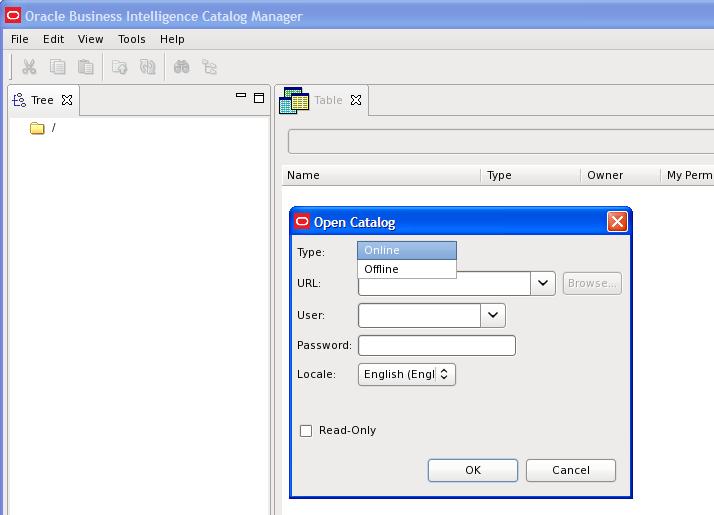
From the main Catalog Manager window, you can then click on File –>Open Catalog

catalogmanager_interface

And then select the Type based on how you want to connect – Online or Offline mode.  Accessing Catalog Manager in this way is most likely needed when you need to connect in Online mode.

And then of course, you need to enter the URL – which is the full path to the catalog, for example:[$FMW_HOME]/instances/instance1/bifoundation/OracleBIPresentationServicesComponent/coreapplication_obips1/catalog/default

And enter the User and Password.

catalogmanager_onlineoffline_login

Assuming everything was entered correctly, you will be connected to the catalog.  You can then use the interface to browse the catalog and perform other tasks on catalog objects.

catalogmanager_browsing

Good luck!

User having inconsistent login issues or user taking a long time to login or authenticate in OBIEE 11g

If you are using Active Directory for authentication for your OBIEE system, and are experiencing situations where some users are taking a long time to authenticate/login, then this post might be helpful.  This could also be useful for configuring LDAP systems other than Active Directory, but I cannot say for sure.

What could potentially be happening to users experiencing the problem is … they belong to Active Directory groups (or LDAP groups) with deep hierarchies, and the system has to traverse all those hierarchies to retrieve all their LDAP information which ends up taking quite a bit of time.  A possible solution is to limit the number of LDAP levels that will be searched/traversed to get the users Groups information.

Login to WebLogic Administration Console (aka WLS or Admin Console), then click on “Security Realms” on the left, and then click the name of the realm that you use for security (for example, “myrealm”).

WLS_SecurityRealm

Click the Providers tab.   And then click the name of your Active Directory provider.

WLS_SecurityProviders

Then select the Provider Specific tab.

ProviderSpecificSettings

Scroll down to the section titled “Groups”.

ProviderSpecific_Groups_parameters

Change the Group Membership Searching setting from unlimited to limited.

And then set Max Group Membership Search Level – change it from 0 (no limit) to 1 (or to the smallest number necessary for your environment).

This will prevent long searches for those users that are in many groups with deep hierarchies (such as groups within groups within groups and so on). This could cut the search time tremendously, thereby reducing the authentication time and preventing login timeouts.

Good luck!

Informatica Transformations Frequently used in OBIA

These are some of the Informatica transformations that are frequently used in Oracle Business Intelligence Applications (OBIA).  The OBIA SDE and SIL mappings used to load the Oracle Business Analytics Warehouse (OBAW) are built using these and other transformations.

1. Source Qualifier
The Source Qualifier transformation is used to bring data from one or more tables from the same source into the mapping.  If being used for more than one table, then a join condition needs to be defined between the tables.  The typical naming convention for a Source Qualifier transformation is SQ_* or sq_*.

2. Joiner
The Joiner transformation is used to join tables in different data sources.  The typical naming convention for a Joiner transformation is JNR_* or jnr_*.

3. Expression
The Expression transformation is used to perform simple row-based calculations or derivations.  The typical naming convention for an Expression transformation is EXP_* or exp_*.

4. Filter
The Filter transformation is similar to a where clause in SQL – it adds a conditional filter to the data passing through the mapping.  The typical naming convention for a Filter transformation is FIL_* or fil_*.

5. Aggregator
The Aggregator transformation is used to perform aggregate calculations on the data passing through the mapping, for example, performing a sum or max.  The typical naming convention for an Aggregator transformation is AGG_* or agg_*.

6. Lookup
The Lookup transformation is used to lookup values based on another known/submitted value, and pass the looked up value into the mapping.  There are 2 types of Lookups – connected and unconnected.  The typical naming convention for a Lookup transformation is LKP_* or lkp_*.

7. Update Strategy
The Update Strategy transformation is used to determine and perform the appropriate course of action for data in the mapping.  Based on the determined state of the data, the transformation is used to insert, update, delete or reject records.  The typical naming convention for an Update Strategy transformation is UPD_* or upd_*.

OBIEE 11g config and log file locations

These are some key log files and config files in OBIEE 11g. These might be frequently accessed for debugging and checking current parameter settings.

bi_server1.log  &  bi_server1-diagnostic.log
(bi_server1.out  &  access.log are also captured in this directory)
[$FMW_HOME]/user_projects/domains/bifoundation_domain/servers/bi_server1/logs

nqserver.log    &    nqquery.log
[$FMW_HOME]/instances/instance1/diagnostics/logs/OracleBIServerComponent/coreapplication_obis1

sawlog.log
[$FMW_HOME]/instances/instance1/diagnostics/logs/OracleBIPresentationServicesComponent/coreapplication_obips1

NQSConfig.INI   &  DBFeatures.INI
[$FMW_HOME]/instances/instance1/config/OracleBIServerComponent/coreapplication_obis1

instanceconfig.xml      &     credentialstore.xml
[$FMW_HOME]/instances/instance1/config/OracleBIPresentationServicesComponent/coreapplication_obips1

config.xml
[$FMW_HOME]/user_projects/domains/bifoundation_domain/config

system-jazn-data.xml
[$FMW_HOME]/user_projects/domains/bifoundation_domain/config/fmwconfig