Category: Business Intelligence (BI) Development

Disallow online RPD updates in OBIEE

You may want to disable online updates on your OBIEE RPD for performance reasons or because you have a specific development process that prohibits online updates.

To disallow online RPD updates, do the following:
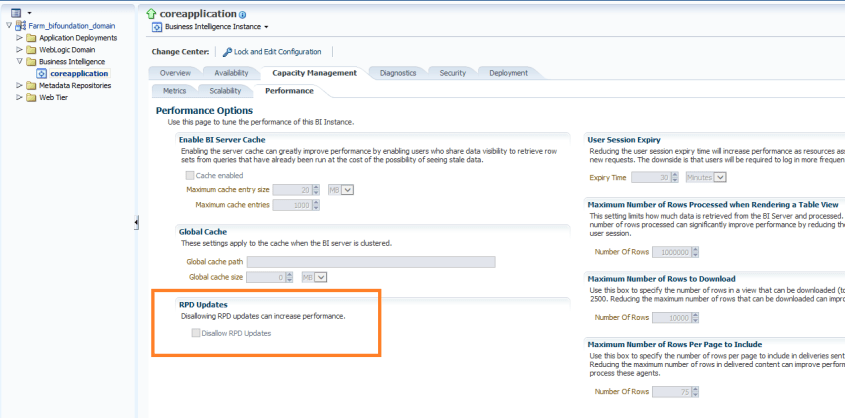
Log into Enterprise Manager. Navigate the tree menu to Business Intelligence -> coreapplication.  Click tabs “Capacity Management”, and “Performance”.

Under the RPD Updates section, check the box for “Disallow RPD updates”.

disallowRPD_updates

This will prevent online RPD updates for all.

If you want to allow a select group of people to have access to perform online updates, such as a lead developer or administrator, then don’t do the above, but instead provide Administrator role to those that should have the access, and remove it from those that should not (and give them BI Author role for example instead).


“The connection has failed” Error when trying to Import Metadata into OBIEE

If you get the error “The connection has failed” when you try to Import Metadata into the RPD, this post may help you to resolve it.

The solution is to: Create an Environment Variable called TNS_ADMIN and set its value to the directory of your tnsnames.ora file.
The TNS_ADMIN variable tells Oracle Client where to find the tnsnames.ora file which contains your data source details.

In case you need the details:
Click the Windows Start menu –> Right-Click on Computer –> select Properties
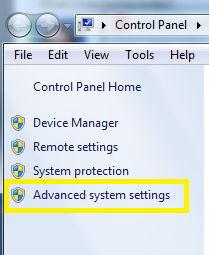
Then click on “Advanced system settings” on the left.
Advanced_System_Settings

Click the “Environment Variables” button.
Then in the Environment Variables window, click New.
Enter the details for the TNS_ADMIN variable.  The value needs to be the path to your tnsnames.ora file, typically located at [ORACLE_HOME]networkadmin. The path will look something like the value shown below (it depends on where Oracle is installed on your system).
TNS_ADMIN_Environment_Variable

 Hope this helps.

Weird prompt values in dashboard prompts after upgrade

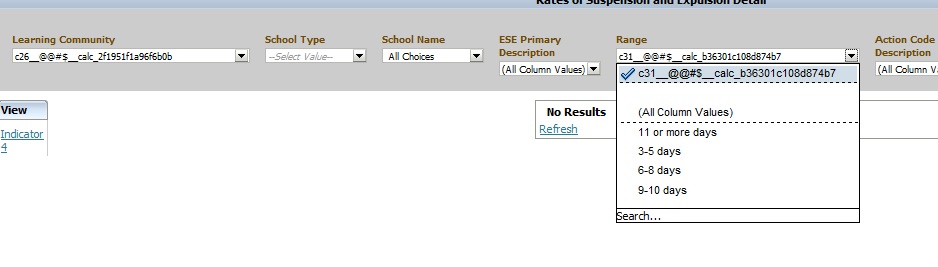
Have you noticed weird prompt values in your reports after upgrading OBIEE from 10g to 11g?  Below is an example of what you might see …

Weird_Prompt_Values

This is usually caused by calculated columns in the report.  You will need to remove those columns, and then add them back to the report.  And then, depending on what your calculated columns were being used for, you may want to consider using Selection Steps instead to accomplish the same logic.

If you know of another way to fix this scenario, please share.

How to collapse or minimize a dashboard section by default in OBIEE

In OBIEE, you can easily set a dashboard section to be “Collapsible” which allows a user to collapse or minimize that section when desired.  By default, when a dashboard page is opened, the sections are maximized or expanded (i.e., not collapsed).
MaximizedExpandedSection

But what if you have a requirement to have a section minimized or collapsed by default?  There is no flag or option to do that.   This post shows you how to make a section minimized / collapsed by default.

I found the solution for making a dashboard section collapse by default here… http://www.orakelite.com/2013/01/iii-javascriptcss-tips-to-obiee-ui.html
However, the author did not include some details which I will cover here.

First, you need to make the section collapsible, by simply editing the dashboard…
EditDashboard

… and then setting the “Collapsible” property of the relevant section.
CollapsibleProperty

You will need to add the following Java Script to the section you want to minimize by default.
The text highlighted in the Java Script is the Section ID of the section to be minimized by default. So first you will need to find this Section ID.
——–

var sectionId = “d:dashboard~p:ve9fga7bp3omltnr~s:9qfn1ms6bco9bsva“;
var sectionDiv = document.getElementById(“Embed”+sectionId);
var plusImg = document.getElementById(sectionId+”Max”);
var minusImg = document.getElementById(sectionId+”Min”);
var contentsTable = document.getElementById(sectionId+”Contents”);
minusImg.style.display = “none”;
contentsTable.style.display = “none”;
plusImg.style.display = “”;
sectionDiv.setAttribute(“minimized”, “true”);

——–
To determine the value of the Section ID, you need to go to the dashboard page and from the browser menu, select View –> Source.

Search for the section by name, or just search for the word “section”. This should help you to identify what Section ID is related to the section you are interested in. (In example below, the black arrow points to the SECTION ID, and the red arrow points to the user given section name that can be used to search. )

SectionName

Use your Section ID in the Java Script code above.

Place the Java Script code in a “Text” dashboard object inside the section you want to control.

MinimizeSectionJavaScript 

Save your dashboard page changes.

Now when you reopen the dashboard page, the section will be minimized / collapsed by default.

CollapsedSection

How to run Catalog Manager in GUI mode from the Linux Server

OBIEE Catalog Manager can be accessed from a client tool on Windows or from a server side process.  There are times when it is required that you run the Catalog Manager in offline mode, and at those times you will be required to run it on the server.

Although there is a command line option for Catalog Manager, it is easier to work with it in a Graphical User Interface (GUI) mode and at times its necessary to use that mode.

Start Xming (or another X-Windows type tool) on your local PC or laptop. [This will allow the Linux screens to show up on your desktop when you run the shell script on the Linux server]

For more on Xming, visit http://en.wikipedia.org/wiki/Xming

Connect to your Linux server from your desktop/laptop using Putty (or other tool).   Then go to the catalog manager directory:

cd [$FMW_HOME]/instances/instance1/bifoundation/OracleBIPresentationServicesComponent/coreapplication_obips1/catalogmanager

runcat-start-catalogmanager

Start up Catalog Manager by running:    ./runcat.sh

This will start Catalog Manager, and it will be running on the Linux server, but the screens will be showing on your desktop/laptop.

From the main Catalog Manager window, you can then click on File –>Open Catalog

catalogmanager_interface

And then select the Type based on how you want to connect – Online or Offline mode.  Accessing Catalog Manager in this way is most likely needed when you need to connect in Online mode.

And then of course, you need to enter the URL – which is the full path to the catalog, for example:[$FMW_HOME]/instances/instance1/bifoundation/OracleBIPresentationServicesComponent/coreapplication_obips1/catalog/default

And enter the User and Password.

catalogmanager_onlineoffline_login

Assuming everything was entered correctly, you will be connected to the catalog.  You can then use the interface to browse the catalog and perform other tasks on catalog objects.

catalogmanager_browsing

Good luck!

Informatica Transformations Frequently used in OBIA

These are some of the Informatica transformations that are frequently used in Oracle Business Intelligence Applications (OBIA).  The OBIA SDE and SIL mappings used to load the Oracle Business Analytics Warehouse (OBAW) are built using these and other transformations.

1. Source Qualifier
The Source Qualifier transformation is used to bring data from one or more tables from the same source into the mapping.  If being used for more than one table, then a join condition needs to be defined between the tables.  The typical naming convention for a Source Qualifier transformation is SQ_* or sq_*.

2. Joiner
The Joiner transformation is used to join tables in different data sources.  The typical naming convention for a Joiner transformation is JNR_* or jnr_*.

3. Expression
The Expression transformation is used to perform simple row-based calculations or derivations.  The typical naming convention for an Expression transformation is EXP_* or exp_*.

4. Filter
The Filter transformation is similar to a where clause in SQL – it adds a conditional filter to the data passing through the mapping.  The typical naming convention for a Filter transformation is FIL_* or fil_*.

5. Aggregator
The Aggregator transformation is used to perform aggregate calculations on the data passing through the mapping, for example, performing a sum or max.  The typical naming convention for an Aggregator transformation is AGG_* or agg_*.

6. Lookup
The Lookup transformation is used to lookup values based on another known/submitted value, and pass the looked up value into the mapping.  There are 2 types of Lookups – connected and unconnected.  The typical naming convention for a Lookup transformation is LKP_* or lkp_*.

7. Update Strategy
The Update Strategy transformation is used to determine and perform the appropriate course of action for data in the mapping.  Based on the determined state of the data, the transformation is used to insert, update, delete or reject records.  The typical naming convention for an Update Strategy transformation is UPD_* or upd_*.

Windows command to find equivalent directory name without space

You may occasionally run into an issue with OBIEE where it cannot locate the Java directories or files.  This is usually because Java has been installed in its default location under “C:Program Files…”.  This post may be helpful in resolving this issue.

At times, some OBIEE processes or programs do not like the spaces in directory or file names.  So, for example, you may get an error because the program does not locate the files under the “C:Program Files…” directory (due to the space in the name).

To resolve this, you will need to update the necessary Environment Variables to use the no-space equivalent of the windows directory.  To find the equivalent no-space name,  from your windows command prompt, go to the relevant directory (for example … cd C:) and enter … dir /X (as shown below).

dirX

Notice to the left of the regular directory name, there is another no-space name.  For example, “Program Files” has a no-space equivalent of PROGRA~1.

Now update all the relevant OBIEE related Environment Variables to use this no-space name instead of the regular name (see example below).

envvar

Oracle E-Business Suite (EBS) Foundation Tables

This post is simply a list of Oracle E-Business Suite (EBS) Foundation tables. The Foundation tables contain data that relate to the entire suite of applications – they are not specific to any one module.

Some foundation tables are used in Oracle BI Applications (OBIA), for example, the FND_USER, FND_USER_RESP_GROUPS, and FND_RESPONSIBILITY_VL tables are used in security-related Initialization Blocks.

In general, it’s good to be familiar with these tables when working on OBIEE projects or any BI platform with EBS as a source system.

Foundation Table Purpose
FND_APPLICATION Stores applications registered with Oracle Application Object Library.
FND_APPLICATION_TL Stores translated information about all the applications registered with Oracle Application Object Library.
FND_APP_SERVERS This table will track the servers used by the E-Business Suite system.
FND_ATTACHED_DOCUMENTS Stores information relating a document to an application entity.
FND_CONCURRENT_PROCESSES Stores information about concurrent managers.
FND_CONCURRENT_PROCESSORS Stores information about immediate (subroutine) concurrent program libraries.
FND_CONCURRENT_PROGRAMS Stores information about concurrent programs. Each row includes a name and description of the concurrent program.
FND_CONCURRENT_PROGRAMS_TL Stores translated information about concurrent programs in each of the installed languages.
FND_CONCURRENT_QUEUES Stores information about concurrent managers.
FND_CONCURRENT_QUEUE_SIZE Stores information about the number of requests a concurrent manager can process at once, according to its work shift.
FND_CONCURRENT_REQUESTS Stores information about individual concurrent requests.
FND_CONCURRENT_REQUEST_CLASS Stores information about concurrent request types.
FND_CONC_REQ_OUTPUTS This table stores output files created by Concurrent Request.
FND_CURRENCIES Stores information about currencies.
FND_DATABASES It tracks the databases employed by the eBusiness suite. This table stores information about the database that is not instance specific.
FND_DATABASE_INSTANCES Stores instance specific information. Every database has one or more instance.
FND_DESCRIPTIVE_FLEXS Stores setup information about descriptive flexfields.
FND_DESCRIPTIVE_FLEXS_TL Stores translated setup information about descriptive flexfields.
FND_DOCUMENTS Stores language-independent information about a document.
FND_EXECUTABLES Stores information about concurrent program executables.
FND_FLEX_VALUES Stores valid values for key and descriptive flexfield segments.
FND_FLEX_VALUE_SETS Stores information about the value sets used by both key and descriptive flexfields.
FND_LANGUAGES Stores information regarding languages and dialects.
FND_MENUS It lists the menus that appear in the Navigate Window, as determined by the System Administrator when defining responsibilities for function security.
FND_MENUS_TL Stores translated information about the menus in FND_MENUS.
FND_MENU_ENTRIES Stores information about individual entries in the menus in FND_MENUS.
FND_PROFILE_OPTIONS Stores information about user profile options.
FND_REQUEST_GROUPS Stores information about report security groups.
FND_REQUEST_SETS Stores information about report sets.
FND_RESPONSIBILITY Stores information about responsibilities. Each row includes the name and description of the responsibility, the application it belongs to, and values that identify the main menu, and the first form that it uses.
FND_RESPONSIBILITY_TL Stores translated information about responsibilities.
FND_RESP_FUNCTIONS Stores security exclusion rules for function security menus. Security exclusion rules are lists of functions and menus inaccessible to a particular responsibility.
FND_SECURITY_GROUPS Stores information about security groups used to partition data in a Service Bureau architecture.
FND_SEQUENCES Stores information about the registered sequences in your applications.
FND_TABLES Stores information about the registered tables in your applications.
FND_TERRITORIES Stores information for countries, alternatively known as territories.
FND_USER Stores information about application users.
FND_VIEWS Stores information about the registered views in your applications.
FND_USER_RESPONSIBILITY
FND_RESPONSIBILITY_VL
FND_ORACLE_USERID
FND_DATA_GROUP_UNITS

Oracle E-Business Suite (EBS) List of Flexfields

This post is simply a table listing of the Key Flexfields (KFFs) in Oracle E-Business Suite (EBS) (aka Oracle Applications). The table contains the flexfields, along with their Code, Owning Application and base table. 

Flexfields are commonly used in OBIEE reporting for EBS source systems. Flexfields are also an integral part of the Oracle Business Analytics Warehouse (OBAW) data model. It is worthwhile to be familiar with them.

  Name Code Owning Application Table Name
1 Account Aliases MDSP Oracle Inventory MTL_GENERIC_DISPOSITIONS
2 Accounting Flexfield GL# Oracle General Ledger GL_CODE_COMBINATIONS
3 Activity Flexfield FEAC Enterprise Performance Foundation  
4 AHL Route AHLR Complex Maintenance, Repair, and Overhaul  
5 Asset Key Flexfield KEY# Oracle Assets FA_ASSET_KEYWORDS
6 Bank Details KeyFlexField BANK Oracle Payroll PAY_EXTERNAL_ACCOUNTS
7 CAGR Flexfield CAGR Oracle Human Resources  
8 Category Flexfield CAT# Oracle Assets FA_CATEGORIES
9 Competence Flexfield CMP Oracle Human Resources  
10 Cost Allocation Flexfield COST Oracle Payroll PAY_COST_ALLOCATION_KEYFLEX
11 Grade Flexfield GRD Oracle Human Resources PER_GRADE_DEFINITIONS
12 Item Catalogs MICG Oracle Inventory MTL_ITEM_CATALOG_GROUPS
13 Item Categories MCAT Oracle Inventory MTL_CATEGORIES
14 Job Flexfield JOB Oracle Human Resources PER_JOB_DEFINITIONS
15 Location Flexfield LOC# Oracle Assets FA_LOCATIONS
16 Oracle Service Item Flexfield SERV Oracle Inventory MTL_SYSTEM_ITEMS
17 People Group Flexfield GRP Oracle Payroll PAY_PEOPLE_GROUPS
18 Personal Analysis Flexfield PEA Oracle Human Resources PER_ANALYSIS_CRITERIA
19 Position Flexfield POS Oracle Human Resources PER_POSITION_DEFINITIONS
20 Public Sector Budgeting BPS Oracle Public Sector Budgeting  
21 Sales Orders MKTS Oracle Inventory SALES_ORDER_ID
22 Sales Tax Location Flexfield RLOC Oracle Receivables AR_LOCATION_COMBINATIONS
23 Soft Coded KeyFlexfield SCL Oracle Human Resources HR_SOFT_CODING_KEYFLEX
24 Stock Locators MTLL Oracle Inventory MTL_ITEM_LOCATIONS
25 System Items MSTK Oracle Inventory MTL_SYSTEM_ITEMS
26 Territory Flexfield CT# Oracle Receivables RA_TERRITORIES
27 Training Resources RES Oracle Learning Management  

OBIEE Repository (rpd) development tips

A few tips on BI Repository (RPD) Development …

Physical Layer

  • Import metadata when possible, instead of creating it manually
  • Only import objects that you need or forsee you may need in the near future
  • Import Tables, Keys, and Foreign Keys – which is the default option
  • Create Aliases of Physical Tables – to eliminate unwanted joins and to satisfy any naming conventions you may have chosen
  • Use the Physical diagram to configure joins
  • Create all relevant joins in a star-schema / dimensional model

BMM Layer

  • Use terminology that users are familiar with – words of the business instead of technical physical table and column names
  • Use the Rename Wizard to rename most of your logical objects when possible (this can save you a lot of time)
  • Delete unnecessary objects from your BMM layer
  • Create derived columns for calculations that you forsee using in multiple reports/presentation areas

Presentation Layer

  • Only move the columns you need users to see and work with to your Presentation Layer
  • Rename objects to match the language of the business and ensure that the meaning is very clear
  • Organize your presentation columns in a logical/meaningful order – for example, in a hierarchical order or alphabetic order such as Product Category, Product sub-category, Product -or- Region, Country, State, City, Zip

General

  • Check Global Consistency & resolve warnings and errors
  • Disable caching during development & testing
  • Verify your design by checking the SQL generated and sent to the database