Category: BI Administration

Unable to save analysis with HTML markup in OAS after upgrade from OBIEE

We recently upgraded from OBIEE 12 to OAS 5.5. (Oracle Business Intelligence to Oracle Analytics Server). After the upgrade, we were not able to save analyses that contained HTML markup. We were able to do this before the upgrade.

Turns out, the configuration parameter for this now needs to be set in the new analytics/systemsettings page. Go to that page and enable the option “Allow HTML Content”. Then restart by clicking on the Restart button on that page.

After a restart, it resolved the issue for us.

If this doesn’t resolve it for you, you may need to remove the parameter from the instance config file and try again.

Back up your instanceconfig.xml file. Then edit it by removing the element “EnableSavingContentWithHTML” from the Security section and save the file. You will be removing a line that looks something like this:

“<EnableSavingContentWithHTML>true</EnableSavingContentWithHTML>”

Then go back to the analytics/systemsettings page, confirm “Allow HTML Content” is enabled, and restart again. This hopefully should resolve your issue.

OBIEE Agent sending emails to the wrong recipients

We recently ran into an issue where we had an OBI Agent setup to send personalized reports via email to each recipient but some recipients (about 2%) were receiving the wrong email.

A search of Oracle Support produced Document ID # 2119485.1 as a possible solution.

“OBIEE 11g|12c: Agents Send Emails To Incorrect Recipients When Master Trigger Agent Is Present (Doc ID 2119485.1)”

This document recommended applying patch #s 22821787 and 25545058.

However, we are on OBIEE 12c (12.2.1.2.0) and one of the patches seemed to be for 11g only.

  • Patch # 25545058 seemed to be for 11g only.
  • Patch # 22821787 was for both 11g and 12c versions.

We applied patch # 22821787, but unfortunately, the issue persisted.

After looking around some more, we realized there was another patch but for the 12.2.1.2.180116 release (found in Document ID # 2395331.1). It didn’t match our version, but we decided to explore it anyway.

“OBIEE 12c : Agent Sending The Incorrect Result (Doc ID 2395331.1)”

That was patch # 27072632 but it turns out that patch was superseded by patch # 27916905.

Our admin team tried to apply patch # 27916905, but it had a conflict with the initial patch # 22821787.

We then backed out patch # 22821787 and applied the bundle patch 27916905.

The patch # 27916905 seems to have resolved the “email going to wrong recipients” issue.  Since we applied it, no user has reported they received the wrong email. However, we are not yet 100% sure.

However, we are noticing that some images are not displaying properly which may have been caused by the patch. We are looking into that issue now.

I went through the detailed description of how the patches were found to let you realize that on the Oracle Support site, you may need to do a very thorough search to find any and all patches related to an issue before applying any. The documentation does not necessarily tie them together or they won’t necessarily come up in when you search on the keywords. Note: Before any of the above changes were made, backups were taken so that we could revert to any stage that we wanted to.

BI Application getting ORA-00257 Error

One day this week, we got the following error showing up on our BI dashboards.
“ORA-00257: Archiver error. Connect AS SYSDBA only until resolved.”
This is an Oracle database error (which you may guess based on the “ORA”), and not an error directly from BI application.

If you get this error, it means that the database redo logs are filled up, and cannot be archived due to lack of space on the designated archive area or some other issue. In our case, the “some other issue” was caused by some issues with “commvault”, a software application used for data backup and recovery, among other things.

When this happens, if a user tries to connect to the database, such as the BI Application user in our case, the database will not allow the new connection. The only exception is SYSDBA users will be allowed to connect.

If you are not the database administrator (DBA), you will most likely work with your DBA (as we do) to get this error resolved.
After the issue that caused the problem is resolved and the redo logs are cleared, then the database, and therefore the BI application, will allow new connections as normal.

Thanks for reading and I hope you found this helpful.

“The connection has failed” Error when trying to Import Metadata into OBIEE

If you get the error “The connection has failed” when you try to Import Metadata into the RPD, this post may help you to resolve it.

The solution is to: Create an Environment Variable called TNS_ADMIN and set its value to the directory of your tnsnames.ora file.
The TNS_ADMIN variable tells Oracle Client where to find the tnsnames.ora file which contains your data source details.

In case you need the details:
Click the Windows Start menu –> Right-Click on Computer –> select Properties
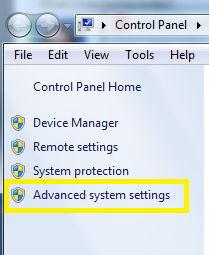
Then click on “Advanced system settings” on the left.
Advanced_System_Settings

Click the “Environment Variables” button.
Then in the Environment Variables window, click New.
Enter the details for the TNS_ADMIN variable.  The value needs to be the path to your tnsnames.ora file, typically located at [ORACLE_HOME]networkadmin. The path will look something like the value shown below (it depends on where Oracle is installed on your system).
TNS_ADMIN_Environment_Variable

 Hope this helps.

WebLogic startup failure – BackendRoot cannot cast to BackendStandard

My colleague from a previous company contacted me recently to help with a problem. OBIEE was not starting up.  They had a power failure the night before, and then OBIEE would not start up.  The system is OBIEE 11g on Linux.

This is the error that was generated when trying to start the WebLogic Admin Server…

——-

<Mar 28, 2014 9:11:35 AM EDT> <Critical> <WebLogicServer> <BEA-000362> <Server failed. Reason: There are 1 nested errors: java.lang.ClassCastException: com.octetstring.vde.backend.BackendRoot cannot be cast to com.octetstring.vde.backend.standard.BackendStandard         at weblogic.ldap.EmbeddedLDAP.start(EmbeddedLDAP.java:303)         at weblogic.t3.srvr.SubsystemRequest.run(SubsystemRequest.java:64)         at weblogic.work.ExecuteThread.execute(ExecuteThread.java:209)         at weblogic.work.ExecuteThread.run(ExecuteThread.java:178) > < Mar 28, 2014 9:11:35 AM EDT> <Notice> <WebLogicServer> <BEA-000365> <Server state changed to FAILED> < Mar 28, 2014 9:11:35 AM EDT> <Error> <WebLogicServer> <BEA-000383> <A critical service failed. The server will shut itself down> < Mar 28, 2014 9:11:35 AM EDT> <Notice> <WebLogicServer> <BEA-000365> <Server state changed to FORCE_SHUTTING_DOWN>

——– 

After trying a few things that did not resolve the issue, an online search helped with the solution. This post was very helpful: https://community.oracle.com/thread/2285489?tstart=0

After reading through the post, we went to the below directory on the OBIEE server (Linux) and examined its contents:

$MIDDLEWARE_HOME/user_projects/domains/bifoundation_domain/servers/AdminServer/data/ldap/ldapfiles

[oracle@[SERVERNAME]]$ cd /u01/product/middleware/user_projects/domains/bifoundation_domain/servers/AdminServer/data/ldap/ldapfiles [oracle@aeledwpbi ldapfiles]$ ls -l total 11308

-rw-r—– 1 oracle oinstall 10071624 Mar 27 08:40 changelog.data
-rw-r—– 1 oracle oinstall    56940 Mar 27 08:40 changelog.index
-rw-r—– 1 oracle oinstall   804359 Mar 27 08:40 EmbeddedLDAP.data
-rw-r—– 1 oracle oinstall     2028 Jun 25  2013 EmbeddedLDAP.delete
-rw-r—– 1 oracle oinstall     3576 Jun 25  2013 EmbeddedLDAP.index
-rw-r—– 1 oracle oinstall        0 Mar 28 12:36 EmbeddedLDAP.lok
-rw-r—– 1 root   root       615242 Mar 27 08:40 EmbeddedLDAP.tran
-rw-r—– 1 oracle oinstall        8 Mar 27 08:40 EmbeddedLDAP.trpos
-rw-r—– 1 oracle oinstall        8 Mar 27 08:40 EmbeddedLDAP.twpos

Note how one of the files (EmbeddedLDAP.tran) is owned by “root”. It seems the power outage caused something unusual to happen resulting in “root” being assigned ownership of the file.

After having the system administrator change the owner from “root” to “oracle” (the OBIEE admin user), we were able to start the OBIEE system back up.

Changing the maximum number of values in a drop down list in OBIEE 11g – MaxDropDownValues

When you create a prompt that uses a drop down list in OBIEE, the drop down list is limited to 256 values by default.  If your list contains more values and you would like to see more values without having to click the “More” button, or if you would like to show less values, there is a configuration parameter that you can change to increase the number of values shown up to 1000.  You can set it to any value up to 1000, including values less than the default of 256.

To do this, edit the instanceconfig.xml file.  This file is located at …
[$FMW_HOME]/instances/instance1/config/OracleBIPresentationServicesComponent/coreapplication_obips1

Add the MaxDropDownValues parameter to the file.  If you do not already have a Prompts section, add it, and then add MaxDropDownValues between the Prompts tags.  And make sure that all this is between the ServerInstance tags which will already be there in the file.

Your config file will look something like this …

<ServerInstance>


    <Prompts>
        <MaxDropDownValues>1000</MaxDropDownValues> 
    </Prompts>

</ServerInstance>

Setting_MaxDropDownValues_InstanceConfig

After making these changes, you will need to restart BI Presentation Services for them to take effect. Then your drop down list will show up to 1000 (or less) values by default…

DropDownList_ShowingMax

Note: The numbers shown in the screenshot have no meaning whatsoever; they are just randomly generated sample data for example purposes. So, any similarity that they may have to any other number is strictly coincidental.

Direct Links to various OBIEE User and Administration Presentation functions

These are some direct links to various OBIEE User and Administration functions.  These can be useful to know for efficiency and at times can also be useful for debugging security.

To go directly to “Home Page”
http://servername:9704/analytics/saw.dll?bieehome

To go directly to “Dashboard”
http://servername:9704/analytics/saw.dll?Dashboard

To go directly to “Manage Privileges”
http://servername:9704/analytics/saw.dll?PrivilegeAdmin

To go directly to “Manage Catalog Groups”
http://servername:9704/analytics/saw.dll?ManageGroups

To go directly to “Manage Sessions”
http://servername:9704/analytics/saw.dll?Sessions

To go directly to “Manage Agent Sessions”
http://servername:9704/analytics/saw.dll?ManageIBotSessions

To go directly to “Issue SQL”
http://servername:9704/analytics/saw.dll?IssueRawSQL&Done=%2fanalytics%2fsaw.dll%3fAdmin

To go directly to “Manage Map Data”
http://servername:9704/analytics/saw.dll?ManageMapData

To go directly to “Manage BI Publisher”
http://servername:9704/analytics/saw.dll?bipublisherEntry&Done=%2fanalytics%2fsaw.dll%3fAdmin&Action=admin

How to run Catalog Manager in GUI mode from the Linux Server

OBIEE Catalog Manager can be accessed from a client tool on Windows or from a server side process.  There are times when it is required that you run the Catalog Manager in offline mode, and at those times you will be required to run it on the server.

Although there is a command line option for Catalog Manager, it is easier to work with it in a Graphical User Interface (GUI) mode and at times its necessary to use that mode.

Start Xming (or another X-Windows type tool) on your local PC or laptop. [This will allow the Linux screens to show up on your desktop when you run the shell script on the Linux server]

For more on Xming, visit http://en.wikipedia.org/wiki/Xming

Connect to your Linux server from your desktop/laptop using Putty (or other tool).   Then go to the catalog manager directory:

cd [$FMW_HOME]/instances/instance1/bifoundation/OracleBIPresentationServicesComponent/coreapplication_obips1/catalogmanager

runcat-start-catalogmanager

Start up Catalog Manager by running:    ./runcat.sh

This will start Catalog Manager, and it will be running on the Linux server, but the screens will be showing on your desktop/laptop.

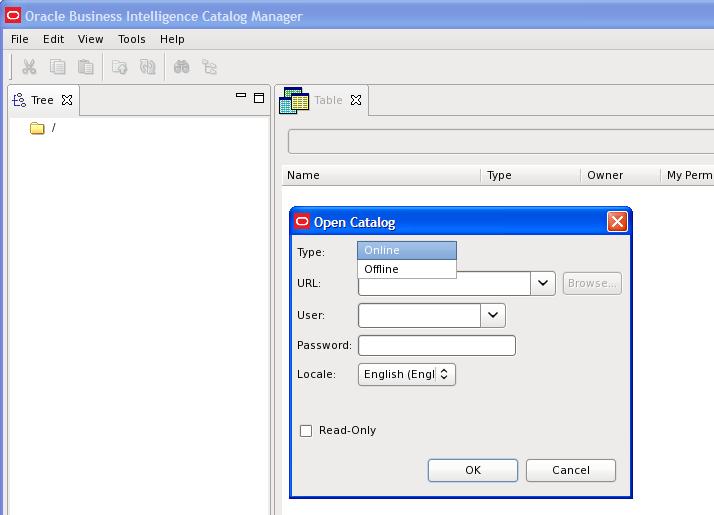
From the main Catalog Manager window, you can then click on File –>Open Catalog

catalogmanager_interface

And then select the Type based on how you want to connect – Online or Offline mode.  Accessing Catalog Manager in this way is most likely needed when you need to connect in Online mode.

And then of course, you need to enter the URL – which is the full path to the catalog, for example:[$FMW_HOME]/instances/instance1/bifoundation/OracleBIPresentationServicesComponent/coreapplication_obips1/catalog/default

And enter the User and Password.

catalogmanager_onlineoffline_login

Assuming everything was entered correctly, you will be connected to the catalog.  You can then use the interface to browse the catalog and perform other tasks on catalog objects.

catalogmanager_browsing

Good luck!

Windows command to find equivalent directory name without space

You may occasionally run into an issue with OBIEE where it cannot locate the Java directories or files.  This is usually because Java has been installed in its default location under “C:Program Files…”.  This post may be helpful in resolving this issue.

At times, some OBIEE processes or programs do not like the spaces in directory or file names.  So, for example, you may get an error because the program does not locate the files under the “C:Program Files…” directory (due to the space in the name).

To resolve this, you will need to update the necessary Environment Variables to use the no-space equivalent of the windows directory.  To find the equivalent no-space name,  from your windows command prompt, go to the relevant directory (for example … cd C:) and enter … dir /X (as shown below).

dirX

Notice to the left of the regular directory name, there is another no-space name.  For example, “Program Files” has a no-space equivalent of PROGRA~1.

Now update all the relevant OBIEE related Environment Variables to use this no-space name instead of the regular name (see example below).

envvar

Forgot weblogic user password – How to reset the weblogic user

If you have forgotten your weblogic user password, and would like to reset the user, this post might help…

One of my colleagues could not remember the password for his weblogic user in his local OBIEE installation, and asked for my assistance.  I did not know how to go about resetting the password, and so I had to search for a solution. 

After trying the steps from a few different posts related to this issue, the steps in the post found here worked.

I made a few minor modifications and copied the steps here for your convenience.

—————–

Note: This process will remove all users created in WebLogic’s embedded LDAP server and there will only be one user (which will act as superuser) after doing below steps.

+++++++++++++++++++++++++++++++++++++++++++++++++++++

Steps to recreate weblogic superuser (when password of existing user is forgotten)

1.      Shutdown WebLogic Server (If Running) – Optional Step

2. Login to WebLogic Server and set environment variable

cd $DOMAIN_HOME/bin   (where DOMAIN_HOME is the directory in which your domain exists, default value is $MW_HOME/user_projects/domain/base_domain), and execute the following …

. ./setDomainEnv.sh (Linux/Unix)  -or- setDomainEnv.cmd (Windows)


3. Create an initialization file using the following command. (Note the DOT at end of this command)

java weblogic.security.utils.AdminAccount <weblogic_username> <weblogic_user_password> . 

For Example – (Note the DOT at end of this command):

java weblogic.security.utils.AdminAccount weblogic welcome1 .

This will create file  DefaultAuthenticatorInit.ldift in directory from which you executed this command .


4. Rename the original file DefaultAuthenticatormyrealmInit.ldift in the $DOMAIN_HOME/security/ (for example, rename to ORIG_DefaultAuthenticatormyrealmInit.ldift) and replace it with the new DefaultAuthenticatorInit.ldift generated in step 3


5. Rename the data directory under $DOMAIN_HOME/servers/<serverName>/data (for example, rename it to another directory like data.bak – the data directory contains files related to embedded LDAP and role mapping file).

Perform the above for the Admin Server, that is, where <serverName> is AdminServer; and then repeat the step for the managed server(s).

Repeat this step for all managed servers which are part of this domain.

Note: This step will remove all existing users/groups from WebLogic’s embedded LDAP server (recreate these users/groups in setp8)


6. Recreate the boot.properites file under $DOMAIN_HOME/servers/<serverName>/security with username and password created in step 3 above.  The contents of the file will be like this …
USERNAME=weblogic
PASSWORD=welcome1

As before, perform the above for the Admin Server, that is, where <serverName> is AdminServer; and then repeat the step for the managed server(s).

Repeat this step for all managed servers which are part of this domain.


7. Start (or restart) Admin Server and test if you can login to WebLogic Console using the new username and password. Access the WebLogic Console from a URL similar to this: http://<server>:7001/console


8. Recreate any users/groups (which were part of default authenticator prior to new super user creation) or import existing users (from WebLogic’s servers embedded LDAP server backup)