Author: thedatacommunity

How to clear the BI Server cache using command line script or via the Issue SQL page

This post will explain how to clear the BI Server cache using either (1) a script, or (2) the user interface.
You may need to clear your cache to allow the data in the cache to get refreshed.

(1) Clearing the cache using Command Line script …

This example is for Linux/Unix, but can be easily adjusted for Windows.

Create a file called purgecache.txt … and place it at … [FMW_HOME]/instances/instance1/bifoundation/OracleBIApplication/coreapplication/setup

In the file, enter the code “call SAPurgeAllCache()” – (without the quotes) – which is a special BI Server command for clearing the entire cache.

Then create a shell script called purgecache.sh, located in a directory where you store your custom scripts … which includes the following 2 commands …

 (Note: there is a space after the dot in the below command)
. /[FMW_HOME]/instances/instance1/bifoundation/OracleBIApplication/coreapplication/setup/bi-init.sh  

(Note: the below is ONE long command; not 2 commands)
[FMW_HOME]/Oracle_BI1/bifoundation/server/bin/nqcmd -d AnalyticsWeb -u administrator -p pswd –s [FMW_HOME]/instances/instance1/bifoundation/OracleBIApplication/coreapplication/setup/purgecache.txt

Then you may execute the shell script just as you would any other script (for example  ./purgecache.sh ) -or- you may add this new script to your crontab if desired – for example, to run each night before your cache seeding reports run.

(2) Clearing the cache using the Issue SQL page …

Log into OBIEE Analytics using an ID that has the “Administration” link privilege.
http://server:9704/analytics

Click on the “Administration” link located at the top right of the page.

Administration_link

Click on the “Issue SQL” link at the bottom left of the page.

Issue_SQL_link

In the Issue SQL window, enter the command:  “call SAPurgeAllCache()” (without the quotes)
Click the “Issue SQL” button to execute the command.

Issue_SQL_Window_and_command

You should see a message indicating that the command was executed successfully (assuming you have caching turned on).

Your cache directory located at …
[FMW_HOME]/instances/instance1/bifoundation/OracleBIServerComponent/ coreapplication_obis1/cache
… should now be empty.

Changing the maximum number of values in a drop down list in OBIEE 11g – MaxDropDownValues

When you create a prompt that uses a drop down list in OBIEE, the drop down list is limited to 256 values by default.  If your list contains more values and you would like to see more values without having to click the “More” button, or if you would like to show less values, there is a configuration parameter that you can change to increase the number of values shown up to 1000.  You can set it to any value up to 1000, including values less than the default of 256.

To do this, edit the instanceconfig.xml file.  This file is located at …
[$FMW_HOME]/instances/instance1/config/OracleBIPresentationServicesComponent/coreapplication_obips1

Add the MaxDropDownValues parameter to the file.  If you do not already have a Prompts section, add it, and then add MaxDropDownValues between the Prompts tags.  And make sure that all this is between the ServerInstance tags which will already be there in the file.

Your config file will look something like this …

<ServerInstance>


    <Prompts>
        <MaxDropDownValues>1000</MaxDropDownValues> 
    </Prompts>

</ServerInstance>

Setting_MaxDropDownValues_InstanceConfig

After making these changes, you will need to restart BI Presentation Services for them to take effect. Then your drop down list will show up to 1000 (or less) values by default…

DropDownList_ShowingMax

Note: The numbers shown in the screenshot have no meaning whatsoever; they are just randomly generated sample data for example purposes. So, any similarity that they may have to any other number is strictly coincidental.

Weird prompt values in dashboard prompts after upgrade

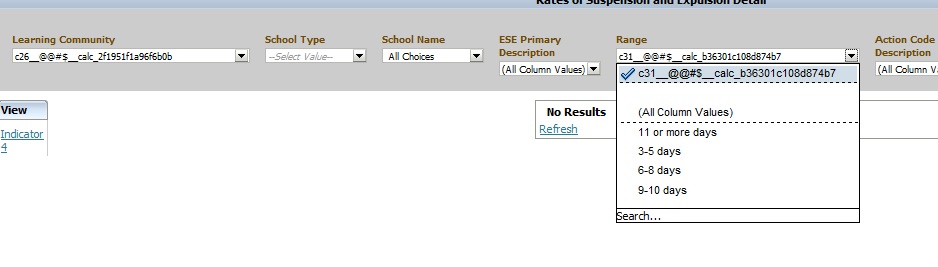
Have you noticed weird prompt values in your reports after upgrading OBIEE from 10g to 11g?  Below is an example of what you might see …

Weird_Prompt_Values

This is usually caused by calculated columns in the report.  You will need to remove those columns, and then add them back to the report.  And then, depending on what your calculated columns were being used for, you may want to consider using Selection Steps instead to accomplish the same logic.

If you know of another way to fix this scenario, please share.

Informatica Unconnected Transformations

There are 3 Informatica transformations (External Procedure, Lookup, and Stored Procedure) that can be unconnected in a valid mapping.  An unconnected transformation is one that is not connected to the pipeline – that is, it is not connected to any other transformation via a link.  Unconnected transformations, especially unconnected lookup transformations, are widely in OBIA mappings.

Unconnected transformations are defined in a mapping and are called / invoked from another transformation in the mapping.  They can be called from any transformation that supports the transformation expression language.

Below is a list of the 3 Informatica Unconnected Transformations and how they are called or invoked from another transformation:

 Transformation  How its called / invoked
 External Procedure  :EXT.external_procedure_transformation(argument1, argument2, …)
 Lookup  :LKP.lookup_transformation(argument1, argument2, …)
 Stored Procedure  :SP.stored_procedure_transformation( argument1, argument2, [, PROC_RESULT])

Any mapping with an unconnected transformation must also include another transformation that calls the unconnected transformation.

All of the 3 Unconnected Transformations can also be used in connected mode.  However, when you want to execute the transformation logic for a subset of the rows passing through the mapping (especially when it’s a small percentage of the rows), you will want to consider using the transformations in unconnected mode and with conditional logic.  The conditional logic will cause the unconnected transformation to execute only when necessary, and therefore, may improve perfiormance.

The example below shows a call to an unconnected lookup transformation (lkp_item_id) that is invoked only when the desired item_id value is NULL.  In a case where only a small percentage of the rows have an item_id that is NULL, then the lookup would only be invoked for a small number of rows, as opposed to all rows if the transformation was connected.

                       IIF  ( ISNULL(item_id),   :LKP.lkp_item_id ( item_name ),   item_id )

As a side note, the Sequence Generator transformation can also be invoked from a function call, but it is a connected transformation.

 Transformation  How its called / invoked
 Sequence Generator  :SEQ.sequence_generator_transformation.CURRVAL

Adobe Flash 11.8.800.168 causing graphs/charts not to show in Internet Explorer 8

There is an issue with Internet Explorer 8 and Adobe Flash browser plugin that causes graphs/charts not to show up in OBIEE 11g.  This is not the same as the issue that can be resolved by setting the thousand place separator property. 

The versions that have the issue are Adobe Flash 11.8.800.168 and IE8.  The same Adobe release works fine with IE9 and also works great with Firefox.  So users on those browser versions would not have been affected.

The good news is … Adobe released an emergency release within 3 days of this problem release.  The new version is 11.8.800.174.  After downloading and installing this version, we were able to see all graphs/charts.   

You can access the latest and previous Adobe Flash versions here …
http://helpx.adobe.com/flash-player/kb/archived-flash-player-versions.html#main_Archived_Flash_Player_versions_for_developers

Good luck.

Informatica Command-line Programs

Frequently used Informatica Programs are:

  • pmcmd – used to manage workflows, such as starting, stopping and scheduling
  • pmrep – used to perform PowerCenter Repository administration tasks, such as update repository information and perform repository functions
  • infacmd – used to administer Informatica application services
  • infasetup – used to administer Informatica domain and nodes
  • pmpasswd – used to encrypt passwords for use in parameter files or environment variables

Command-line and Interactive Execution
All 5 programs (pmcmd, pmrep, infacmd, infasetup, and pmpasswd) can be executed in Command-line mode.
Three of them (pmcmd, pmrep and infacmd) can be executed in Interactive mode.

Program Locations
All programs except infasetup are located in [InformaticaInstallDirectory]/server/bin.  infasetup is located in [InformaticaInstallDirectory]/server.

Summary
Below is a table that summarizes the features/usage of each of these programs into one location:

InformaticaCommandLinePrograms

Direct Links to various OBIEE User and Administration Presentation functions

These are some direct links to various OBIEE User and Administration functions.  These can be useful to know for efficiency and at times can also be useful for debugging security.

To go directly to “Home Page”
http://servername:9704/analytics/saw.dll?bieehome

To go directly to “Dashboard”
http://servername:9704/analytics/saw.dll?Dashboard

To go directly to “Manage Privileges”
http://servername:9704/analytics/saw.dll?PrivilegeAdmin

To go directly to “Manage Catalog Groups”
http://servername:9704/analytics/saw.dll?ManageGroups

To go directly to “Manage Sessions”
http://servername:9704/analytics/saw.dll?Sessions

To go directly to “Manage Agent Sessions”
http://servername:9704/analytics/saw.dll?ManageIBotSessions

To go directly to “Issue SQL”
http://servername:9704/analytics/saw.dll?IssueRawSQL&Done=%2fanalytics%2fsaw.dll%3fAdmin

To go directly to “Manage Map Data”
http://servername:9704/analytics/saw.dll?ManageMapData

To go directly to “Manage BI Publisher”
http://servername:9704/analytics/saw.dll?bipublisherEntry&Done=%2fanalytics%2fsaw.dll%3fAdmin&Action=admin

How to run Catalog Manager in GUI mode from the Linux Server

OBIEE Catalog Manager can be accessed from a client tool on Windows or from a server side process.  There are times when it is required that you run the Catalog Manager in offline mode, and at those times you will be required to run it on the server.

Although there is a command line option for Catalog Manager, it is easier to work with it in a Graphical User Interface (GUI) mode and at times its necessary to use that mode.

Start Xming (or another X-Windows type tool) on your local PC or laptop. [This will allow the Linux screens to show up on your desktop when you run the shell script on the Linux server]

For more on Xming, visit http://en.wikipedia.org/wiki/Xming

Connect to your Linux server from your desktop/laptop using Putty (or other tool).   Then go to the catalog manager directory:

cd [$FMW_HOME]/instances/instance1/bifoundation/OracleBIPresentationServicesComponent/coreapplication_obips1/catalogmanager

runcat-start-catalogmanager

Start up Catalog Manager by running:    ./runcat.sh

This will start Catalog Manager, and it will be running on the Linux server, but the screens will be showing on your desktop/laptop.

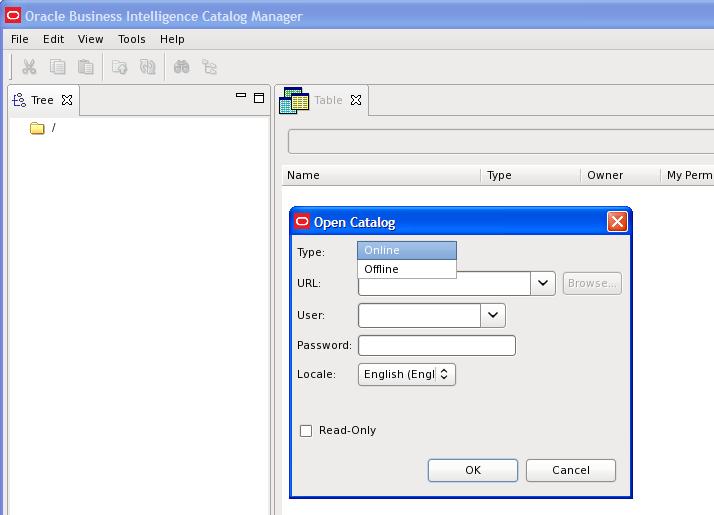
From the main Catalog Manager window, you can then click on File –>Open Catalog

catalogmanager_interface

And then select the Type based on how you want to connect – Online or Offline mode.  Accessing Catalog Manager in this way is most likely needed when you need to connect in Online mode.

And then of course, you need to enter the URL – which is the full path to the catalog, for example:[$FMW_HOME]/instances/instance1/bifoundation/OracleBIPresentationServicesComponent/coreapplication_obips1/catalog/default

And enter the User and Password.

catalogmanager_onlineoffline_login

Assuming everything was entered correctly, you will be connected to the catalog.  You can then use the interface to browse the catalog and perform other tasks on catalog objects.

catalogmanager_browsing

Good luck!

User having inconsistent login issues or user taking a long time to login or authenticate in OBIEE 11g

If you are using Active Directory for authentication for your OBIEE system, and are experiencing situations where some users are taking a long time to authenticate/login, then this post might be helpful.  This could also be useful for configuring LDAP systems other than Active Directory, but I cannot say for sure.

What could potentially be happening to users experiencing the problem is … they belong to Active Directory groups (or LDAP groups) with deep hierarchies, and the system has to traverse all those hierarchies to retrieve all their LDAP information which ends up taking quite a bit of time.  A possible solution is to limit the number of LDAP levels that will be searched/traversed to get the users Groups information.

Login to WebLogic Administration Console (aka WLS or Admin Console), then click on “Security Realms” on the left, and then click the name of the realm that you use for security (for example, “myrealm”).

WLS_SecurityRealm

Click the Providers tab.   And then click the name of your Active Directory provider.

WLS_SecurityProviders

Then select the Provider Specific tab.

ProviderSpecificSettings

Scroll down to the section titled “Groups”.

ProviderSpecific_Groups_parameters

Change the Group Membership Searching setting from unlimited to limited.

And then set Max Group Membership Search Level – change it from 0 (no limit) to 1 (or to the smallest number necessary for your environment).

This will prevent long searches for those users that are in many groups with deep hierarchies (such as groups within groups within groups and so on). This could cut the search time tremendously, thereby reducing the authentication time and preventing login timeouts.

Good luck!

Components of Oracle Business Intelligence Applications (OBIA)

The Oracle Business Intelligence Applications (OBIA) is made up of a number of components that are brought together to create a great prebuilt BI solution.  The components can be categorized into 4 major components.

1. Prebuilt reports and dashboard content + Embedded dashboard/report building tool
This prebuilt content is contained in the Oracle BI Presentation Services Catalog, and some of the content is built on the Oracle BI Repository metadata.
The tools include Dashboard Editor and Answers.

2. Prebuilt metadata content (Oracle BI Server Repository) + Administration Tool      
This metadata content is contained in the Oracle Business Intelligence Applications repository file (EnterpriseBusinessAnalytics.rpd).
This content is built and administered using the BI Administration Tool, and is built from the metadata in the OBAW.

3. Oracle Business Analytics Warehouse
The prebuilt data warehouse that holds data extracted, transformed, and loaded from the transactional sources.  The OBAW contains best-practice star-schemas and conforming dimensions.

4. Prebuilt ETL processes and tools
Prebuilt Informatica content + Embedded Informatica ETL Tool
+ Prebuilt DAC metadata repository files + Embedded DAC Tool
Informatica is a third-party application that performs the extract, transform, and load operations for the Data Warehouse.  The Informatica content includes Extract-Transform-Load (ETL) repository objects, such as mappings, sessions, and workflows, and is contained in the Informatica repository file (Oracle_BI_DW_Base.rep).
The DAC is a tool that is used for setup, configuration, administration, and monitoring of data warehouse processes.  The DAC content includes repository objects such as tables, subject areas, execution plans, and tasks, and is contained in XML files.
These tools and processes together extract data from sources, such as Oracle EBS or PeopleSoft, and load the data into the OBAW.