Author: thedatacommunity

Oracle Data Integrator (ODI) Knowledge Modules (KMs)

I am currently working on a project to upgrade (Oracle Business Intelligence Applications) OBIA 7 to OBIA 11g.  OBIA 11g and all future releases of OBIA (per Oracle) will use Oracle Data Integrator (ODI) as the ETL platform, replacing Informatica.

Due to this, I need to become very familiar with ODI to be able to manage and support the new release, and will be writing about ODI from time to time.

One key component in ODI is Knowledge Modules (KM’s).  In this post, I will describe what Knowledge Modules are and the various types that are in ODI.

Knowledge Modules (KMs) are generic code templates or modules that can be configured/coded to meet specific data integration needs and each type is dedicated to a specialized function in the overall data integration process.

Each of the 6 out-of-the-box (OOB) Knowledge Modules contain the “knowledge” to perform a specific set of actions on a specific combination of technologies, including connecting, extracting, transforming, loading, and checking data.  While the 6 OOB KMs meet most data integration needs, there will surely be cases when more custom features are needed. ODI KMs are extensible, and new totally custom KMs can be built.

The 6 OOB KMs are:

Reverse Knowledge Module (RKM)
This KM is used to retrieve metadata from data sources and targets to the Oracle Data Integrator work repository. You can use it in models to perform customized reverse-engineering.

Loading Knowledge Module (LKM)
This KM is used to load heterogeneous data to a staging area. It is used in interfaces with heterogeneous sources. The LKM and the IKM are the two most frequently used KM’s in our environment.

Journalizing Knowledge Module (JKM)
This KM is used in models, sub models and databases to create, start and stop journals and to register subscribers. It creates the Change Data Capture framework objects in the source staging area.

Integration Knowledge Module (IKM)
This KM is used in Interfaces to integrate data from the staging area to a target. The LKM and the IKM are probably the two most frequently used KM’s in our environment.

Check Knowledge Module (CKM)
This KM is used to perform consistency checks of data against defined constraints. It is used in models, sub models and databases for data integrity audit, and used in interfaces for flow control or static control.

Service Knowledge Module (SKM)
This KM is used in models and databases. It is used to generate data manipulation web services.

These KM’s are central to ODI and I will need to master the usage of these KM’s and if you are planning on using ODI, you will need to also.

OBIEE 11g vs OBIEE 12c – What’s new in OBIEE 12c

In this post I highlight a few of the new features of OBIEE 12c, and in some cases show how they differ from OBIEE 11g.

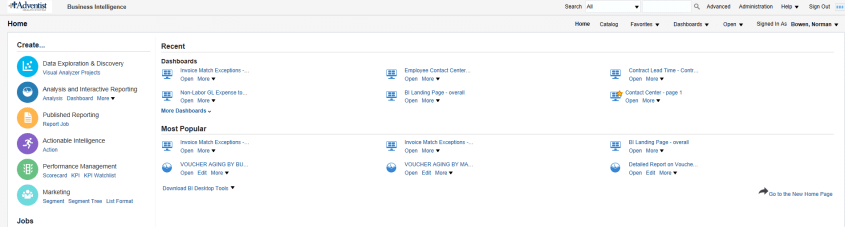
The OBIEE Home Page looks a bit different, and includes a new “Data Exploration & Discovery” option and functionality.

OBIEE 11g
Whats_new_OBIEE12c_OBIEE_11g_HomePage

OBIEE 12c
Whats_new_OBIEE12c_OBIEE_12c_HomePage

OBIEE 12c has a new visualization feature:  Mouse-over highlights the selected area with animation.

For example, the below image shows what it looks like when you mouse-over the “14.8% purple” slice.

Note: In reports where the selection drills on the entire stacked column (such as in a vertical stacked graph), the drilling will operate the same as before – that is – if the drill was done on the selected area only in 11g, then that will continue to occur; If the report was drilling on the entire stack/column when clicked in 11g, that will continue to occur also (even though the animation only happens on the area that was clicked).

Whats_new_OBIEE12c_new_visualization_feature

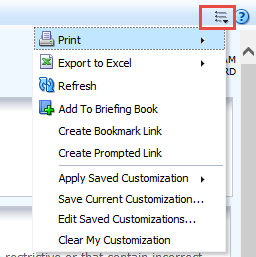
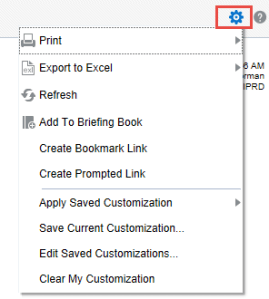
The Dashboard “Page Options” icon has changed from the “3 lines with the down arrow” to a “gear” icon.

OBIEE 11g
Whats_new_OBIEE12c_Dashboard_Page_Options_11g

OBIEE 12c
Whats_new_OBIEE12c_Dashboard_Page_Options_12c

OBIEE 12c now provides the ability to Sort in graphs by right-clicking and using the pop-up menu. So, you will now see the Sort option along with the Action Links when you right-click on a graph.

Whats_new_OBIEE12c_Sort_in_Graphs

For report developers:

In OBIEE 12c: It is now possible to modify Column Properties from the Results tab – more efficient.

Whats_new_OBIEE12c_modify_column_properties

In OBIEE 12c: There is a new “Scale for % (x 100)” option in the Column Properties – Data Format tab.

Whats_new_OBIEE12c_new_scale_in_column_properties

In OBIEE 12c: You can create a new Calculated Column in the Results tab by clicking the “ruler” icon.

Whats_new_OBIEE12c_new_calculated_column

After adding the column, use the new “Save Column As” option to save the column. This is great feature that will allow for re-using calculated columns instead of having to re-enter the formula each time.

Whats_new_OBIEE12c_Save_Column_As

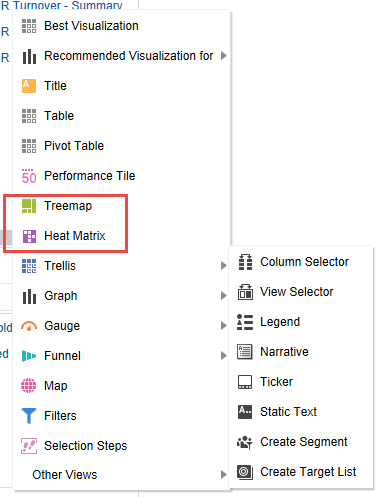
OBIEE 12c introduces 2 new visualization options – Tree Map and Heat Index

OBIEE 11g
Whats_new_OBIEE12c_Vizualization_options_11g

OBIEE 12c
Whats_new_OBIEE12c_Vizualization_options_12c

OBIEE 12c introduces a new Global Variable type, that can be a value or an expression.

OBIEE 11g  Whats_new_OBIEE12c_Variable_Types_11g                OBIEE 12c Whats_new_OBIEE12c_Variable_Types_12c

In OBIEE 12c, there is a new “Subject Area Sort Order” option available in Account properties.

OBIEE 11g
Whats_new_OBIEE12c_Account_Properties_11g

OBIEE 12c
Whats_new_OBIEE12c_Account_Properties_12c

OBIEE 12c provides the ability to search a subject area by keyword entered, and to sort folders and columns in a subject area.

OBIEE11g  Whats_new_OBIEE12c_Subject_Areas_11g                OBIEE 12c Whats_new_OBIEE12c_Subject_Areas_12c

In OBIEE 12c, there are a few new analytic functions.  A new Analytics folder contains new functions Cluster, Evaluate Script, Outlier, Regr, and Trendline. The Aggregate folder contains a new function, Bin. And the Time Series Calculations folder contains a new function, Forecast.

Whats_new_OBIEE12c_New_Analytic_Functions_12c_1          Whats_new_OBIEE12c_New_Analytic_Functions_12c_2          Whats_new_OBIEE12c_New_Analytic_Functions_12c_3

When Export to Excel (csv) in OBIEE 12c, rows are limited to 65000 (65K)

After upgrading to OBIEE 12c, you may have noticed that your downloads to Excel CSV files are now getting cut off at 65000 rows.  If you are experiencing this issue, this post may help.

In OBIEE 11g, there was a parameter (instanceconfig.xml parameter) called “DefaultRowsDisplayedInDownload” that controlled the number of rows downloadable to a CSV file.   So, if you had that set to a number higher than 65K, then you would have been able to download more than 65K rows in the past.

However, the parameter that now controls the number of rows downloadable to CSV in OBIEE 12c is “DefaultRowsDisplayedInDownloadCSV“.  You will need to set this parameter in the instanceconfig.xml file based on your needs.

This parameter DefaultRowsDisplayedInDownloadCSV is found within the <Table> section which may look something like this:

<Table>
< DefaultRowsDisplayedInDelivery>1000000</DefaultRowsDisplayedInDelivery>
< DefaultRowsDisplayedInDownload>1000000</DefaultRowsDisplayedInDownload>
< MaxCells>10000000</MaxCells>
< MaxVisiblePages>50</MaxVisiblePages>
< MaxVisibleRows>1000000</MaxVisibleRows>
< MaxVisibleSections>100000</MaxVisibleSections>
< DefaultRowsDisplayed>100</DefaultRowsDisplayed>
<DefaultRowsDisplayedInDownloadCSV>200000</DefaultRowsDisplayedInDownloadCSV>
< /Table>

As always, back up your files before making changes.  Then, change the parameter as needed, and restart OBIEE services.

Some workflows not showing in Informatica Workflow Monitor workflow run

If you run a lot of workflows and have noticed that you are not seeing some of the workflows in the Workflow Run window, this post may help.

Your workflows might be running, but you are not seeing some of them because you have exceeded the maximum number of workflow runs that will be stored in each of the folders.

In Informatica Workflow Monitor, change the “Maximum workflow runs per folder” property.  From Informatica Workflow Monitor, select the Tools -> Options menu item.

Informatica_Workflow_Monitor_Options

Then, change the “Maximum workflow runs per folder” to a number that is higher than the highest number of workflows that are run in your cycle for a given folder.

Informatica_Workflow_Monitor_Option_Maximum_workflow_runs_per_folder

Save changes.  You will now see more workflows in the output after your next job cycle.


Work-around Solution for Oracle Database Error ORA-01792: maximum number of columns in a table or view is 1000

When you get this Oracle database error message …

Error message: Caused By: java.sql.SQLSyntaxErrorException: ORA-01792: maximum number of columns in a table or view is 1000

This may be a solution for you …

There is a workaround … set the “_fix_control” parameter to ‘17376322:OFF‘.

You can use one of the following statements to set the parameter:

alter session set "_fix_control" = '17376322:OFF';

or

alter system set "_fix_control" = '17376322:OFF';

More information can be found in the following Oracle Documents –  Doc ID 1956038.1 and Doc ID 1951689.1.

Your career in 2018 (referencing 2017 Gartner Magic Quadrant for Business Intelligence and Analytics)

How will you grow your career in 2018?

Each year Gartner publishes Magic Quadrants for several technologies, including one for Business Intelligence and Analytics. Let’s take a look at this year’s.

The “2017 Gartner Magic Quadrant for Business Intelligence and Analytics” document was published earlier in the year, but as we are at the end of the year, it is a good time to take stock of the industry and your career in this field.

Below is an image of the results published by Gartner for 2017.  As you can see, from their perspective, Tableau and Microsoft lead the way, with Qlik also in the leader quadrant.

Source: Gartner

Since the same 3 players were also in the leader quadrant in 2016 and 2015 (along with others), we know they are solid.

So, based on this, if you are primarily an Oracle BI (OBI), IBM Cognos, or SAP Business Objects (BO) person (for example), you may consider learning or at least getting exposure to one or more of the 3 platforms in the Leaders quadrant.  There is still plenty of work out there for OBI, Cognos, BO and other platforms, but having additional technical/platform skills in leading platforms never hurts.

And this is just a broad suggestion, because you may find that developing skills in Salesforce (for example) is a better strategic move for you based on your situation.  The bottom-line is, assess your career/skills/goals/etc., and plan on learning something new in 2018.  Don’t stop learning!

Happy New Year to you, and best wishes for 2018!


Working with built-in datasets in R

This is a quick cheat sheet of commands for working with built-in datasets in R.

R has a number of base datasets that come with the install, and there are many packages that also include additional datasets.  These are very useful and easy to work with.


> ?datasets                                  # to get help info on the datasets package

> library(help=”datasets”)     # provides detailed information on the datasets package, including listing and description of the datasets in the package

> data()                                       # lists all the datasets currently available by package

data(package = .packages(all.available = TRUE))  # lists all the available datasets by package even if not installed

> data(EuStockMarkets)            # loads  the dataset EuStockMarkets into the workspace

> summary(AirPassengers)      # provides a summary of the dataset AirPassengers

> ?airquality                                    # outputs in the Help window, information about the dataset “airquality”

> str(airmiles)                                 # shows the structure of the dataset “airmiles”

> View(airmiles)             # shows the data of the dataset “airmiles” in spreadsheet format


QlikView Sheet Objects Quick Overview

This post provides a quick overview for each of the QlikView Sheet Objects.
Sheet Objects are the various objects that a developer or analyst places on a QlikView document’s sheet to provide the rich functionality of dashboards.

By right-clicking on an open area in a sheet, the below menu will appear.  Select “New Sheet Object” to see the available Sheet Object options – which are – List Box, Statistics Box, Multi Box, Table Box, Chart, Input Box, Current Selections Box, Button, Text Object, Line/Arrow Object, Slider/Calendar Object, Bookmark Object, Search Object, Container, Custom Object, and System Table.
Qlik_SheetObject_ListBox

The sheet objects can also be created from the Design Toolbar selections.
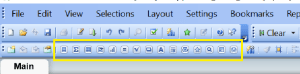
Qlik_SheetObject_DesignMenu

Some of our example images are taken from the Movies Database application that comes with QlikView.

List Box
The “List Box” is one of the most heavily used QlikView sheet objects.  It lists all the distinct values of a particular field. For example, you may have a List Box that displays all the products available within your data set.  The List Box is often used as a menu, where a user selects a value to analyze the data based on that value.
Qlik_SheetObject_ListBox_example2
The above example displays 3 List Boxes – the Director list box, the Actor list box, and the Title list box. When a user selects one or more values from one or more list boxes 9or any other object), the data in all other objects cascade to show only records relevant to that combination of selections.

Statistics Box
The “Statistics Box” is used to show aggregated representations of the data.  There are several statistical aggregation functions that are available, such as Sum, Average, Min, Max, Std Dev, Null Count, and several more.
Qlik_SheetObject_StatisticsBox_example
The above example shows “Statistics” for the Rating field – the number of ratings, the average rating, the min and max ratings, and the average and median ratings.

Multi Box
A Multi Box allows you to display several fields in a single object, with the values for each field available via a drop down. This object can be described as a set of List Boxes compacted together. The example screenshot below shows a Multi Box with the 3 fields, Director/Actor/Title, and by clicking any of the fields, you will get a drop down of all the values for that field – similar to a List Box for that field.
Qlik_SheetObject_MultiBox_example

Clicking on Director will display the list of all Directors, as shown below. Similarly, you can Actor or Title to get those respective drop down lists.
Qlik_SheetObject_MultiBox_dropdown_example

Table Box
The Table Box, as the name implies, displays a table of records for the selected data fields.
Qlik_SheetObject_TableBox_example

Chart
The Chart object is used for creating charts of various types. Some of the chart types available include bar, line, combo, radar, scatter, grid, pie, block, funnel, gauge, and mekko charts, and pivot and straight tables.
Qlik_SheetObject_Chart
The above shows one of the properties dialog tabs for the chart object – which shows some of the various chart types you can create.

Input Box
The Input Box object allows for users to enter a value. (which sets a variable that can be used for further processing)
Qlik_SheetObject_InputBox

Current Selections Box
The Current Selections Box displays all the selections that the user has selected. The Current Selections box is usually placed at the top of a sheet (dashboard page) in a position that allows users to easily see the selections that have been made.
Users are able to clear selections by clicking on the eraser beside the selection in the Current Selections Box, and the data on the sheet will change accordingly.
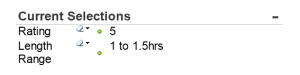
Qlik_SheetObject_CurrentSelectionsBox
In the example above, the user has selected Rating 5 and Length Range 1 to 1.5 hrs.

Button
The Button object creates a button that can be configured to execute various types of actions. When clicked the configured action will be executed.
Qlik_SheetObject_Button

Text Object
The Text Object is used for adding simple text to the document/sheet. It can be used to display informational messages, directions, descriptions or titles and labels, or any kind of information that needs to be shared with viewers/users of the document.
Qlik_SheetObject_TextObject

Line/Arrow Object
This object is used to create a line with or without arrows, and vertical or horizontal or diagonal. This object can be used for many purposes such showing relationships and flows.
Qlik_SheetObject_LineArrow

Slider/Calendar Object
The Slider/Calendar object is used to create either a slider with multiple values that the user can slide across to select, or a calendar that the user can use to find and select a date.
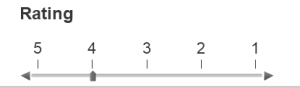
Qlik_SheetObject_Slider                 Qlik_SheetObject_Calendar
In the above slider, the user has selected Rating 4.  In the calendar object, clicking the grid icon opens a calendar that allows selection.

Bookmark Object
The Bookmark object is used to save the selection state of the current sheet. If a bookmark is created after a specific Actor has been selected, when you select that bookmark, the selection and corresponding data in the sheet will be displayed based on that saved selection state of the bookmark.
Multiple bookmarks can be saved for each sheet. Each having a different set of saved selections.
Qlik_SheetObject_Bookmark

Search Object
The Search Object allows users to search for values in entire data set or within a specific set of fields.
Qlik_SheetObject_Search

Container
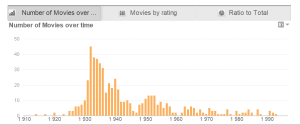
The Container is a sheet space saving object that can contain multiple other objects, such as multiple chart objects. This allows you to display multiple views of the data within the same sheet “real estate” and change the view by clicking on the appropriate tab to get to each chart.
Qlik_SheetObject_Container
In the above example, the container contains 3 objects (3 charts), and therefore displays 3 tabs across the top, one for each chart. There are different possible orientations for the tabs – they can be to the left, right, top (as in this example), or bottom.

Custom Object
The custom object is a sheet object specifically intended to carry custom defined OCX replacement controls.
The Custom Object: Object Menu can be accessed from the Object menu, when the custom object is the active object.
Replacement controls are windowless OCX controls programmed by Qlik, yourself or third party vendors, which comply with the specifications for QlikView replacement OCX controls. The OCX control will be drawn in a rectangle on the sheet outlined by the underlying custom object. Communication between the OCX control and the QlikView document is maintained via the internal macro interpreter.

System Table
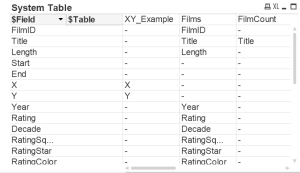
The System Table object creates a pivot table that shows the data structure of the qlikview document.
Qlik_SheetObject_SystemTable

In future posts, we will be covering each object in depth.

Working with special character letters in Oracle database (grave accent, acute accent, circumflex accent, tilde, and umlaut)

We have some external data feeds that we receive as csv files, and we load them into our data warehouse and process them.    It turns out that data values that include special characters were getting messed up at some point before or during the load to the Oracle database.

In this post, I will go over one way to select, insert or update data values that contain these special characters.  The “special characters” I am referring to are the grave accent, acute accent, circumflex accent, tilde, and umlaut.

The most common one we come across is the “acute accent” which is present in words such as café or entrée (accent over the e in both words).

If you want to insert these words without the accents, into an example table, WORDS, with a single column, SPECIAL_CHAR_WORD, it would simply be:

insert into WORDS (SPECIAL_CHAR_WORD) values ('cafe');
insert into WORDS (SPECIAL_CHAR_WORD) values ('entree');

But if you want to insert these words with the accents, then you would need to do this:

insert into WORDS (SPECIAL_CHAR_WORD) values UNISTR('cafe301');
insert into WORDS (SPECIAL_CHAR_WORD) values UNISTR('entre301e');

To select the word café with the accent, run this statement:

select UNISTR('cafe301') from dual;

Once a column value is already in a table in the proper format, you can simply select the column name using a normal SQL select statement, and the output will show properly (maybe with just the need for some formatting as you will later in the article).

And for update – to update the word entree with the word entrée, run this statement:

update WORD set SPECIAL_CHAR_WORD = UNISTR('entre301e') where SPECIAL_CHAR_WORD = 'entree';

To see several special characters (grave accent, acute accent, circumflex accent, tilde, and umlaut), run this statement …

select UNISTR('bare300ge') from dual   -- barège    -- grave accent
union
select UNISTR('entre301e') from dual   -- entrée    -- acute accent
union
select UNISTR('pa302turer') from dual  -- pâturer   -- circumflex accent
union
select UNISTR('jalapen303o') from dual -- jalapeño  -- tilde
union 
select UNISTR('fu308r') from dual;          -- für    --umlaut

… the output would look like this … which seems not quite right …
Special_Characters_UNISTR

Add the COMPOSE statement (which is just for formatting) as shown below …

select COMPOSE(UNISTR('bare300ge')) as SPECIAL_CHAR_WORD from dual   -- barège    -- grave accent
union
select COMPOSE(UNISTR('entre301e')) from dual   -- entrée    -- acute accent
union
select COMPOSE(UNISTR('pa302turer')) from dual  -- pâturer   -- circumflex accent
union
select COMPOSE(UNISTR('jalapen303o')) from dual -- jalapeño  -- tilde
union 
select COMPOSE(UNISTR('fu308r')) from dual;     -- führer    --umlaut

and the output will look like this …

Special_Characters_UNISTR_and_COMPOSE2

As  you can see, the key to this is knowing the code for the special character you need, and then using the UNISTR function to add the special character to the rest of the text, and if necessary, use COMPOSE for display purposes.

Thanks for reading. Hope you found this helpful.

Maximum number of characters allowed in the Informatica SQL Qualifier & Lookup transformations’ SQL Query

The Informatica SQL Qualifier and Lookup transformations’ SQL Query parameter has a limitation on the number of characters that your SQL can contain. There is no limitation on the number of lines, the limitation is on the number of characters.

Your SQL is allowed a maximum of of 32,767 characters. If you copied and pasted SQL into the field, after 32767 characters the query will be truncated.  If you are typing into the field, after 32767 characters, no more characters can be entered.

To reduce your SQL character count, removing unnecessary spaces used for formatting will help. You may also examine your aliases to see if they can be shortened.