Author: normatthedatacommunity

Statistics Basics – Measures of Central Tendency & Measures of Variability

Measures of Central Tendency and Measures of Variability are frequently used in data analysis.  This post provides simple definitions of the common measures.


Measures of Central Tendency

Mean / Average – sum of all data points or observations in a dataset divided by the total number of data points or observations in the dataset.

The mean or average of this dataset with 5 numbers {2, 4, 6, 8, 10} is: 6

Sum of all data points:     (2+4+6+8+10)
Divided by:                       ———————–  = 6
Number of data points:              5

Median – with the values (data points) in the dataset listed in increasing (ascending) order, the median is the midpoint of the values, such that there are an equal number of data points above and below the median.  If there are an odd number of data points in the dataset, then the median value will be a single midpoint value. If there an even number of data points in the dataset, then the median value will be the mean/average of the two midpoint values.

The median of the same dataset {2, 4, 6, 8, 10} is:  6
This dataset has an odd number of data points (5), and the middle data point is the value 6, with 2 numbers below (2, 4) and 2 numbers above (8, 10).

Using an example of a dataset with an even number of data points:
The median of this dataset {2, 4, 6, 8, 10, 12} is: (6 + 8) / 2 = 7
Since there are 2 middle data points (6, 8), then we need to calculate the mean of those 2 numbers to determine the median.

Mode – the data point that appears the most times in the dataset.

Using our original dataset {2, 4, 6, 8, 10}, since each of the values only appear once, none appearing more times than the others, this dataset does not have a mode.

Using a new dataset {2, 2, 4, 4, 4, 4, 6, 8, 8, 8, 10}, the Mode in this case is: 4
4 is the value that appears the most times in the dataset.

Measures of Variability

Min – the minimum value of the all values in the dataset.
Min {2, 3, 3, 4, 5, 5, 5, 6, 7, 1, 3, 2, 7, 7, 8, 2, 3, 9} is 1.

Max – the maximum value of the all values in the dataset.
Max {2, 3, 3, 4, 5, 5, 5, 6, 7, 1, 3, 2, 7, 7, 8, 2, 3, 9} is 9.

Variance – a calculated value that quantifies how close or how dispersed the values in the dataset are to/from their average/mean value.  It is the average of the squared differences from the mean.

Variance of {2, 3, 4, 5, 6} is calculated as follows …

First find the Mean.  Mean = (2 + 3 + 4 + 5 + 6) / 5 = 4

Then, find the Squared Differences from the Mean … where ^2 means squared …
(2 – 4)^2 = (-2)^2 = 4
(3 – 4)^2 = (-1)^2 = 1
(4 – 4)^2 = (0)^2 = 0
(5 – 4)^2 = (1)^2 = 1
(6 – 4)^2 = (2)^2 = 4
Average of Squared Differences: (4 + 1 + 0 + 1 + 4) / 5 = 2

Standard Deviation – a calculated value that quantifies how close or how dispersed the values in the dataset are to/from each other.  It is the square root of the Variance (defined above).

For the above dataset, Standard Deviation {2, 3, 4, 5, 6} = Square Root (2) =~ 1.414

Kurtosis – a calculated value that represents how close the tail of the distribution of the dataset is to the tail of a normal distribution*.

Skewness – a calculated value that represents how close the symmetry of the distribution of the dataset is to the symmetry of a normal distribution*.

* A normal distribution, also known as the bell curve, is a probability distribution in which most values are toward the center (closer to the average) and less and less observations occur as you go further from the center.

Range – the difference between the largest number in the dataset and the smallest number in the dataset.
Range {2, 4, 6, 8, 10} = 10 – 2 = 8


Thanks for reading!
 

Upgrading OBIEE 11g to OBIEE 12c – First thing to ensure

Our team is currently in the process of upgrading our OBIEE 11g environments to OBIEE 12c. I have been gathering information about the process and will be sharing information on our experience as we progress.

I wanted to point of the first thing you want to ensure before planning/starting the upgrade from 11g to 12c – this may save you a little time. Or if you have already started, and encountered an error relating to … catalog version is not supported … then this post might be helpful.

You can upgrade the OBIEE catalog from OBIEE 11.1.1.7.x or OBIEE 11.1.1.9.x to OBIEE 12c. This should upgrade without any major issues.
But you may unexpectedly run into the above problem if you had upgraded the OBIEE 11g catalog using patch sets and had not run the full catalog upgrade. This results in the catalog being used as an 11.1.1.7 or 11.1.1.9 environment, but the version stored in the catalog is still older (such as 11.1.1.3 or 11.1.1.5).
Then when you try to upgrade from OBIEE 11g to OBIEE 12c, you get the error because the catalog is still technically not yet on an approved version for upgrade.

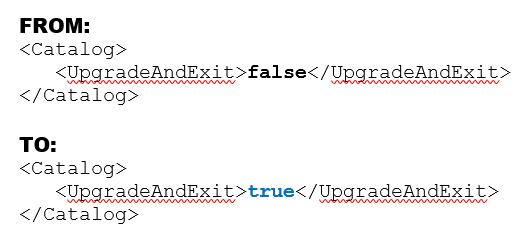
To resolve this, you need to run a full catalog upgrade on the OBIEE 11g catalog. This involves modifying the instanceconfig.xml file as follows:

Change the value of the UpgradeAndExit parameter from “false” to “true” as shown in the example below.

upgradecatalog

Restart the presentation services.
After this is complete, edit the files again and change “true” back to “false“, and restart the presentation services again.

You should now be able to upgrade your catalog to an OBIEE 12c version.

I hope this helps. Thanks for reading.

The CONCATENATE statement, concat() function, and string concatenation operator (&) in QlikView

In QlikView, there is the CONCATENATE statement, the CONCAT() function, and the string concatenation operator (the ampersand – &).  These are all very different and in this post I will explain each of them.

CONCATENATE statement

The CONCATENATE statement is used in conjunction with the LOAD statement.  It appends the rows of one table to another.  It is similar to a UNION ALL statement in SQL.

Let’s take a look at a couple examples using the following tables:

Employee_Location

Employee_ID Employee_Name Employee_Location
1 John NY
2 Mary NJ

Employee_Office

Employee_ID Employee_Name Employee_State
3 Jane FL
4 Evan NY

Employee_Position

Employee_ID Employee_Name Employee_Position
5 Paul Cashier
6 Sonia Salesperson

If we concatenated the Employee_Location and Employee_Office tables using the following load script …

[Employee_Location]:
 LOAD
 [Employee_ID]       as [%Employee ID],
 [Employee_Name]     as [Employee Name],
 [Employee_Location] as [Employee Location]
 FROM [… data source details for Employee_Location …]

CONCATENATE (Employee_Location)
 LOAD
 [Employee_ID]        as [%Employee ID],
 [Employee_Name]      as [Employee Name],
 [Employee_State]     as [Employee Location]  --aliased column
 FROM [… data source details for Employee_Office …]

We would get this result …

Employee_Location

Employee ID Employee Name Employee Location
1 John NY
2 Mary NJ
3 Jane FL
4 Evan NY

Now, if we concatenated the Employee_Location and Employee_Position tables using the following script…

[Employee_Information]:
 LOAD
 [Employee_ID]       as [%Employee ID],
 [Employee_Name]     as [Employee Name],
 [Employee_Location] as [Employee Location]
 FROM [… data source details for Employee_Location …]

CONCATENATE (Employee_Information)
 LOAD
 [Employee_ID]        as [%Employee ID],
 [Employee_Name]      as [Employee Name],
 [Employee_Position]  as [Employee Position]
 FROM [… data source details for Employee_Position …]

We would get this result …

Employee_Information

Employee ID Employee Name Employee Location Employee Position
1 John NY  
2 Mary NJ  
5 Paul   Cashier
6 Sonia   Salesperson

Notice that the concatenation works even if the tables do not have the same number of columns.  This provide more flexibility than the UNION or UNION ALL statements in SQL where you need to add a dummy column to the select list of your first table before performing the union.

Concat() function

The concat() function concatenates all the values of a column into a single delimited string.  The column and the delimiter are specified as parameters in the function.  You also have the option of producing the result string with only distinct values.

For example, if you have the following table …

Product_ID Product_Description Product_Category
1212 Pen Office Supplies
3214 Paper Paper
1345 Sharpener Office Supplies
1177 Eraser Office Supplies
2780 Calculator Electronics
2901 Computer Electronics
This statement: CONCAT(Product_Category, ‘,’)

Produces: Electronics, Electronics, Office Supplies, Office Supplies, Office Supplies, Paper
Notice there is a space after the comma in the delimiter, and therefore, there is a space after the comma in the output

This statement:   CONCAT(Product_Category, ‘|’)

Produces: Electronics|Electronics|Office Supplies|Office Supplies|Office Supplies|Paper
Notice there is no space in the delimiter, and therefore, no space between the values in the output

This statement:  CONCAT(DISTINCT Product_Category, ‘ | ’)

Produces:             Electronics | Office Supplies | Paper
Notice spaces in the delimiter, and distinct output.

Concatenation operator ( & )

When you need to concatenate 2 strings together, you use the concatenation operator – the ampersand (&).  For example, if you have address values in separate columns as in the table below …

Street City State Zip
123 Main St Orlando FL 32801

… you can output the address as one concatenated string by using the concatenation operator as shown in the script below …

[Street] & ‘, ‘ & [City] & ‘, ‘ & [State] & ‘ ‘ & [Zip]

[Notice a comma and a space is concatenated between Street, City and State; 
and only a space is concatenate between State and Zip]

… and that would produce the following result …
123 Main St, Orlando, FL 32801

Data Science Fundamentals: Matching

This is a continuation of a series of Data Science Fundamentals posts.  In this post I will briefly describe Matching.

Matching, also known as Similarity Matching, is a technique of using data about objects to identify “like” objects. For example, Amazon or Walmart may use matching to identify “like” customers based on their browsing, liking, and purchasing history.

This information can then be used to provide product recommendations to these customers.

matching-recommendations
Product recommendations based on browsing and purchase history, and similarity matching

The results of Matching can be used for Classification and Regression; and Matching underlies Clustering.  These techniques were described in previous posts.

Data Science Fundamentals: Regression

Data Science is very complementary to Business Intelligence, in that they are both used to gain insights from data. While Business Intelligence, generally speaking, is more about answering known questions, Data Science is more about discovery and providing information for previously unknown questions.

This is a continuation of a series of Data Science Fundamentals posts that I will be doing over the next few weeks.  In this post, I will be covering Regression and will include an example to make it more meaningful.  Previous posts covered Classification and Clustering. Upcoming posts over the next few days will cover Matching, and other data science fundamental concepts.

Regression analysis is a predictive modeling technique which investigates the relationship between a dependent or target variable and one or more independent or predictor variables. regressionIt can be used to predict the value of a variable and the class the variable belongs to and identifies the strength of the relationships and the strength of impact between the variables.  There are many variations of regression with linear and logistic regression being the most commons methods used.  The various regression methods will be explored at a later point in time.

An example of how Regression can be used is, you may identify products similar to a given product, that is, products that are in the same class or category as your subject product. Then review the historical performance of those similar products under certain promotions, and use that to estimate/predict how well the subject product will perform under similar promotions.

Another example is, you may use the classification of a customer or prospect to estimate/predict how much that customer/prospect is likely to spend on your products and services each year.

Classification determines the group/class of an entity, whereas Regression determines where on the spectrum (expressed as a numerical value) of that class the entity falls.  An example using a hotel customer – Classification: Elite Customer; Regression: 200 nights per year (on a scale of 100-366 nights per year)  or  top 10% of customers.

Data Science Fundamentals: Clustering

Like Business Intelligence, the essential purpose of Data Science is to gain knowledge and insights from data. This knowledge can then be used for a variety of purposes – such as, driving more sales, retaining more employees, reducing marketing costs, and saving lives.

This is a continuation of a series of Data Science Fundamentals posts that I will be doing over the next few weeks.  In this post, I will be covering Clustering and will include an example to make it more meaningful.  A previous post covered Classification. Upcoming posts over the next few days will cover Regression, Matching, and other data science fundamental concepts.

Clustering is similar to Classification, in that, they are both used to categorize and segment data.  But Clustering is different from Classification, in that, clustering segments the data into groups (clusters) not previously defined or even known in some cases.  Clustering explores the data and finds natural groupings/clusters/classes without any targets (previously defined classes).  This is called “unsupervised” segmentation.  It clusters the data entities based on some similarity that makes them more like each other than entities in other clusters.  Therefore, this is a great first step if information about the data set is unknown.

clustering_with_outlier
Clustering: 3 clusters formed (with an outlier)

The Clustering process may yield clusters/groups than can be later used for Classification. Using the defined classes as targets is called “supervised” segmentation.  In the diagram to the right, there are 3 clusters that have been formed (red pluses, blue circles, green diamonds).

After a Clustering process is completed, there may be some data entities that are clustered by themselves.  In other words, they do not fall into any of the other clusters containing multiple entities.  These are classified as outliers.  An example of this can be seen in the diagram where there is an outlier in the top-left corner (purple square).  Analysis on these outliers can sometimes yield additional insight.

Software such as R and Python provides functions for performing cluster analysis/segmentation on datasets.  Future posts will cover these topics along with more details on Clustering.

Data Science Fundamentals: Classification and Class Probability Estimation (Scoring)

Over the next 3 months, I will be focusing on Data Science and my next few posts will cover some fundamental topics of Data Science.

The essential purpose of Data Science, like Business Intelligence, is to gain knowledge and insights from data. This knowledge can then be used for a variety of purposes – such as, driving more sales, retaining more employees, reducing marketing costs, and saving lives.

In this post, I will be covering Classification and will include examples to make it more meaningful.  Upcoming posts over the next few days will cover Clustering, Regression, Matching, and other data science fundamental concepts.

Classification is the process of using characteristics, features, and attributes of a data entity (such as a person, company, or thing) to determine what class (group or category) it belongs to and assigning it to that class.  As an example, demographic data is usually a classification – marital status (married, single, divorced), income bracket (wealthy, middle-class, poor), homeowner status (homeowner or renter), age bracket (old, middle-aged, young), etc.

classification
Shapes are classified by characteristics such as number of sides, length of sides, etc.

When a large amount of data needs to be analyzed, Classification needs to be an automated process.  If the classes are not know ahead of time, a process called Clustering can be used on existing data to discover groups that can in some way be used to form the classes.(Clustering will be covered in an upcoming post)

Class Probability Estimation (Scoring) is the process of producing a score that represents the probability of the data entity being in a particular class.  As an example, Income Bracket – top 5%.

A few Use Cases and examples of Classification and Class Probably Estimation/Scoring are:

(1) Financial: credit risk – High-Risk, Medium-Risk, Low-Risk, Safe.
A person’s past credit history (or lack of one) will determine their credit score. And their credit score will determine what class of credit risk they fall into, and therefore, will determine if they get the loan, and how favorable the terms of the loan would be.

As an example of Class Probability Estimation (Scoring) for this use case, a person may fall in the Low-Risk class, but their credit score (sometime called FICO score) shows that they are in the low-end of the Low-Risk class making them bordering on Medium-Risk.

(2) Marketing: Marketing offer/promotion interest – Highly likely, Likely, Unlikely
Based on past promotions and those who responded to it, classification can be used to determine the likelihood of a person being interested in a specific marketing offer/promotion.  This is known as targeted marketing where specific promotions are sent only to those who will likely be interested, and therefore, different classes/groups may receive different marketing messages from the same company.

As an example of Class Probability Estimation (Scoring) for this use case, a customer or prospect could be scored as 70% Unlikely, or 90% Highly Likely.

(3) Customer Base: Top-customer, Seasonal Customer, Loyal customer, High-Chance of Losing customer, …
A company may use some set of criteria to classify customers into various categories. These categories can be used for various customer-focused efforts, such as marketing, special offers, rewards, and more.

(4) Fraud detection & security:  Transaction or Activity occurrence – Highly Unusual, Unusual, Normal
Based on past activity and all other activities as a whole, a person’s activity/transaction can be classified as unusual or normal, and the appropriate actions taken to protect their accounts.

(5) Healthcare:
Data from past health analysis and treatments can be used to classify the level of a patient’s illness, and classify their treatment class. This will then drive the recommended treatment.

(6) Human behavior/Workforce:
Today’s workforce consists of multiple generations (Baby Boomers, GenX, GenY/Millennials, etc) of workers.  Generational classification of people based on the period in which they were born is used for marketing purposes, but is also used to help educate a diverse workforce on understanding their team members of different generations and how to work with them.

There are of course many more types of classification and use cases. Feel free to share your use cases.

How to determine your database version for various RDBMS’s: Oracle, SQL Server, MySQL, DB2

Occasionally you may need to check one of your database’s version for the purpose of creating a ticket with the software vendor, for checking compatibility with other software, preparing for upgrades, getting database client software, and other reasons.

Below are commands for identifying the version of your database for a few of the more popular RDBMS’s.  Please keep in mind that these may or may not work on your version of database or type of operating system.

RDBMS_popular_relational_databses

ORACLE

  • SELECT * FROM V$VERSION;

Your output will be something like this …
version_output_oracle

SQL SERVER

Try one of the following:

  • Select “Help -> About” from the SQL Server Management Studio menu.
  • select @@version
  • You may also connect to the server by using Object Explorer in SQL Server Management Studio. After Object Explorer is connected, it will show the version information in parentheses, together with the user name that is used to connect to the specific instance of SQL Server.

MYSQL

Try one of the following:

  • shell> mysql –version
  • mysql> SHOW VARIABLES LIKE ‘%version%’;
  • mysqladmin version  -or- mysqladmin –v

DB2

Try one of the following:

  • SELECT * FROM TABLE(SYSPROC.ENV_GET_INST_INFO());
  • SELECT GETVARIABLE(‘SYSIBM.VERSION’) FROM SYSIBM.SYSDUMMY1;

It’s all about the users – Identifying Users for your BI applications / dashboards

One of the first things you will need to do before developing your Business Intelligence (BI) applications or dashboards is … identify who will use it.  You need to identify who will be using the application – what business areas they belong to, what groups they belong to, what are the various functions or roles within those groups, and eventually, who are the actual people.  After identifying the various roles (groups of users typically associated with a business process or function), then you can identify their needs.  Starting any development before knowing who will be using the system could result in a lot of wasted time and effort or a sub-optimal system.  The grouping of information on dashboards, the available functionality and security will be driven by these roles and their respective needs.

After identifying the various functions or roles that users posses, then it is important to understand how each role performs their job functions.  You need to understand what information they need and in what order, how it’s used, and the level of detail required at various stages. With this information, you will determine the dashboards, dashboard pages and their order, the information on each dashboard page and its precedence and level of detail, and what detailed information is needed via drill down. Basically, you will be creating the analytic workflows for the identified roles and the various processes, functions and tasks that they perform.

When performing the above exercise, please be as discrete as possible.  For example, even if someone doubles as an AP/AR Analyst, you should still analyze and plan for 2 separate roles – AP Analyst and AR Analyst – because those are 2 separate functions.  Later, the individual or group can be granted permissions to both roles.  From a security standpoint in general, you will create the necessary BI application roles to support your business roles.  And then assign security based on these roles.

In general, always keep the focus on the users, what they need to accomplish, and the most efficient ways to help them perform their jobs.  When you build the BI security and dashboards to meet those needs and usage scenarios, it will result in higher and faster user adoption.  This will take time, so do not rush the process.  Get detailed information about all the steps in their workflow upfront, document it, and then build around it.  However, on the other hand, you do not have to document to perfection upfront, you can take a more agile approach of developing based on fairly good user profiles to give users working prototypes, and then adjusting as new information and feedback is received from the users.

Good luck identifying your users and their needs as you get your BI project rolling.  And remember, it’s all about the users!

How to conditionally set Interaction (Action Links) on a column in OBIEE 11g

This post shows an example of how to conditionally set Interaction (Action Links) on a column.

Most times, when you set “Interaction” on a column, you set it for the column under all conditions – this is the default.  However, it is possible to conditionally set “Interaction” on a column – so that the Interaction link is conditionally available.

Let’s look at an example …

You have a pivot table displaying Values by day range as shown below.  Interaction is set on the measure value, and therefore, a user can click on any of the measure values (in any column and any row) to drill/navigate to a more detailed report for example. 

(Note that all the measure values are “blue” indicating that they are hyperlinks allowing navigation to some other BI content).
1-Pivot_with_Interaction_Set_On_Measure_Value

Let’s now assume that you only want to make the Interaction available for the measure values associated with “Value A”.  Therefore, the row in your pivot table associated with “Value A” will have measure values that are clickable (hyperlinks), while the “Value B” row values will not.  In other words, you only want to allow drill down/navigation on “Value A” data.

To do this, from your analysis, edit the column properties, and go to the Interaction tab, and Edit the relevant Action Link.

3-Edit_Action_Link

Change the “Show Link” property from “Always” to “Conditionally”.

4-Show_Link_Conditionally

Then enter the condition(s) in the Conditions box. Such as in our example, we want to show/activate the action link only for “Value A” values.  So, choose the column, and then select “Value A” (and of course, do not select “Value B”).

5-Select_Value_for_Action_LInk

Now when you go back to your report, action links will only be available on the measure values for “Value A” row.

(Note that only the measure values associated with “Value A” are “blue” indicating that they are hyperlinks allowing navigation to some other BI content; while “Value B” values are black indicating that they are not clickable.)
6-After_Setting_Conditionally

You can add more conditions and more complex conditions as necessary. One thought that came to mind … I could even see this being used to conditionally set Action Links based on users – allowing some users to be able to click the action links while others just see the data without being able to click and navigate to other detail.
