Month: August 2025

Workday’s Game-Changing Move: Acquiring Paradox (an AI Recruitment software player)

Workday announced, alongside its Q2 2026 financial results, a definitive agreement to acquire Paradox on August 21, 2025. The acquisition is a strategic move to integrate Paradox’s conversational AI for high-volume candidate experience into Workday’s enterprise platform. As someone that works in the data space, works with Workday, and supports the HR function, this is of interest to me.

Who They Are

Workday
Founded in 2005, Workday is a leading cloud-based enterprise software provider specializing in human capital management (HCM) and financial services. Trusted by over 11,000 organizations—including more than 65% of the Fortune 500—it helps companies manage payroll, recruiting, and more through its AI-first platform. Wikipedia. Workday has been going all in on AI, which is why they were interested in Paradox.

Paradox
Launched in 2016, Paradox is an innovative player in conversational AI for recruitment. Known for its digital assistant Olivia, Paradox streamlines high-volume hiring processes—handling things like screening, scheduling, and candidate Q&A via chat, SMS, or mobile interfaces. It serves clients like McDonald’s, Unilever, and Chipotle and has powered over 189 million candidate interactions, achieving conversion rates above 70% and cutting time-to-hire to as fast as 3.5 days. PR Newswire+1. That is an impressive time-to-hire statistic!

Why This Acquisition Matters

  1. Extends Workday’s Talent Acquisition Suite
    Integrating Paradox lets Workday offer a full-spectrum hiring solution—from AI-based candidate matching via HiredScore to Paradox’s conversational interface and back-office onboarding through Workday Recruiting—all within one seamless platform. IT ProPR NewswireAInvest
  2. Gains Ground in Frontline Hiring
    Frontline roles (think retail, hospitality, logistics) make up a huge swath of global jobs—roughly 70%. Paradox delivers exactly what that market needs: fast, high-volume, scalable hiring. Josh Bersin even called this “a highly strategic move” that could reshape Workday’s growth trajectory. JOSH BERSINHR Tech Feed
  3. Built-In AI Innovation
    Adding Paradox brings not just the tech, but the talent behind its AI tools. This deepens Workday’s AI capabilities and supports its long-term vision of building an AI agent-centric architecture. JOSH BERSINAInvest
  4. Proven ROI on Day One
    Paradox has delivered significant outcomes—Chipotle saw a 75% reduction in time-to-hire and doubled candidate flow; other clients report streamlined scheduling and improved candidate experience. PR Newswire+1HR Executive

What’s in It for Workday—and how it changes the HR Tech Landscape

For Workday:

  • Expands its offering to include a strong solution for frontline and contingent workers, not just white-collar roles.
  • Enhances AI-driven hiring tools—turning a fragmented process into a unified, intelligent workflow.
  • Likely to drive stronger customer loyalty and cross-sell opportunities.
  • Will immediately add to Workday’s bottomline.

For the broader HR applications market:

  • Sets a higher bar for talent acquisition platforms—more emphasis on candidate experience, AI-driven efficiency, and conversational interfaces.
  • Adds pressure on competitors like Oracle, SAP, and ADP to step up their AI and frontline hiring solutions. ReutersInvesting.com

Final Thoughts

Workday’s acquisition of Paradox isn’t just about buying another tool—it’s a strategic leap into a broader, more intelligent, and more conversational hiring experience for a wider swath of the workforce. With the deal expected to close in Q3 of its fiscal year 2026 (ending October 31, 2025), Workday is positioning itself as a go-to AI-powered talent platform—built for the volume and complexity of today’s global labor markets.

Thanks for reading!

Understanding Microsoft Fabric Shortcuts

Microsoft Fabric is a central platform for data and analytics, and one of its powerful features that supports it being an all-in-one platform is Shortcuts. Shortcuts provide a simple way to unify data across multiple locations without duplicating or moving it. This is a big deal because it saves a LOT of time and effort that is usually involved in moving data around.

What Are Shortcuts?

Shortcuts are references (or “pointers”) to data that resides in another storage location. Instead of copying the data into Fabric, a shortcut lets you access and query it as if it were stored locally.

This is especially valuable in today’s data landscape, where data often spans OneLake, Azure Data Lake Storage (ADLS), Amazon S3, or other environments.

Types of Shortcuts

There are 2 types of shortcuts: table shortcuts and file shortcuts

  1. Table Shortcuts
    • Point to existing tables in other Fabric workspaces or external sources.
    • Allow you to query and analyze the table without physically moving it.
  2. File Shortcuts
    • Point to files (e.g., Parquet, CSV, Delta Lake) stored in OneLake or other supported storage systems.
    • Useful for scenarios where files are your system of record, but you want to use them in Fabric experiences like Power BI, Data Engineering, or Data Science.

Benefits of Shortcuts

Shortcuts is a really useful feature, and here are some of its benefits:

  • No Data Duplication: Saves storage costs and avoids data sprawl.
  • Single Source of Truth: Data stays in its original location while being usable across Fabric.
  • Speed and Efficiency: Query and analyze external data in place, without lengthy ETL processes.
  • Flexibility: Works across different storage platforms and Fabric workspaces.

How and Where Shortcuts Can Be Created

  • In OneLake: You can create shortcuts directly in OneLake to link to data from ADLS Gen2, Amazon S3, or other OneLake workspaces.
  • In Fabric Experiences: Whether working in Data Engineering, Data Science, Real-Time Analytics, or Power BI, shortcuts can be created in lakehouses or KQL (Kusto Query Language) databases, and you can use them directly as data in OneLake. Any Fabric service will be able to use them without copying data from the data source.
  • In Workspaces: Shortcuts make it possible to connect across lakehouses stored in different workspaces, breaking down silos within an organization. The shortcuts can be generated from a lakehouse, warehouse, or KQL database.
  • Note that warehouses do not support the creation of shortcuts. However, you can query data stored within other warehouses and lakehouses.

How Shortcuts Can Be Used

  • Cross-Workspace Data Access: Analysts can query data in another team’s workspace without requesting a copy.
  • Data Virtualization: Data scientists can work with files stored in ADLS without having to move them into Fabric.
  • BI and Reporting: Power BI models can use shortcuts to reference external files or tables, enabling consistent reporting without duplication.
  • ETL Simplification: Instead of moving raw files into Fabric, engineers can create shortcuts and build transformations directly on the source.

Common Scenarios

  • A finance team wants to build Power BI reports on data stored by the operations team without moving the data.
  • A data scientist needs access to parquet files in Amazon S3 but prefers to analyze them within Fabric.
  • A company with multiple Fabric workspaces wants to centralize access to shared reference data (like customer or product master data) without replication.

In summary: Microsoft Fabric Shortcuts simplify data access across locations and workspaces. Whether table-based or file-based, they allow organizations to unify data without duplication, streamline analytics, and improve collaboration.

Here is a link to the Microsoft Learn OneLake documentation about Shortcuts. From there you will be able to explore all the Shortcut topics shown in the image below:

Thanks for reading! I hope you found this information useful.

AI in the Hospitality Industry: Transforming Guest Experiences and Operations

Artificial Intelligence (AI) is reshaping the hospitality industry from guest-facing interactions to back-office optimization and revolutionizing guest experiences and operational efficiency. As hotels, resorts, and travel companies compete in an increasingly digital-first world, AI has become more than just a buzz – despite its challenges and failures – it is a strategic necessity. AI in hospitality is expected to grow 60% per year over the next decade (from 2023 to 2033), going from $90M in 2023 to $8B in 2033. In this article, I will share how AI is being used in hospitality and the benefits being derived or expected from those solutions. I will also touch on some of the challenges. This article is the first of a series that cover AI in various industries and business functions.

How AI Is Being Used in Hospitality

AI applications in hospitality span both guest-facing and operational functions. Examples include:

  • Chatbots and Virtual Assistants: This is one of the most highly used AI tools in hospitality. Many hotel chains use AI-powered chatbots (such as Hilton’s “Connie,” powered by IBM Watson) to handle booking requests, answer FAQs, and provide concierge services.
  • Personalized Marketing and Recommendations: Platforms like Booking.com and Airbnb use AI algorithms to recommend accommodations, activities, and promotions tailored to guests’ preferences.
  • Automated Check-ins: Hotels are rolling out solutions that allow for automated/mobile guest check-ins, sometimes with facial recognition, and digital room keys.
  • Dynamic Pricing: Revenue management systems leverage AI to adjust room rates in real time, based on demand, competition, and historical data.
  • Voice-Controlled Rooms: Smart assistants (Alexa for Hospitality, Google Nest Hub) allow guests to control lighting, temperature, and entertainment hands-free.
  • Predictive Maintenance: AI monitors hotel equipment (elevators, HVAC, kitchen appliances) to predict and prevent failures before they disrupt service.
  • Facial Recognition: Some hotels in Asia use AI-powered check-in systems that identify guests quickly and securely, reducing wait times.
  • Staff Scheduling: AI platforms are being used to optimize staffing across teams and sometimes locations, to allow companies to do more with less people while improving guests’ experiences.

Tools, Technologies, and Methods Behind AI in Hospitality

The AI ecosystem in hospitality is powered by several key technologies and platforms. Here are just a few examples:

  • Machine Learning (ML) for demand forecasting, dynamic pricing, and guest behavior prediction.
  • Natural Language Processing (NLP) for chatbots, voice assistants, and multilingual guest support.
  • Computer Vision for facial recognition check-ins and enhanced security.
  • Robotics for room service delivery (e.g., robot butlers in select Marriott and Yotel properties).
  • Cloud-Based Platforms like Microsoft Azure AI, AWS AI Services, and Google Cloud AI for scalable data processing.
  • AI-Powered CRMs (e.g., Salesforce Einstein, Zoho Zia) for personalized marketing campaigns and guest engagement.

Benefits of AI in Hospitality

Companies that have adopted AI report significant improvements. Some of the known benefits include, but are not limited to:

  • Enhanced Customer Service: 24/7 chatbots provide support and answer guests’ questions instantly. Also, surveys have indicated that a high percentage of guests are comfortable with automated front desks/self-check-ins, indicating their readiness for AI powered guest services.
  • Enhanced Guest Experiences: AI-driven personalization leads to higher satisfaction and loyalty.
  • Operational Efficiency: Predictive analytics and automation reduce costs by optimizing staffing, inventory, and maintenance.
  • Revenue Growth and Management: Dynamic pricing algorithms increase occupancy rates and maximize revenue per available room (RevPAR).
  • Cost Management/Reduction: Through AI Assisted solutions like smart building and equipment systems, staffing optimization, automated supply chain, food management systems, and more, hospitality companies can significantly reduce costs.
  • 24/7 Availability: Chatbots and virtual assistants ensure guests receive support around the clock without adding staffing overhead.

Pitfalls and Challenges of AI in Hospitality

Despite its promise, AI adoption is not without hurdles. In addition to technology or tool challenges, there are also people challenges that impact the implementation and adoption of AI tools. Here are a few challenges, and they are not isolated to the hospitality industry.

  • Failed Implementations: Some hotels have abandoned chatbots due to poor user experiences when systems couldn’t handle complex queries.
  • Bias in AI Systems: Recommendation engines risk unintentionally favoring certain vendors or property types, creating fairness and trust issues.
  • Data Privacy Concerns: Collecting and analyzing guest data for personalization raises regulatory and ethical concerns, especially under GDPR and CCPA.
  • High Implementation Costs: Smaller operators often struggle with the initial investment required for advanced AI systems.
  • Overreliance on Automation: Excessive use of AI can diminish the “human touch” that many guests still value.

The Future of AI in Hospitality

The next phase of AI in hospitality is likely to include:

  • Hyper-Personalization: AI systems will go beyond booking preferences to tailor entire experiences—from menu suggestions to curated itineraries.
  • Generative AI: Personalized travel content (itineraries, local recommendations, even promotional materials) will increasingly be AI-generated.
  • Seamless Multimodal Interfaces: Guests will interact with hotels through integrated combinations of text, voice, and even gesture recognition.
  • Sustainability Optimization: AI will be used to minimize energy consumption and waste, appealing to environmentally conscious travelers.
  • Immersive Experiences: Integration of AI with augmented reality (AR) and virtual reality (VR) to offer “preview stays” or guided tours before booking.

How Hospitality Companies Can Gain an Advantage

To thrive in this rapidly evolving AI landscape, hospitality businesses should:

  1. Start Small, Scale Fast: Pilot AI tools (e.g., chatbots, predictive analytics) in controlled settings before rolling them out property-wide.
  2. Invest in Data Infrastructure: High-quality, integrated data systems are essential for effective AI.
  3. Balance AI with Human Service: Use AI to enhance—not replace—the human element that defines hospitality.
  4. Prioritize Ethical AI: Ensure AI systems are transparent, unbiased, and compliant with privacy regulations.
  5. Foster a Culture of Innovation: Train staff to work alongside AI tools, and encourage adoption through upskilling and change management.
  6. Partner Strategically: Collaborate with AI technology providers, startups, and academic institutions to stay ahead of the curve.

Conclusion

AI is not just a tool for the hospitality industry—it’s a catalyst for reimagining the guest journey and the operational efficiency. While challenges exist, companies that harness AI responsibly and strategically stand to unlock new levels of personalization, efficiency, and growth. Those who hesitate may find themselves outpaced by competitors who use AI to transform service from reactive to predictive, and from transactional to truly memorable. And its adoption and effectiveness are expected to continue to grow with an estimated 60% to 70% of hotels, travel agencies, and short-term rentals planning to adopt or expand their use of AI.

As mentioned earlier, this article is one of a series of many articles that share information on AI in various industries and business functions. Be on the lookout for the future articles in the series. Thanks for reading! Good luck on your data journey!

Creating a DATE value in Power BI DAX, Power Query M, and Excel

You may at times need to create a date value in Power BI either using DAX or M, or in Excel. This is a quick post that describes how to create a date value in Power BI DAX, Power Query M language, and in Excel. Working with dates is an every-day thing for anyone that works with data.

In Power BI DAX, the syntax is:

DATE(<year>, <month>, <day>) //the parameters must be valid numbers

DATE(2025, 8, 23) //returns August 23, 2025

In Power Query M, the syntax is:

#date(<year>, <month>, <day>) //the parameters must be valid numbers

#date(2022, 3, 6) //returns March 6, 2022

In Excel, the syntax is:

DATE(<year>, <month>, <day>) //the parameters must be valid numbers

DATE(1989, 12, 3) //produces 12/3/1989 (officially returns a number that represents the date in Excel date-time code)

Thanks for reading. Hope you found this useful.

Microsoft Fabric OneLake Catalog – description and links to resources

What is OneLake Catalog?

Microsoft Fabric OneLake Catalog is the next generation, enhanced version of the OneLake Data Hub. It provides a complete solution in a central location for team members (data engineers, data scientists, analysts, business team members, and other stakeholders) to browse, manage, and govern all their data from a single, intuitive location. It provides an intuitive and efficient user interface and truly simplifies and transforms the way we can manage, explore, and utilize content in Fabric. Usage is contextual and it has unified all Fabric item types (including Power BI items) and expanded support to all Fabric item types, integrating experiences, and providing detailed views of data subitems. It is a great tool.

Why use OneLake Catalog?

This tool will make your work within Fabric easier, and it will reduce duplication of items due to improved discoverability, and it will enhance our ability to govern data objects within the platform. So, check out the resources below to learn more.

Here is a link to a detailed Microsoft blog post introducing the OneLake Catalog:

And here is a link to a Microsoft Learn OneLake Catalog overview:

And finally, this is a link to a great, short (less than 5 min) video that gives an overview of the OneLake Catalog:

Thanks for reading! Good luck on your data journey!

Using MAXX in Power BI to find the Latest Event Date across several event date columns in each row

We were working with some HR data which included multiple date fields such as Hire Date, Transfer Date, Promotion Date, and Termination Date. We needed to determine the most recent event date before termination. We ended up using the MAXX function to do this.

Sample dataset to demonstrate the scenario:

Using the following dataset to demonstrate the example:

EmployeeHire DateTransfer DatePromotion DateTermination Date
Alice2020-01-152021-05-102022-03-202023-06-15
Bob2019-11-012020-07-152021-10-05(blank)
Carol2021-03-25(blank)2021-09-142022-02-28

The goal is to calculate the most recent event and event date (i.e., the latest event and its date) between Hire Date, Transfer Date, and Promotion Date for each row. Termination Date was excluded from the comparison because the goal was to find the latest event before Termination (if that had occurred).

Using MAXX for Row-by-Row Evaluation

MAXX is an iterator function in DAX, meaning it evaluates an expression for each row of a table, then returns the maximum value. Iterator functions such as MAXX and SUMX work row-by-row over a table, in contrast to aggregate functions like MAX and SUM which operate over an entire column at once.

  • Aggregate example (MAX): Finds the highest value in a column across all rows.
  • Iterator example (MAXX): Evaluates an expression for each row in a virtual table, then finds the highest value.

This makes MAXX ideal for scenarios like this where the various dates are in multiple columns of the same row, and we need to find the max of these dates on each row.

DAX Code Example: This is an example of the code that was used to derive the latest event date.

Latest Event Date =
MAXX(
{
[Hire Date],
[Transfer Date],
[Promotion Date]
},
[Value]
)

Code Explanation:

  1. Create a virtual table with one column and three rows—one for each date we want to consider.
  2. MAXX iterates through this virtual table, evaluates [Value] (the date), and returns the latest / maximum (max) date for each iteration.

Expected Output based on the sample dataset:

EmployeeHire DateTransfer DatePromotion DateTermination DateLatest Event Date
Alice2020-01-152021-05-102022-03-202023-06-152022-03-20
Bob2019-11-012020-07-152021-10-05(blank)2021-10-05
Carol2021-03-25(blank)2021-09-142022-02-282021-09-14

This is much cleaner than using nested IF checks to determine the latest date / latest event for each record. Of course, the MAXX function can be used in other scenarios where you want to find the max value across multiple columns on each row.

Thanks for reading and I hope you found this useful!

Mastering the SWITCH Function in Power BI DAX – includes usage and code examples

When building measures and calculated columns in Power BI, we often face situations where we need to evaluate multiple possible outcomes and return different results based on conditions. While IF statements can handle this, they can become cumbersome, confusing, and hard to read when there are many branches.

The SWITCH function in DAX is a cleaner, more efficient alternative for handling multiple condition checks. Let’s take a look.

SWITCH Function Signature

The basic DAX syntax of the SWITCH function is:

SWITCH(<expression>,
       <value1>, <result1>,
       <value2>, <result2>,
       ...,
       [<else>])
  • <expression> – The value or expression you want to evaluate once.
  • <valueN> – A possible value that the expression could equal.
  • <resultN> – The result to return if the expression equals the corresponding <valueN>.
  • [<else>] – (Optional) The default result if none of the value-result pairs match.

Note: the <expression> is evaluated once and compared against multiple <value> options in sequence until a match is found.

Example 1 – Basic SWITCH Usage

Suppose we have a Customer[Category] column containing numeric codes:

  • 1 = “Bronze”
  • 2 = “Silver”
  • 3 = “Gold”

We can translate these codes into readable labels using SWITCH as in the following DAX code example:

Customer Category Label =
SWITCH(Customer[Category],
       1, "Bronze",
       2, "Silver",
       3, "Gold",
       "Unknown"
      )

Explanation:
– The Customer[Category] column is evaluated once.
– If it equals 1, "Bronze" is returned; if 2, "Silver"; if 3, "Gold".
– Otherwise, "Unknown" is returned.

Example 2 – Multiple Match Checks

If we wanted to calculate a commission rate based on a sales tier:

Commission Rate =
SWITCH(Sales[SalesTier],
       "Low", 0.02,
       "Medium", 0.05,
       "High", 0.08,
       0
)

Explanation:
– The Sales[SalesTier] column is evaluated once.
– If it equals "Low", 0.02 is returned; if "Medium", 0.05; if "High", 0.08.
– Otherwise, 0 is returned.

The SWITCH TRUE Pattern

This is a really cool and handy usage of the function. Sometimes, we don’t have a single value to compare against. Instead, we want to evaluate different logical conditions. In these cases, we can use the SWITCH TRUE pattern, which works like multiple IF statements but is much cleaner.

DAX Syntax:

SWITCH( TRUE(),
<condition1>, <result1>,
<condition2>, <result2>,
...,
[<else>])

Here, TRUE() acts as the <expression>. Each <condition> is a Boolean expression that returns TRUE or FALSE. The function returns the corresponding result of the first condition that evaluates to TRUE.

Example 3 – SWITCH TRUE for Ranges

Suppose we want to grade students based on their score:

Grade =
SWITCH(TRUE(),
Scores[Score] >= 90, "A",
Scores[Score] >= 80, "B",
Scores[Score] >= 70, "C",
Scores[Score] >= 60, "D",
"F"
)

Explanation:
– Each Scores[Score] comparison statement is evaluated in order from top to bottom, and returns the first match.
– If Scores[Score] >= 90, “A” is returned; if Scores[Score] >= 80, “B”; if Scores[Score] >= 70, “C”, if Scores[Score] >= 60, “D”
– Otherwise, “F” is returned.

Note: Other more complex conditions, such as ones using OR and AND logic or including complex calculations, can be used.

Why SWITCH is such a great, clean, easy to use function:

  • No nested IFs.
  • Each condition is independent.
  • Easy to add or modify conditions.

When to Use SWITCH Instead of IF

While IF can achieve the same results, SWITCH has several advantages:

  1. ReadabilitySWITCH structures conditions in a clear, top-to-bottom list.
  2. Maintainability – Easier to add, remove, or change cases without dealing with messy nested parentheses.
  3. Performance – In some cases, SWITCH can be more efficient because the expression (in the basic form) is evaluated once, not multiple times as with nested IF statements.
  4. Logical Branching – The SWITCH TRUE pattern handles complex conditions without deep nesting.

Example 4 – IF vs. SWITCH

Let’s take a look at a comparison example:

IF Version:
Category Label =
IF(Customer[Category] = 1, "Bronze",
IF(Customer[Category] = 2, "Silver",
IF(Customer[Category] = 3, "Gold", "Unknown")
)
)

SWITCH Version:
Category Label =
SWITCH(Customer[Category],
1, "Bronze",
2, "Silver",
3, "Gold",
"Unknown"
)

Result: As you can see, the SWITCH version is shorter, easier to read, less error-prone, and easier to maintain.

Key Takeaways

  • Use basic SWITCH when comparing one expression to multiple possible values.
  • Use SWITCH TRUE when checking multiple conditions or ranges.
  • SWITCH often results in cleaner, more maintainable DAX than deeply nested IF statements.
  • Always include a default (else) value to handle unexpected cases.

Thanks for reading and I hope you found this useful.

Calculated Columns vs. Measures in Power BI: Understanding the Differences

When working in Power BI, two common ways to add custom calculations to your data model are calculated columns and measures. While they both use DAX (Data Analysis Expressions), their purposes, storage, and performance implications differ significantly. Understanding these differences can help you design more efficient and maintainable Power BI reports.

1. What They Are

Calculated Column
A calculated column is a new column added to a table in your data model. It is calculated row-by-row based on the existing data and stored in the model like any other column.

Measure
A measure is a calculation that is evaluated on the fly, usually aggregated at the visual level. Measures don’t exist as stored data in your table—they are computed dynamically based on filter context.

To create a Calculated Column or a Measure, either from the Home menu …

… or from the Table Tools menu …

… select “New Column” (to create a Calculated Column) or “New Measure” (to create a new measure). Then enter the relevant DAX for the column or measure as shown in the next section below.

2. DAX Syntax Examples

Imagine a Sales table with columns: Product, Quantity, and Unit Price.

Calculated Column Example
Creating a calculated column:
Total Price = Sales[Quantity] * Sales[Unit Price]

This new column will appear in the table and will be stored for every row in the Sales table.

Measure Example
Creating a measure:
Total Sales = SUMX(Sales, Sales[Quantity] * Sales[Unit Price])

This measure calculates the total across all rows in the current filter context—without physically storing a column for every row.

3. When They Are Computed

FeatureCalculated ColumnMeasure
When computedDuring data model processing (data refresh).At query time (when a visual or query is run).
Where storedIn-memory within the data model (VertiPaq storage).Not stored—calculated on demand.
Performance impactIncreases model size (RAM & disk space).Consumes CPU at query time, minimal storage overhead.

4. Storage and Performance Implications

  • Calculated Columns
    • RAM & Disk Space: Stored in VertiPaq compression format. Large columns increase your .pbix file size and memory footprint.
    • CPU: Low impact at query time since results are precomputed, but refresh time increases.
    • Good for: Fields you need for filtering, sorting, or joining tables.
  • Measures
    • RAM & Disk Space: No significant impact on storage since they’re not persisted.
    • CPU: Can be CPU-intensive if the calculation is complex and used across large datasets.
    • Good for: Aggregations, KPIs, and calculations that change based on slicers or filters.

5. When to Use Each

When to Use a Calculated Column

  • You need a field for row-level filtering or grouping in visuals.
  • You need a column to create relationships between tables.
  • The calculation is row-specific and independent of report filters.

Example:

Sales Category = IF(Sales[Quantity] > 100, "High Volume", "Low Volume")

When to Use a Measure

  • You want calculations that respond dynamically to slicers and filters.
  • You want to avoid inflating your data model with unnecessary stored columns.
  • The calculation is aggregate-based.

Example:

Average Order Value = DIVIDE([Total Sales], DISTINCTCOUNT(Sales[Order ID]))

6. When They Cannot Be Used

SituationCalculated ColumnMeasure
Relationship creation✅ Can be used❌ Cannot be used
Row-level filtering in slicers✅ Can be used❌ Cannot be used
Dynamic response to slicers❌ Cannot recalculate✅ Fully dynamic
Reduce model size❌ Adds storage✅ No storage impact

7. Summary Table

FeatureCalculated ColumnMeasure
Stored in modelYesNo
Calculated atData refreshQuery time
Memory impactHigher (stored per row)Minimal
Disk size impactHigherMinimal
Dynamic filtersNoYes
Best forFiltering, relationships, sortingAggregations, KPIs, dynamic calcs

8. Best Practices

  • Default to measures when possible—they’re lighter and more flexible.
  • Use calculated columns sparingly, only when the calculation must exist at the row level in the data model.
  • If a calculated column is only used in visuals, try converting it to a measure to save memory.
  • Be mindful of CPU impact for very complex measures—optimize DAX to avoid performance bottlenecks.

I hope this was helpful in clarifying the differences between Calculated Columns and Measures, and will help you to determine which you need in various scenarios for your Power BI solutions.

Thanks for reading!

Understanding UNION, INTERSECT, and EXCEPT in Power BI DAX

When working with data in Power BI, it’s common to need to combine, compare, or filter tables based on their rows. DAX provides three powerful table / set functions for this: UNION, INTERSECT, and EXCEPT.

These functions are especially useful in advanced calculations, comparative analysis, and custom table creation in reports. If you have used these functions in SQL, the concepts here will be familiar.

Sample Dataset

We’ll use the following two tables throughout our examples:

Table: Sales_2024

The above table (Sales_2024) was created using the following DAX code utilizing the DATATABLE function (or you could enter the data directly using the Enter Data feature in Power BI):

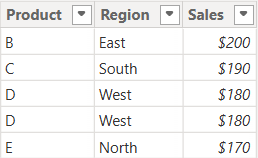
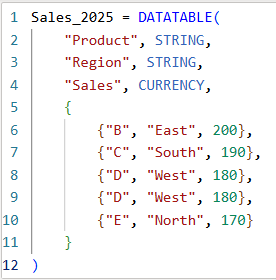
Table: Sales_2025

The above table (Sales_2025) was created using the following DAX code utilizing the DATATABLE function (or you could enter the data directly using the Enter Data feature in Power BI):

Now that we have our two test tables, we can now use them to explore the 3 table / set functions – Union, Intersect, and Except.

1. UNION – Combine Rows from Multiple Tables

The UNION function returns all rows from both tables, including duplicates. It requires the same number of columns and compatible data types in corresponding columns in the the tables being UNION’ed. The column names do not have to match, but the number of columns and datatypes need to match.

DAX Syntax:

UNION(<Table1>, <Table2>)

For our example, here is the syntax and resulting dataset:

UnionTable = UNION(Sales_2024, Sales_2025)

As you can see, the UNION returns all rows from both tables, including duplicates.

If you were to reverse the order of the tables (in the function call), the result remains the same (as shown below):

To remove duplicates, you can wrap the UNION inside a DISTINCT() function call, as shown below:

2. INTERSECT – Returns Rows Present in Both Tables

The INTERSECT function returns only the rows that appear in both tables (based on exact matches across all columns).

DAX Syntax:

INTERSECT(<Table1>, <Table2>)

For our example, here is the syntax and resulting dataset:

IntersectTable = INTERSECT(Sales_2024, Sales_2025)

Only the rows in Sales_2024 that are also found in Sales_2025 are returned.

If you were to reverse the order of the tables, you would get the following result:

IntersectTableReverse = INTERSECT(Sales_2025, Sales_2024)

In this case, it returns only the rows in Sales_2025 that are also found in Sales_2024. Since the record with “D – West – $180” exists twice in Sales_2025, and also exists in Sales_2024, then both records are returned. So, while it might not be relevant for all datasets, order does matter when using INTERSECT.

3. EXCEPT – Returns Rows in One Table but Not the Other

The EXCEPT function returns rows from the first table that do not exist in the second.

DAX Syntax:

EXCEPT(<Table1>, <Table2>)

For our example, here is the syntax and resulting dataset:

ExceptTable = EXCEPT(Sales_2024, Sales_2025)

Only the rows in Sales_2024 that are not in Sales_2025 are returned.

If you were to reverse the order of the tables, you would get the following result:

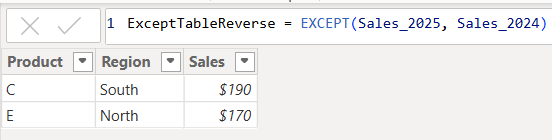
ExceptTableReverse = EXCEPT(Sales_2025, Sales_2024)

Only the rows in Sales_2025 that are not in Sales_2024 are returned. Therefore, as you have seen, since it pulls data from the first table that does not exist in the second, order does matter when using EXCEPT.

Comparison table summarizing the 3 functions:

FunctionUNIONINTERSECTEXCEPT
Purpose & OutputReturns all rows from both tablesReturns rows that appear in both tables (i.e., rows that match across all columns in both tables)Returns rows from the first table that do not exist in the second
Match CriteriaColumn position (number of columns) and datatypesColumn position (number of columns) and datatypes and valuesColumn position (number of columns) and datatypes must match and values must not match
Order Sensitivityorder does not matterorder matters if you want duplicates returned when they exist in the first tableorder matters
Duplicate HandlingKeeps duplicates. They can be removed by using DISTINCT()Returns duplicates only if they exist in the first tableReturns duplicates only if they exist in the first table

Additional Notes for your consideration:

  • Column Names: Only the column names from the first table are kept; the second table’s columns must match in count and data type.
  • Performance: On large datasets, these functions can be expensive, so you should consider filtering the data before using them.
  • Case Sensitivity: String comparisons are generally case-insensitive in DAX.
  • Real-World Use Cases:
    • UNION – Combining a historical dataset and a current dataset for analysis.
    • INTERSECT – Finding products sold in both years.
    • EXCEPT – Identifying products discontinued or newly introduced.

Thanks for reading!

How to enter data using DAX DATATABLE function in Power BI

I previously posted an article about how to manually enter data into Power BI using the Enter Data feature. That article can be found here: https://thedatacommunity.org/2024/08/03/how-to-enter-data-manually-and-update-it-in-power-bi/. This post shares how to use DAX to create a table with data in Power BI, an alternative way of creating data manually, which can be useful in many scenarios.

In Power BI Desktop, from the Table tools menu, click New Table:

Enter the code for the new table and data as shown in the example below:

The example code below shows the syntax for the DATATABLE function. You need to specify the table name (the name in the example below is “Games Table created using DAX”), and column names and their corresponding datatypes, and then provide the data as a list of values within braces to represent each row of data. STRING values are enclosed in quotes as usual.

Then click the checkmark to run the code/create the table with data.

When you review the table in the Table View, it will look like this, just like other tables look:

This table and data can then be used as any other table and data loaded into Power BI.

Thanks for reading. I hope you found this useful.