Month: September 2024

Why can’t I download my report from Power BI Service to a pbix file?

You might be attempting to download a report from the Power BI Service to a pbix file and do not see that option or that option is not active or selectable. The reason you cannot select the option is most likely because the report was created in the Power BI Service as opposed to using the Power BI Desktop.

When a report is created in the Power BI Service, you are not able to download that report to a Power BI pbix file. That option is only available when you create the report using the Power BI Desktop and then publish it to the Power BI Service.

Thanks for reading!
Activating or Deactivating “Preview Features” in Power BI

Microsoft frequently adds new features that are available for preview in Power BI. This is a way for Microsoft to launch the features and have them tested by the community before making them fully available in the Power BI application. These features are sometimes in preview mode for a long time, and you may find that you want to use one or more of these features before they become generally available.

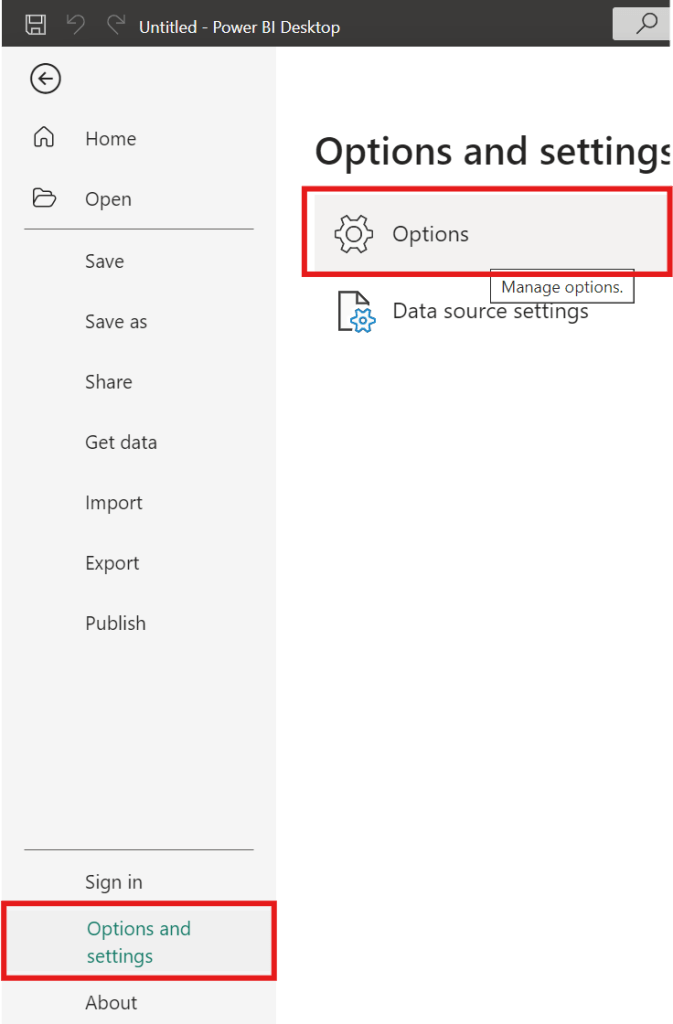
To activate (or deactivate) preview features, go to … File –> Options and settings –> Options

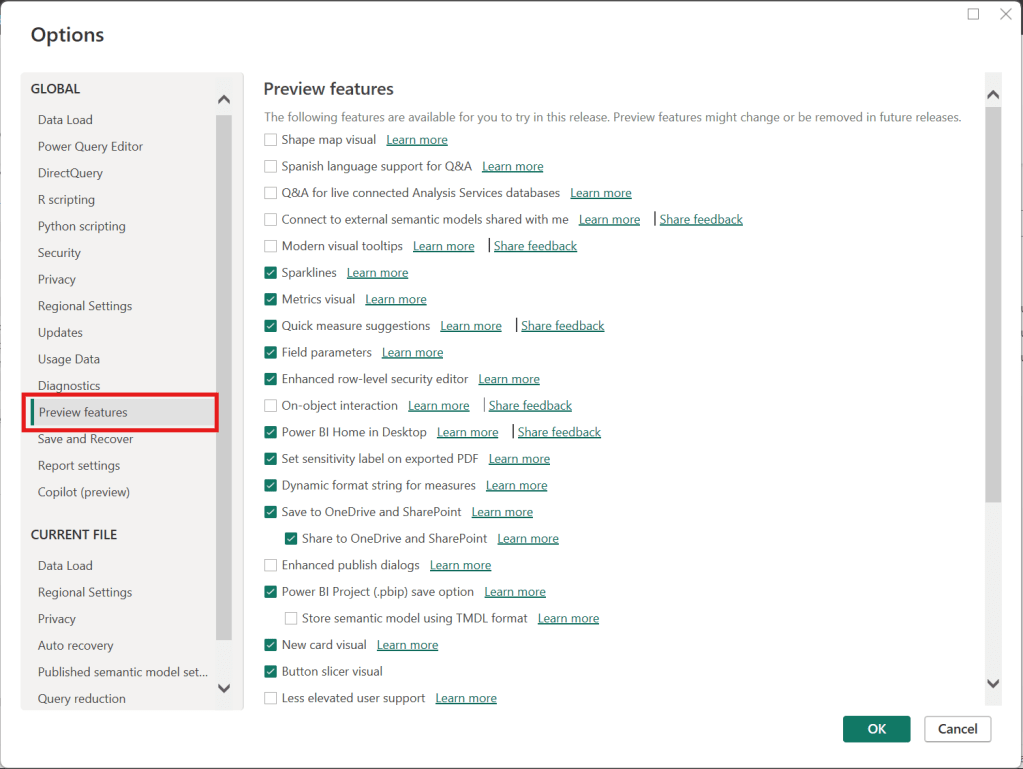
Then, in the Options window, select “Preview features” (on the left) as shown below.

Then, select the options you would like to activate or deactivate on the right side, such as checking “Shape map visual” to activate it or unchecking “Sparklines” to deactivate it. Once you have selected or unselected all the features you want, then click “OK”. Then, make sure to save whatever you need to, and then close and reopen Power BI for the activations or deactivations to take effect.

Thanks for reading.