
Power BI allows you to sort one column, such as a column displayed in a visual, by another, such as one that is not displayed. Here we will explain how this is done.
A very common case of this is with “Month Name”. You typically want to display the Month Name (Jan or January, …, Dec or December, etc.) and not the Month Number (1, 2, …, 12). And instead of sorting the month name alphabetically (Apr, Aug, Dec, …, Sep), typically you want to sort it chronologically (Jan, Feb, Mar, …, Dec).
In this made-for-example scenario, you have Sales by Month, and when you sort by Month, it is displayed as shown below – as expected in alphabetical month order.

But as mentioned before, we really want the months sorted in chronological order. To do this, we need to sort the Month Name by the Month Number.
Click the “Month” field (month name) in the Data pane, and then click the “Sort by column” icon dropdown, and select “Month No” (month number). This is telling Power BI to sort the month (Month) by the month number (Month No), instead of the month name (Month).

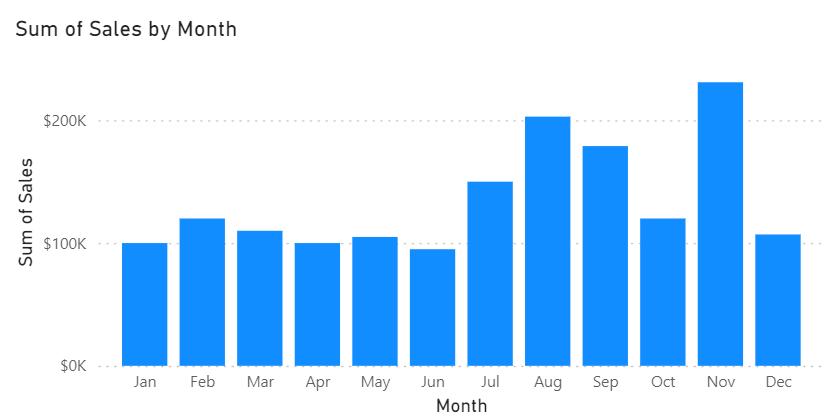
So, now your Sales by Month visual with the same sorting will look like the below – sorted by month chronologically.
Thanks for reading!
 The Data Community