Month: August 2024

SQL Tips: How to generate insert statements using the data from the output of a select statement using Toad

If you need to build insert statements for many rows of data for inserting that data into another table or into the same table in a different environment, there is a convenient way to do this in Toad. This is often needed to move data around.

In Toad, execute the appropriate select statement on the source table …

Select * from [my_schema].[my_simple_table];

I used a simple “select *” above, but your SQL statement can be any valid SQL statement that returns the data you want to insert into the other table. You may add specific columns, add filters, joins, and any other valid SQL operation.

Let’s say you want to insert the output into another table in a different schema.

Right-click on the output result data, and click “Export Dataset…”

From the “Export format” drop down menu, choose “Insert Statements”

In the Output section of the Export Dataset dialog box, enter the location and name of the Insert Script file that will be generated.

There are several other parameters that you could choose but we won’t cover them all here.

If you only wanted to generate inserts for some selected rows, select “Export only selected rows”.

If you need to specify the schema of the target table, select “Include schema name”

In the Table section, enter the name of the target schema and table

Note, there are data masking options available that can be very useful if, for example, you are moving some data from a Production environment to a Non-Production environment, and you do not want to expose the data there.

After you have set the parameters relevant to your scenario, Click “OK”.

The Insert Script file of all the data will be generated with the filename and at the location you specified. And the insert statements will include the name of the schema and table you specified.

Thanks for reading!

Data Cleaning methods

Data cleaning is an essential step in the data preprocessing pipeline when preparing data for analytics or data science. It involves identifying and correcting or removing errors, inconsistencies, and inaccuracies in the dataset to improve its quality and reliability. It is essential that data is cleaned before being used in analyses, reporting, development or integration. Here are some common data cleaning methods:

Handling missing values:

  • Delete rows or columns with a high percentage of missing values if they don’t contribute significantly to the analysis.
  • Impute missing values by replacing them with a statistical measure such as mean, median, mode, or using more advanced techniques like regression imputation or k-nearest neighbors imputation.

Handling categorical variables:

  • Encode categorical variables into numerical representations using techniques like one-hot encoding, label encoding, or target encoding.

Removing duplicates:

  • Identify and remove duplicate records based on one or more key variables.
  • Be cautious when removing duplicates, as sometimes duplicated entries may be valid and intentional.

Handling outliers:

  • Identify outliers using statistical methods like z-scores, box plots, or domain knowledge.
  • Decide whether to remove outliers or transform them based on the nature of the data and the analysis goals.

Correcting inconsistent data:

  • Standardize data formats: Convert data into a consistent format (e.g., converting dates to a specific format).
  • Resolve inconsistencies: Identify and correct inconsistent values (e.g., correcting misspelled words, merging similar categories).

Dealing with irrelevant or redundant features:

  • Remove irrelevant features that do not contribute to the analysis or prediction task.
  • Identify and handle redundant features that provide similar information to avoid multicollinearity issues.

Data normalization or scaling:

  • Normalize numerical features to a common scale (e.g., min-max scaling or z-score normalization) to prevent certain features from dominating the analysis due to their larger magnitudes.

Data integrity issues:

Finally, you need to address data integrity issues.

  • Check for data integrity problems such as inconsistent data types, incorrect data ranges, or violations of business rules.
  • Resolve integrity issues by correcting or removing problematic data.

It’s important to note that the specific data cleaning methods that need to be applied to a dataset will vary depending on the nature of the dataset, the analysis goals, and domain knowledge. It’s recommended to thoroughly understand the data and consult with domain experts when preparing to perform data cleaning tasks.

Custom Workday Report Types

There are eight (8) types of custom report in Workday. Users with the appropriate permissions (security domains) are able to create custom reports and when they do, they must select from one of these eight (8) types. The types are shown in the image below.

This article describes the different types of custom reports that users can create (and use) in Workday. 

Simple

As the name implies, this type is meant for the simplest reports – reports built on a single business object and has no calculated fields. Simple reports provide a straightforward user interface that allows the report creator to select a set of fields, and optionally set sort and filter criteria. This report type cannot be later modified to add additional business objects or calculated fields. Also, this report type cannot be used as a web service. For this reason, this report type is not often used. 

Advanced

This is the most used report type in Workday (estimated to typically be 90% of reports). As you might assume, this report allows for everything the Simple report offers plus some additional features. Data for the report can come from a Primary business object and Related business objects.

Also, these reports can have calculated fields, multiple levels of headings and sub-totals, sub-filtering, run time prompts, charting, worklets, and can be used as a web service. Reports used as a source for Prism Analytics must be of the Advanced type.

Composite 

Composite reports are made up of different existing matrix reports. 

Matrix

As the name implies, a Matrix report contains both row and column headers. It summarizes numeric data by one or two fields, that contain repeating values and displays them in a matrix that can be rendered as a drillable table or chart. As with other report types, Matrix reports also allow for filtering, run time prompts, worklets, and report sharing.

Trending

Trending reports group and summarize data by time periods allowing users to perform trend analysis.

Transposed

As the name suggests, Transposed reports turn the columns (of data) into rows (of data) and the rows into columns.

Search

Search reports display the various search results that are based on values selected/choices made for the report’s facet filters. Search reports can also be used as a web service in outbound EIBs.

nBox

nBox reports are used to calculate all the information, count data, and display the information in a two-dimensional matrix.

Thanks for reading!

Add a “Last Refreshed Date” notification on a Power BI dashboard

It is customary to add a “Last Refreshed Date” to dashboards to notify users of when the dashboard was last refreshed. Here will go through the steps of adding a “Last Refreshed Date” to a Power BI dashboard.

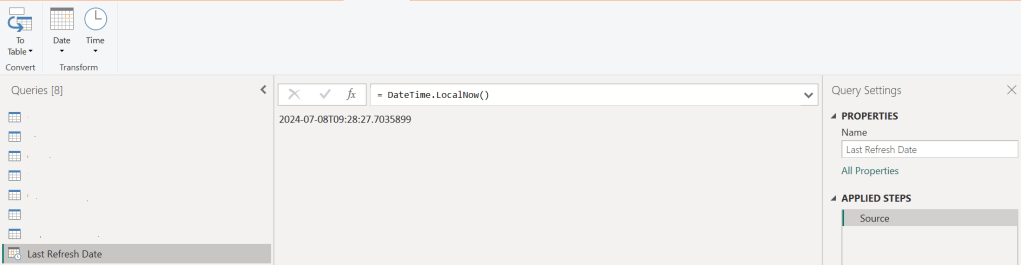
Open the dashboard you want to add the notification to in Power BI Desktop, and then Get Date -> Blank Query. Name the new query as “Last Refreshed Date” or something like that.

Then, set the value as shown below, by typing “= DateTime.LocalNow()” into the formula area:

Next, convert the value to a Table by clicking the “To Table” icon, and then clicking the “To table” option:

A table with the single date column is created

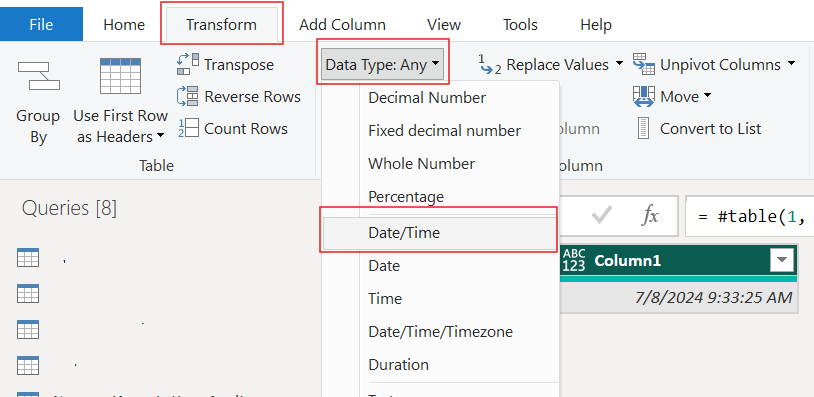
Set the data type as Date/Time …

… and rename the column to something meaningful, such as “Last Refreshed Date” …

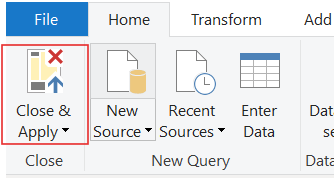
Close and apply your changes.

The table will be added to your Power BI model. It should have no relationships.

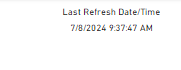
Now, add a Card visual to your dashboard, place it where it is visible but out of the way, such as in the top-right or bottom-right corner, and add the Last Refreshed Date column to it from the new table. Now, whenever your dashboard is refreshed, this new table and visual will also be updated/refreshed.

Thanks for reading!

Transpose vs. Pivot vs. Unpivot in Power BI

In this post, I will quickly show how to perform 3 key transformations in Power BI – Transpose, Pivot, and Unpivot – and what impact they have on the data they are applied to. These transformations are often needed to manipulate the original data to get it into the shape needed to create the Power BI model and reports. We will use a simple example so that you can see clearly the effect of each transformation.

This is the original dataset – Student Grades:

Transpose

Transpose the data by going to the Transform ribbon and clicking “Transpose”.

This is what the data looks like after the Transpose transformation is applied. The rows are converted into columns, and the columns are converted into rows. Default headers / column names are applied.

Pivot Column

Starting with the original dataset, we will now Pivot the dataset. Go to Transform ribbon, click on “Pivot Column”.

The Pivot Column dialog opens. As noted, it will use the values in the Names column to create new columns, and will use the Score column as the Values Column.

This is what the data looks like after Pivot is applied as described above. Pivot Column converts the selected Name column values into column headers.

Unpivot Columns

Starting with the original dataset, we will now Unpivot the dataset. First select all 4 name columns by using “Ctrl + Click”.

Then, go to Transform ribbon, click on “Unpivot Columns”. This is what the data looks like after the Unpivot Columns transformation is applied. Unpivot Columns converts the selected columns (the name columns in this case) into a column of values (Attribute) and the column values are stored in the Value column.

Thanks for reading!

How to reopen the Query Settings pane that has the APPLIED STEPS in Power BI Power Query

If you have closed the Query Settings pane (the pane that has the APPLIED STEPS) in Power Query of Power BI and need to bring it back (reopen it), go to the View ribbon, and click the “Query Settings” icon.

The Query Settings pane which shows all the APPLIED STEPS (transformations) that have been applied to the data brought into the Power BI application will open at the right of the screen (where it normally resides).

Thanks for reading!

Setting a table as a date table in Power BI to be able to use the delivered Time Intelligence functions

It is common to have the need to perform time-driven analysis on your data. For example, you may need to compare this month’s sales with the sales from the same period a year ago or you may need to calculate the number of days between two dates. Power BI provides a set of Time Intelligence functions that make it easy to perform these types of calculations. But to take advantage of the Time Intelligence functions in Power BI, you must have a date table in your Power BI model and to have that you will need to “mark” a table as a date table.

To mark a table as a date table, it must meet the following criteria:

  • It must have a column of data type “Date” or “Date/time”. This will be referred to as the “date column”.
  • The date column must contain unique date values. For example, you cannot have the value “3/1/2022” (or any other date value) listed twice (or more than once) in the table.
  • The date column must not contain BLANKs or NULLs. Only unique date values should be in the table’s date column.
  • The date column must not have any missing dates or gaps in dates. For example, you cannot have 1/1/2022 and then 1/3/2022 and not have 1/2/2022 in the date values.
  • The date column must span full years. Keep in mind that a year isn’t necessarily a calendar year (January-December), but should cover the entire 12 months, such as all dates between July 1, 2022 – June 30, 2023, inclusive. If you have less than one year’s dates in your table, then the range can be less than a year, but there cannot be any gaps. Also,

Once these rules are met, you can then mark the table as the date table. To do this, you can either right-click on the table in the Data pane and select “Mark as date table” (as shown below):

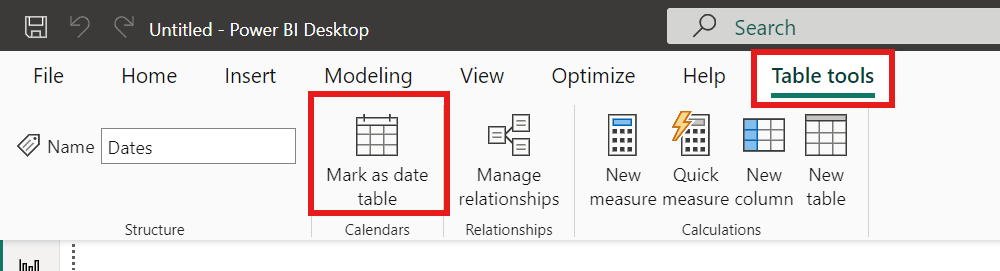
Or with the table selected in the Data pane, from the Table Tools tab, click on the “Mark as date table” icon. This icon will be grayed out if there are no date columns in the table.

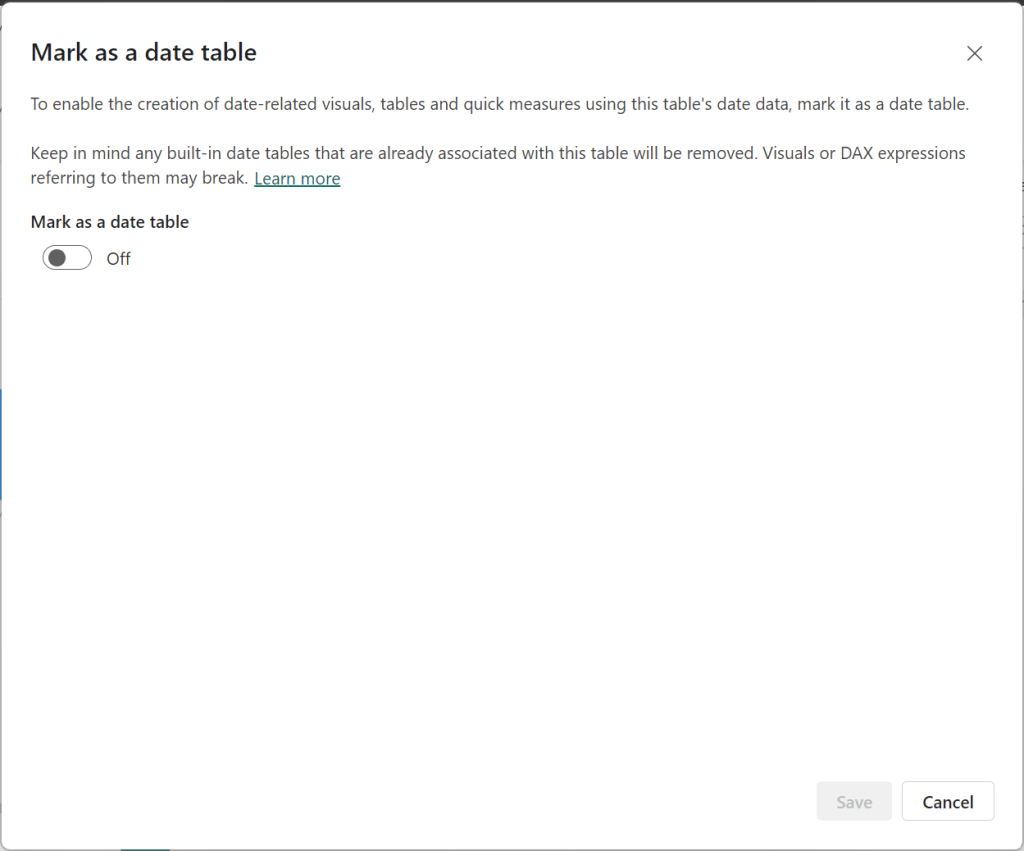
The “Mark as date table” dialog opens (which includes a warning), from which you can turn on the “Mark as date table” flag.

Turn on the flag, and then select / set the date column from the dropdown.

Power BI will then validate your data to make sure all the criteria is met for the chosen column. If you get an error, make the necessary changes and try again.

Thanks for reading!

How to create an Index column or ID column in Power BI

When working with data, you may need to add an index column (or an ID column) to your data. For example, you may have a list of products (names and descriptions) but you do not have an ID for each product, and you need to assign one to each product, perhaps for data modeling purposes.

To add an index or ID column to each row, you will do this in the Power Query Editor. With your query (table) open, go to the “Add Column” tab where you will see the “Index Column” option. 

You can click the menu item to use its default option – which will add an index column that starts at zero (0) – as shown below.

Or you may click the dropdown (to the right of the Index Column menu item) to choose from 3 available options (From 0, From 1, or Custom).

“From 0” will add an index column that starts at zero (0) as shown above (in the default example).

“From 1” will add an index column that starts at one (1), as shown below:

“Custom” will open a dialog for you to enter the “Starting index” value and the “Increment” between each value. In the example below, the starting index value is set to 1000, and the increment is set to 5.

This means that the first value in the index column will be 1000, the second value will be 1005, the third 1010, and so on. This is shown below.

Once your index column is added, you can rename it and move it as desired. For example, you may rename the column name to Product ID and move the column to the front of the table as shown below.

Thanks for reading. I hope you found this useful.

How to enter data manually (and update it) in Power BI

Enter Data

Whether you need to create a small lookup table or you need data in a small table to test an idea or feature, you may have the need to manually or directly enter data into a table in Power BI. To do this you will use the “Enter Data” feature available in the “Home” tab/ribbon in the Power Query Editor.

Click the “Enter Data” ribbon icon. It will open the “Create Table” window (dialog) – shown below.

Enter the desired data, including the column names for as many columns as you need, and the values for as many rows as you need. However, typically this feature is used for small table (few columns and few rows). It is best to have larger data tables in a database or file. In the example below, 3 columns and 5 rows of office location information were entered.

Also, name the table appropriately. The table is named “Location” in the example above.

Once you are done entering the data and naming your table, click OK. The table will be added as a query. You can now use this table/query just like any other query in Power Query.

Update Data

After you have created the new query, how do you update the data? Whether you need to make a correction or an update to existing data or add new data, select the query, then in the “APPLIED STEPS” pane to the right, click on the gear icon in the “Source” step.

This will reopen the “Create Table” window from where you can add, delete, and update any of the records.

Thanks for reading.

How to sort a column by another column in Power BI

Power BI allows you to sort one column, such as a column displayed in a visual, by another, such as one that is not displayed. Here we will explain how this is done.

A very common case of this is with “Month Name”. You typically want to display the Month Name (Jan or January, …, Dec or December, etc.) and not the Month Number (1, 2, …, 12). And instead of sorting the month name alphabetically (Apr, Aug, Dec, …, Sep), typically you want to sort it chronologically (Jan, Feb, Mar, …, Dec).

In this made-for-example scenario, you have Sales by Month, and when you sort by Month, it is displayed as shown below – as expected in alphabetical month order.

But as mentioned before, we really want the months sorted in chronological order. To do this, we need to sort the Month Name by the Month Number.

Click the “Month” field (month name) in the Data pane, and then click the “Sort by column” icon dropdown, and select “Month No” (month number). This is telling Power BI to sort the month (Month) by the month number (Month No), instead of the month name (Month).

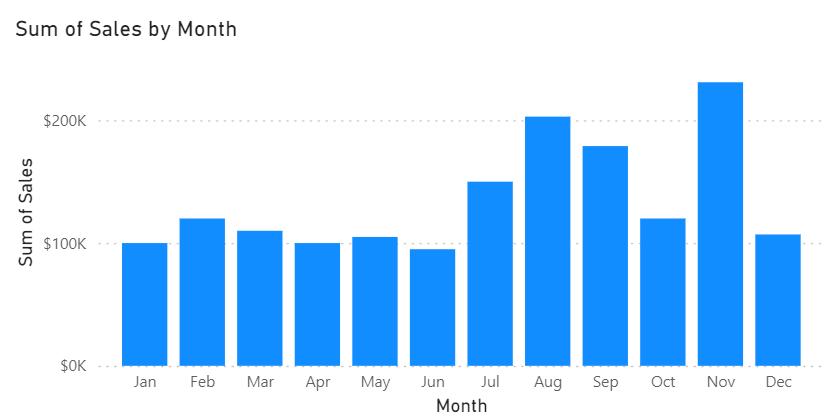
So, now your Sales by Month visual with the same sorting will look like the below – sorted by month chronologically.

Thanks for reading!