Month: June 2023

Power BI: Calculated Columns vs Measures

Creating a Calculated Column or a “Calculated” Measure in Power BI will both result in a new field that you can use in reports. However, they are different in several ways.

A Calculated Column is evaluated at the row-level and returns/stores one value for each row. For example, if you have the two columns, Revenue and Expenses, you can create a Calculated Column for Profit using the following formula: Profit = Revenue – Expenses. Profit would be calculated for each row during data load and would add a new column to the dataset and be stored with the dataset, and therefore, increase the size of your Power BI model.

A Measure on the other hand, is evaluated across multiple rows. For example, you can sum your entire Revenue column to get Total Revenue. Your formula would be something like: Total Revenue = SUM(Revenue). In the case of measures, they are not new columns in your dataset, but are fields that can be added to visualizations that are calculated at query time when accessed. Therefore, Measures are not stored and do not increase your model size. Measures, such as Total Revenue, will adjust based on the filters applied to the data. For example, if you applied a filter of Year = 2021, then the Total Revenue would be the sum of Revenue for the year 2021, and this is why Measures must be calculated at query time, unlike Calculated Columns whose individual row values are not affected by filters.

Here’s a tabular summary of Calculated Columns vs Measures:

Calculated ColumnsMeasures
Profit = Revenue – Expenses

Calculated for each row
Returns one value per row
Total Revenue = SUM(Revenue)

Calculated in aggregate across multiple (possibly all) rows
Returns a value based on some aggregate across many rows
Adds a new column; is pre-calculated and stored in memory along with the rest of the data; increases model sizeAdds a new field; is not stored in memory but makes use of CPU to perform the calculation; does not increase model size
You can see the results of a Calculated Column as soon as you define it You can see the results of a Measure only after it has been added to a visual and displayed
Calculated at data loadCalculated at query time, such as when a user opens a visualization that includes the field or when the user changes the filters applied to the data being displayed
Column names, including Calculated Columns, must be unique within a table. Different tables may have the same column name.Measure names must be unique across the entire data model. Therefore, tables cannot contain Measures with the same name.
Calculated Columns vs. Measures in Power BI

Generally, since Calculated Columns increase the model size and can degrade performance, unless you intend to use the values from your Calculated Columns as categories or filters in your visualizations, it is better to create Measures.

Thanks for reading. I hope you found this article useful.

Good luck on your analytics journey!

Power BI: Customizing the page/canvas size

One of the first things you may notice when creating new reports in Power BI, especially if converting existing reports from other BI tools to Power BI, is that the canvas (page) size is relatively small. In many cases it is too small to hold all the visualizations, slicers, text and headers you want to include. This is by design I think, where the intent is to keep the number of visualizations and information on a report page to a focused set. However, you may find that the default settings are a bit too small. You can customize the canvas size as follows:

In the Report view, make sure that no visualizations are selected (click on a blank area on the report page if necessary). Go to the Visualizations pane.

Click the Format icon. Then expand the Canvas settings section. There you can choose Custom from the Type dropdown, and set your desired custom Height and Width for the canvas area.

Note: If you have not upgraded your Power BI Desktop in the last few months, the Visualizations pane and Format icon may look a little different.

Thanks for reading. I hope you found this useful.

Power BI Storage modes

Power BI allows us to connect to many different data sources – from relational databases, NoSQL databases, files, and more – to source data for consumption in Power BI. From the data sourced, you can create additional data (new calculated columns, metrics, transformed data, etc.), build data models, and create reports and dashboards.

There are a few storage modes related to how the data is retrieved, stored, and processed in Power BI. The storage modes are Import, DirectQuery, Live Connection, and Dual. The storage mode is set at the table level for each table in the Power BI data model. I will now describe these modes.

Import

With the Import storage mode, Power BI imports and caches the data from the sources. Once the data import is complete, the data in Power BI will remain the same until is refreshed by the Power BI refresh process for that dataset.

This storage mode allows for the usage of the most Power BI features for data modeling and analysis. For example, Import mode is required for using two of the popular Power BI features, Quick Insights and Q&A. Also, this mode is almost always the best for performance. However, it’s not necessarily the best option in all scenarios. Since the data is imported, the file size can get large and can sometimes take a considerable amount of time to load. But generally, for relatively static, low volume data, it is the preferred choice.

Queries submitted to an imported dataset will return data from the cached data only.

DirectQuery

With the DirectQuery storage mode, no data is cached in Power BI, but the metadata of the source tables, columns, data types, and relationships is cached. Instead, the data is directly queries on the source database when needed by a Power BI query, such as when a user runs a Power BI report that uses the data.

For Since the data is not imported, if all the tables in the data model use DirectQuery, the Power BI file size will be very small compared to a model with imported data.

Live Connection

The Live Connection storage mode is a special case of the DirectQuery mode. It is only available when sourcing from Power BI Service datasets or Analysis Services data models. There are limitations when using this mode. Data modeling is limited to creating measures, and therefore, you cannot apply transformations to the data, and you cannot define relationships within the data. And you can only have one data source in your data model.

Dual

With the Dual storage mode, a table may use Import mode or DirectQuery mode, depending on the mode of the other tables included in the query. For example, you may have a scenario in which you have a Date table that is connected to one transaction table that needs to reflect the data in the source, and is therefore set to DirectQuery mode, and also connected to another transaction table that only has less than 100,000 rows and is set to Import storage mode. By setting the Date table to Dual storage mode, Power BI will use DirectQuery when the query involves the date table and the first transaction table, while using Import mode when the query involves the date table and the second transaction table.

The below table summarizes the Power BI data storage modes:

ImportDirectQueryLive ConnectionDual
-Data is imported and cached in Power BI

-Preferred for static, relatively small datasets

-All Power BI functionality is available – including DAX, Calculated tables, Q&A and Quick Insights

-Can connect to Analysis Services but Live Connection is preferred

-Can have unlimited data sources

-Typically provides the best performance


-Data is queried on the source when needed

-Use for large datasets and when data changes in source need to be updated immediately

-Features such as Q&A, Quick Insights, Calculated Tables, and many DAX queries are not supported

-Limited data transformation functionality

-Parent-child functionality not supported

-For relational databases

-Not supported for Analysis Services

-Performance greatly dependent on the source data source
-A special case of DirectQuery

-Used for connecting to multi-dimensional data sources, such as Analysis Services

-Can be used only with Power BI datasets and Analysis Services

-Can have only one data source

-No data transformation available

-Q&A and Quick Insights not available

-Can create measures


-A combination of Import and DirectQuery

-Power BI will choose the appropriate option based on the storage mode of the tables involved in the query

-Can improve performance


Summary of Power BI storage modes

 Note: the content in this post is relevant for the PL-300 Analyzing Data with Microsoft Power BI certification exam.

Thanks for reading! I hope you found this information useful.

Good luck on your analytics journey!

What is HR / People / Workforce Analytics?

An organization’s most important resource is its staff. Understanding how to take the best care of your staff and help them to be highly engaged and productive is key to the success of the organization. HR Analytics / People Analytics / Workforce Analytics can help with this. But what is that exactly?

Analytics is a multi-disciplinary field that involves the collection and curation of data, and the analysis of that data using a variety of methods and tools, to discover, interpret and share information and insights, to help develop better business understanding and help guide decision making, usually toward achieving an organization’s goals. HR / People / Workforce Analytics is analytics around an organization’s candidates and staff, and HR actions and operations. The term most commonly used for this area of specialization by people in the field has shifted from HR Analytics to People Analytics over the years, and is now trending toward Workforce Analytics, so I will just use Workforce Analytics for the rest of the article.

The data used for Workforce Analytics will come from many sources inside and outside the organization including, but not limited to, Human Capital ERP systems, Workforce applications, Recruiting applications, Payroll applications, scheduling applications, employee and candidate surveys, social media, Glassdoor, and more. This data can be transformed, integrated and aggregated as appropriate, and then analyzed to provide information to help with operational and strategic decision making around areas such as staffing, recruiting, retention, turnover, absence, compensation and benefits, employee engagement, job satisfaction, performance and productivity, training and development, diversity, equity and inclusion, and operational efficiency, among others.

This analysis is usually performed across time periods (months, years) to allow for period-to-period comparisons and trend analysis to determine if the various metrics being measured and analyzed are improving or not. And the analysis is also usually done across all levels of the organization, so that information is available to support decision making for the entire organization or for a single department or for a specific segment of employees (such as all the clinical employees within a healthcare organization) or potentially for an individual employee.

The end goal usually includes helping with efforts such as:

  • Understanding the current workforce landscape and knowing any operational tasks that need to be performed
  • Hiring better candidates by predicting candidate success and reducing recruiting/hiring costs
  • Improve employee engagement through a better understanding of employee’s true needs, and what is working and what is not, and reducing absences as a result
  • Increase employee productivity through a better understanding of how employees work and things that slow them down
  • Reducing turnover by predicting employees at a high risk of turnover and implementing proactive retention measures
  • Forecast future staffing needs to better prepare for it with recruiting and training & development
  • Determining the business impact of HR initiatives

The diagram below summarizes the Workforce Analytics components to give you an overview of this article in a quick glance.

Of course, all organizations are different, and so the goals of an organization, the type of data available and the type of analyses of interest to an organization, will vary. But the importance and value of Workforce Analytics, which helps organizations make the most of their most important resource, is critical to just about all medium to large organizations, regardless of industry and prior success.

Good luck on your analytics journey!

The 5th type of analytics – cognitive analytics

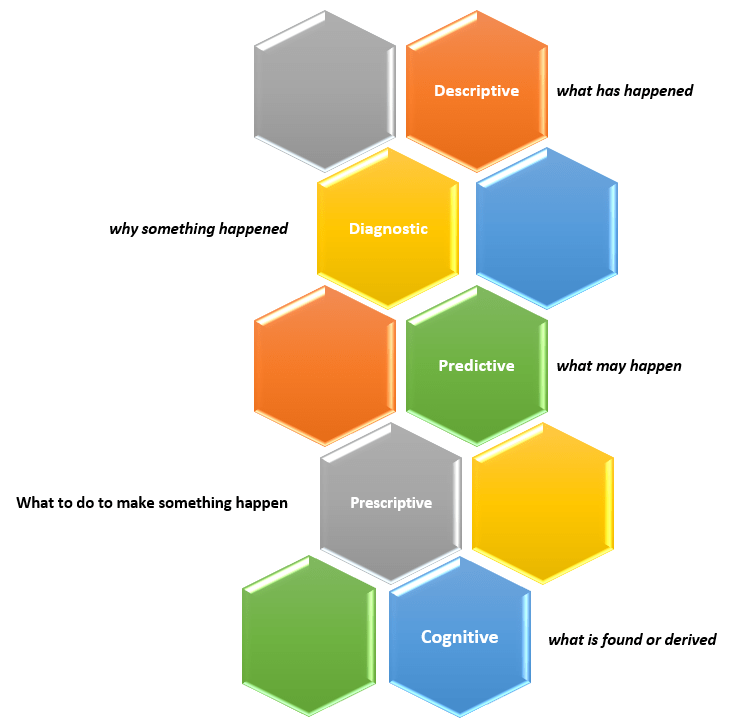
Sometime ago, I wrote an article titled “What is data analytics? And what are the different types of data analytics?”. In that post, I described four types of analytics:

  • Descriptive Analytics – what has happened?
  • Diagnostic Analytics – why something happened?
  • Predictive Analytics – what may happen (in the future)?
  • Prescriptive Analytics – what to do to make something happen?

You can read that full article here.

New capabilities and solutions have led to a new classification of analytics called Cognitive Analytics.

Cognitive Analytics involves bringing together technologies such as Artificial Intelligence (AI), Machine Learning (ML), and Deep Learning to apply human-like behavior to data tasks at unhuman scale, such as, searching through massive amounts of data and making sense of its contexts and be able to provide information from it, such as a likely answer or a sentiment score. This form of analytics provides new solutions that do not fit into any of the other four classifications and, in short, can be dubbed as “what is found or derived“.

There are many use cases that could benefit from this type of analytics, such as, personalization of services at scale, and improved customer service efficiency.

Thanks for reading and best wishes on your data journey!