
In this post, I will go through the simple process of installing QlikView Desktop.
From the Qlik website (www.qlik.com), navigate or search for the download. Download the Free Personal Edition of QlikView. You will need to register to download.
Click the FREE DOWNLOAD button to download the software.
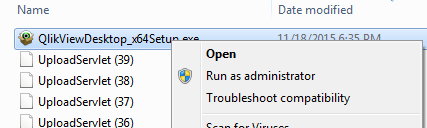
After the download is complete, navigate to where you downloaded the software. Double-click on the executable to run the program and start the install wizard, or in some cases, you may need to Right-click and select Run as administrator.
Choose your language and click OK.

The Install Wizard is prepared.

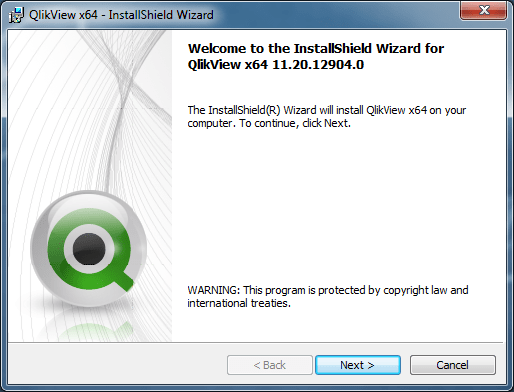
Click Next at the Welcome dialog.
Accept the license agreement and click Next.

Enter Name and Organization name.

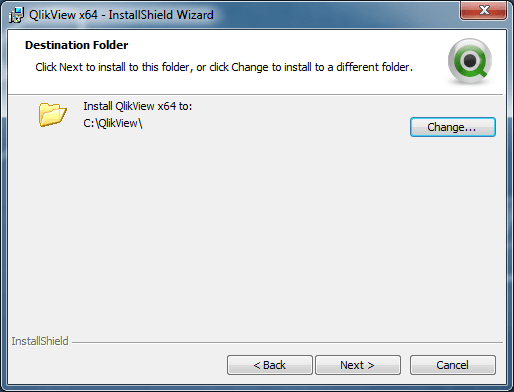
Accept the default directory or choose / enter the directory to which QlikView should be installed. The example below shows a non-default directory selected.

Click Next to confirm the destination folder.
Choose Complete installation type (makes sense in most cases).

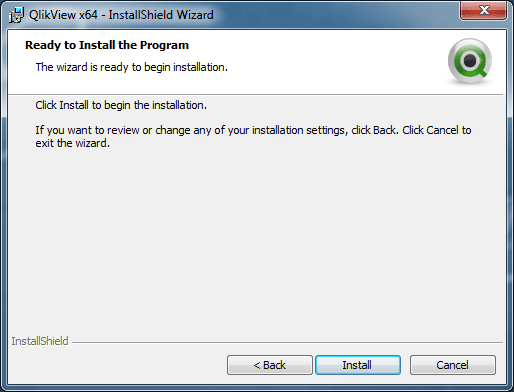
Click Install to start the installation
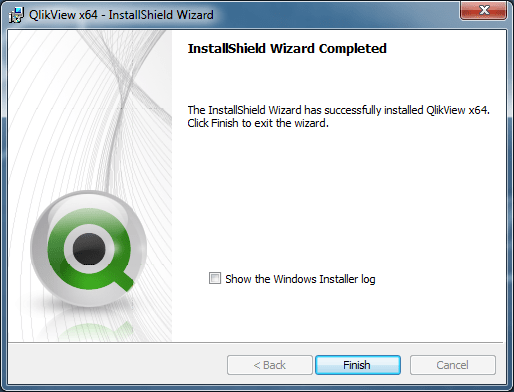
It’s Complete. Click Finish.
Go to the Windows Start menu and navigate to QlikView. Launch the program.

QlikView launches.

You have successfully installed QlikView and you are ready to get going. It’s that simple.
 The Data Community